How to Add Products in O2VEND POS & Ecommerce (Complete Catalog Guide)
Product Creation & General Section Guide
Proper product setup is the foundation for smooth billing, accurate inventory tracking, and consistent product visibility across sales channels.
This guide explains how to add, configure, and manage products in O2VEND POS and Web Store, with a primary focus on the General section, where pricing, tax behavior, inventory rules, and product visibility are defined.
When products do not appear in POS or Ecommerce, the cause is usually an incomplete or incorrect catalog configuration.
Following this guide helps ensure products are visible, orderable, and billed correctly across both POS and Web Store environments.
Quick Answer: How to Add a Product in O2VEND?
- Back Office → Catalog → Products
- Click Create Product
- Enter Product Name, SKU, Category, Price, and Tax
- Enable Published & Allowed To Order
- Save the product
Once saved, the product becomes available for billing in POS and listing in the Web Store.
This setup process is recommended for all businesses using O2VEND POS and Ecommerce to avoid product visibility and billing issues.
Why Catalog Product Setup Matters
Proper catalog setup helps to:
- Improve product discoverability
- Ensure accurate pricing and tax calculation
- Reduce inventory inconsistencies
- Enable faster product updates
- Maintain consistency across sales channels
Each catalog product acts as a core data entity for sales, inventory tracking, and reporting in O2VEND.
General Section Overview
The General section contains the core configuration required to activate a product across the platform.
It defines:
- Product identifiers (Product Name, SKU, GTIN)
- Brand and category mapping
- Pricing, discounts, cost, and tax behavior
- Product visibility and ordering rules
- Descriptions and images for storefront display
Most configurations affecting visibility, pricing logic, and ordering flow are managed in this section.
Note
Review the General section before publishing to ensure correct behavior across Web Store and POS.
How to Create a Catalog Product
Creating a catalog product in O2VEND allows you to list, manage, and sell products across Web Store, POS, and other sales channels.
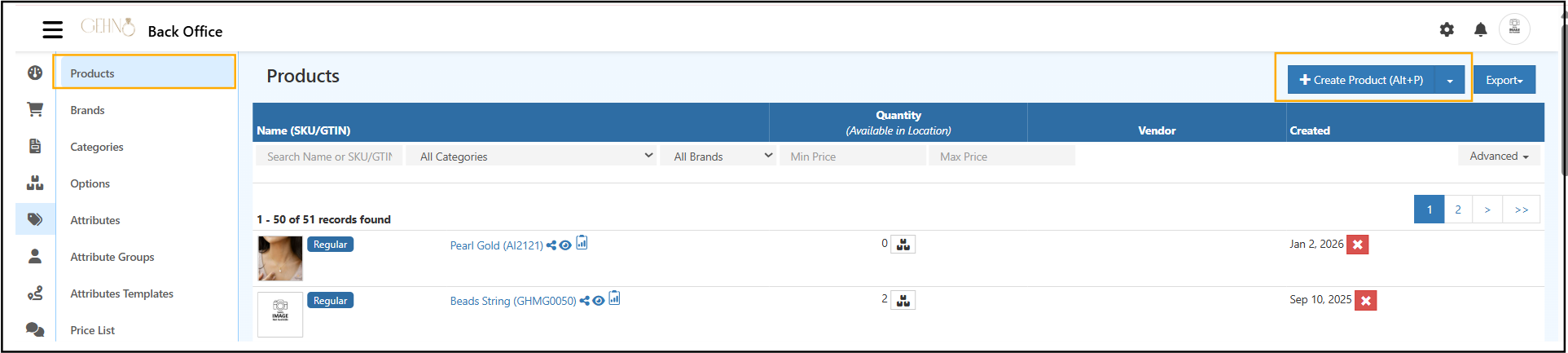
Steps to Create a Catalog Product
- Open Back Office
- Navigate to Catalog
- Click Products
- Click Create Product (top-right corner)
- Fill in the required details in each tab (starting with General)
- Click Save to create the product
Once saved, the product can be published to the web store or used in POS.
General
The General section contains the core information required to define, display, price, and sell a product in O2VEND.
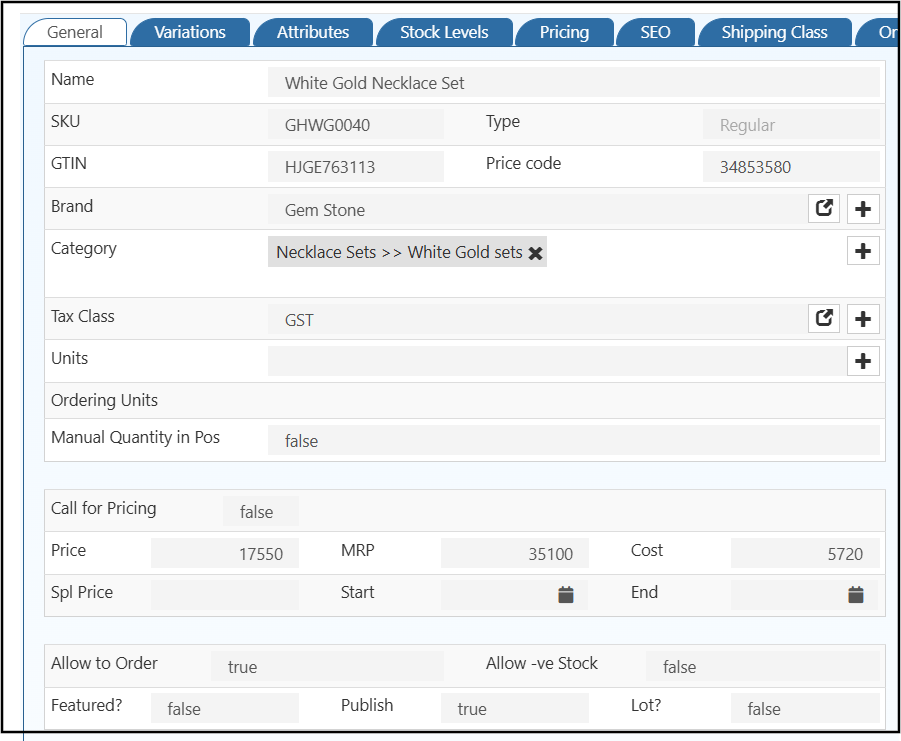
Product Name
Enter a Product Name. The Product Name is displayed under the Product Image in most O2VEND themes and across the catalog.
The Product Name is also used to generate the slug name, which becomes the product URL in the web store.
A clear and descriptive product name helps customers understand the product quickly and improves discoverability.
SKU and GTIN
Enter the SKU (Stock Keeping Unit) and/or GTIN (Global Trade Item Number) for the product.
The SKU or GTIN is used to:
- Generate barcodes
- Print barcode labels
- Scan products in the POS Sales Screen
When scanned, the product is added directly to the billing cart.
The same SKU or GTIN can be used across online and physical stores, enabling unified inventory tracking.
Brand
The Brand field is used to associate a product with a specific brand. This helps organize products and allows brands to be used for filtering, grouping, and reporting across the catalog.

In the General tab, the Brand field includes action icons next to the selector:
- Edit icon – Used to modify the selected brand details
- Create (+) icon – Used to create a new brand without leaving the product screen
Clicking the Create (+) icon opens the Brand creation page, where a new brand name and related details can be added. Once saved, the newly created brand becomes immediately available for selection.
Clicking the Edit icon opens the selected brand in edit mode, allowing updates to brand information when required.
Using these icons makes it easy to manage brands directly while setting up a product, without navigating away from the catalog workflow.
Category
The Category field determines where the product appears within the catalog structure.
A product can be assigned to one or multiple categories, allowing it to appear in different sections of the store.
Next to the Category field, a Create (+) icon is available:
- Clicking this icon opens the Category creation page
- New categories or subcategories can be created and saved
- Newly created categories are immediately selectable for the product
This feature allows catalog structure to be expanded or adjusted during product creation, without interrupting the setup process.
How to perform category
Select one or more categories the product belongs to.
(See Categories section for managing Categories.)
Tax Class
The Tax Class field defines how tax is calculated for the product during checkout and billing.
Similar to the Brand field, the Tax Class field provides inline management icons:
- Edit icon – Used to modify the selected tax class
- Create (+) icon – Used to create a new tax class directly from the product screen
Selecting the Create (+) icon navigates to the Tax Class creation page, where new tax classes can be defined based on business or regional tax requirements.
Selecting the Edit icon opens the chosen tax class for updates.
This inline access ensures tax rules can be adjusted or created during product setup, helping maintain accurate pricing and compliance.
Units
The Units field defines the basic unit of measurement for the product, such as each, dozen, meter, or kilogram.
The Units field also includes a Create (+) icon:
- Clicking the icon opens the Unit creation page
- New units of measure can be defined as required
- The newly created unit becomes available instantly for selection
This allows measurement units to be added or updated while creating a product, ensuring accurate quantity handling and inventory tracking.
Note
The inline Create (+) and Edit icons in Brand, Tax Class, Category, and Units fields are designed to streamline catalog management.
They allow related master data to be created or updated directly from the product screen, improving efficiency and reducing navigation time.
Ordering Units
Select the unit of measure used while ordering the product.
This controls how quantities are displayed during ordering and billing.
Call For Pricing
Some products do not have a fixed price and require customer interaction.
When Call For Pricing is enabled:
- The product price is hidden
- A Call For Price button is displayed instead
This is useful for custom, bulk, or quote-based products.
Price
Enter the selling price of the product.
The price entered is inclusive of all taxes, based on the selected tax class.
Ensure pricing is accurate, as it is used across all sales channels.
Old Price
Enter the old price of the product.
Some O2VEND themes use the old price to calculate and display discount percentages, helping customers recognize savings.
Cost
Enter the actual cost of the product.
This value is used internally for:
- Margin calculation
- Profit analysis
- Accounting reports
It is not visible to customers.
Special Price
Enter a Special Price to offer a discounted price for a limited time.
During the active period, the special price replaces the regular price on the product page.
Special Price Start Date and End Date
Set the Start Date and End Date for the special price.
This ensures:
- Discounts apply only during the defined period
- Prices automatically revert after the promotion ends
Allowed To Order
When Is Allowed To Order is enabled, customers can add the product to the cart.
Disabling this option hides the Add to Cart button and prevents ordering.
Allow -ve Stock
Controls whether inventory is checked during checkout.
- Disabled: Product shows Out of Stock if quantity is zero
- Enabled: Orders are allowed even if stock is zero
This is useful for pre-orders or backorders.
Featured
When Is Featured is enabled, the product becomes a featured product.
Featured products are highlighted in key areas such as the homepage, increasing visibility and customer attention.
Tip
Featured products are used in Featured Home Page Components.
Published
When Is Published is enabled, the product becomes active and visible to customers.
Unpublished products remain inactive and are treated as drafts, allowing you to complete details before going live.
Lot Enabled
When Lot Enabled is true, the product can be assigned a lot number.
Lot numbers are used to track batches of products and are useful for:
- Expiry tracking
- Traceability
- Quality control
Related Sources
- Produt Brand
- Product Category
- Bulk Product Updates
- Price List
- Pricing Rules
- Product Option
- SKU Rules
- Product Template
- Product Attribute Groups
- Product Attributes
Description
Enter a detailed description of the product.
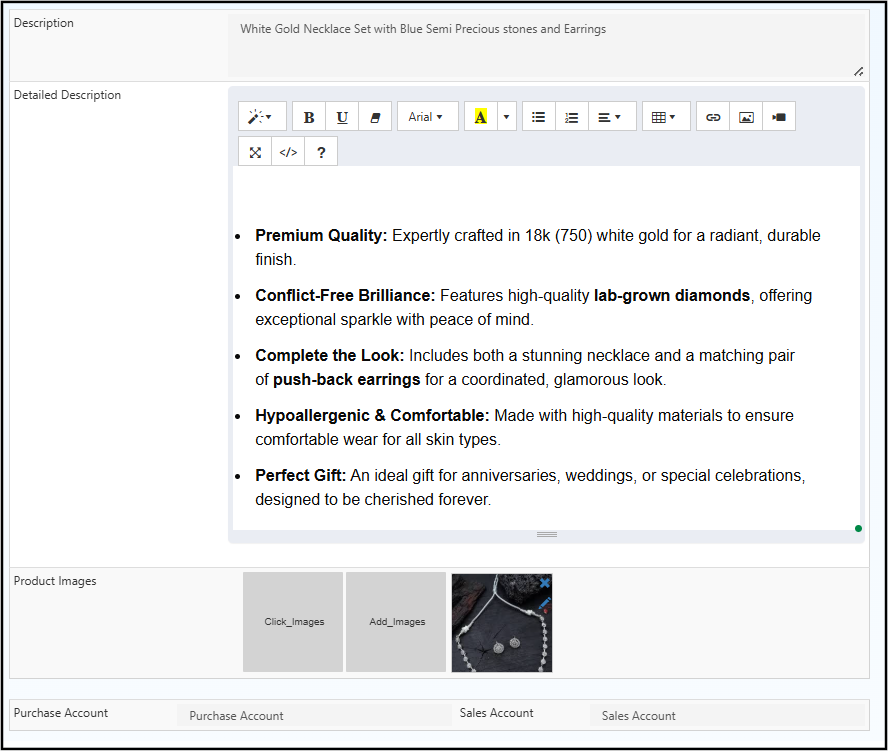
The description appears on the Product Details page (depending on the selected theme) and helps customers understand features, usage, and benefits.
Tip
Use the editor tools to colour and style text.
Short Description
Enter a short description of the product.
This is usually displayed under the Product Name and provides a quick summary for customers.
Tip
Use the editor tools to colour and style text.
Product Images
Product images visually showcase the product.
You can upload one or more images.
The first uploaded image is used as the thumbnail.
High-quality images improve customer confidence and purchase decisions.
Tip
Use the edit button to crop and adjust images.
Adding an alt text (also known as "alt tags" or "alt attributes") to images on a website is an important part of improving the website's accessibility and search engine optimization (SEO).
How to add a Alt text for an image
- Click create or edit product details page.
- Click the edit icon of the product image and variant image.
- Add the good Alt text of your products in the alt text field.
- Click the OK button.
- Click the Save button.
Purchase Account
Select the Purchase Account for the product.
This account is used to track product costs in accounting and financial reports.
Sales Account
Select the Sales Account for the product.
This account records revenue generated from product sales and ensures accurate income reporting.
Edit Product
Edit a product along with its variations and all details.
How to edit a product
Follow the simple steps below to update a product.
- Open Back Office
- Go to Catalog Menu.
- Click and open Products section.
- A list of already existing products will be shown.
- Click Product Name shown in the product list against the product to be edited.
- Update all the needed information in the related tabs.
- Press Save button at the end of the page to save the updated product.
Related Blogs
Explore deeper insights on ecommerce product optimization and store configuration: