Unicommerce Integration in O2VEND
This guide explains how to integrate Unicommerce with the back-office system for seamless order, inventory, and product synchronization. Follow these steps to configure the channel and enable the integration easily.
Step 1: Navigate to Sales Channels
Go to: Back Office → Settings → Sales Channels
- Click the Create Channel button on the top-right side of the screen.
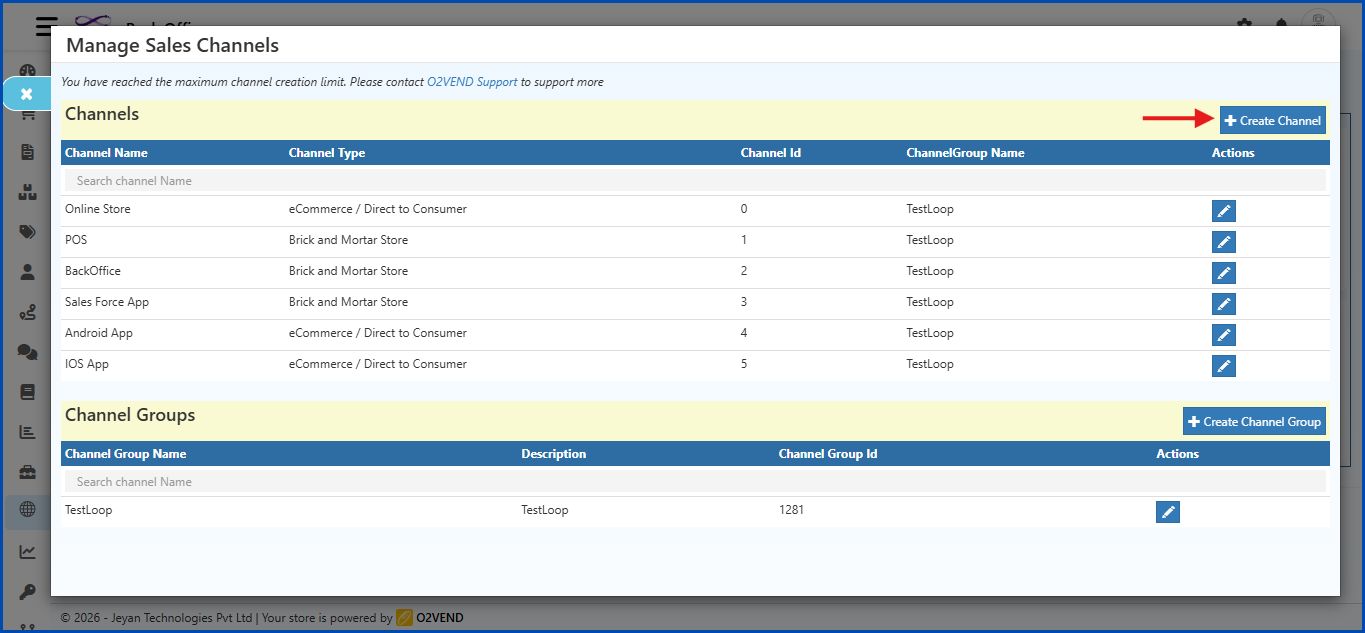
Initial Screen
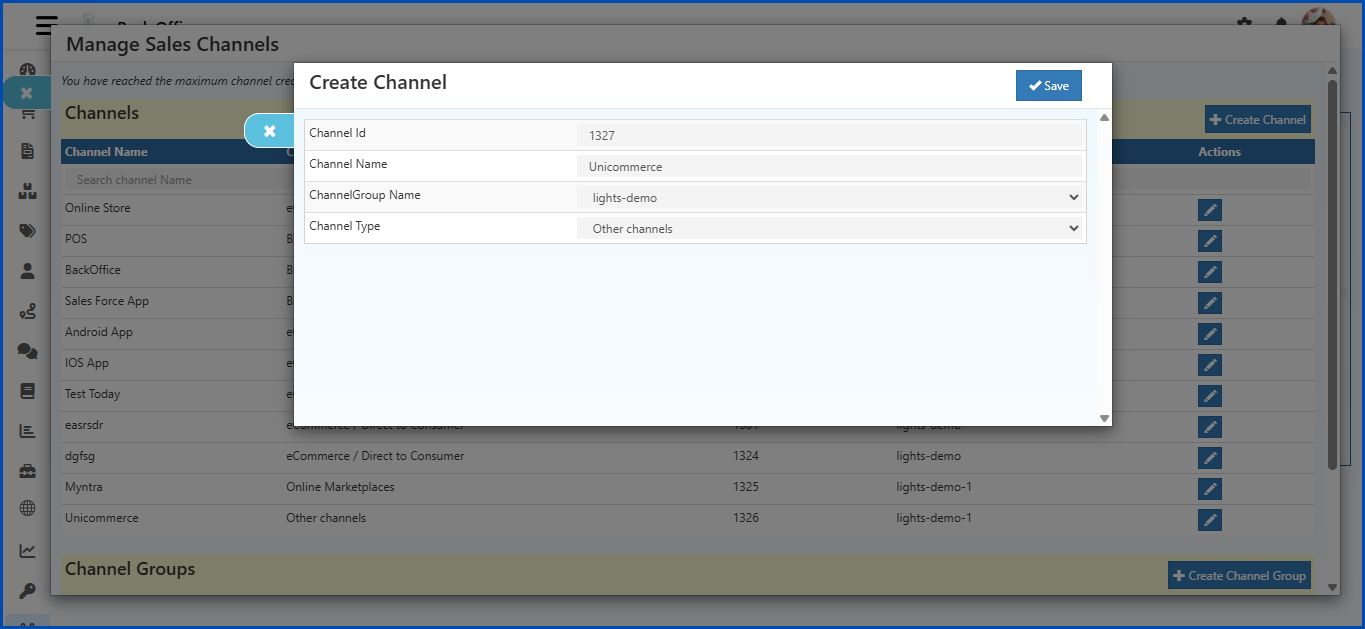
The Create Channel form displays these fields:
- Channel Id
- Channel Name
- Channel Group Name
- Channel Type
Step 2: Select Channel Type
- Click the Channel Type dropdown.
- Choose Other channels.
Step 3: Select Provider
- After selecting Other channels, a new field Provider will appear.
- Click the Provider dropdown.
- Select Unicommerce.
Step 4: Additional Fields Appear
Once Unicommerce is selected, the following fields appear:
- URL
- Username
- Password
- AccessToken
- RefreshToken
- ExpiryDate
- Shelf Code
- Facility
- IsStockAtSubLocationLevel
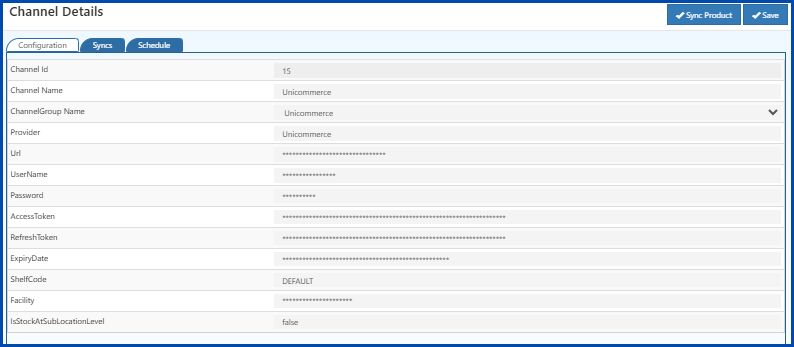
Field Details
| Field | Description |
|---|---|
| Channel Id | Unique identifier for the channel. Enter a Channel ID. |
| Channel Name | Descriptive name for the channel. |
| ChannelGroup Name | Common name used to group related channels. |
| Provider | Select Unicommerce from the dropdown list. |
| URL | API endpoint provided by Unicommerce. |
| UserName | Username for Unicommerce API authentication. |
| Password | Password for Unicommerce API authentication. |
| AccessToken | Auto-generated after saving valid credentials. Used for authorized API calls. |
| RefreshToken | Auto-generated along with AccessToken. Used to refresh AccessToken after expiry. |
| ExpiryDate | Auto-generated when AccessToken is created. |
| ShelfCode | Default shelf or storage code for inventory mapping. |
| Facility | Facility or warehouse code provided by Unicommerce. |
| IsStockAtSubLocationLevel | Indicates if stock is tracked at sub-location level: - true → Stock is tracked at sub-locations. - false → Stock is tracked at main location only. |
- Click Save after completing all fields.
Step 5: Enable Unicommerce Integration
Go to: Back Office → Integrations → Order
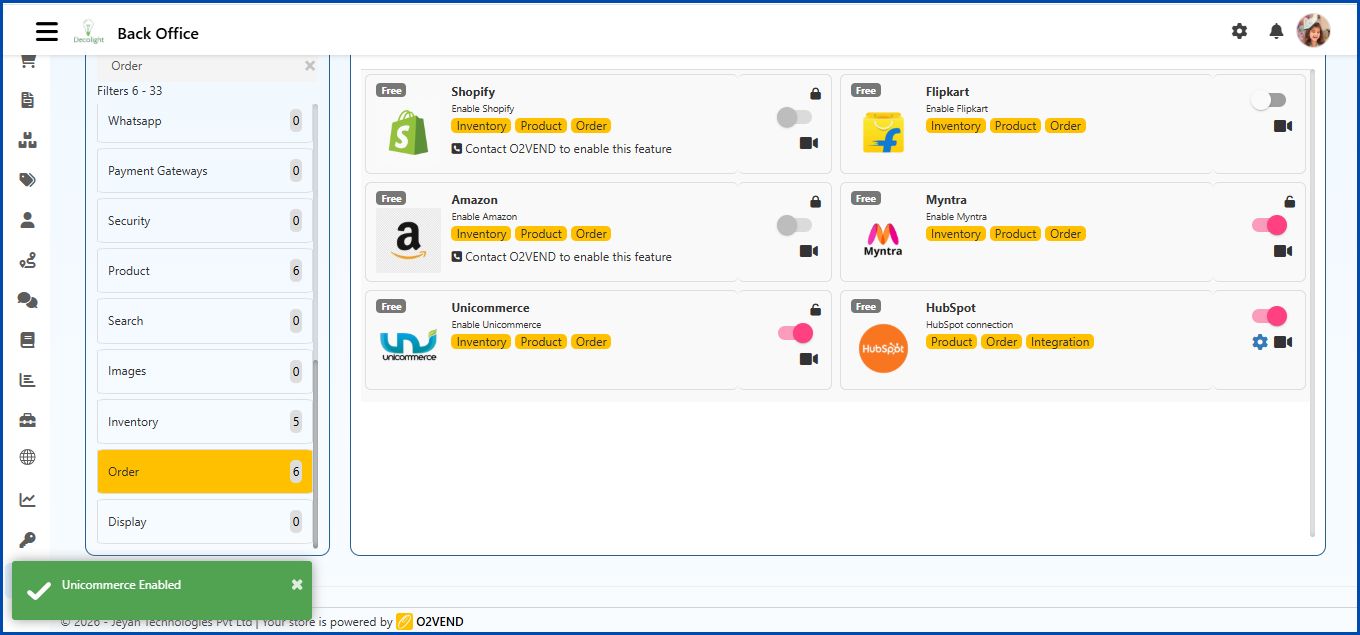
Process
- Select Unicommerce in the list.
- Click the toggle switch to enable the integration.
- Once enabled, Unicommerce supports Order Sync, Inventory, and Product management.