O2VEND Documentation
  • Tutorials
Search Results for

    Show / Hide Table of Contents
    • Getting Started
    • O2VEND Store
      • My Stores
        • Create Store
      • My Account
        • My Profile
        • Manage Billing
        • Support Desk
    • Dashboard
      • Dashboard
    • Orders
      • Quotation
      • Request For Quotation
      • Sales Order
        • Create Sales Order
        • Edit Sales Order
        • Goods Issue in Sales Order
      • Work Order
      • Purchase Order
      • Subscription
      • ActiveCarts
    • Vouchers
      • Sales
        • Manage Sales
        • Create Sales Invoice
        • Cancel Sales Invoice
        • How to create GDN(Goods Delivered Note)
        • How to add lot for products in GDN
        • How to view sales details
      • Services
        • Services
      • Purchase
        • Manage purchase
        • Create Purchase Invoice
        • Cancel purchase Invoice
        • How to create GRN(Goods Received Note)
        • How to add lot for products in GRN
        • How to print a barcode label in purchase
        • How to view purchase details
      • Credit Note
      • Debit Note
      • Receipt
      • Payment
      • Journal
      • Contra
    • Inventory
      • Stock Quantity (Alt+I)
      • Stock History
      • Print Barcode Label
      • Delivery Challan
      • Receipt Challan
      • Stock Transfer
      • Manufacturing Voucher
      • Stock Take
      • Incoming Packages
      • Outgoing Packages
    • Catalog
      • Product
      • Brand
      • Categories
      • Option
      • Attributes
      • Attributes Categories
      • Attributes Templates
      • Price List
      • Bulk Product Price update
      • Bulk Product Updates
      • Sku Rules
      • Pricing Rules
      • Create Product
        • Combination
        • Donation
        • Generic
        • Manufacturing
        • Membership
        • Recharge
        • Service
        • Subscription
    • Parties
      • Customers
      • Customer Groups
      • Supplier
      • Supplier Group
    • Beat Route
      • beats
      • Routes
      • Beat Runs
      • Route Runs
    • Inbox
      • SMS
      • E-Mail
      • Whatsapp
      • Configuration Template Setup
    • Accounting Books
      • Ledgers
      • Chart of Accounts
      • Day Book
      • Cash Book
      • Sales Book
      • Purchase Book
      • Account Group Book
    • Reports
      • Order Reports
        • Web Orders Progress Report
        • Back Order Items Report
        • Purchase Order Pending Item Report
        • Sales Order Pending Item Summary
        • Sales Shipping Status Report
        • Sales Order Summary
        • Sales Order Progress Report
        • Purchase Order Progress Report
        • Sales Order with Product Line Item Report
        • Sales Order Packing Sheet Report
        • Back Order Report
        • Purchase Order Summary
        • Sales Order Shipment Report
        • Sales Order Shipping Address Report
      • Sales/Purchase Reports
        • Sales Invoice Report
        • Sales Invoice Summary
        • Sales Items Summary
        • Purchase Invoice Report
        • Purchase Invoice Summary
        • Purchase Items Summary
        • Receipt Report
        • Daily Settlement Report
        • Contribution Margin Report
        • Agent Sales Report
        • Agent Report
        • Employee Sales Report
        • Employee Report
        • Employee Product Sales & Commission Report
      • Supplier Reports
        • Supplier Report
        • Supplier Purchase Report
        • Supplier Detail Report
      • Inventory Reports
        • Stock Summary
        • Stock Valuation Summary
        • Stock Ageing Report
        • Location Summary
        • Stock Ledger Report
        • Stock/Location Summary
        • Stock Movement And Valuation Summary
        • Stock Movement Summary Report
      • Products
        • Sold Product Categories
        • Product Category Summary
        • Product Sale Summary
        • Category Sale Summary
        • Brand Sale Summary
        • Reordering Stock Summary
        • Price Movement
        • Product Seasonal Demand
        • Product Stock Analysis Report
        • Stock Projection Report
      • Pos Reports
        • Cash Register Summary
        • Current Cash Registers
      • Account Reports
        • Day Book
        • Ledger
        • Cash Book
        • Sales Books
        • Purchase Books
        • Daily Sales and Payment Report
        • Balance Sheet
        • Profit and Loss Report
        • Trial Balance
      • Miscellaneous Reports
        • Output Detailed Tax Report
        • Output Tax Report Summary
        • Account Receivable Report
        • Account Payable Report
        • Gross Profit Report
        • Daily Tax Report
        • GSTR-1 Report
        • External API Logs
        • Benefit Usage
        • Offers Usage
        • Coupon Usage
        • Configuration Change History
        • VisitLog
    • Tools
      • Import
      • Export
    • OnlineStore
      • Themes
      • Theme Data
      • Shipping Methods
      • Payment Methods
      • Currency
      • Reviews
      • Zones
      • Delivery Zones
      • webstoreContentsSettings
        • Site Pages
        • Site Menus
          • Main Menu
          • Site Menus
        • Home Page Components
        • Page Header
        • Blog Categories
        • Blog
        • News Letter Subscription
        • menus
          • Main Menu
          • Site Menus
    • Analytics
      • Visitor Analytics
      • E-commerce Analytics
      • Product Analytics
      • Campaigns Analytics
    • Settings
      • Settings
      • Business Settings
        • Business Details
        • Tax Classes
        • Tax Rates
        • Operating Countries
        • Operating State or Province
        • Branches
        • Sales Channels
        • Return Rule
        • Backoffice Print Detail
        • Download Template
      • Point Of Sale
        • Quick Add Buttons
        • Print Settings
        • Payment Methods
        • Delivery Settings
        • Language
        • POS Offline Mode
      • Agent App
        • Agent App Print Details
      • Inventory
        • Unit Of Measure
        • Location
        • Unit Of Measure Conversions
        • Stock Levels
        • Sub Location
        • Print Barcode Label Settings
        • Package Material
      • userSettings
        • vendors
        • User Date Setup
        • Employees
          • Set Up Employee Roles
          • Ecommerce
          • Point Of Sale
          • Back Office
          • Sales App
        • Vendors Commission
        • Credit Rules
        • Automatic User Code
      • Loyalty and Promotions
        • Reward Points
        • Coupons
        • Gift Vouchers
        • Offers and Discounts
        • Benefits
        • Affiliate
        • Coupon Print Setting
      • Account
        • Financial Year
        • Voucher Numbering
        • Sales Account Map
        • Voucher Numbering Rules
    • Features
      • General
      • POS
      • Webstore
      • Integration
    • Integration
      • General
      • O2VEND Gateway
        • O2VEND Webhook
      • Integration
        • reCAPTCHA
        • Send Grid
      • API Key Management
        • Apikey
      • Storefront Settings
        • storefront
      • Shipment Gateways
        • Shipway
        • Shiprocket
        • Amazon Shipping
        • XpressBees
        • eShipper
        • GetDelivered
      • Email Configuration
        • Email
      • Communication Settings
        • Amazon SES
      • GST Configuration
        • E-invoice
        • E-Way
      • Tax Settings
        • Tax
      • Invoice Settings
        • invoice
      • eWay Bill Integration
        • eWay
      • SMS Configuration
        • MSG91
      • WhatsApp Integration
        • Whatsapp
        • Bhashsms
      • Payment Gateways
        • Paytm
        • Paypal
        • Cashfree
        • PayU
        • Stripe
        • Razorpay
        • Phonepe
      • Security Settings
        • security
      • Product Management
        • Shopify
      • Search
        • Type Sense
      • Images
        • images
      • Inventory Management
        • Inventory Management
      • Orders Management
        • order
      • Display
        • display
    • Profile
      • My Profile
    • Manage Physical Stores
      • Login
      • Sales Bill
        • Manage sales orders
        • How to add products to a customer's shopping cart
        • How to apply discounts/coupons
        • How to search products in Sales Screen
        • How to add products quickly to the Cart
        • How to add serial and lot number
        • How to Print sales bills in POS
      • Receive Payments (Receipts)
      • Delivery
      • Invoice Receipts
      • Manage Cash Register
      • Reprint
      • Dashboard
      • POS Offline
      • Stock Transfer
    • O2VEND App
      • Install O2VEND App
      • Home
      • Customers
      • Orders
      • Products
      • Receipts
      • Stock Movement
      • Employee Authorize
    • Webhooks
      • Webhook
      • Examples of JSON format data via webhook
      • Testing webhook

    🗺️ Delivery Area Setup in O2VEND (Beat Creation Guide)

    Learn how delivery planning works in O2VEND using Beats, Routes, Beat Runs, and Route Runs.
    This guide explains the delivery structure and provides a step-by-step walkthrough to create a Beat (delivery area) in O2VEND Back Office.
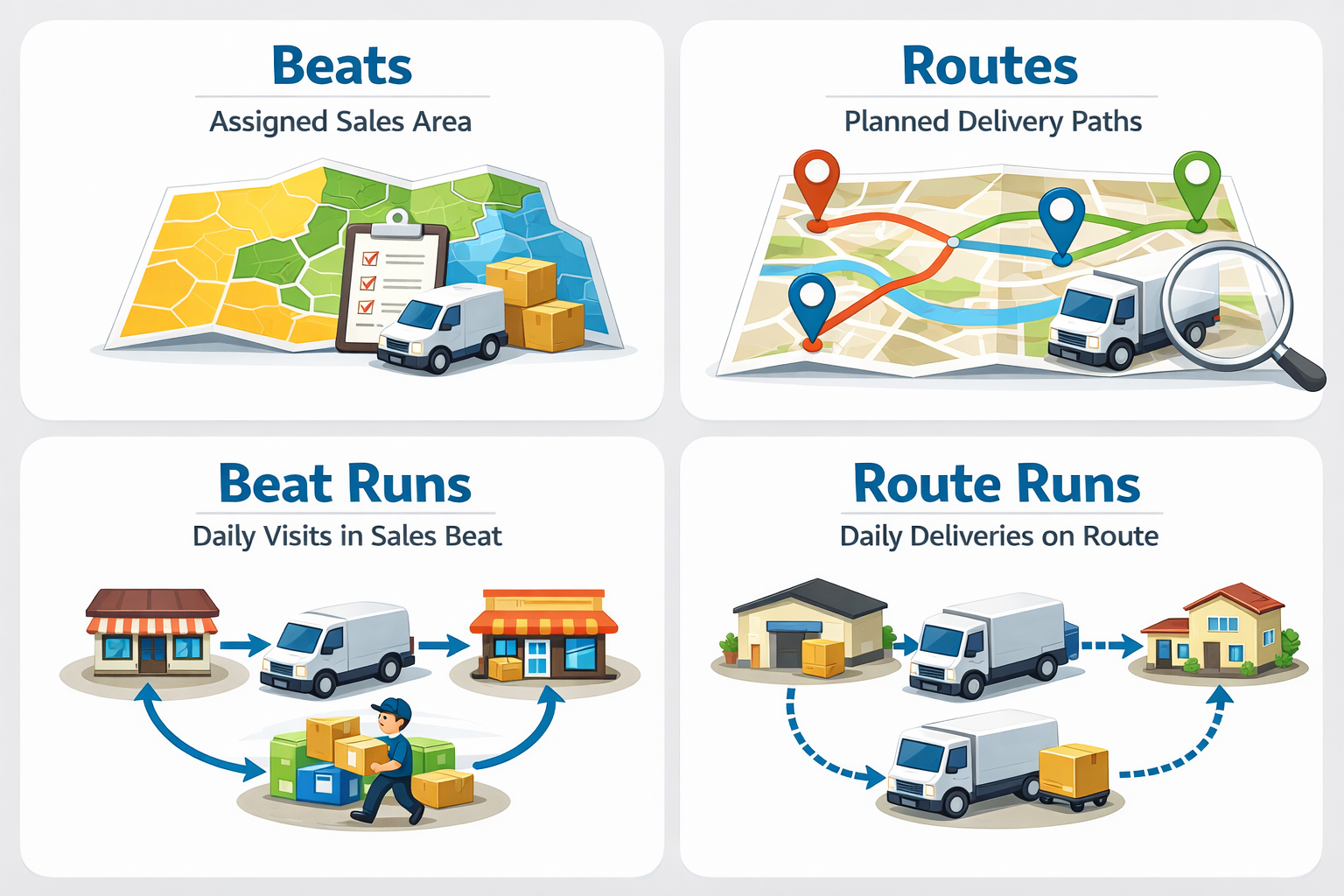
    Beat Route Beat Run Route Run Overview

    This image shows how delivery areas, routes, and daily delivery runs are connected in O2VEND.


    🚚 Delivery Workflow Explained in 4 Steps

    • Beat → Delivery area (location-based grouping)
    • Route → Delivery path inside the beat
    • Beat Run → Planned delivery schedule
    • Route Run → Actual delivery execution

    This structured workflow improves delivery accuracy and planning.


    What This Guide Covers

    This page explains:

    • Meaning of a Beat (delivery area)
    • Location of Beat settings in O2VEND Back Office
    • Step-by-step process to create a Beat

    Related delivery guides:

    • 🔗 Route – Delivery Path Setup
    • 🔗 Beat Run – Daily Delivery Planning
    • 🔗 Route Run – Delivery Execution

    Create Beat in O2VEND Back Office – Delivery Area Setup Guide

    Learn what a Beat is and how to create a Beat in O2VEND Back Office. Step-by-step guide to assign delivery areas, customers, shipping classes, and riders.

    What is a Beat in O2VEND? Create & Manage Delivery Beats Easily

    Understand what a Beat means in O2VEND and how to create one in Back Office. Simple steps to assign customers, riders, and delivery areas.
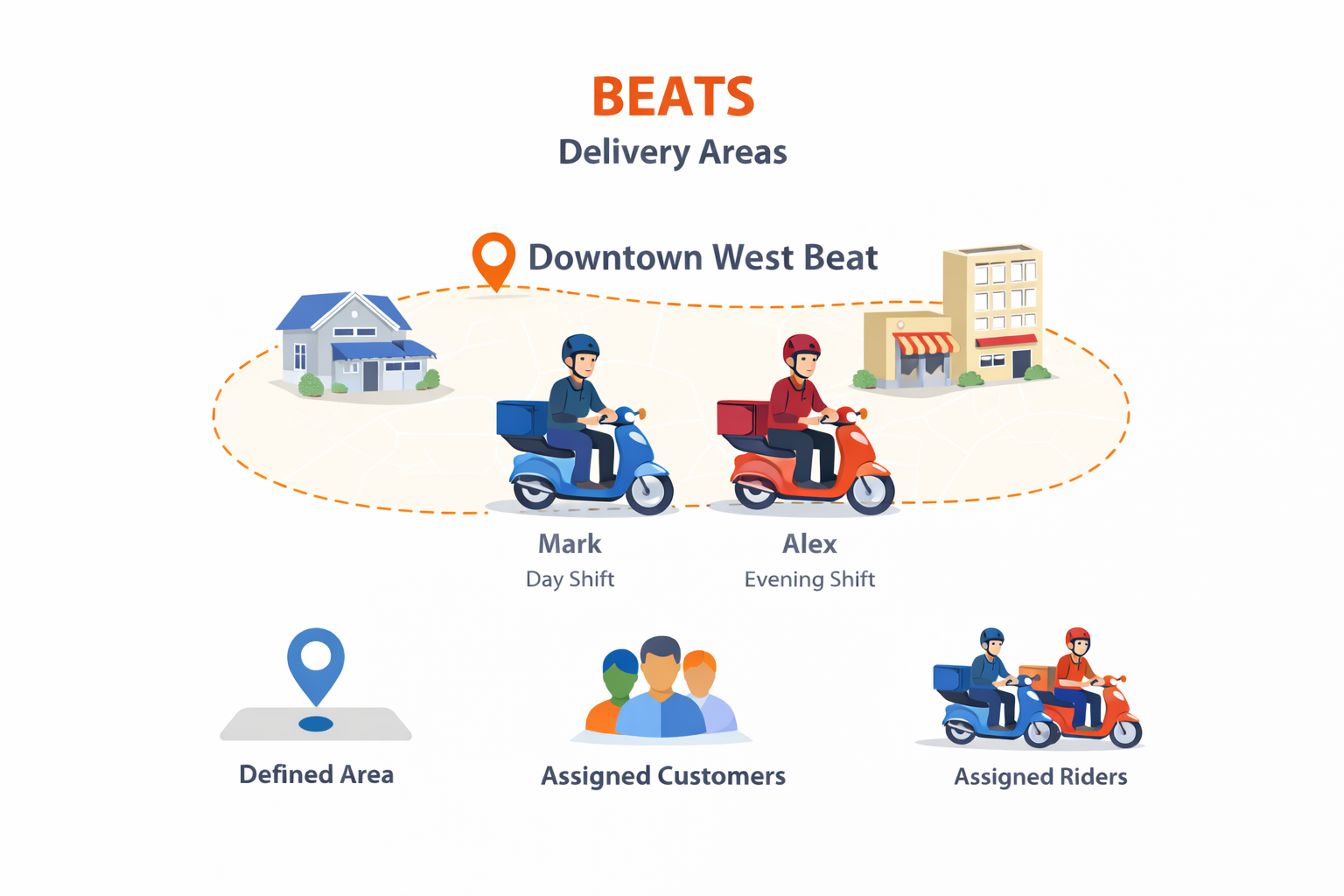
    beat

    A Beat is a defined delivery area used to organize customers and deliveries.

    In simple words:

    Beat = Area where deliveries happen

    Each beat contains:

    • A specific location / area
    • Assigned customer groups
    • Assigned delivery riders

    Using beats helps businesses deliver orders faster and more accurately.


    Why Beats Are Important

    • Organizes customers by location
    • Makes delivery planning easy
    • Avoids rider confusion
    • Improves on-time deliveries

    O2VEND Beat Setup – Back Office Navigation & Beat Creation

    Follow the O2VEND Back Office path to create a Beat. Learn beat navigation, field explanations, and delivery area setup in this easy guide.

    O2VEND Back Office → Beat & Route → Beat


    O2VEND Beat Management – Delivery Area, Riders & Customers

    ➕ Steps to Create a New Shipment Beat

    1. Open Beat & Route
    2. Select Beat
    3. Click Create Beat

    The Create Beat screen appears.

    Create Beat – Field-Level Explanation

    The Create Beat screen is used to define a delivery area and assign delivery rules, customers, and riders.
    Each field on this screen plays a role in accurate delivery planning and execution.


    🔹 Name

    Specifies the delivery area name.

    Example shown:
    Anna Nagar East

    🔹 Code

    A unique short code for identifying the beat internally.

    Example shown:
    ANE01 (Anna Nagar East)

    🔹 Description

    Provides additional details about the delivery area.

    Example shown:
    Covers Anna Nagar East residential area

    Helps teams clearly understand area coverage.


    Shipping Classes

    Defines the delivery type applicable to this beat.

    Example shown:
    Regular Delivery

    Ensures orders are routed correctly based on delivery rules.


    Customer Groups

    Assigns customers who belong to this delivery area.

    Example shown:
    Retail Customers – Anna Nagar

    Orders from these customers are automatically mapped to this beat.


    Riders

    Delivery personnel assigned to handle deliveries in this beat.

    Example shown:
    Ravi – Morning Shift

    Only assigned riders can deliver orders within this area.


    Save Action

    Click Save (top-right corner) to complete beat creation.

    Once saved, the beat becomes available for:

    • Route creation
    • Beat Run planning
    • Daily delivery assignment
    • Delivery tracking and reports

    What Happens After Beat Creation?

    Once a beat is created, it can be used to:

    • Create Routes
    • Plan Beat Runs
    • Assign daily deliveries
    • Track delivery execution
    • Edit this page
    In this article
    © 2019–2026 Jeyan Technologies Private Limited • www.o2vend.com • Create your own store