Web Notification in O2VEND
What is Web Notification?
Web Notification sends real-time alerts from the Back Office directly to the browser. For example, when a new order is received, a notification will instantly appear on the screen – even if another tab is active.
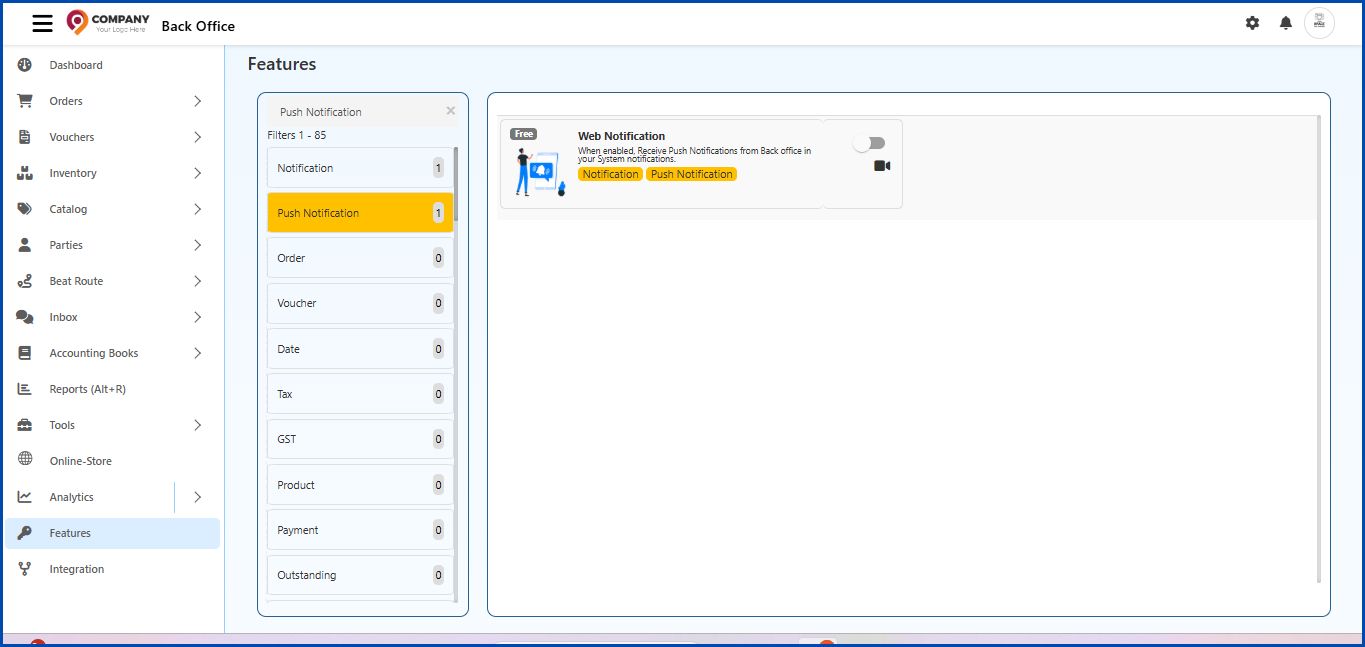
Where to Find
Navigation Path:
Back Office → Features → Push Notification → Web Notification
Why Use It?
- Instant Updates: Alerts for new orders and system notifications.
- No Page Refresh Needed: Notifications appear automatically.
- No Missed Alerts: Important updates remain visible while working on other tasks.
How to Enable
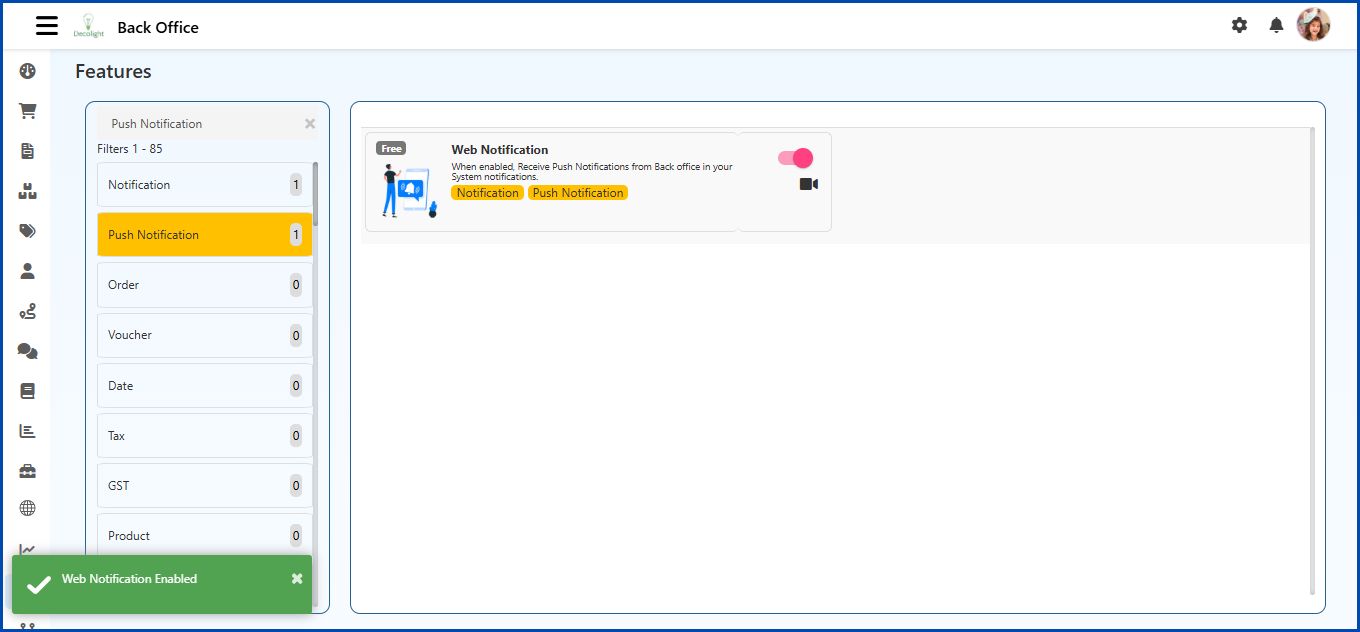
- Log in to the Back Office.
- Open Features from the left menu.
- Select Push Notification.
- Click Web Notification.
- Turn the toggle ON.
- Allow notifications in the browser.
Note
If Chrome blocks notifications:
- Go to Chrome Settings → Privacy & Security → Site Settings → Notifications → Allow the Back Office domain.
Example Notification
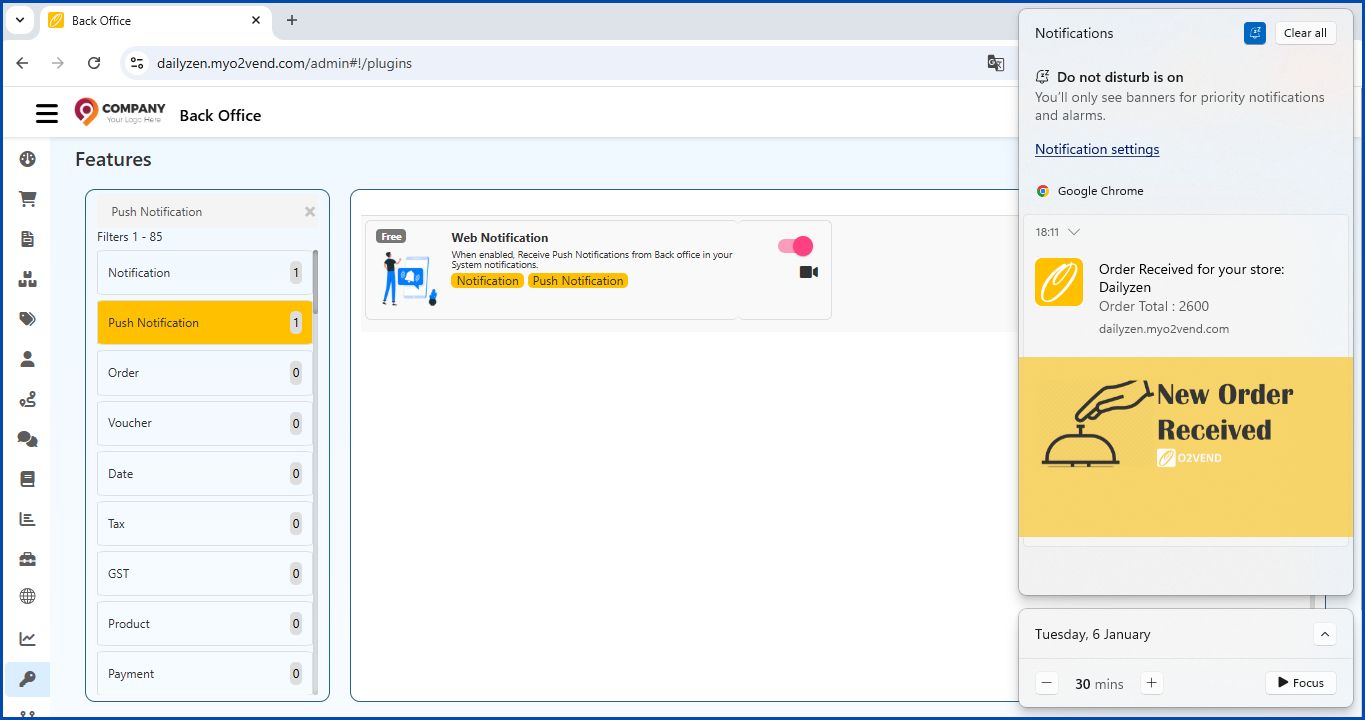
When a new order is received, a notification may display:
Order Received for store: Dailyzen – Order Total: 2600 – New Order Received
This appears in the system notification panel.
Benefits
- Real-time order and system alerts
- Faster response to activities
- No need to frequently check the Back Office