Work Order Management System – Create, Track & Invoice Jobs Easily
Manage Service and Production Jobs with a Centralized Work Order Management System
Manage service and production jobs using a powerful work order management system. Create, track, and convert work orders into invoices easily from a single platform—reducing manual work and improving operational efficiency.
A work order management system helps businesses handle service requests, production tasks, internal jobs, and assembly workflows in an organized and trackable manner. It ensures better visibility, accurate costing, and faster job completion.
The Work Order module in O2VEND ERP supports real-world business needs by enabling end-to-end job tracking, inventory usage monitoring, and instant invoice generation from one centralized dashboard.
Boost Efficiency in Production & Service Operations with O2VEND
Centralize work order management, track job costs, manage inventory, and instantly generate invoices—all in a fast, cloud-based ERP platform designed for modern businesses.
🚀 Launch Your Store InstantlySecure Cloud • Multi-Branch Support • Lightning-Fast Performance
What Is a Work Order Management System?
A Work Order Management System is used to create, assign, track, and complete service or production-related jobs. It records all job-related details such as tasks, materials, timelines, costs, and billing status in one place.
With a work order system, businesses can:
- Track jobs from creation to completion
- Assign tasks to teams or technicians
- Monitor job status and costs in real time
- Convert completed work orders into invoices
Key Benefits
- Improved coordination between teams
- Accurate job costing and billing
- Clear communication with customers
- Reduced manual errors and delays
How to Create a Work Order in O2VEND ERP
Follow these simple steps to create and manage a work order efficiently:
- Open the Work Order Module
Go to Orders → Work Orders in the back office.
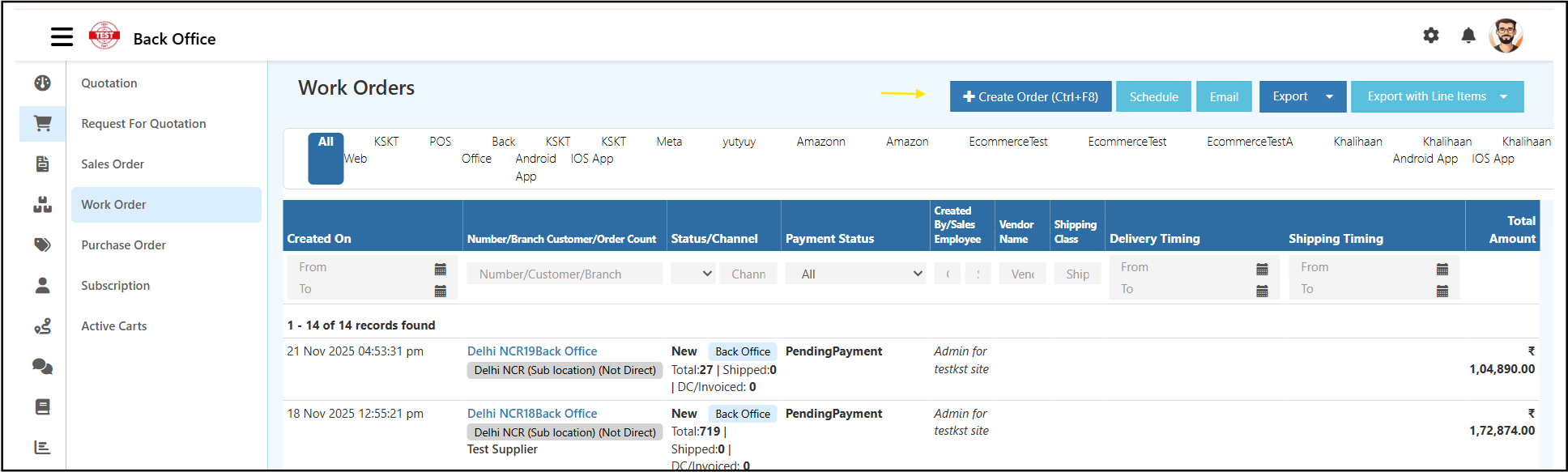
Create a New Work Order
Click Create Work Order to open the work order form.Add Customer Information
Select an existing customer or create a new one with contact details.Add Products or Services
Choose required products or services, set quantity, units, and pricing.Update Additional Details
Enter credit days, shipping details, transport mode, and remarks.Save and Track the Job
Click Save or Save & Close. The work order is now ready for tracking.
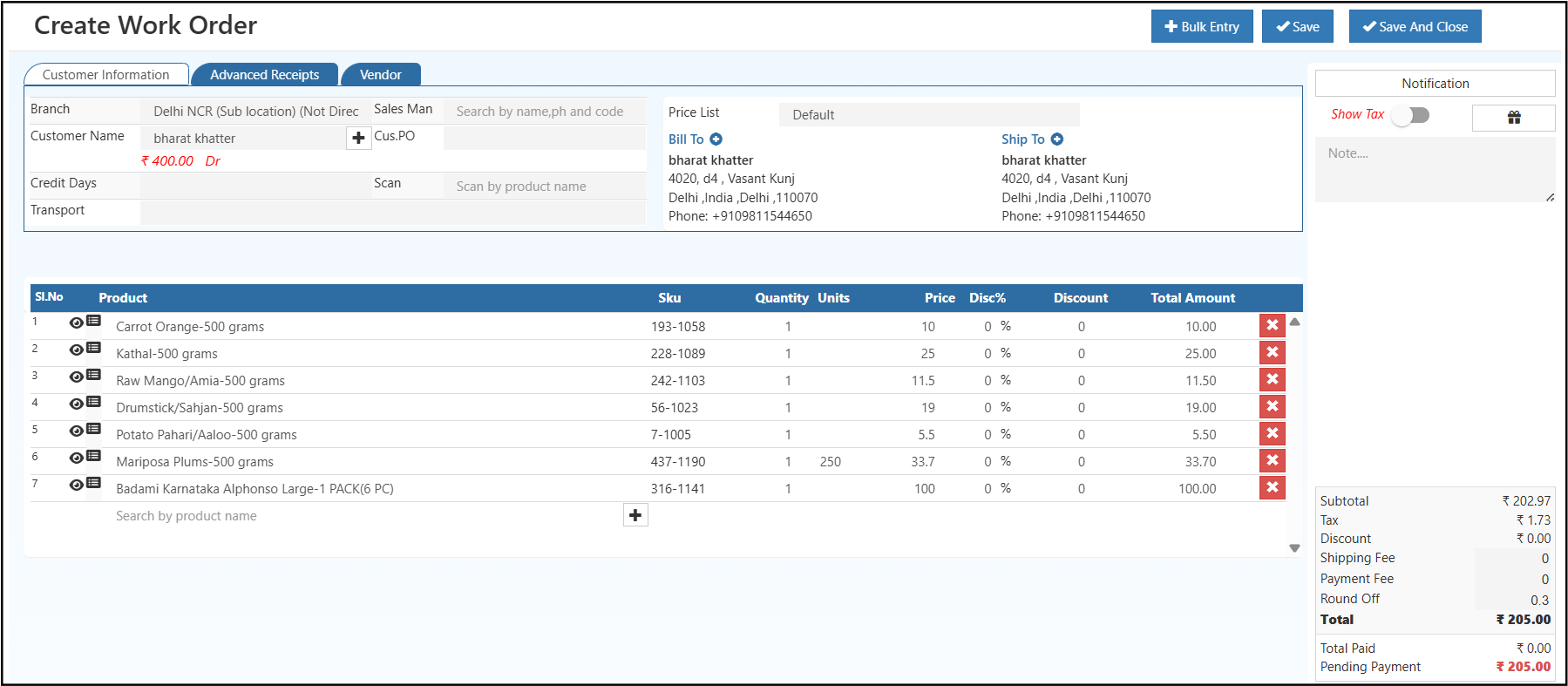
Key Features of Work Orders in O2VEND ERP
- Auto-generated Work Order Number
- Complete Customer & Job Details
- Product, service, and material tracking
- Billing, tax, and discount calculation
- Payment status and pending amount tracking
- Actions: Print, Download, Clone, Convert to Invoice, Notifications
Advantages of Using O2VEND Work Orders
- Simplifies service and production job management
- Improves visibility across departments
- Reduces paperwork and duplicate data entry
- Ensures accurate financial records
- Enables faster conversion from work order to invoice
Pro Tip for Better Job Control
Enable Advanced Receipts and Status Updates to monitor job progress and pending payments in real time. This is especially useful for businesses managing multiple branches or high-volume service orders.
Start Managing Work Orders More Efficiently
Using a structured work order management system helps businesses save time, control costs, and deliver jobs faster with better accuracy.
👉 Create, track, and invoice jobs easily with a modern work order management system powered by O2VEND ERP.
Work Order Edit Page – Manage, Update & Finalize Jobs Easily
Production, Service & Job Management System (O2VEND ERP)
The Work Order Edit Page is a critical part of a work order management system that allows businesses to review, update, and finalize job details after initial creation.
This page is designed for manufacturing units, service centers, repair workshops, assembly lines, and job-based businesses that require accurate job costing, material tracking, and workflow control.
With powerful right-side action controls, the Work Order Edit Page helps reduce manual effort, improve accuracy, and maintain complete documentation throughout the job lifecycle.
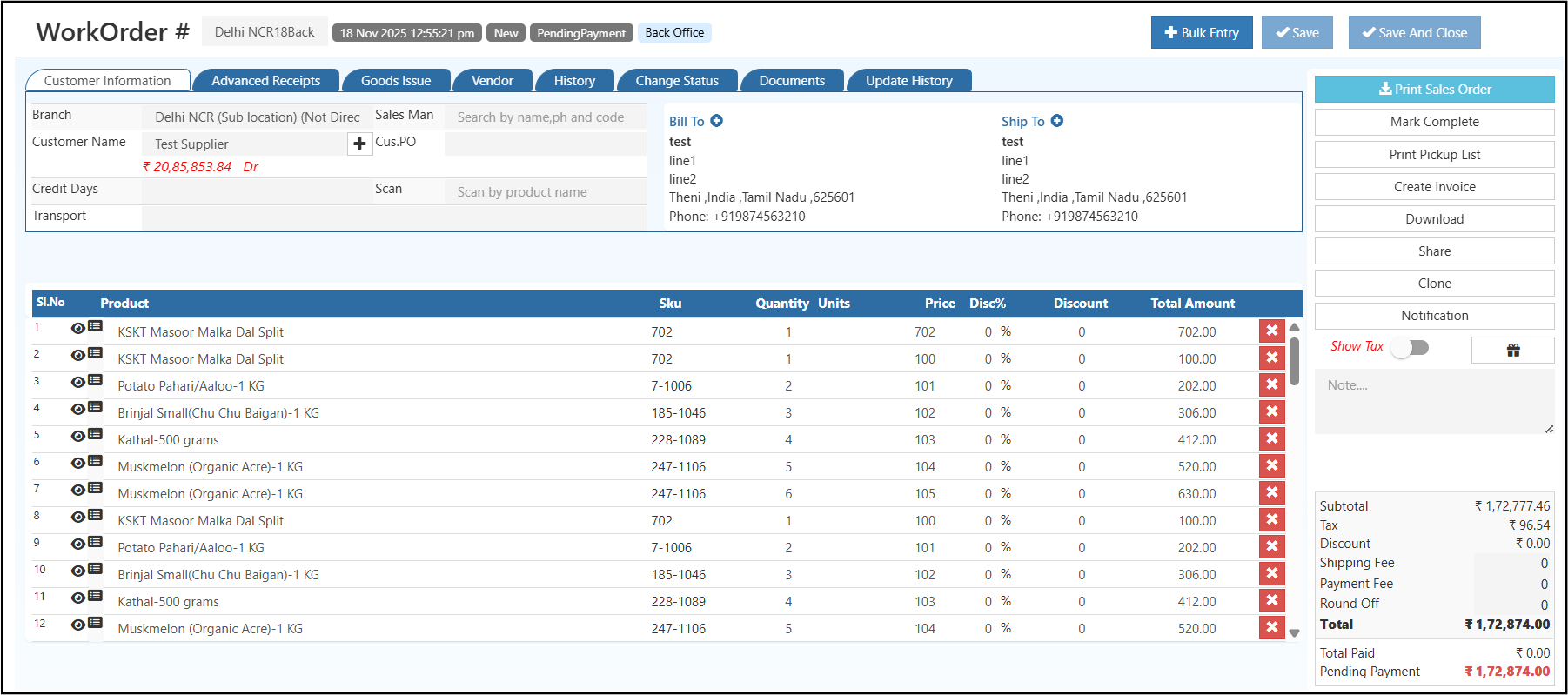
Right-Side Action Controls – Feature Overview
Each action button on the Work Order Edit Page is designed to handle a specific operational requirement. Below is a clear explanation of how each feature supports job management.
1. Bulk Entry
Purpose:
Quickly add multiple products, components, or services in a single operation.
Capabilities:
- Supports high-volume line-item entry
- Reduces repetitive manual data entry
- Ideal for BOM (Bill of Materials) and multi-component jobs
- Barcode-friendly for faster input
Best Used For:
Manufacturing, assembly operations, service centers, and custom production jobs.
2. Mark Complete
Purpose:
Moves the work order to the manufacturing or job completion stage.
What Happens Next:
- Locks editable fields (based on system settings)
- Opens the Manufacturing Voucher page for:
- Finished quantity confirmation
- Material consumption reporting
- Job cost finalization
Why It’s Important:
Ensures accurate inventory updates and confirms job closure in the workflow.
3. Print Pickup List
Purpose:
Generates a structured material pickup list for warehouse or stores teams.
Includes:
- Required materials and quantities
- Work order reference number
- Customer or vendor details
- Job-specific instructions
Benefits:
- Faster material preparation
- Reduced picking and dispatch errors
4. Create Invoice
Purpose:
Convert the work order directly into a sales invoice.
Key Features:
- Automatically imports items, pricing, taxes, and totals
- Eliminates duplicate data entry
- Supports B2B and B2C invoice formats
Business Impact:
Speeds up billing, improves cash flow, and simplifies accounting processes.
5. Download Work Order (Print Format)
Purpose:
Export the work order in a clean, print-ready PDF format.
Ideal For:
- Customer approvals
- Vendor communication
- Internal documentation
- Audit and compliance records
Ensures consistent and professional documentation across departments.
6. Share Work Order
Purpose:
Instantly share work order details through digital channels.
Supported Channels:
- Messaging platforms
- Internal communication tools
Result:
Quick communication without downloading or printing files.
7. Clone Work Order
Purpose:
Create a duplicate of an existing work order with a new reference number.
What Gets Copied:
- Customer details
- Job components and items
- Pricing and tax configuration
Best For:
Recurring production jobs, repeat service work, and bulk orders.
8. Notifications
Purpose:
Enable automated communication with customers or vendors.
Notification Options:
- Mobile number for SMS alerts
- Email address for automated updates
- Vendor selection for outsourced jobs
Once saved, notifications are triggered automatically.
Outcome:
Improved transparency, timely updates, and better coordination.
Key Advantages of the Work Order Management System
- Real-time tracking of service and production jobs
- Accurate job costing with material and labor mapping
- Faster conversion from work order to invoice
- Reduced manual errors and duplicate entries
- Standardized documents for audits and operations
- Integrated customer and vendor notifications
- Barcode-enabled inputs for faster processing
- Cloud-based access across multiple branches
Industry Use Cases
Manufacturing & Assembly
- Component-level tracking
- Production stage updates
- Manufacturing voucher integration
Service Centers
- Repair and maintenance workflows
- Spare parts consumption tracking
- Service job to invoice conversion
Workshops & Fabrication Units
- Job cards and task assignment
- Machine-level operations
- Quality inspection tracking
Retail, Jewellery & Custom Orders
- Custom design and job tracking
- Multi-step production workflows
- Material-based costing and billing
Related Topics
Explore related modules and workflows that connect closely with the Work Order Management System:
Subscription Management
Manage recurring services, automated billing, and long-term customer engagements.Quotation Management
Create and convert quotations into work orders or sales orders with ease.Active Carts
Track pending customer selections and convert them into confirmed orders.Purchase Order Management
Manage procurement workflows and material sourcing for production and service jobs.Sales Order Management
Convert approved jobs into sales orders and invoices with complete tracking.
Need Help with Work Order Setup?
Need Assistance with Work Order Configuration?
Guidance is available for setting up Work Orders, product entry, service configuration, and workflow optimization in O2VEND ERP.
Visit O2VEND SupportAccelerate Service & Production Workflow with O2VEND ERP
A unified cloud platform for job management, production tracking, cost calculation, and instant invoice generation—designed for modern business performance.
Secure Cloud • Multi-Branch Support • High-Speed Performance