Incoming Packages (GRN) in O2VEND ERP – Track, Verify & Receive Stock
Track and verify inbound shipments in O2VEND ERP. Create GRN from PO, PI, or packages, inspect stock, and maintain accurate, audit-ready warehouse inventory.
The Incoming Packages & GRN module in O2VEND ERP helps warehouse teams track, verify, and receive inbound shipments efficiently. From supplier details to delivery status, O2VEND ERP provides complete control over stock receipt and inventory accuracy.
What is Goods Receive Note (GRN)?
A Goods Receive Note (GRN) is a warehouse document used to record and verify incoming packages, supplier deliveries, and purchase order stock receipts in O2VEND. It is essential for warehouse inventory management, stock verification, and updating inward stock movement.
Key Benefits
- Centralized tracking of all incoming shipments
- Controlled stock receipt through GRN verification
- Improved accuracy in warehouse inventory records
- Clear audit trail for purchase and transfer receipts
GRN Creation Sources in O2VEND ERP
O2VEND ERP allows Goods Receive Note (GRN) creation from multiple sources, ensuring accurate inward processing and inventory control.
| GRN Source | Purpose & Benefits |
|---|---|
| Purchase Order (PO) | Create GRN directly from approved POs to validate quantities and post stock efficiently |
| Purchase Invoice (PI) | Generate GRN during invoice entry to confirm received quantities before updating inventory |
| Receipt Challan (RC) | Record GRN from receipt challans to maintain shipment and document traceability |
| Incoming Packages | Create GRN after package inspection, supporting partial receipts and package-level verification |
✅ Multiple GRN sources in O2VEND ERP ensure accurate stock receipt, seamless warehouse workflows, and audit-ready records.
Navigation: Access Incoming Packages
Incoming Packages and GRN workflows can be accessed directly from the O2VEND Back Office, enabling faster inbound shipment tracking and stock receipt.
Navigation Path:
- Back Office → Inventory → Incoming Packages
This centralized navigation provides quick access to inbound shipments, package inspection, and GRN creation, helping warehouse teams manage goods receipt efficiently.
GRN Overview – Goods Receive Workflow in O2VEND ERP
The Goods Receive (GRN) screen in O2VEND ERP provides a complete view of inbound stock receipt, enabling controlled verification and accurate inventory posting.
This screen captures key receipt information including GRN reference, transport or courier details, tracking numbers, receiving location, package count, and product-wise quantities. It also supports inspection quantity, rejected quantity, and unit-level validation before stock is confirmed.
The tab-based layout (General, Packages, History, Status, Documents) allows warehouse teams to manage package details, track changes, upload documents, and control GRN status from a single interface.
Goods Receive (GRN) screen in O2VEND ERP – verify packages, inspect quantities, and confirm stock receipt with accuracy.
➕ Incoming Packages (GRN) Columns & Actions in O2VEND ERP
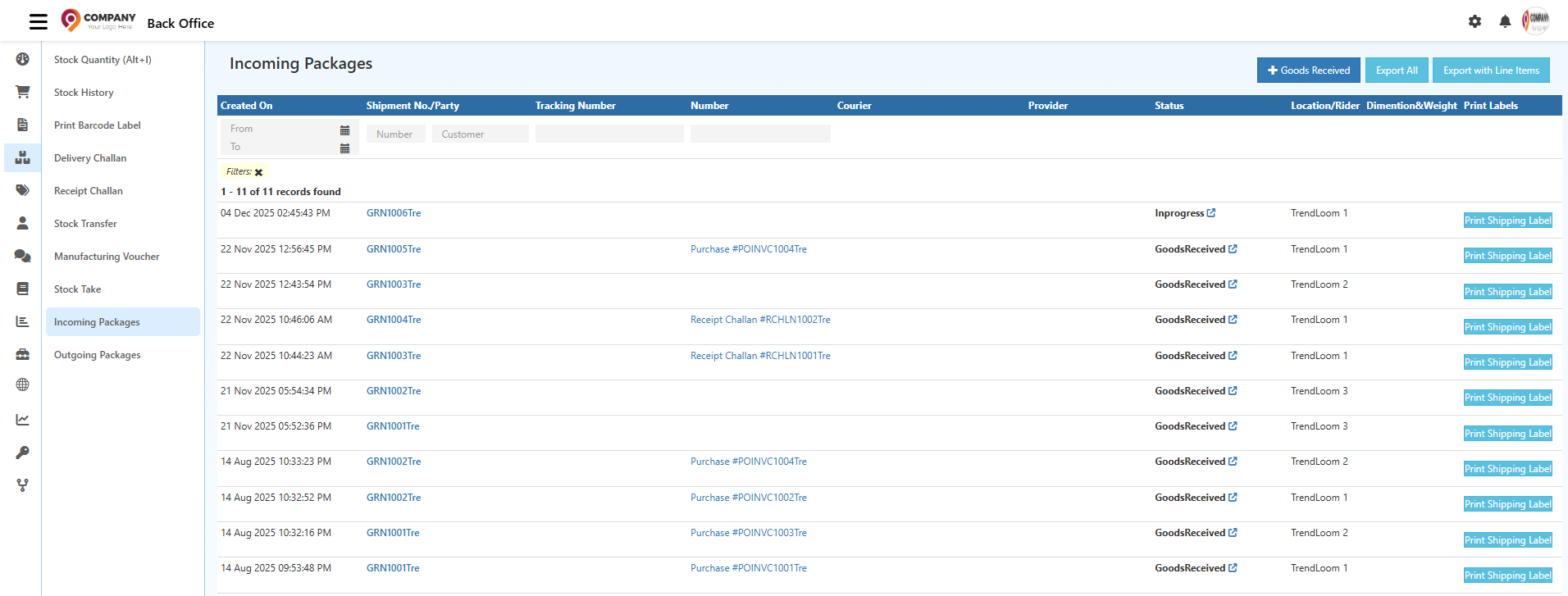
Incoming Packages – Columns & Functions
The Incoming Packages screen in O2VEND ERP provides a centralized view of all inbound shipments, enabling fast tracking, verification, and GRN creation.
Created On
Displays the date and time when the incoming package or GRN entry was created.
Shipment No / Party
Shows the GRN or shipment reference number along with the supplier or party name. Clicking the reference opens detailed shipment information.
Tracking Number
Displays the courier LR or tracking number for shipment traceability.
Number
Shows linked internal documents such as Purchase Order, Purchase Invoice, or Receipt Challan reference numbers.
Courier
Indicates the logistics or courier partner handling the delivery.
Provider
Identifies the shipment source such as Supplier, Branch, or Internal Location.
Status
Shows the real-time shipment or GRN status:
- Inprogress – Shipment under processing
- GoodsReceived – Stock verified and received
Location / Rider
Displays the receiving warehouse or store and the assigned rider, if applicable.
Dimension & Weight
Shows package size and weight details for logistics handling.
Print Labels
Allows quick shipping label printing for inbound packages.
Filters & Quick Actions
Filters
- Date Range – Filter incoming packages by creation date
- Shipment / Document Number – Quick search by reference
- Customer – Identify customer returns
- Tracking Number – Search by courier tracking ID
Top Actions
- Goods Received – Convert incoming packages into a verified GRN
- Export All – Download incoming package summary
- Export with Line Items – Export product-level inward details
➕ Step-by-Step GRN (Goods Receive) Creation in O2VEND ERP
Create GRN – Goods Receive Workflow
The Goods Receive (GRN) screen in O2VEND ERP enables controlled stock receipt with inspection and package-level verification before inventory update.
Key Benefits
- Inspection-based goods receipt
- Accurate inventory posting
- Product & package traceability
- Audit-ready inward records
Step 1: Open Goods Receive
Access via Back Office → Inventory → Goods Receive
or directly from Purchase Invoice / Receipt Challan.

Step 2: Enter Transport & Shipment Details
Fill shipment-level information:
- Transport / Courier
- Rider
- LR / Tracking Number
- Tracking URL
Step 3: Confirm Reference & Location
- Reference – Linked PO / PI / Receipt Challan
- Branch / Location – Receiving warehouse
- Receiving Address – Auto-filled for verification
Step 4: Verify Products & Inspection Quantity
Review product list and enter:
- Received Quantity
- Available Quantity
- check inspection and Rejected Quantity (if any)
- Units
Step 5: Add Packages (Optional)
Use Add Package to capture length, width, and height for logistics tracking.
Step 6: Save the GRN
- Stock updated after verification
- GRN status set to GoodsReceived
- Complete history and documents recorded
✅ This workflow ensures faster GRN processing, accurate inventory updates, and controlled warehouse inward operations.
➕ Top Actions in Goods Receive (GRN) – O2VEND ERP
Key Actions in Goods Receive (GRN)
The top action bar in the Goods Receive (GRN) screen provides quick access to high-impact inward operations such as bulk uploads, packaging, printing, and document management.
Bulk Entry (Fast GRN Upload)
Bulk Entry allows rapid inward processing by importing received items through Excel — ideal for bulk purchases and high-volume GRNs.
Highlights:
- Upload multiple SKUs in one action
- Reduce manual entry errors
- Faster GRN processing
Supported Fields: SKU, Product Name, Quantity, Unit, Sub-Location, GTIN

Print Pickup List
Generates a printable list of all GRN items for:
- Physical verification
- Quality inspection
- Audit and inward matching

Reference Tracking
The Reference field links the GRN to upstream documents such as:
- Purchase Orders
- Receipt Challans
- Supplier Shipments
Ensures end-to-end inward traceability.
GRN Tabs – Quick Overview
- General – Enter courier, location, scan mode, and item details
- History – View complete activity and change log
- Change Status – Control GRN workflow stages
- Documents – Attach invoices, challans, and proofs
GRN Status Flow (Key States)
- InTransit / OutForDelivery – Shipment movement
- GoodsUnderInspection – Quality check in progress
- Accepted / GoodsReceived – Stock verified and recorded
- Exception / AttemptFail – Delivery or quantity issues
- GoodsReturned / ReStocked – Return and adjustment handling
✅ These actions enable faster GRN closure, accurate inventory updates, and audit-ready warehouse operations in O2VEND ERP.
➕ General Tab — GRN Data Entry & Verification
General Tab — Core GRN Information
The General tab captures essential shipment and receiving details required to process a Goods Receive Note (GRN) accurately in O2VEND ERP.
Shipment & Delivery Details
Transport / Courier
Logistics partner handling the shipment.Rider
Delivery executive assigned to the consignment.LR / Tracking Number
Courier reference used for shipment tracking.Tracking URL
Direct link to monitor delivery status in real time.Reference
System-generated document reference for inward traceability.
Warehouse & Receiving Setup
Branch / Location
Warehouse or store where inventory is received.Receiving Address
Auto-populated based on the selected location.Scan / Type Mode
- Scan: Barcode-based fast inward entry
- Type: Manual product search and selection
Product Table — Inward Item Details
Each row represents a product line in the GRN:
| Field | Purpose |
|---|---|
| Product Name | Identifies the received item |
| Product SKU | Unique inventory code |
| Quantity | Supplier-confirmed or ordered quantity |
| Quantity to Receive | Actual inward quantity (supports partial GRN) |
| Units | Unit of measurement (PCS, KG, BOX, PACK) |
| Sub Location | Bin, rack, or shelf assignment |
| Lot Number | Batch reference for traceability |
| Expiry Date | Required for FEFO and perishable goods |
| Allot Lot | Assign or create lot during GRN processing |
✅ Accurate entries in the General tab ensure lot-level tracking, and real-time inventory updates in O2VEND ERP.
➕ Add Package Panel
Add Package
Click Add Package to open the package entry popup and record shipment details quickly.
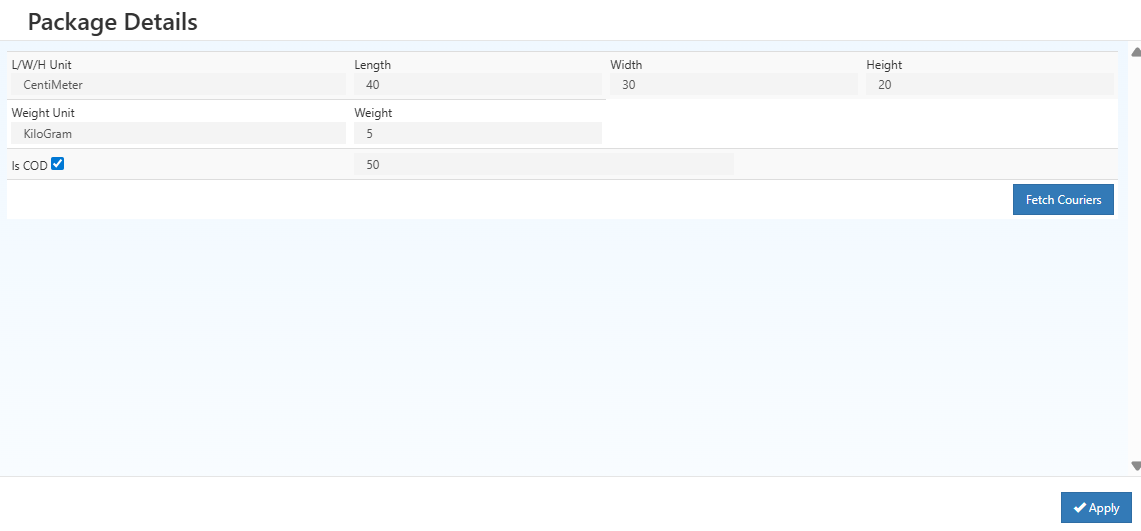
Package Fields Overview
- L/W/H Unit: Select measurement unit (Inches or CM)
- Length: Longest side of the package
- Width: Horizontal side of the package
- Height: Vertical depth of the package
- Weight Unit: GRAM or KG
- Weight: Total package weight
- Is COD: Mark if the package is Cash-on-Delivery
- Fetch Couriers: Display available courier partners based on size and weight
- Apply: Save package details to the GRN
Note: Accurate package details ensure faster processing and reduce errors.
➕ Initiate GRN – Packages Tab
Step 1: Configure Location Inward Route
- Go to Back Office → Settings → Locations → Edit Location
- Set Inward Route = Draft_Inspection
- Save the location
This ensures the system knows which locations require inspection before stock updates.
Step 2: Create GRN
- Open the GRN page
- Click Create GRN for incoming stock
Step 3: Initiate Goods Receive
- Select the assigned branch and location (location must have Draft_Inspection enabled)
- Click Initiate Goods Receive
- The Packages tab opens automatically
Packages Tab Actions:
- Approve received items
- Scan or type the received items
- Reject damaged or incorrect goods
- Adjust quantities (shortage/excess)
- Confirm stock before final posting
Only locations with Draft_Inspection route configured will display the Initiate Goods Receive button.
Step 4: Finalize GRN
- Save changes in Packages tab
- Click Finalize GRN → stock updates automatically
➕ GRN Packages Tab & Package Material Handling – O2VEND ERP
GRN Packages Tab – Overview
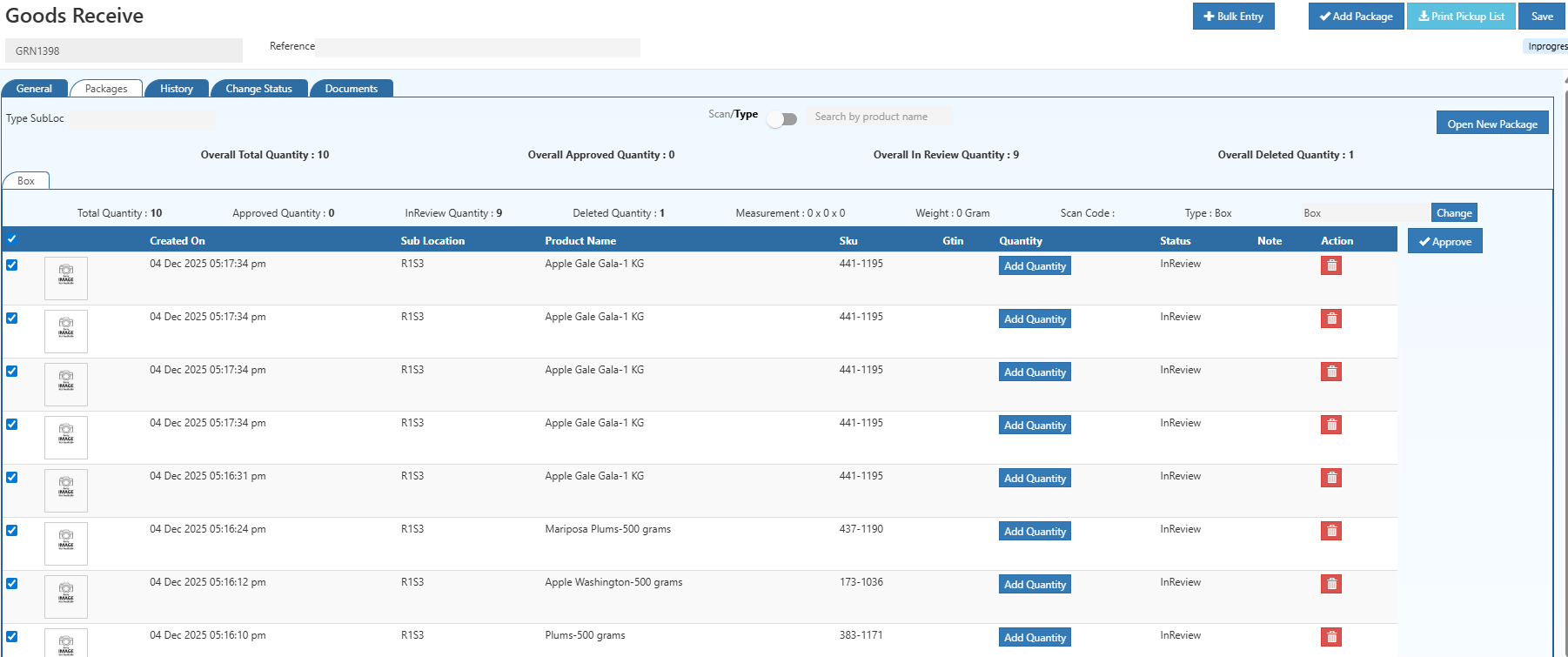
The Packages tab is central to the warehouse inward process. It ensures all received goods are validated, tracked, and approved before updating inventory.
This tab provides a complete view of packages, including sub-location, quantity, and product details, allowing transparent stock management.
Key Functions
- Track received goods at the package level
- Organize stock and assign products to packages
- Approve or reject quantities before posting
- Ensure accurate inventory updates
The Packages tab activates once Goods Receive (GRN) is initiated.
Package Management & Inspection Workflow
1. View Packages
- Displays all GRN packages with:
- Sub-location
- Total quantity
- Approved, In-Review, and Deleted quantities
- Provides clear inventory transparency at the package level
2. Select Package Material
- Choose predefined material (Small Box, Medium Box, Pallet)
New package materials can be added via Package Material Settings
4. Add Products to Package
- Scan barcodes or manually type product names
- Enter quantities for each item
- Status defaults to In-Review
⚠️ Only Approved quantities will update inventory.
5. Approve Product Quantities
- Review items in the package
- Approve received goods in good condition
- Reject damaged or incorrect items
- Guarantees inventory accuracy
6. Save & Finalize GRN
- Save all package entries
- Click Approve to finalize the GRN
- Warehouse stock is updated with verified quantities
➕ Benefits of Using the Packages in O2VEND ERP GRN
Key Benefits of Packages in O2VEND ERP GRN
- Accurate Inventory: Validates all received products before posting to inventory
- Traceability: Tracks packages and products for auditing and quality checks
- Error Reduction: Minimizes mistakes in stock entry and prevents discrepancies
- Warehouse Efficiency: Organizes stock and streamlines handling for smoother operations
- Transparency: Provides clear visibility of incoming goods for better supply chain management
➕ Related Inventory & GRN Topics in O2VEND
Related Inventory & GRN Topics in O2VEND
Explore other inventory and warehouse workflows connected to Incoming Packages and GRN processing in O2VEND ERP:
Delivery Challan
Track delivery challans issued for stock movement and how they integrate with GRN and stock updates.Outgoing Packages
Manage dispatch, packing, and shipment tracking for outbound inventory.Stock Inventory
View real-time stock levels updated after GRN approval and inward inspection.Stock History
Audit inward and outward stock movements, including GRN-based entries.Stock Transfer
Handle inter-branch stock movement and understand how GRN works for inward transfers.Stock Take
Perform physical stock verification and reconcile differences caused by inward or outward movements.Print Barcode Label
Generate barcode labels for received items immediately after GRN completion.