Create Product Defaults Features in O2VEND
The Create Product Defaults screen is used to set default values for product fields. When a new product is created, these selected defaults will automatically apply. This helps maintain consistency and reduces the time required to fill repeated fields during product creation.
This is a configuration screen where administrators can set options as True or False and define the default behavior for newly created products.
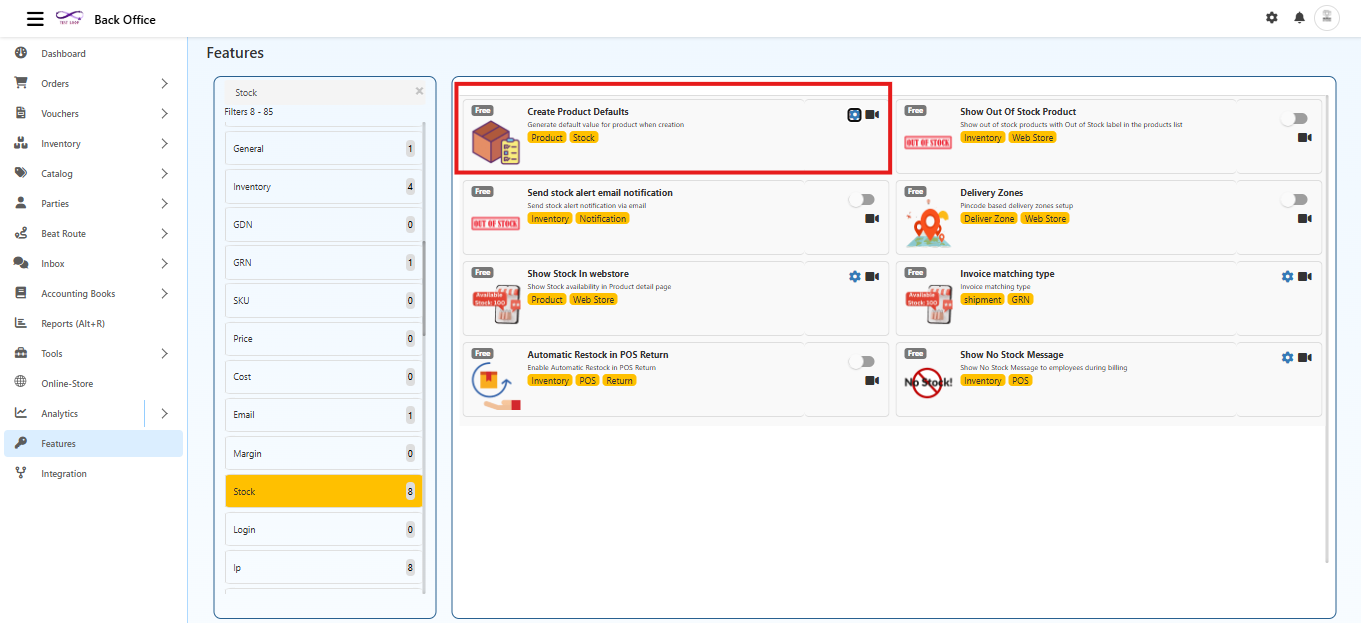
Navigation Path
Back Office → Features → Stock → Create Product Defaults
Purpose
The Create Product Defaults feature is used to:
- Maintain consistent product settings across the system
- Reduce manual work during product creation
- Enforce organization wide catalog standards
- Control visibility, stock settings, and ordering rules for new products
- Ensure consistent default product settings across all sales channels (Ecommerce, POS, Agent App, Back Office)
Applicability of Defaults
All configuration options defined here apply across all sales channels, including:
- Ecommerce store
- POS
- Agent App
- Back Office
These settings act as default behaviors for every new product created in the system.
Configuration Options
Each field allows selecting True or False.
These values become the default for all newly created products.
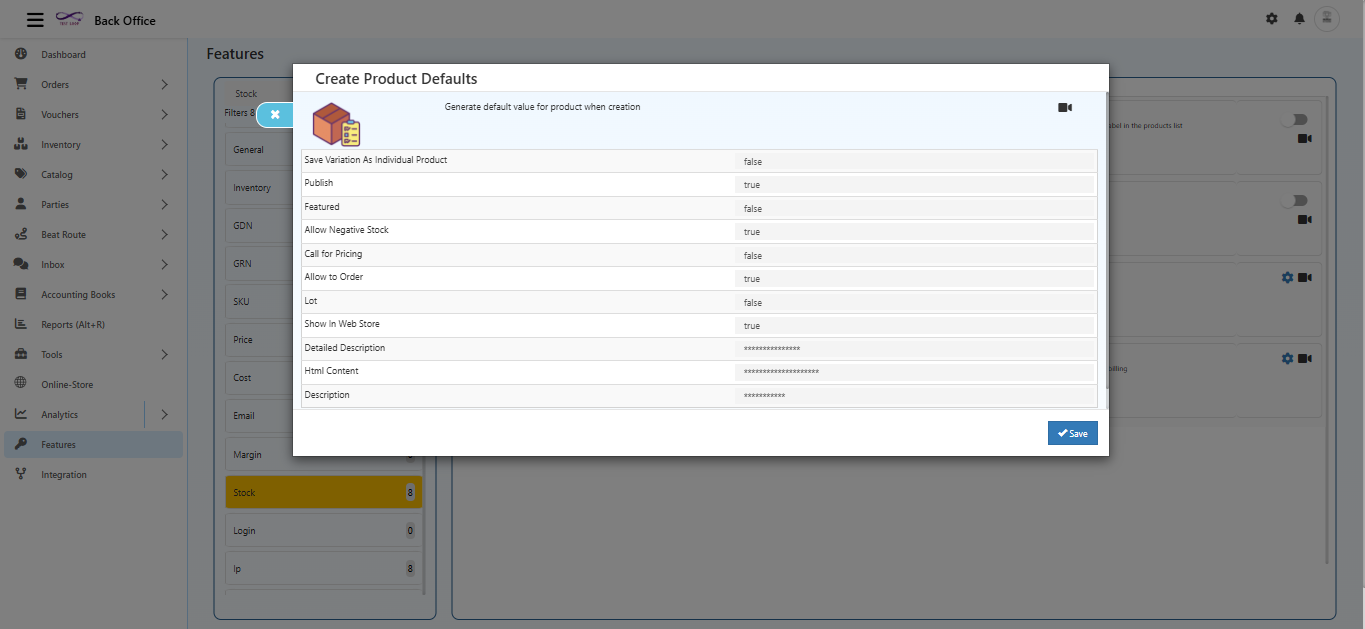
Save Variation as Individual Product
- True → Each variation will be created as a separate product
- False → Variations will stay inside a single main product
Publish
- True → Product will be published automatically
- False → Product will remain unpublished
Featured
- True → Product will be added to the featured list
- False → Product will not be featured
Allow Negative Stock
Defines whether the system should permit selling products even when quantity is zero or negative.
- True → Negative stock is allowed across all sales channels (Ecommerce, POS, Agent App, Back Office).
Useful for fast moving stores, high?demand products, or back?order workflows. - False → Stock cannot go below zero in any channel.
All ordering channels will block the product once stock reaches zero.
Call for Pricing
- True → Product price will be displayed as Call for Pricing instead of the actual amount
- False → Normal pricing will be displayed
Allow to Order
- True → The product can be added to cart and ordered from any sales channel
- False → The product cannot be ordered from any sales channel
Lot
- True → Lot/Batch tracking will be enabled for the product
- False → Lot tracking will not be used
Show in Web Store
- True → Product will appear in the web store
- False → Product will not be shown in the web store
Detailed Description
Optional default detailed description for new products.
HTML Content
Optional HTML template for product description.
Description
Optional default short description for newly created products.
These fields act as templates. The values can be modified while creating individual products.
Save
Selecting Save will apply the chosen True/False values as system defaults.
These settings will automatically load whenever a new product is created.
How It Works
- These defaults apply across Ecommerce, POS, Agent App, and Back Office.
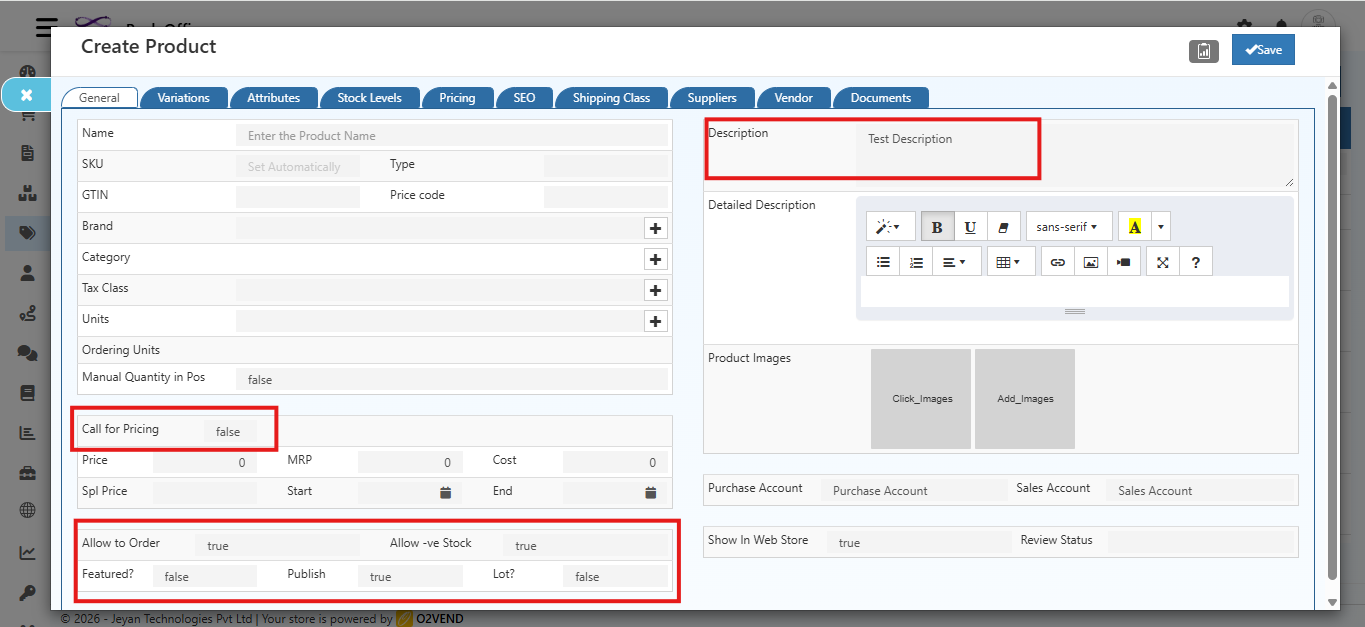
- When a new product form is opened, all fields listed in this screen will be pre-filled with the selected default values.
- These values can still be changed manually during product creation if needed.
- All changes in this screen apply only to future products, not existing ones.
- The defaults act as suggestions and do not restrict manual modifications.
Outcome
Once the settings are saved, every newly created product will automatically follow the configured default values. This ensures consistency, reduces manual input, and speeds up product creation across the system.