Amazon Integration in O2VEND
This guide explains how to integrate Amazon with the back-office system for seamless order, inventory, and product synchronization. Follow these steps to configure the channel and enable the integration easily.
Step 1: Navigate to Sales Channels
Go to: Back Office → Settings → Sales Channels
- Click the Create Channel button on the top-right side of the screen.
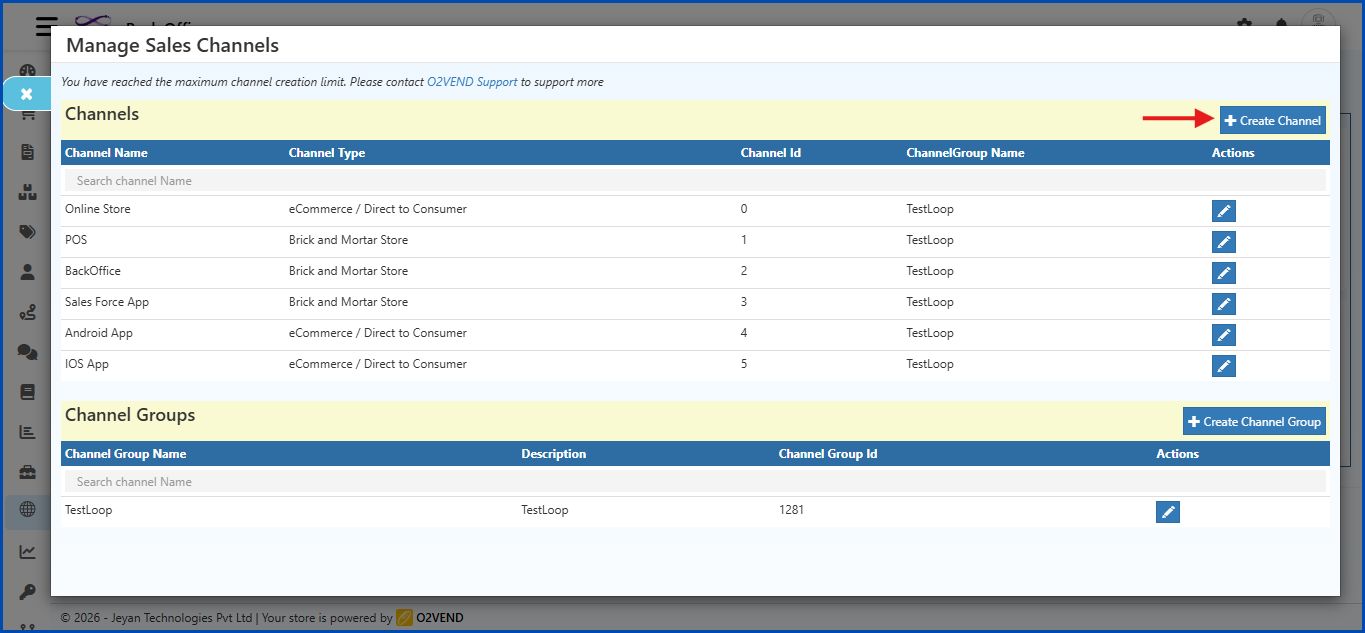
Initial Screen
The Create Channel form displays these fields:
- Channel Id
- Channel Name
- Channel Group Name
- Channel Type
Step 2: Select Channel Type
- Click the Channel Type dropdown.
- Choose Online Marketplaces.
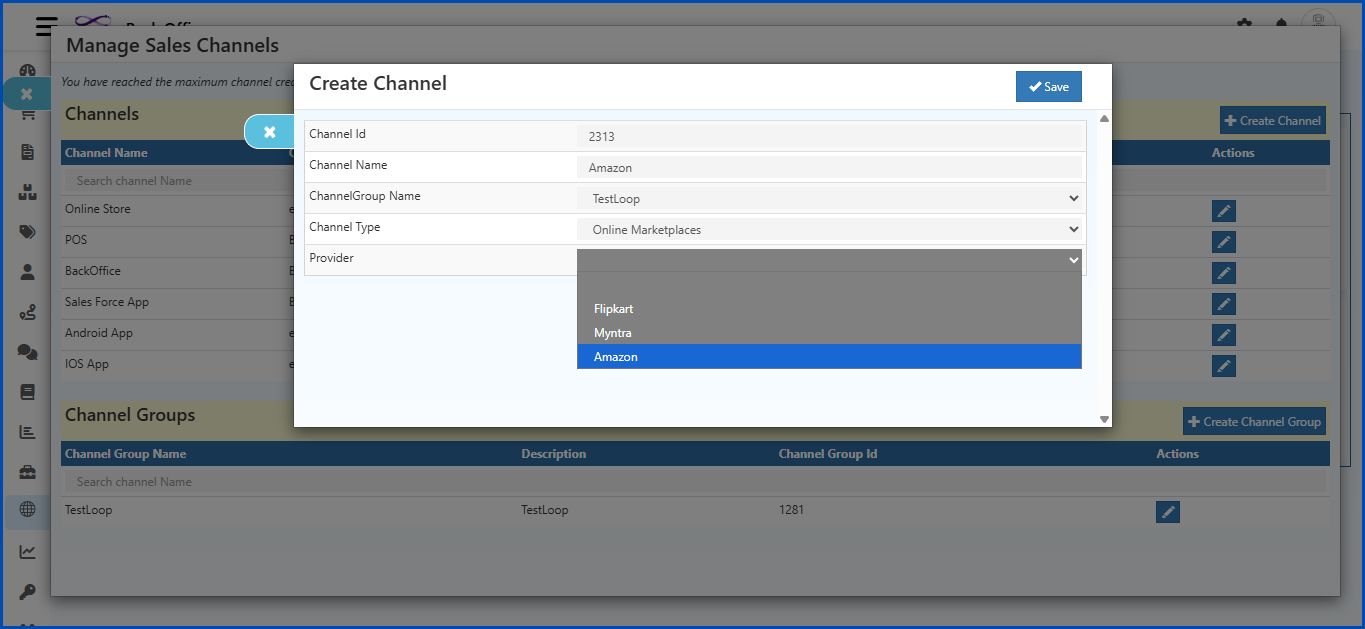
Step 3: Select Provider
- After selecting Online Marketplaces, a new field Provider will appear.
- Click the Provider dropdown.
- Select Amazon.
Step 4: Additional Fields Appear
Once Amazon is selected, the following fields appear:
- SellerId
- Role Arn
- Client Id
- Client Secret
- Refresh Token
- AccessKey
- SecretKey
- MarketPlace Id
- Environment
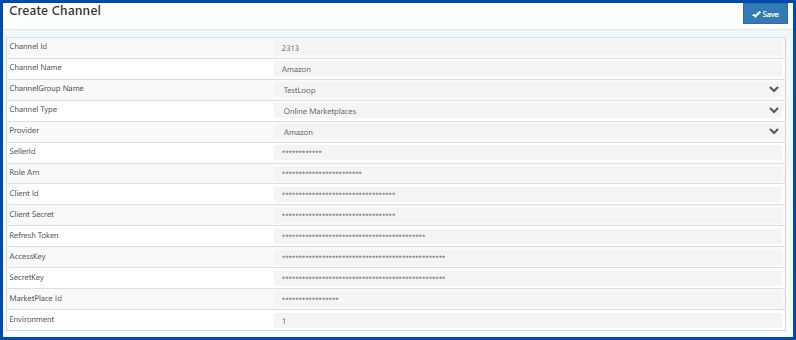
Field Details
| Field | Description |
|---|---|
| Channel Id | A unique number for this channel. Enter a Channel ID. |
| Channel Name | A name for the channel, for example Amazon. |
| ChannelGroup Name | A common name to group similar channels together. |
| Provider | Select Amazon from the dropdown list. |
| SellerId | The Seller ID given by Amazon. This identifies the seller account. |
| Role Arn | Amazon Resource Name (ARN) for the IAM role used in SP-API integration. |
| Client Id | Enter the Client ID from Amazon Seller Partner API credentials. |
| Client Secret | Enter the Client Secret from Amazon Seller Partner API credentials. |
| Refresh Token | A token that helps generate a new Access Token when the old one expires. |
| AccessKey | AWS Access Key provided by Amazon for authentication. |
| SecretKey | AWS Secret Key provided by Amazon for authentication. |
| MarketPlace Id | Enter the Marketplace ID for the region (e.g., A21TJRUUN4KGV for Amazon India). |
| Environment | Enter the mode: - 0 → Sandbox (Testing) - 1 → Production (Live) |
- Click Save after completing all fields.
Step 5: Enable Amazon Integration
Go to: Back Office → Integrations → Order
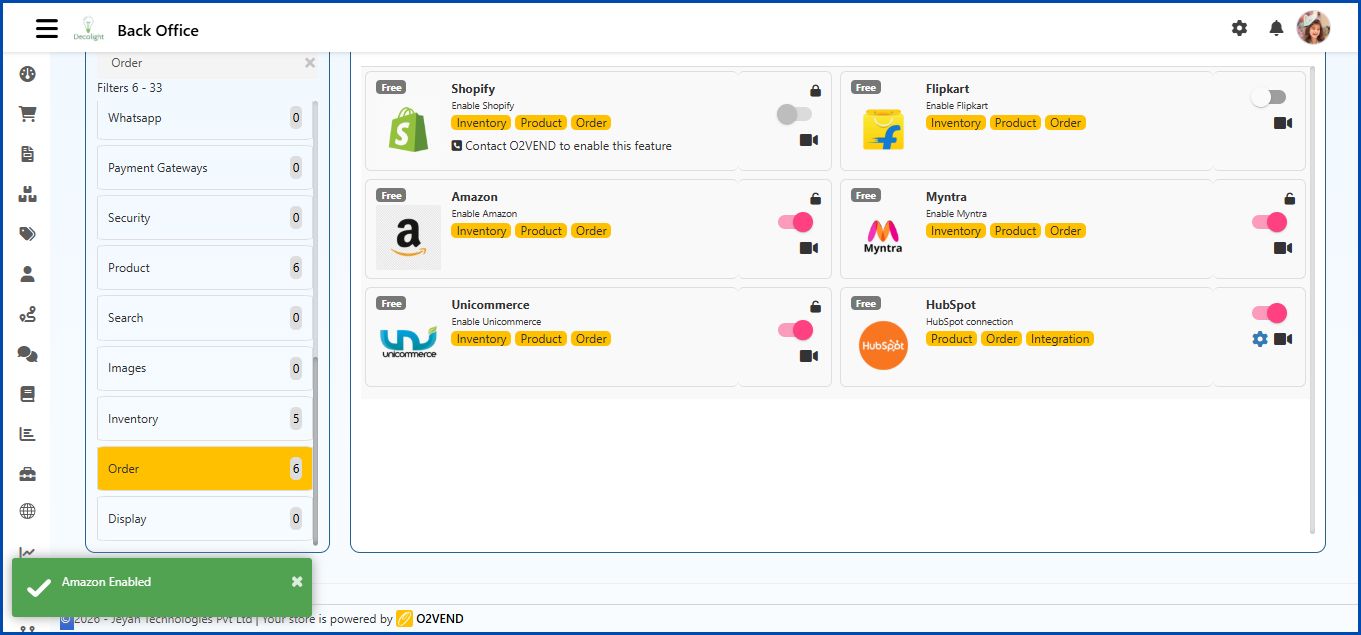
Process
- Select Amazon in the list.
- Click the toggle switch to enable the integration.
- Once enabled, Amazon supports Order Sync, Inventory, and Product management.