Donation Product in O2VEND ERP – Create, Configure & Use in POS
The Donation Product feature in O2VEND ERP allows businesses to collect voluntary customer contributions directly at the Point of Sale (POS) or during order creation—without inventory tracking or tax complexity.
This feature is widely used for community welfare donations, charity programs, CSR initiatives, temple contributions, and social responsibility campaigns, while maintaining accurate billing, transparent reporting, and audit-ready records.
In this step-by-step guide, learn how to create a donation product, configure donation amount variations, and use it seamlessly in POS using real O2VEND interface screens.
✅ Ideal for retail stores, supermarkets, NGOs, institutions, and CSR-driven businesses
✅ Zero stock handling • Clean accounting • POS-friendly
What Is a Donation Product in O2VEND ERP?
A Donation Product in O2VEND ERP is a special non-inventory product designed exclusively for collecting customer contributions.
Key Characteristics
- Allows customers to choose a donation amount
- Does not affect inventory or stock levels
- No purchase cost, MRP, or valuation
- Can be added to cart like a normal product in POS
- Fully trackable in sales and donation reports
Donation products support fixed contribution options (₹50, ₹100, ₹150, ₹500, etc.), making checkout faster and more transparent.
Step 1: Navigate to Create Donation Product
Go to:
Back Office → Products → Create Product (Alt + P)

From the Create Product dropdown, select:
Donation
This opens the Donation-specific product creation screen with optimized settings for contribution-based billing.
Step 2: Enter Donation Product Details (General Tab)
In this step, configure the identity, classification, and POS behavior of the donation product.
These details determine how the donation appears in Back Office, POS, invoices, and reports.
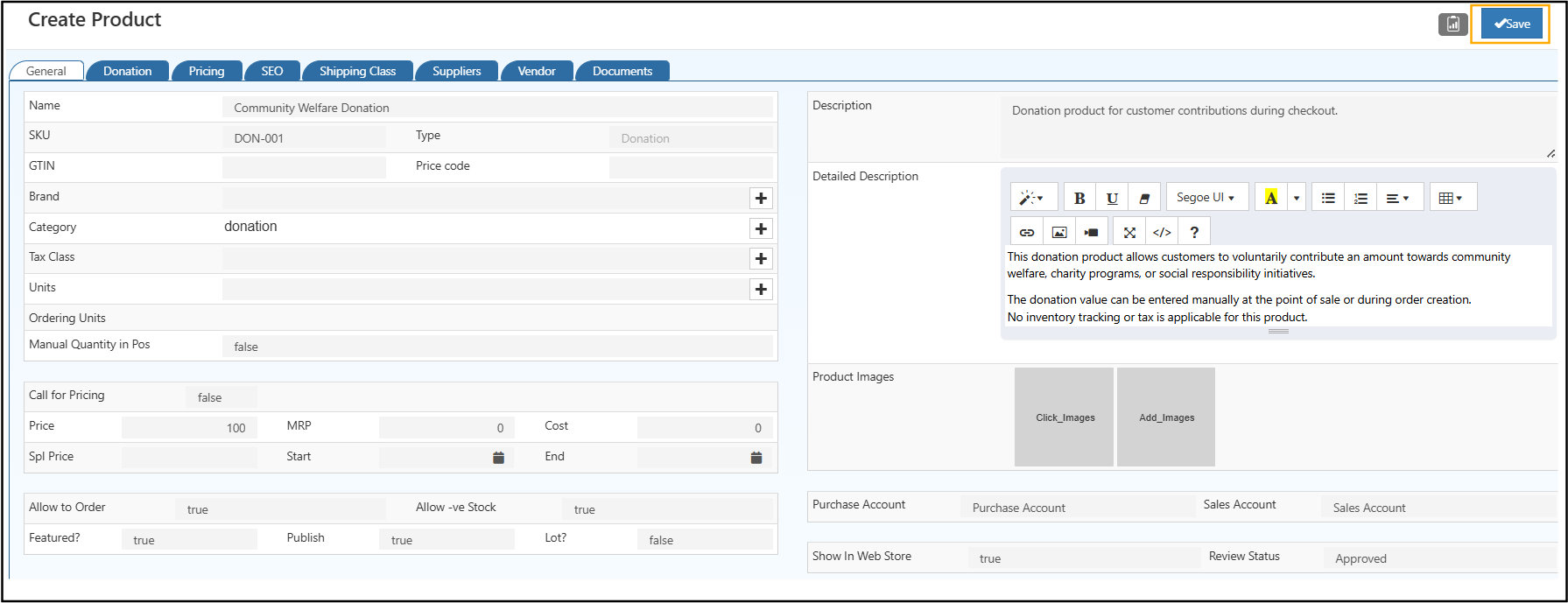
Basic Information
Enter the details of Product Name
- Example: Community Welfare Donation
- Displayed to customers on POS screen and printed bills.
Enter the details of SKU
- Example: DON-001
- Helps track donation transactions accurately in reports.
Type
- Automatically set to Donation
- Enables donation-specific logic in O2VEND.
Enter the details of Category
- Select or create Donation
- Useful for filtering donation income separately.
Tax Class
- Select Nil / Exempt (recommended)
- Donations typically do not attract tax.
Step 3: Pricing Logic for Donation Products
Donation products do not follow standard pricing rules.
Step 4: Add Description (Customer Transparency)
Clear descriptions increase customer trust, staff confidence, and audit clarity.
Step 5: Save the Donation Product
Click Save to create the donation product.
Once saved, you can:
- Configure Donation Variations
- Use the product directly in POS
- Track donation collections in reports
Step 6: Configure Donation Variations (Edit Product)
Open the created donation product and switch to the Donation tab.

Add predefined contribution amounts.
Example Donation Variations
| Option Name | Amount (₹) |
|---|---|
| Small Contribution | 50 |
These variations appear as quick-select buttons in POS, reducing billing time and customer confusion.
Step 7: Use Donation Product in Point of Sale (POS)
At the POS screen:
- Search and select Community Welfare Donation
- Choose a donation amount (₹50 / ₹100 / ₹150 / ₹500)
- Click Add to Cart
- Complete billing as usual
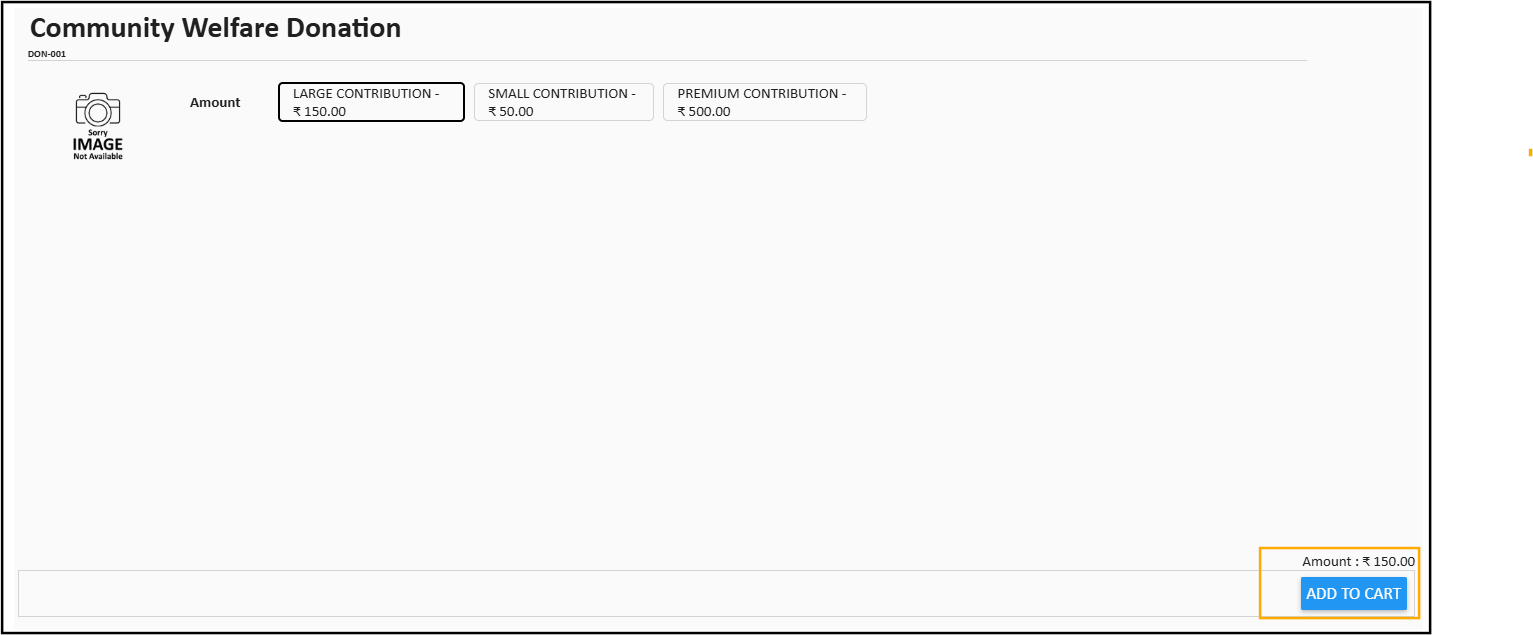
The donation appears as a separate line item on the bill and receipt.
Key Benefits of Donation Product in O2VEND ERP
- Easy donation collection at POS
- No inventory or stock dependency
- Clean, transparent reporting
- Supports CSR & charity initiatives
- Improves customer goodwill
- Fully audit-friendly
Related Topics
Explore other product types in O2VEND:
- Combination Product – Create products with multiple variants or options.
- Donation Product – Setup donation-based products for your catalog.
- Generic Product – Standard product creation and management.
- Manufacturing Product – Manage products produced in-house.
- Recharge Product – Setup prepaid or recharge-based products.
- Service Product – Add service-based offerings to your catalog.
Related Blogs
Learn more about product management, optimization, and selling strategies with these related blog articles:
Maximize Sales and Efficiency: The Power of Combination Products
Discover how combination products can boost sales, simplify inventory management, and improve customer buying experience.Sprouting Your Success: Organic Products to Sell Online
Explore trending organic product ideas, sourcing tips, and best practices for selling organic goods online.Smart Ways to Take Professional Product Photos
Learn proven techniques for capturing high-quality product photos that improve conversions and customer trust.Effective Methods for Organizing Retail Products by Category
Understand how proper product categorization improves navigation, inventory control, and sales performance.AI Optimization for Product Visibility in 2025
Learn how AI-driven optimization helps products rank better in search results and increases online visibility.
💡 Tip:
Combining strong product setup with smart categorization, high-quality visuals, and AI optimization can significantly improve both operational efficiency and sales performance.