Purchase Feature in O2VEND
Bulk Purchase WhatsApp Link in Product Details
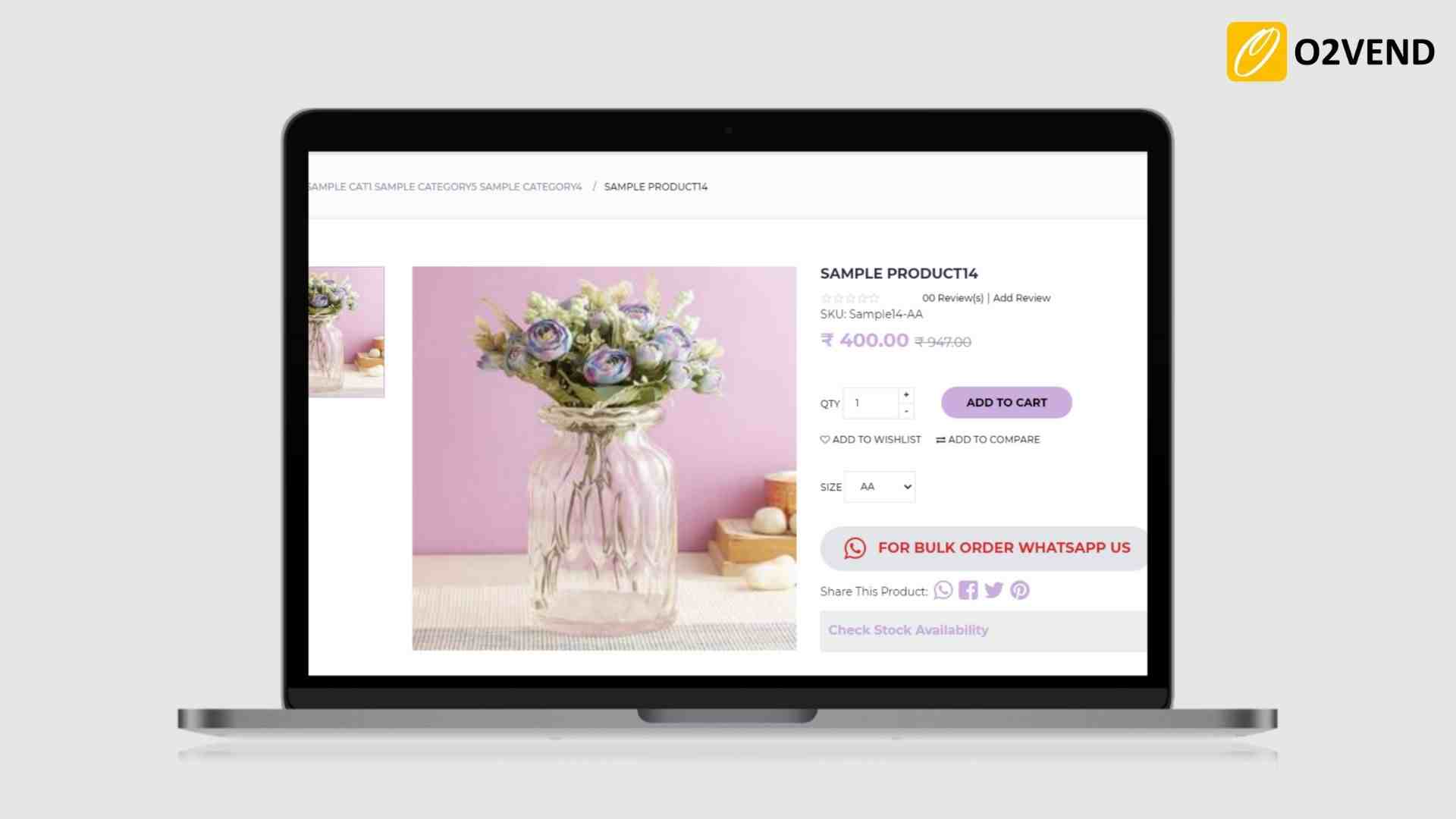
WhatsApp link will be added to the product details page in eCommerce. It is useful for the online customer who wants to buy bulk purchases in an eCommerce store.
Apply Supplier Serial No
The Apply Supplier Serial No feature adds an additional column in the Purchase Order and Purchase Invoice screens to capture the serial number provided by the supplier for each product line.
Many suppliers include their own line?item numbering (1, 2, 3�) in their invoice.
This feature allows entering the same numbers inside O2VEND, improving accuracy, matching, and audit clarity.
Once enabled, a new column labeled SL appears beside every product row where the suppliers serial number can be entered.
Navigation Path
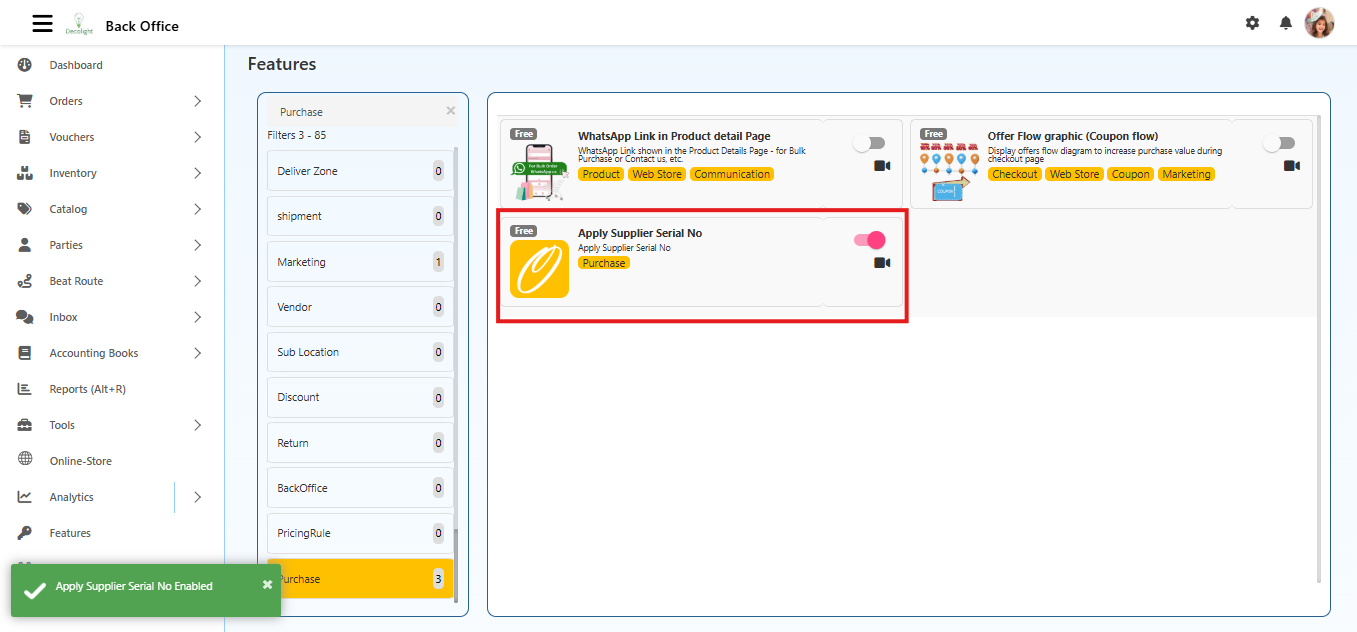
Back Office → Features → Purchase → Apply Supplier Serial No
Purpose
This feature helps to:
- Record the exact serial number shown in the suppliers invoice
- Maintain accurate mapping between supplier documents and system entries
- Reduce confusion when suppliers use their own line numbering
Where This Feature Applies
Once enabled, the SL column appears in both:
- Purchase Order
- Purchase Invoice
Users can enter supplier serial numbers at either stage of the purchase workflow.
Effect of Enabling the Feature
When Enabled (True)
The system displays a new column SL (Supplier Serial No) on:
- Purchase Order entry
- Purchase Invoice entry
This new column allows:
- Entering the suppliers serial number for each product row
- Matching the suppliers invoice numbering exactly
- Keeping serial numbers separate for each line item
- Supporting grouped numbering for products with variations
When Disabled (False)
- The SL column is hidden
- Only the default SL.No (system-generated row number) is shown
- No supplier serial numbers can be recorded
- The interface remains clean and simple for businesses that do not require supplier-side serial referencing
Configuration Option
Apply Supplier Serial No (Toggle)
- Enabled: Shows the SL column
- Disabled: Hides the SL column
This setting affects only Purchase Order and Purchase Invoice screens.
It does not affect stock, pricing, or product behavior.
How It Works
When the feature is turned ON:
- Each product row includes an editable field for entering the suppliers serial number
- The serial numbers entered are saved as part of the Purchase Order or Purchase Invoice
- Serial numbers are used only for documentation, matching, and auditing
- They do not change stock calculation, pricing, or GRN workflow
Example Scenario:
This example explains how serial numbers behave when adding normal products and variation products to a Purchase Order.
Normal Products
If two normal products are added:
| Line Item | Product Type | Supplier Serial No |
|---|---|---|
| Row 1 | Normal Product 1 | 1 |
| Row 2 | Normal Product 2 | 2 |
Each normal product gets its own unique SL number.
Variation Products
Now add a variation product that has 3 variations:
- Small
- Medium
- Large
In the Purchase Order, these appear as three separate rows.
All three get the same supplier serial number (3) because they belong to the same product group, just like in the supplier�s invoice.
| Line Item | Product Type | Variation | Supplier Serial No |
|---|---|---|---|
| Row 3 | Variation Product | Small | 3 |
| Row 4 | Variation Product | Medium | 3 |
| Row 5 | Variation Product | Large | 3 |
Why the Same Serial Number?
Suppliers typically list a variation product like this:
3. T?Shirt (Small, Medium, Large)
So all variations share the same supplier serial number.
Summary of Behavior
- Normal products → Each line gets its own serial number
- Variation products → All variations share a single serial number
- SL numbers follow the suppliers invoice sequence
- Helps with matching, checking, and auditing purchases
Outcome
When enabled, supplier serial numbers can be entered for each product, making invoice matching and auditing easier.
When disabled, only system serial numbers are shown, and supplier serial entry is not available.