eShipper Integration in O2VEND
Integrating eShipper with O2VEND helps streamline shipping and order fulfillment. eShippers features and easy integration improve the efficiency of handling orders, shipping, and tracking in O2VEND.
Accessing eShipper Integration in O2VEND
Open Integration in the O2VEND Back Office, then select Shipment Gateways → eShipper.
Screen Overview
The screen is titled eShipper Configuration and is part of the O2VEND store integration settings. It contains multiple input fields grouped into sections.
Configure eShipper Integration to your O2VEND Store
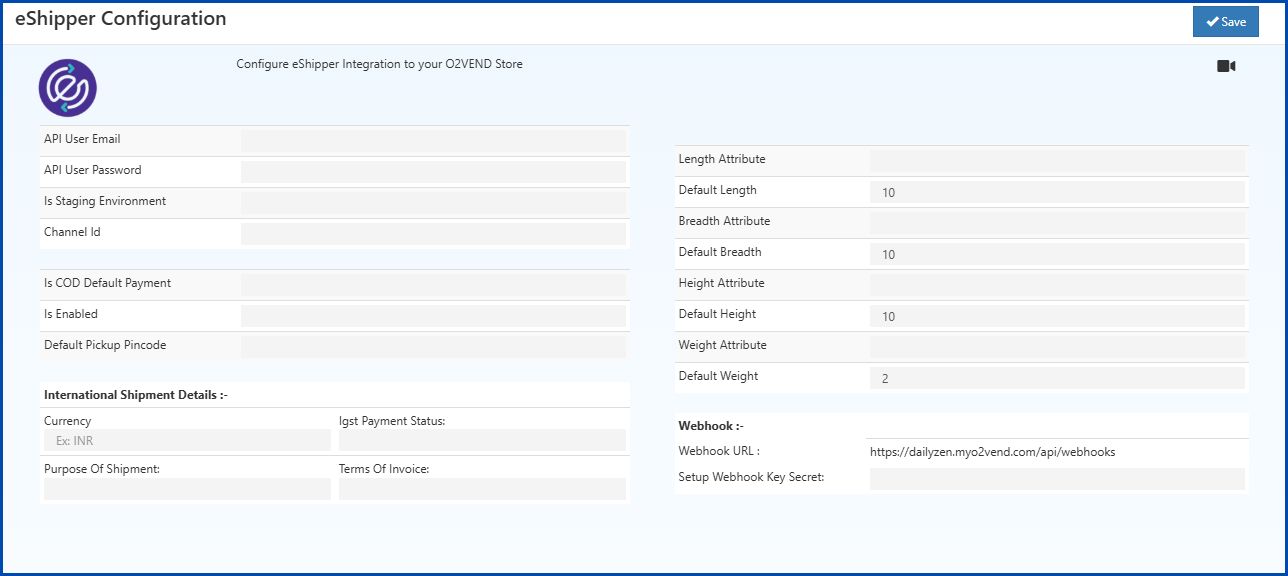
Left Section: eShipper Account & Integration
API User Email
- Enter the email provided by eShipper for API access.
- Example:
[email protected]
API User Password
- Enter the password for the eShipper API account.
- Keep this secure.
Is Staging Environment
- Enter
truefor testing in sandbox mode,falsefor live production. - Example:
false
Channel Id
- Enter the Channel Id provided by eShipper for the store.
- Example:
O2VEND-Store-01
Is COD Default Payment
- Enter
trueif Cash on Delivery should be the default payment method, elsefalse. - Example:
false
Is Enabled
- Enter
trueto activate eShipper integration,falseto disable. - Example:
true
Default Pickup Pincode
- Enter the postal code for your default pickup location.
- Example:
600001
International Shipment Details
Currency
- Enter the currency code for international shipments.
- Example:
INRorUSD
IGST Payment Status
Choose one from:
- Not Applicable - No IGST needed.
- LUT or Export under Bond - Export without paying IGST.
- Export Against Payment of IGST - Export after paying IGST.
Purpose Of Shipment
- Enter the reason for shipment.
- Example:
Commercial,Gift,Sample
Terms Of Invoice
- Enter the invoice or shipping terms.
- Example:
CIF,FOB
Right Section: Package Dimensions
Length Attribute
- Enter the product attribute name for length.
- Example:
length_cm
Default Length
- Enter the default length if no attribute value is available.
- Example:
10
Breadth Attribute
- Enter the product attribute name for breadth or width.
- Example:
width_cm
Default Breadth
- Enter the default breadth.
- Example:
10
Height Attribute
- Enter the product attribute name for height.
- Example:
height_cm
Default Height
- Enter the default height.
- Example:
10
Weight Attribute
- Enter the product attribute name for weight.
- Example:
weight_kg
Default Weight
- Enter the default weight in kilograms.
- Example:
2
Webhook Section
Webhook URL
- This is a system-generated default URL used for receiving shipment updates.
- This field cannot be edited.
- Example:
https://yourstore.myo2vend.com/api/webhooks
Setup Webhook Key Secret
- Enter a secret key for validating webhook requests.
- Example:
secret_12345
Top Right
Save Button
- Click Save after filling all fields.