Receipt Challan (RC) in O2VEND ERP
Stock Inward Verification & Inventory Control Guide
Control inward stock before GRN using Receipt Challan in O2VEND ERP. Track goods received, prevent quantity errors, and maintain clean audits.
A Receipt Challan (RC) in O2VEND ERP helps you verify goods received before GRN, prevent stock mismatches, and maintain accurate inward inventory records across branches.
The Receipt Challan screen provides a centralized view of inward stock movements, including supplier details, receipt status, received quantities, invoice status, and total value. This ensures every delivery is verified, traceable, and aligned with GRN and warehouse workflows.
By using Receipt Challans, businesses maintain accurate stock inward records, reduce quantity mismatches, and stay audit-ready.
What Is a Receipt Challan?
A Receipt Challan is a structured inward document that records:
- Goods delivered by suppliers
- Quantities received against reference documents
- Receipt status before inventory confirmation
It supports the Goods Received Note (GRN) process and creates a clear inward audit trail.
Receipt Challan Dashboard Overview
The Receipt Challans list screen displays all inward entries in a filterable, status-driven view for quick monitoring.
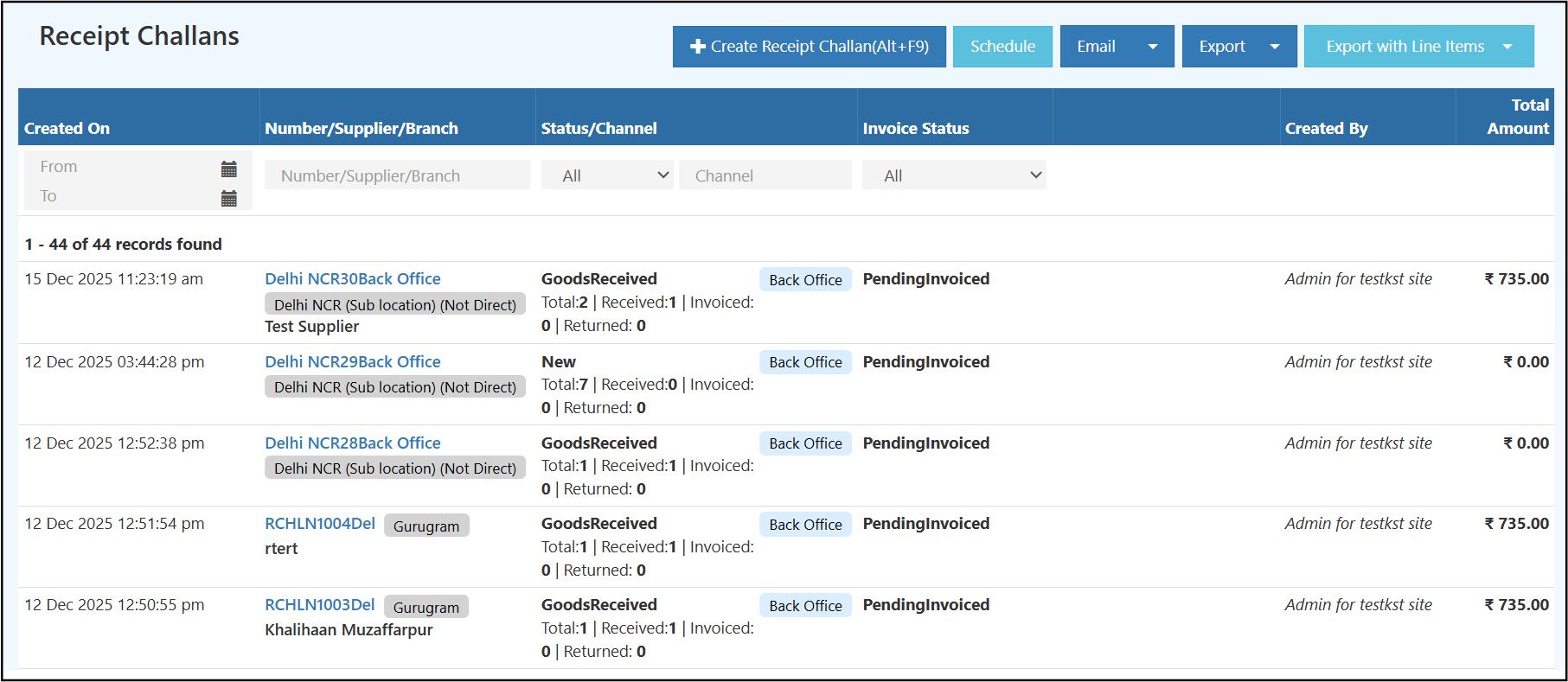
Key columns include:
- Created On
- Number / Supplier / Branch
- Status / Channel
- Invoice Status
- Created By
- Total Amount
The header provides instant visibility into operational and financial status.
Receipt Challan Number
A unique, auto-generated ID used for tracking, audit reference, and document linkage.
Branch
Shows the receiving branch or sub-location where goods are inwarded.
Status
Indicates the operational stage of the challan.
- Open – Created but goods not fully received
- PartiallyGoodsReceived – Partial delivery received
- GoodsReceived – All items successfully received
- Cancel – Shipment cancelled or rejected
Invoice Status
Represents billing progress.
- PendingInvoiced– Invoice not yet created
- Partial Invoiced – Some items invoiced
- Invoiced / Over Invoiced – Invoice completed or exceeded
Created On
Displays challan creation date and time for reporting and audits.
This view supports fast verification, audits, and multi-location inward tracking.
Why Receipt Challan Is Important
- Accurate Stock Inward: Only verified quantities move to GRN and inventory
- Supplier Reconciliation: Shortages, excess, or damages are recorded early
- Audit & Compliance: Clear linkage between PO, RC, GRN, and invoice
- Controlled Inventory Posting: Prevents unverified stock updates
✅ Want to eliminate inward stock errors?
Start using Receipt Challan in O2VEND ERP to control stock before GRN.
Ways to Create a Receipt Challan in O2VEND
Navigation:
Back Office → Inventory → Receipt Challan
From Purchase Order
Auto-generated using Deliver & Create Receipt Challan with pre-filled items.Manual Creation
Created directly from the Receipt Challan module for non-PO or urgent receipts.Using Supplier Reference Number
Helps track and group shipments for better traceability.
Create Receipt Challan in O2VEND ERP
The Create Receipt Challan screen is used to record incoming goods before GRN creation and inventory update.
It ensures controlled stock inward, supplier traceability, and financial accuracy.
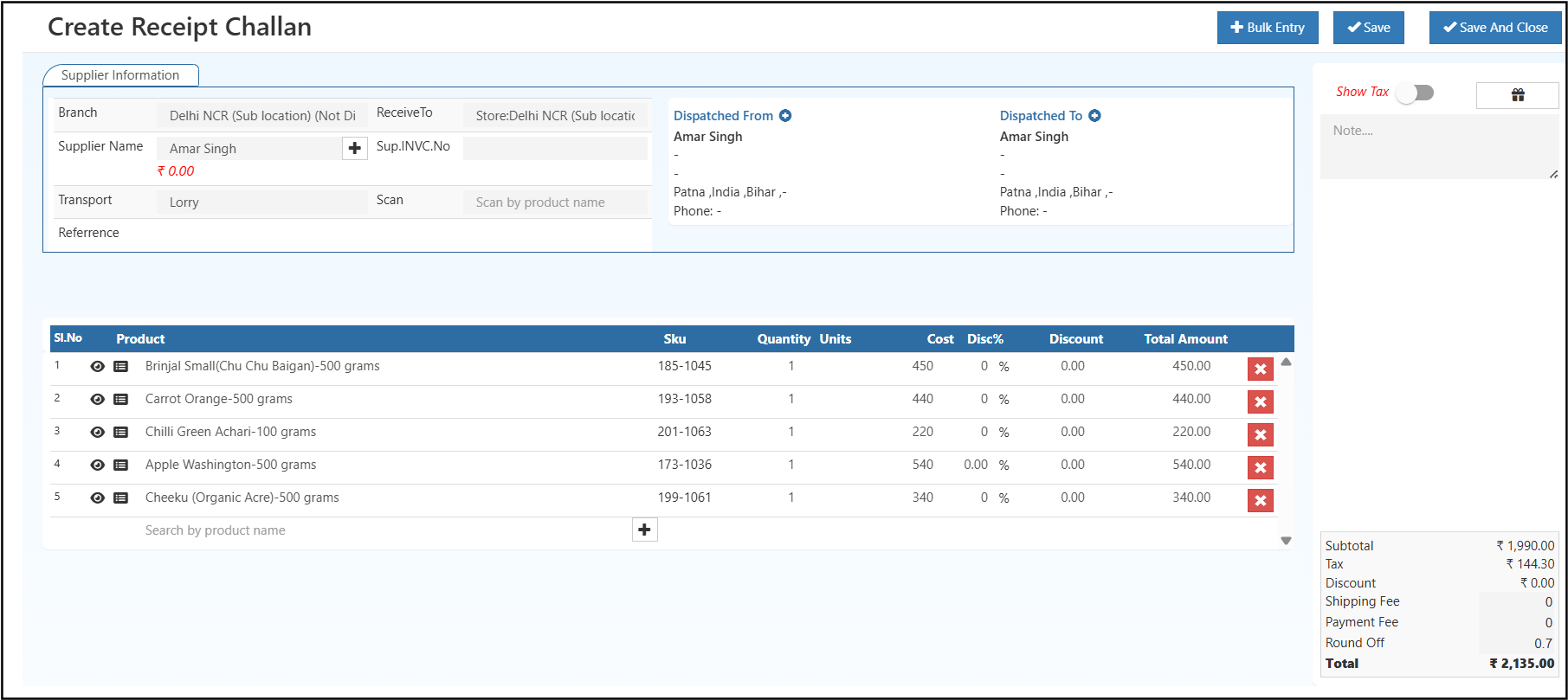
Receipt Challan Creation – Core Workflow
Create Receipt Challan → Verify Quantities → Goods Received → GRN → Inventory Update
This flow blocks unverified stock from entering inventory.
Supplier Information Section (Top Panel)
This section defines where goods are coming from and where they are received.
Branch
Shows the receiving branch or sub-location where stock will be inwarded.
Receive To
Displays the store or warehouse location mapped to inventory posting.
Supplier Name
Selects the supplier delivering the goods.
Supplier balance and master data are automatically linked.
Supplier Invoice No
Captures supplier-provided invoice or delivery reference for reconciliation.
Transport
Records the delivery mode (Lorry, Van, Courier, etc.) for logistics tracking.
Reference
Used to store PI numbers identifiers.
Dispatch Details (Right Panel)
These fields capture movement and origin details.
Dispatched From
Shows supplier dispatch address and contact information.
Dispatched To
Displays receiving location address and contact details.
This improves traceability and audit clarity.
Product Entry Section (Main Table)
This section controls item-level inward accuracy.
Product
Lists items received under the challan.
SKU
Unique product identifier for inventory mapping.
Quantity
Number of units received for each item.
Units (UOM)
Measurement unit such as grams, kg, pcs, etc.
Cost
Purchase cost per unit used for valuation.
Discount
Item-level discount applied if negotiated.
Total Amount
Auto-calculated line value after cost and discount.
Products can be added individually or using Bulk Entry for large receipts.
Order Summary (Bottom Right)
Provides financial clarity before saving.
- Subtotal – Total product value
- Tax – Applied tax amount
- Discount – Overall discount (if any)
- Round Off – Rounding adjustment
- Total – Final challan value
This value is later used for invoice matching and GRN validation.
Tabs Explained (Left to Right)
Goods Received
Primary tab for entering and validating inward stock details.
History
Displays challan status changes with user and timestamp for audit tracking.
Change Status
Used to move challan between Open, PartiallyGoodsReceived, GoodsReceived, or Cancel.
Documents
Stores delivery notes, invoices, transport proofs, and quality reports.
Update History
Tracks every field-level change including quantity, price, supplier, or address edits.
Right-Side Actions
Bulk Entry
Adds multiple products quickly in a single action.
Save
Stores the Receipt Challan and keeps it editable.
Save and Close
Saves and exits the screen.
Show Tax
Toggles tax visibility on the challan.
Notes
Used for inspection remarks, delivery comments, or internal references.
Why Create Receipt Challan Before GRN
- Prevents incorrect stock from entering inventory
- Captures shortages, damages, and excess at receipt stage
- Acts as base document for Goods Received and GRN
- Ensures PO, invoice, and inventory alignment
- Creates an audit-ready inward record
Next Step After Creation
After saving the Receipt Challan:
- Proceed to Goods Received
- Verify actual received quantities
- Create GRN
- Update inventory accurately
How to View Receipt Challan Details
- Open Back Office.
- Navigate to Inventory → Receipt Challan.
- Click any challan Number to open details.
- Press ESC or Close to exit.
Next Workflow Step
Edit Receipt Challan → Goods Received → GRN Creation → Inventory Update
This ensures only verified and approved stock enters inventory.
How to Edit a Receipt Challan in O2VEND ERP
Editing a Receipt Challan (RC) allows corrections before invoice creation and inventory posting. This step is critical to ensure quantity accuracy, supplier correctness, and financial alignment.
Step-by-Step: Edit Receipt Challan
- Navigate to Back Office → Inventory → Receipt Challan
- From the Receipt Challan list, click the Receipt Challan Number to open details
- The Edit Receipt Challan screen opens with existing data
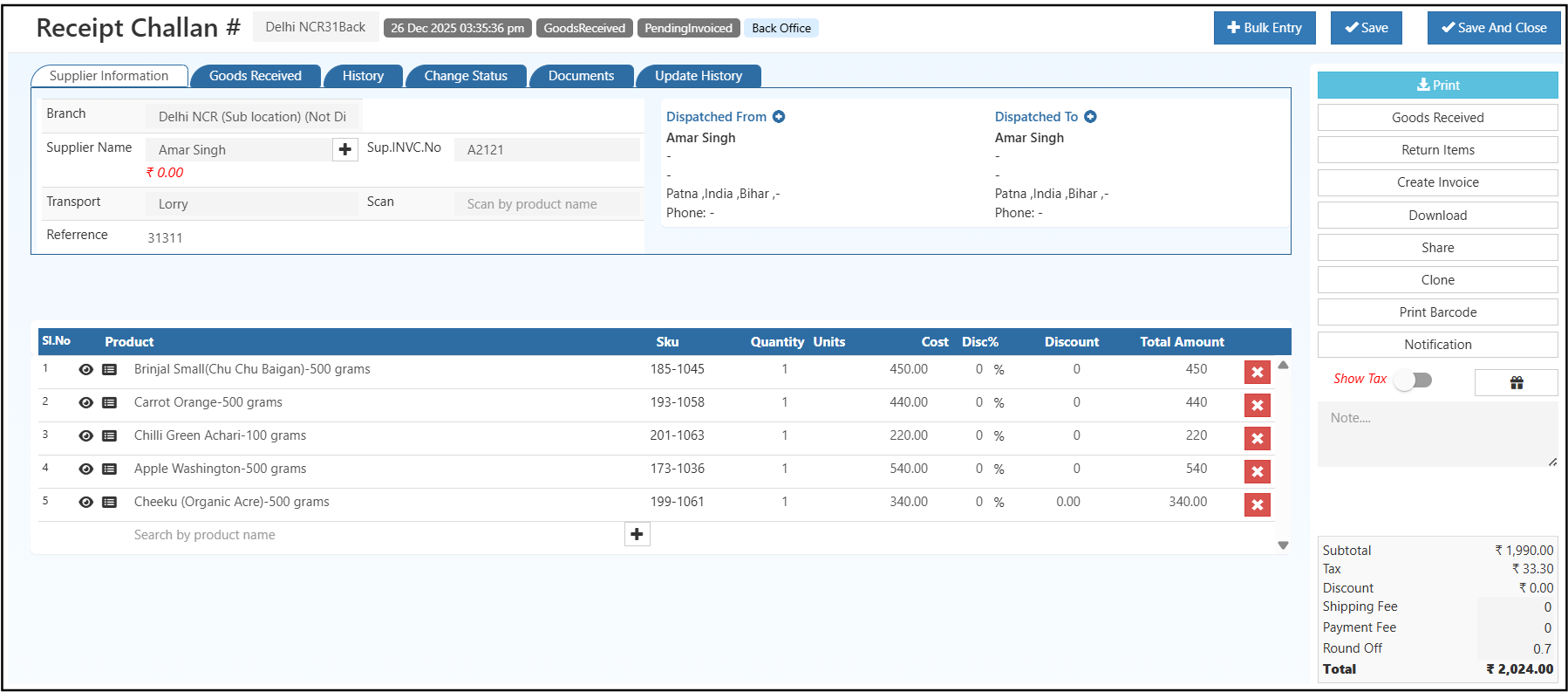
Receipt Challan Edit Page – Right-Side Action Buttons Explained
The right-side action panel on the Receipt Challan Edit page provides quick controls to verify goods, manage exceptions, and complete downstream workflows without leaving the screen.
Each button serves a specific operational purpose.
Generates a formatted Receipt Challan document.
Used for physical records, supplier acknowledgment, or audit documentation.
Goods Received
Confirms item-wise received quantities.
This action validates inward stock and moves the challan toward GRN creation.
This is the most critical step before inventory update.
Return Items
Records damaged, excess, or rejected goods.
Automatically creates a return entry linked to the supplier for reconciliation.
Create Invoice
Converts the verified Receipt Challan into a Supplier Invoice.
Ensures financial processing happens only after stock verification.
Download
Exports the Receipt Challan as a PDF file.
Useful for offline storage, audits, and sharing with external teams.
Share
Allows digital sharing of the Receipt Challan with suppliers or internal stakeholders.
Improves communication and reduces manual follow-ups.
Clone
Creates a duplicate Receipt Challan with the same item structure.
Ideal for repeat deliveries or recurring suppliers.
Print Barcode
Generates barcodes for received items.
Used for warehouse labeling, scanning, and faster stock movement.
Notification
Sends system alerts related to the challan.
Notifies warehouse, procurement, or finance teams about receipt updates.
Show Tax
Toggles tax visibility on the challan.
Helpful when working with tax-inclusive or tax-exempt suppliers.
Goods Received – Detailed Process
- Click Goods Received from the right-side panel.
- Review product list, SKU, and UOM.
- Enter Tracking Number for logistics-level traceability.
- Select Warehouse Location for stock allocation.
- Enter Quantity to Receive.
- Ensure quantity does not exceed the ordered amount.
- Add Lot Number / Serial Number if applicable.
- Click Save.
- Click Print Challan to generate receipt print.
After goods are saved, system updates status to GoodsReceived automatically.
Tip: Use Download Invoice to download a PDF copy of the challan.
🔗 Related Topics
Explore the next steps and connected inventory actions after creating a Receipt Challan.
- Outgoing Packages – View packages sent from suppliers or branches
- Delivery Challan – Understand goods received without invoice
- Goods Entries (GRN) – Convert Receipt Challan into GRN and verify stock
- Print Barcode Label – Generate barcodes for received items
- Stock Inventory – Check updated stock after receipt
- Stock History – Track inward stock movement and audit logs
- Stock Transfer – Move received stock to another location
- Stock Take – Physically verify received quantities