O2VEND Documentation
  • Tutorials
Search Results for

    Show / Hide Table of Contents
    • Getting Started
    • O2VEND Store
      • My Stores
        • Create Store
      • My Account
        • My Profile
        • Manage Billing
        • Support Desk
    • Dashboard
      • Dashboard
    • Orders
      • Quotation
      • Request For Quotation
      • Sales Order
        • Create Sales Order
        • Edit Sales Order
        • Goods Issue in Sales Order
      • Work Order
      • Purchase Order
      • Subscription
      • ActiveCarts
    • Vouchers
      • Sales
        • Manage Sales
        • Create Sales Invoice
        • Cancel Sales Invoice
        • How to create GDN(Goods Delivered Note)
        • How to add lot for products in GDN
        • How to view sales details
      • Services
        • Services
      • Purchase
        • Manage purchase
        • Create Purchase Invoice
        • Cancel purchase Invoice
        • How to create GRN(Goods Received Note)
        • How to add lot for products in GRN
        • How to print a barcode label in purchase
        • How to view purchase details
      • Credit Note
      • Debit Note
      • Receipt
      • Payment
      • Journal
      • Contra
    • Inventory
      • Stock Quantity (Alt+I)
      • Stock History
      • Print Barcode Label
      • Delivery Challan
      • Receipt Challan
      • Stock Transfer
      • Manufacturing Voucher
      • Stock Take
      • Incoming Packages
      • Outgoing Packages
    • Catalog
      • Product
      • Brand
      • Categories
      • Option
      • Attributes
      • Attributes Categories
      • Attributes Templates
      • Price List
      • Bulk Product Price update
      • Bulk Product Updates
      • Sku Rules
      • Pricing Rules
      • Create Product
        • Combination
        • Donation
        • Generic
        • Manufacturing
        • Membership
        • Recharge
        • Service
        • Subscription
    • Parties
      • Customers
      • Customer Groups
      • Supplier
      • Supplier Group
    • Beat Route
      • beats
      • Routes
      • Beat Runs
      • Route Runs
    • Inbox
      • SMS
      • E-Mail
      • Whatsapp
      • Configuration Template Setup
    • Accounting Books
      • Ledgers
      • Chart of Accounts
      • Day Book
      • Cash Book
      • Sales Book
      • Purchase Book
      • Account Group Book
    • Reports
      • Order Reports
        • Web Orders Progress Report
        • Back Order Items Report
        • Purchase Order Pending Item Report
        • Sales Order Pending Item Summary
        • Sales Shipping Status Report
        • Sales Order Summary
        • Sales Order Progress Report
        • Purchase Order Progress Report
        • Sales Order with Product Line Item Report
        • Sales Order Packing Sheet Report
        • Back Order Report
        • Purchase Order Summary
        • Sales Order Shipment Report
        • Sales Order Shipping Address Report
      • Sales/Purchase Reports
        • Sales Invoice Report
        • Sales Invoice Summary
        • Sales Items Summary
        • Purchase Invoice Report
        • Purchase Invoice Summary
        • Purchase Items Summary
        • Receipt Report
        • Daily Settlement Report
        • Contribution Margin Report
        • Agent Sales Report
        • Agent Report
        • Employee Sales Report
        • Employee Report
        • Employee Product Sales & Commission Report
      • Supplier Reports
        • Supplier Report
        • Supplier Purchase Report
        • Supplier Detail Report
      • Inventory Reports
        • Stock Summary
        • Stock Valuation Summary
        • Stock Ageing Report
        • Location Summary
        • Stock Ledger Report
        • Stock/Location Summary
        • Stock Movement And Valuation Summary
        • Stock Movement Summary Report
      • Products
        • Sold Product Categories
        • Product Category Summary
        • Product Sale Summary
        • Category Sale Summary
        • Brand Sale Summary
        • Reordering Stock Summary
        • Price Movement
        • Product Seasonal Demand
        • Product Stock Analysis Report
        • Stock Projection Report
      • Pos Reports
        • Cash Register Summary
        • Current Cash Registers
      • Account Reports
        • Day Book
        • Ledger
        • Cash Book
        • Sales Books
        • Purchase Books
        • Daily Sales and Payment Report
        • Balance Sheet
        • Profit and Loss Report
        • Trial Balance
      • Miscellaneous Reports
        • Output Detailed Tax Report
        • Output Tax Report Summary
        • Account Receivable Report
        • Account Payable Report
        • Gross Profit Report
        • Daily Tax Report
        • GSTR-1 Report
        • External API Logs
        • Benefit Usage
        • Offers Usage
        • Coupon Usage
        • Configuration Change History
        • VisitLog
    • Tools
      • Import
      • Export
    • OnlineStore
      • Themes
      • Theme Data
      • Shipping Methods
      • Payment Methods
      • Currency
      • Reviews
      • Zones
      • Delivery Zones
      • webstoreContentsSettings
        • Site Pages
        • Site Menus
          • Main Menu
          • Site Menus
        • Home Page Components
        • Page Header
        • Blog Categories
        • Blog
        • News Letter Subscription
        • menus
          • Main Menu
          • Site Menus
    • Analytics
      • Visitor Analytics
      • E-commerce Analytics
      • Product Analytics
      • Campaigns Analytics
    • Settings
      • Settings
      • Business Settings
        • Business Details
        • Tax Classes
        • Tax Rates
        • Operating Countries
        • Operating State or Province
        • Branches
        • Sales Channels
        • Return Rule
        • Backoffice Print Detail
        • Download Template
      • Point Of Sale
        • Quick Add Buttons
        • Print Settings
        • Payment Methods
        • Delivery Settings
        • Language
        • POS Offline Mode
      • Agent App
        • Agent App Print Details
      • Inventory
        • Unit Of Measure
        • Location
        • Unit Of Measure Conversions
        • Stock Levels
        • Sub Location
        • Print Barcode Label Settings
        • Package Material
      • userSettings
        • vendors
        • User Date Setup
        • Employees
          • Set Up Employee Roles
          • Ecommerce
          • Point Of Sale
          • Back Office
          • Sales App
        • Vendors Commission
        • Credit Rules
        • Automatic User Code
      • Loyalty and Promotions
        • Reward Points
        • Coupons
        • Gift Vouchers
        • Offers and Discounts
        • Benefits
        • Affiliate
        • Coupon Print Setting
      • Account
        • Financial Year
        • Voucher Numbering
        • Sales Account Map
        • Voucher Numbering Rules
    • Features
      • General
      • POS
      • Webstore
      • Integration
    • Integration
      • General
      • O2VEND Gateway
        • O2VEND Webhook
      • Integration
        • reCAPTCHA
        • Send Grid
      • API Key Management
        • Apikey
      • Storefront Settings
        • storefront
      • Shipment Gateways
        • Shipway
        • Shiprocket
        • Amazon Shipping
        • XpressBees
        • eShipper
        • GetDelivered
      • Email Configuration
        • Email
      • Communication Settings
        • Amazon SES
      • GST Configuration
        • E-invoice
        • E-Way
      • Tax Settings
        • Tax
      • Invoice Settings
        • invoice
      • eWay Bill Integration
        • eWay
      • SMS Configuration
        • MSG91
      • WhatsApp Integration
        • Whatsapp
        • Bhashsms
      • Payment Gateways
        • Paytm
        • Paypal
        • Cashfree
        • PayU
        • Stripe
        • Razorpay
        • Phonepe
      • Security Settings
        • security
      • Product Management
        • Shopify
      • Search
        • Type Sense
      • Images
        • images
      • Inventory Management
        • Inventory Management
      • Orders Management
        • order
      • Display
        • display
    • Profile
      • My Profile
    • Manage Physical Stores
      • Login
      • Sales Bill
        • Manage sales orders
        • How to add products to a customer's shopping cart
        • How to apply discounts/coupons
        • How to search products in Sales Screen
        • How to add products quickly to the Cart
        • How to add serial and lot number
        • How to Print sales bills in POS
      • Receive Payments (Receipts)
      • Delivery
      • Invoice Receipts
      • Manage Cash Register
      • Reprint
      • Dashboard
      • POS Offline
      • Stock Transfer
    • O2VEND App
      • Install O2VEND App
      • Home
      • Customers
      • Orders
      • Products
      • Receipts
      • Stock Movement
      • Employee Authorize
    • Webhooks
      • Webhook
      • Examples of JSON format data via webhook
      • Testing webhook

    This reports nomore

    Return Order Management System
    Return Order Management System

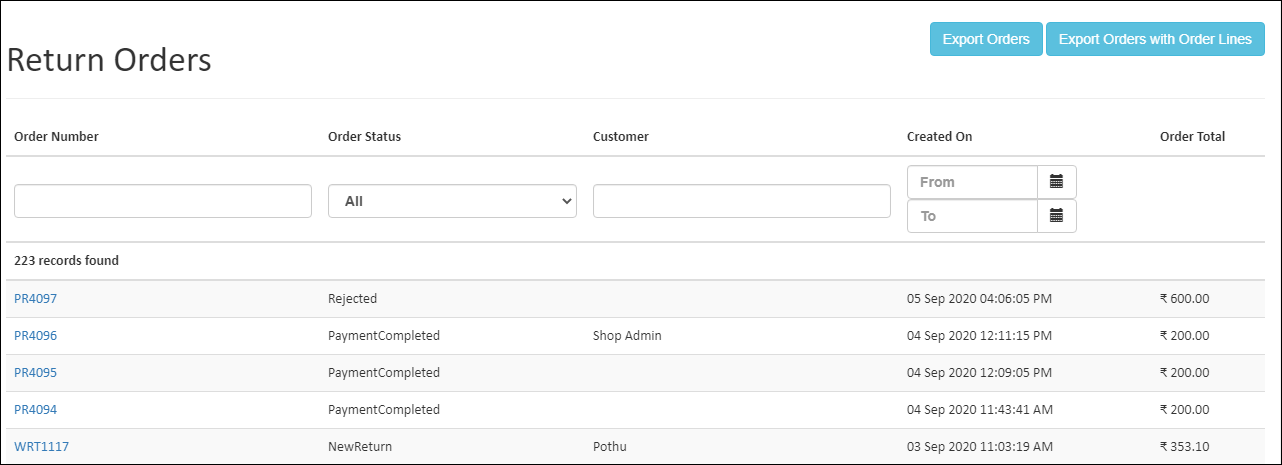
    This section will guide you on how to manage return orders across your channels (both physical stores and website).

    Return Order Lists

    The return order page contains a list of all return orders.

    Return Order Number

    This is a unique number for return orders.

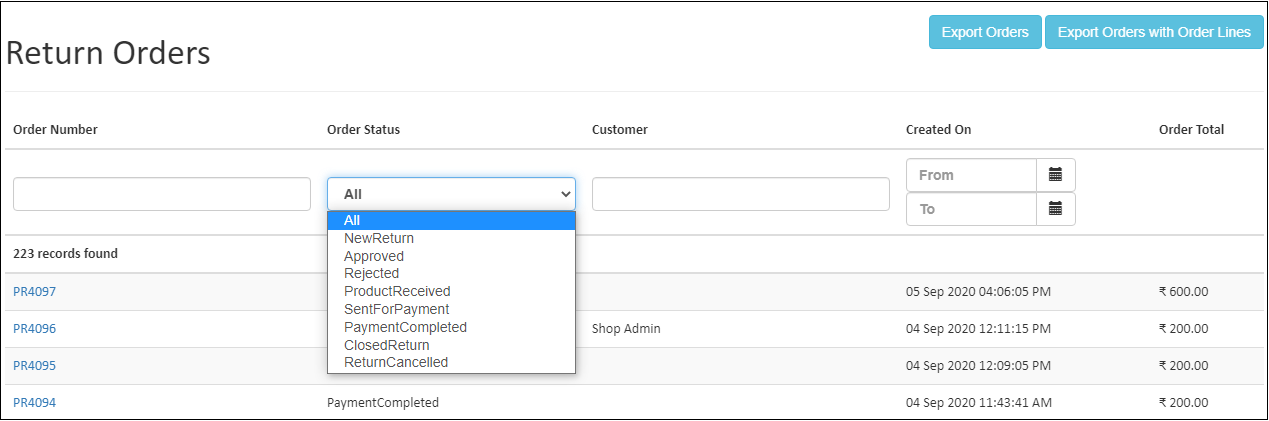
    Return Order Status
    Return Order Management System

    Order Status helps to view all the return orders status like-new return, approved,etc.,

    Return Order Status Types

    New Return

    Return order comes under the new return. Indicates that return order is created.

    Approved

    If you can accept the return request of the customer, the admin can change the status to Approved.

    Rejected

    This status is assigned when the requested return items are rejected to process further.

    Product Received

    If your product is received from your customer, change the order status is product received.

    Sent for payment

    If you have send the payment for your customer return order, set status as sent for payment.

    Payment Completed

    If you send the payment to your customer, change the return order status is payment completed.

    Closed Return

    If your customer does not want to return their item, change the return order status is a closed return.

    Return Canceled

    If the customer cancelled their return order for any reason then time the return order status is cancelled.

    Customer

    The Name of the ordered customer is stored in a customer field(The Order Placed by whom).

    Created On

    The order created date will show in a created on the field.

    Return Order Total

    The Customer total purchase amount will show in an order total.

    Return Order Details
    Return Order Management System

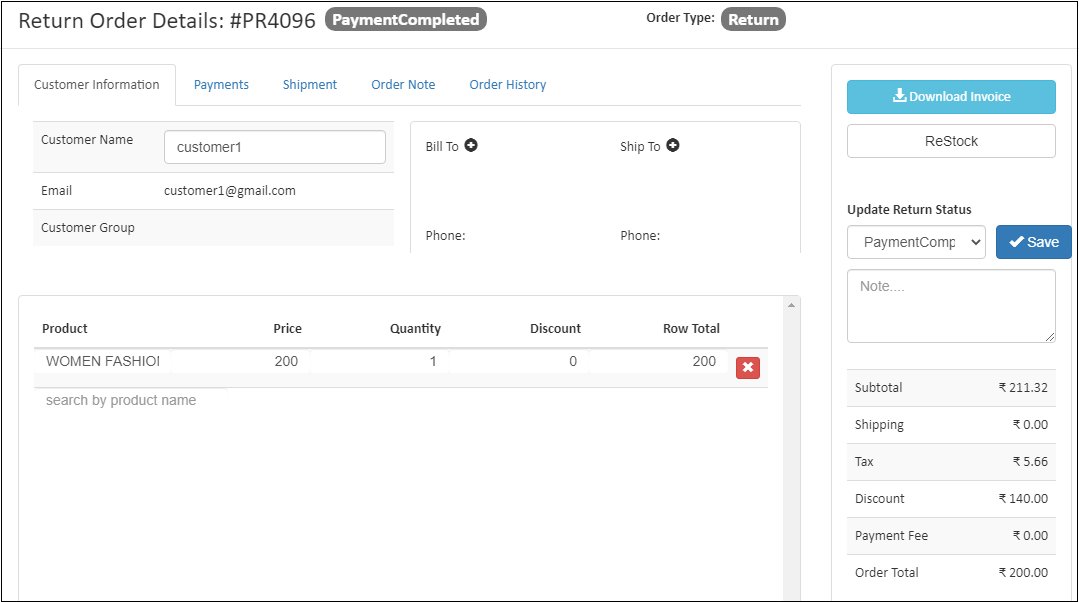
    This section contains general information of the order like Order and customer information, address information, Payment and shipment method, order note, order status and order total.

    How to view Return Order Details

    1. Open Back Office
    2. Go to Sales Menu.
    3. Click and open Order section.
    4. View All Order List in the order section.
    5. If you click order number it moves to the order details page.
    6. Click Close button to go order list page.

    Edit Return Order Detail

    You can also edit your order details for your customer information and add the products.

    How to edit return order details

    1. Open Back Office
    2. Go to Sales Menu.
    3. Click and open Order section.
    4. View All Order List in the order section.
    5. If you click Order Number it moves to the order details page.
    6. If you want to edit your customer information, enter your customer name and add your customer billing, shipping address.
    7. If you want to add the products, enter a product name in a search by product name.
    Tip

    If click Download Invoice to download the PDF Order. It includes the details of your company name, company logo, Address, customer order details.

    Update Status

    You can update your customer order status. Click Save after selecting the order status.

    Restock the products

    The items were already delivered and will be returned. The returned quantity will be added back to the available product count. You have the option to restock products by clicking the Restock button.

    To Restock products

    1. Click Add restock. (For more details on Shipment section)
    2. The product name, SKU and quantity of the product will be shown.
    3. select Warehouse (for more details on how to create warehouse-warehouse section).
    4. Enter Restock Quantity(Some items you want to Restock).
    5. Click Save button.
    6. The return of the product is restocked.
    Tip

    Use Export Orders and Export Orders With Order Lines options to export the report details into a comma-separated CSV file.

    • Edit this page
    In this article
    © 2019–2026 Jeyan Technologies Private Limited • www.o2vend.com • Create your own store