GDN Meaning in Logistics (Goods Dispatched Note) – Full Form, Example & ERP Workflow
Logistics • Inventory Management • Warehouse Dispatch • Delivery Workflow
GDN (Goods Dispatched Note) is a logistics document used when goods are dispatched from a warehouse. Learn GDN meaning, full form, example, and how it works in O2VEND ERP systems.
What is GDN in Logistics?
GDN stands for Goods Dispatched Note. It is a logistics and warehouse document used to record the dispatch of goods from a warehouse to a customer, branch, or delivery partner. A GDN confirms that:
- Goods have left the warehouse
- Inventory stock is reduced (stock-out)
- Shipment is handed over for delivery GDN is commonly used in warehouse management, logistics operations, and ERP inventory systems.
GDN Full Form
The full form of GDN is Goods Dispatched Note. It is issued when goods are dispatched from a warehouse and acts as an official outbound shipment record.
Example of Goods Dispatched Note (GDN)
A warehouse dispatches 20 cartons of FMCG products to a retail store. The GDN contains:
- GDN Number
- Dispatch Date
- Warehouse Location
- Product Name & Quantity
- Courier / Transport Details This GDN confirms that goods are dispatched and inventory is reduced.
Why GDN Is Important
GDN plays a key role in logistics and warehouse management by ensuring accurate outbound shipment tracking and inventory control. It ensures:
- Accurate documentation of outbound shipments
- Real-time stock deduction during dispatch
- Compliance with audit and logistics requirements
- Error-free order fulfillment workflow
- Clear traceability of every package leaving the warehouse In an ERP dispatch module, the GDN acts as the final checkpoint before goods move to the customer, making it essential for delivery accuracy and warehouse logistics automation.
Table of Contents – O2VEND GDN
- Why GDN Is Important
- Navigation to Goods Dispatched Note / GDN
- Step-by-Step Process to Create a GDN
- Add Package Panel
- GDN Edit Page – Step-by-Step Guide
- Initiate GDN Button Activation – Location Routing Logic
- GDN Packages Tab & Package Handling
- Frequently Asked Questions (FAQ)
- Refer Related Links
Navigation to Goods Dispatched Note / GDN
You can access GDN entries from the Outbound Shipments list:
- Open the Back Office
- Go to the Inventory menu
- Select Outgoing Packages
- Click Goods Dispatched to open the GDN list
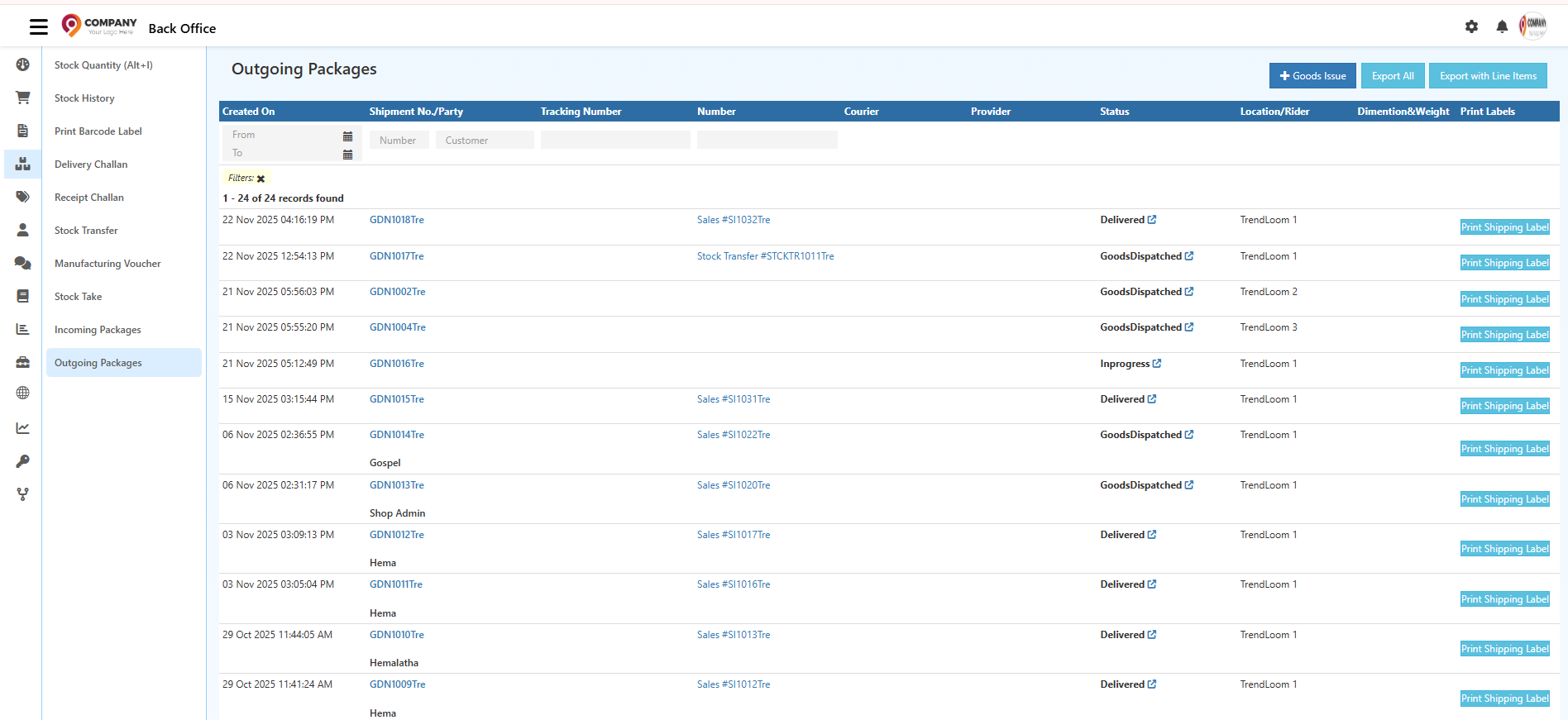
How GDN Works in O2VEND ERP (Outbound Shipment Workflow)
The Goods Dispatched (GDN) workflow manages all outgoing packages, sales order dispatches, and delivery challan shipments. This page displays shipment date, customer, delivery partner, packaging, and status. It helps warehouse teams ensure accurate order dispatch, timely deliveries, and correct stock deduction. A GDN ensures:
- Accurate inventory stock-out update
- Verified picked, packed, and dispatched orders
- Proper tracking of sales order deliveries & DC shipments
- Delivery accuracy & audit compliance
- Streamlined last-mile logistics operations
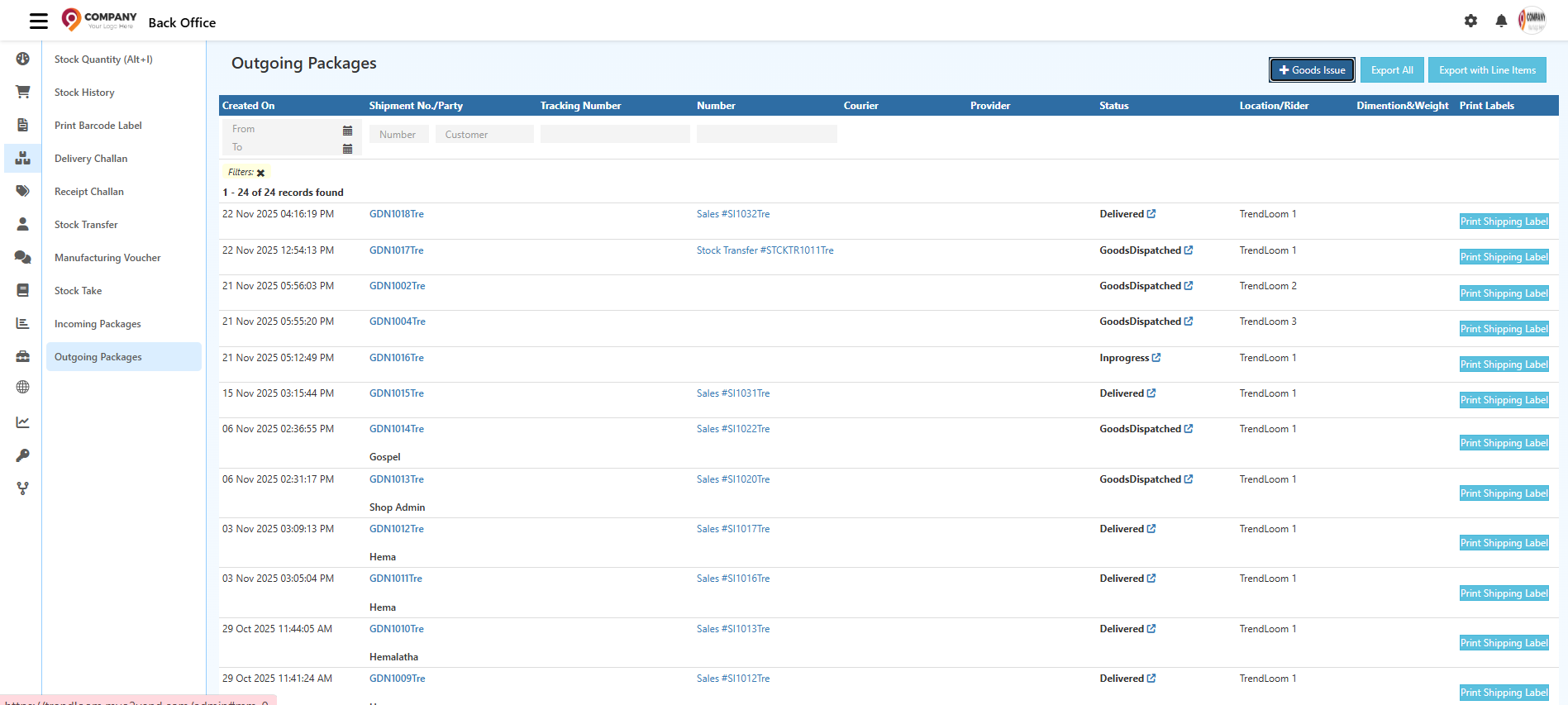
Columns & Their Functions in GDN
Created On
Shows the date & time the GDN or outbound shipment was created.
Shipment No / Customer
Displays shipment reference number and the customer or destination details.
Tracking Number
Courier tracking number for monitoring shipment progress.
Delivery Challan / Order No
Internal reference such as Sales Order Number or Delivery Challan Number.
Courier
Name of the delivery partner / logistics provider.
Provider
Indicates shipment source (e.g., Warehouse, Branch, Supplier Dispatch).
Status
Shows the current stage of the outbound shipment:
- Dispatched – Shipment handed to logistics
- OutForDelivery – Out for customer delivery
- Delivered – Customer received
- Exception – Delivery issue
- AttemptFail – Delivery attempt failed
- PickedUp – Pickup completed (for return orders)
Location / Rider
Warehouse dispatching the goods and assigned rider (if own delivery).
Dimension & Weight
Package measurements for courier charges & delivery planning.
Print Labels
Prints shipping labels for dispatched packages.
Filters Section
- Date Filter (From/To) – View dispatches by date
- Shipment No / Order No – Search by reference
- Customer – Filter dispatches by customer
- Tracking Number – Search by courier tracking ID
Top Buttons for GDN
Goods Issue
Creates a GDN, deducting stock and marking the order as dispatched.
Export All
Exports complete list of outbound shipments.
Export with Line Items
Exports product-level details for each dispatch.
Step-by-Step Process to Create a GDN (Goods Dispatched)
1. Open the Goods Dispatched Screen
Navigate to Inventory → Goods Dispatched, or open from Sales Order / Delivery Challan.
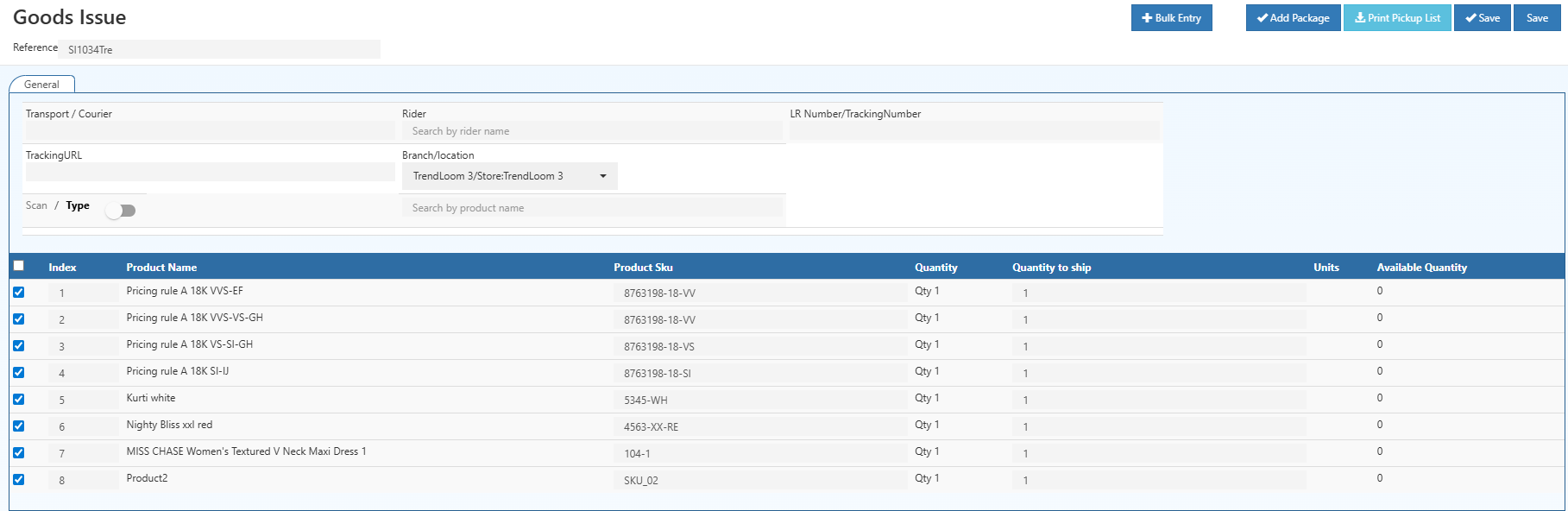
2. Enter Transportation Details
- Courier / Transporter
- Rider (Own delivery)
- Tracking Number / LR number
- Tracking URL
3. Verify Order & Dispatch Location
- Reference – Sales Order / Delivery Challan
- Dispatch Location – Warehouse / Branch
- Sub-location – Picking shelf / rack
4. Choose Item Entry Mode
- Scan Mode – Barcode scanning for fast picking
- Type Mode – Manual product selection
5. Review the Product List
Displays Product Name, SKU, Quantity Ordered, Units, Sub-location.
6. Enter Dispatched Quantities
Enter or confirm final quantities dispatched to the customer.
7. Assign Units & Sub-Locations
Supports accurate picking & packing.
8. Add Packages
Enter package dimensions and weight for shipping label accuracy.
9. Bulk Entry
Upload dispatch product list via Excel to speed up large order dispatch.
10. Review & Confirm
Check courier details, quantities, and package list.
11. Save the GDN
- Updates stock outward in real-time
- GDN status changes to Dispatched
- Delivery logs recorded in History
Need Help with GDN / Dispatch Workflow?
Get assistance with configuring Goods Dispatched Notes, courier setup, outbound shipment workflow, and dispatch process in O2Vend ERP.
Visit O2Vend Support →Goods Issue Overview
General
Main dispatch screen for courier info, picking mode, and product list.
History
Logs:
- Created by
- Status changes
- Courier updates
Change Status
Used to update GDN lifecycle manually.
Documents
Store attachments:
- Delivery challan
- Packing list
- Shipment labels
- Proof of delivery
Status List (Change Status Tab)
| Status | Meaning |
|---|---|
| Dispatched | Shipment sent out |
| OutForDelivery | Courier out for delivery |
| Delivered | Customer has received |
| Exception | Damage/issue occurred |
| AttemptFail | Delivery attempt failed |
| PickedUp | Return pickup completed |
| InProcess | Order being picked/packed |
| Packed | Packaging completed |
| ReadyToShip | Awaiting courier pickup |
General Tab
Reference
Select the internal reference number linked to the Sales Order, sales invoice, Shipment, or Delivery Challan.
Transport / Courier
Type or select the logistics provider responsible for delivering the shipment. Examples: Delhivery, Blue Dart, DTDC.
Rider
Search for a delivery rider or in-house delivery executive. Used when orders are delivered through your own delivery team.
LR Number / Tracking Number
Enter the transport LR number or courier tracking number for shipment tracking and verification.
Tracking URL
Paste the courier tracking page link to enable one-click shipment tracking from the system.
Branch / Location
Select the warehouse, branch, or store responsible for dispatching the order. This controls inventory deduction and routing.
Scan / Type Toggle
Choose how products are validated during dispatch.
- Scan Mode: Use barcode scanners for fast picking.
- Type Mode: Manually search for products using the search bar.
Product Table
| Field | Description | |-------|-------------| | Product Name | Name of the product dispatched | | Product SKU | Unique SKU for tracking and stock mapping | | Quantity | Quantity ordered by the customer | | Quantity to Ship | Final quantity dispatched; allows partial shipment | | Units | Units of measure such as PCS, BOX, SET | | Available Quantity | Real-time stock availability in the selected branch |
Top Action Buttons in Goods Dispatched (GDN)
Bulk Entry
Upload multiple dispatch items using an Excel sheet. This feature is ideal for bulk or wholesale order processing.
After clicking the Import button, the products listed in the Excel file will be added or updated in the GDN.
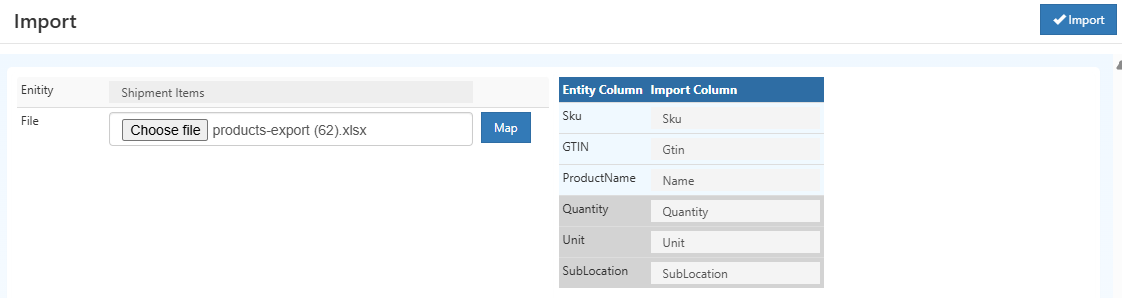
Supported Column Mapping
| Entity Column | Description |
|---|---|
| Sku | Product SKU |
| Gtin | Product barcode |
| Name | Product name |
| Quantity | Quantity dispatched |
| Unit | Unit of measure (PCS, BOX) |
| SubLocation | Rack/Shelf location |
Print Pickup List
Generate a printed picking list to support warehouse picking, packing, and verification processes.
Save
Save the Goods Issue and update stock, status, and dispatch logs.
Add Package Panel
These details are used for courier selection and shipping label generation.
Click Add Package to open the package details popup. Add shipment package details including dimensions, weight, COD option, and courier selection.
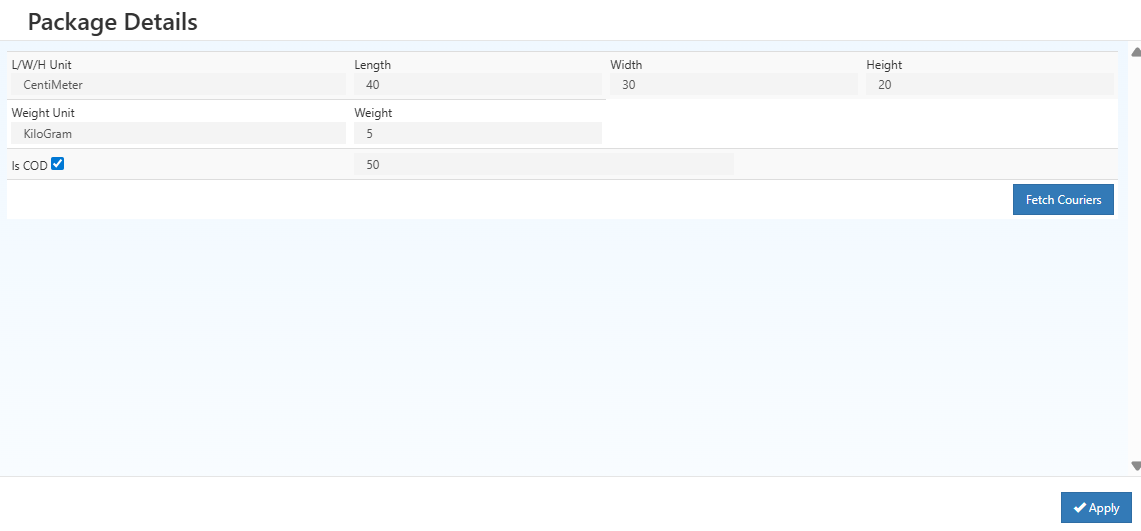
Package Management Steps for GDN
1. Open/Add Package
- Click Add Package to create a new shipment package.
- Each package can contain one or multiple products for dispatch.
2. Enter Package Details
- Choose package type (e.g., Box, Pallet)
- Enter dimensions (L/W/H) and weight
- Enable COD option if applicable
3. Add Products to Package
- Scan product barcodes or manually enter items
- Enter dispatched quantities
- Verify all items before approval
4. Save and Finalize
- Save the package details
- Confirm to update the GDN
- Packages are ready for shipping label generation and courier pickup
GDN Edit Page – Step-by-Step Guide
The GDN Edit page allows you to review, update, and finalize all details required before dispatching a shipment. Use this page to manage courier information, add package details, and generate shipping documents.
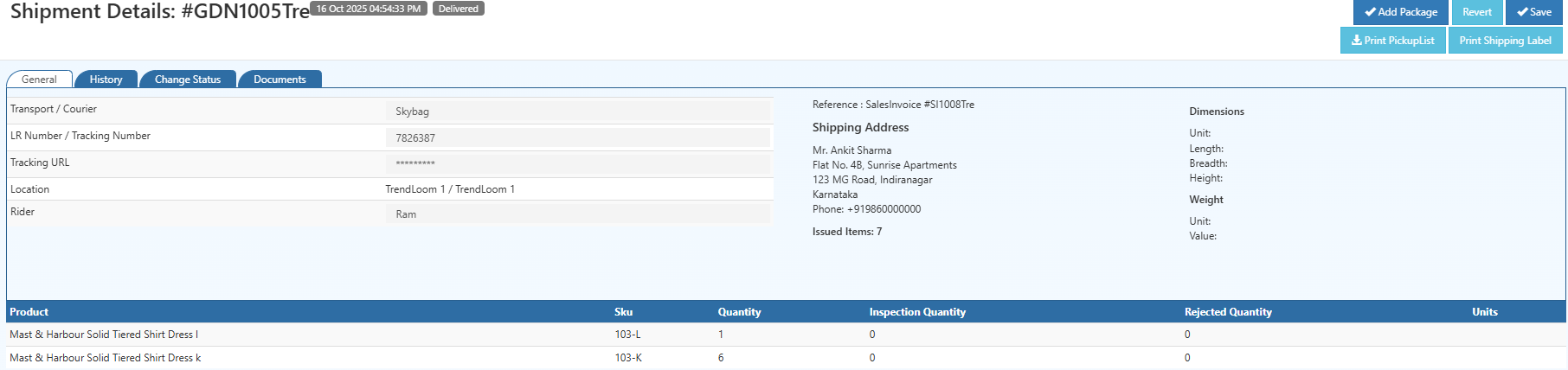
1. Check Courier & Shipment Info
Review the courier name, tracking number, rider, and dispatch location to ensure all shipment details are correct.
2. Verify Shipping Address
Confirm the customer's delivery address and contact details to avoid delivery issues.
3. Review Issued Items
Ensure the listed products, SKUs, and quantities match what needs to be dispatched.
4. Add Package Details
Use Add Package to enter package size, weight, and COD value. These details are used for courier selection and shipping label accuracy.
5. Save Your Changes
Click Save to apply updates to courier details, package info, or address edits.
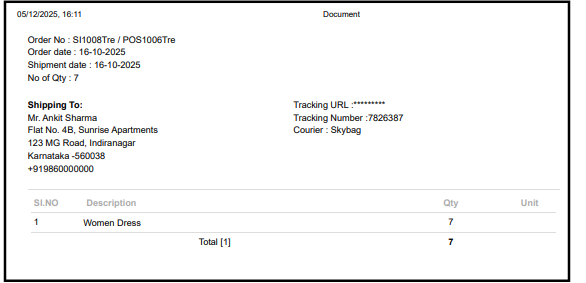
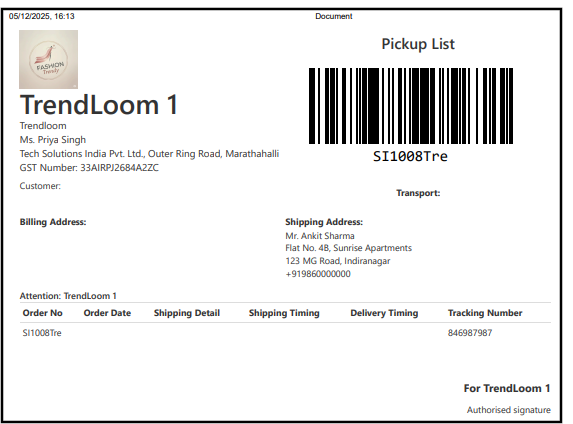
6. Print Required Documents
- Print Picklist for warehouse item picking
- Print Shipping Label for attaching to the parcel
7. Revert if Needed
Use Revert to discard any unsaved changes and return to the previous state.
Initiate GDN Button Activation – Location Routing Logic
In O2VEND, the availability of the Initiate Goods Issue buttons depends on the location’s outward routes.
Outward Route – Pick_PackAndDelivery
- Field:
Outward Route - Value:
Pick_PackAndDelivery✅ Effect: - Activates the Initiate Goods Issue button when dispatching goods.
- Ensures that stock is picked, packed, and delivered properly before inventory is reduced.
Edit Location
If the buttons are not visible:
- Go to Back Office → Locations → Edit Location
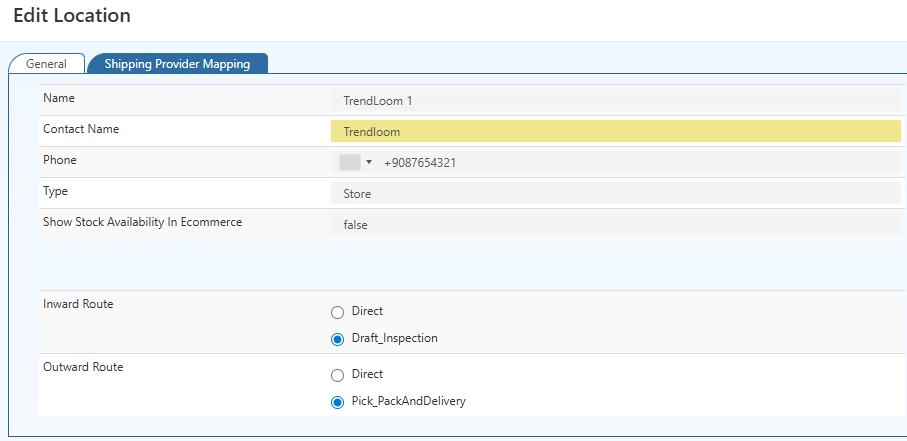
- Check and update Outward Route for GDN
- Save changes → Initiate Goods Issue Buttons should now appear The availability of buttons is location-dependent.
Workflow Example – Pick_PackAndDelivery
- Configure location: - Outward Route = Pick_PackAndDelivery
- Create GDN
- Select the Branch/location. Click Initiate Goods Issue (for GDN).
- Packages tab appears → approve/reject items.
- Save and finalize → Stock decreased only after proper dispatch.
GDN Packages Tab & Package Handling – O2VEND ERP
The Packages tab in GDN manages all outbound shipments at the package level, ensuring accurate dispatch, courier selection, and shipment tracking.
Packages Tab – Handling Goods Dispatched
Once a GDN is created, the Packages tab becomes the central area for managing all package-related operations.
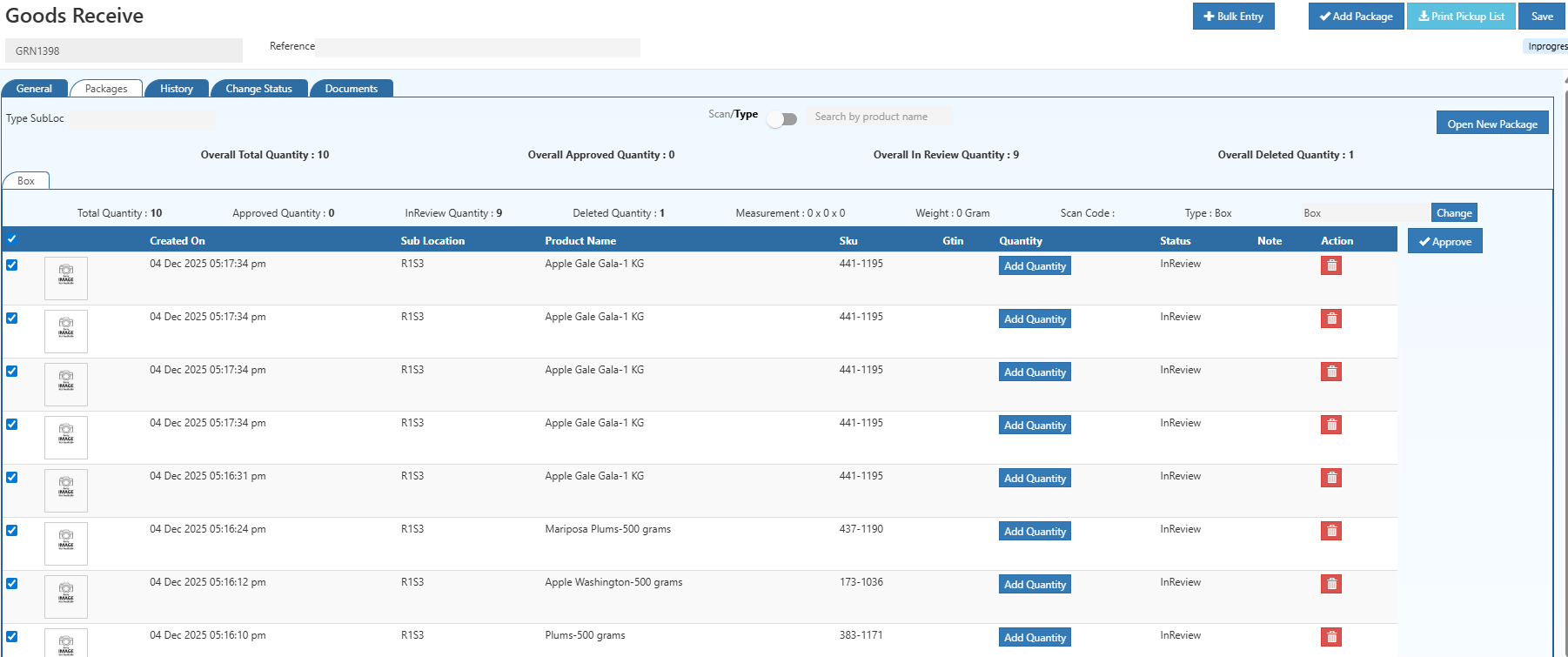
Packages Section – How It Works (Step-by-Step)
This section helps you add products, verify quantities, and approve items before finalizing the package.
🔹 Step 1: Select/Create a Package
Choose an existing package or click Initiate goods Issue to start adding items.
🔹 Step 2: Scan or Search Products
Use the Scan/Type toggle to:
- Scan barcode to add products instantly, or
- Type the product name/SKU to search and add.
🔹 Step 3: Review Product List
All added items appear in the list with details:
- Created On
- Sub Location
- Product Name
- SKU / GTIN
- Quantity Status
🔹 Step 4: Add Quantity
Click Add Quantity for each product to update the received quantity.
🔹 Step 5: Verify Each Item
Check:
- Correct product added
- Quantity
- Sub-location
- Status (InReview)
🔹 Step 6: Delete Wrong Items
Click the Delete icon if an item is incorrect or was added by mistake.
🔹 Step 7: Approve Items
After all quantities and details are correct:
- Select the items
- Click Approve Approved items move out of InReview and become part of the final package.
Purpose
To ensure all scanned/added items are verified and approved in the correct order before completing the package.
GDN vs Invoice vs Delivery Challan
| Document | Purpose |
|---|---|
| GDN | Confirms goods are dispatched from warehouse |
| Invoice | Used for billing and payment |
| Delivery Challan | Used during goods transportation |
Frequently Asked Questions (FAQ) – O2VEND GDN
What is the meaning of GDN in logistics?
GDN means Goods Dispatched Note, a document used to record outbound shipments from a warehouse.
What is GDN used for?
GDN is used to track dispatched goods, reduce inventory stock, and verify delivery.
Is GDN same as invoice?
No. GDN confirms dispatch, while invoice is used for billing.
Refer Related Links – O2VEND ERP
- Goods Receive Note (GRN) Workflow – Manage incoming shipments, stock receipt, and inspection in O2VEND ERP.
- Print Barcode Label Guide – Step-by-step instructions for printing barcode labels and managing warehouse inventory.
- Manufacturing Voucher – Functional Workflow Guide – Learn how to handle production entries, tracking, and manufacturing processes in O2VEND.
- Stock Transfer Guide – Efficiently manage internal stock transfers, inventory updates, and warehouse routing.
- Inventory Features