O2VEND Documentation
  • Tutorials
  • Back Office
  • Point Of Sale(POS)
  • Agent App
  • Developer Guide
  • Warehouse Management System (WMS)
Search Results for

    Show / Hide Table of Contents
    • Getting Started
    • O2VEND Store
      • My Stores
        • Create Store
      • My Account
        • My Profile
        • Manage Billing
        • Support Desk
    • O2VEND ERP (Backoffice)
    • Dashboard
      • Dashboard
    • Orders
      • Quotation
      • Request For Quotation
      • Sales Order
        • Create Sales Order
        • Edit Sales Order
        • Goods Issue in Sales Order
      • Work Order
      • Purchase Order
      • Subscription
      • ActiveCarts
    • Vouchers
      • Sales
        • Manage Sales
        • Create Sales Invoice
        • Cancel Sales Invoice
        • How to create GDN(Goods Delivered Note)
        • How to add lot for products in GDN
        • How to view sales details
      • Services
        • Services
      • Purchase
        • Manage purchase
        • Create Purchase Invoice
        • Cancel purchase Invoice
        • How to create GRN(Goods Received Note)
        • How to add lot for products in GRN
        • How to print a barcode label in purchase
        • How to view purchase details
      • Credit Note
      • Debit Note
      • Receipt
      • Payment
      • Journal
      • Contra
    • Inventory
      • Stock Quantity (Alt+T)
      • Stock History
      • Print Barcode Label
      • Delivery Challan
      • Receipt Challan
      • Stock Transfer
      • Manufacturing Voucher
      • Stock Take
      • Incoming Packages
      • Outgoing Packages
    • Catalog
      • Product
        • Product
        • General
        • Variations
        • Attributes
        • Stock Levels
        • Pricing
        • SEO
        • Shipping Class
        • Online Analytics
        • Suppliers
        • Vendor
        • Documents
        • History
        • Clone Product
      • Brand
      • Categories
      • Option
      • Attributes
      • Attributes Categories
      • Attributes Templates
      • Price List
      • Bulk Product Price update
      • Bulk Product Updates
      • Sku Rules
      • Pricing Rules
      • Create Product
        • Combination
        • Donation
        • Generic
        • Manufacturing
        • Membership
        • Recharge
        • Service
        • Subscription
    • Parties
      • Customers
      • Customer Groups
      • Supplier
      • Supplier Group
    • Beat Route
      • beats
      • Routes
      • Beat Runs
    • Inbox
      • SMS
      • E-Mail
      • Whatsapp
      • Configuration Template Setup
    • Accounting Books
      • Ledgers
      • Chart of Accounts
      • Day Book
      • Cash Book
      • Sales Book
      • Purchase Book
      • Account Group Book
    • Reports
      • Order Reports
        • Web Orders Progress Report
        • Back Order Items Report
        • Purchase Order Pending Item Report
        • Sales Order Pending Item Summary Report
        • Sales Shipping Status Report
        • Sales Order Summary
        • Sales Order Progress Report
        • Purchase Order Progress Report
        • Sales Order with Product Line Item Report
        • Sales Order Packing Sheet Report
        • Back Order Report
        • Purchase Order Summary
        • Sales Order Shipment Report
        • Sales Order Shipping Address Report
      • Sales/Purchase Reports
        • Sales Invoice Report
        • Sales Invoice Summary
        • Sales Items Summary
        • Purchase Invoice Report
        • Purchase Invoice Summary
        • Purchase Items Summary
        • Receipt Report
        • Daily Settlement Report
        • Contribution Margin Report
        • Agent Sales Report
        • Agent Report
        • Employee Sales Report
        • Employee Report
        • Employee Product Sales & Commission Report
      • Supplier Reports
        • Supplier Report
        • Supplier Purchase Report
        • Supplier Detail Report
      • Inventory Reports
        • Stock Summary
        • Stock Valuation Summary
        • Stock Ageing Report
        • Location Summary
        • Stock Ledger Report
        • Stock/Location Summary
        • Stock Movement And Valuation Summary
        • Stock Movement Summary Report
      • Products
        • Sold Product Categories
        • Product Category Summary
        • Product Sale Summary
        • Category Sale Summary
        • Brand Sale Summary
        • Reordering Stock Summary
        • Price Movement
        • Product Seasonal Demand
        • Product Stock Analysis Report
        • Stock Projection Report
      • Pos Reports
        • Cash Register Summary
        • Current Cash Registers
      • Account Reports
        • Day Book
        • Ledger
        • Cash Book
        • Sales Books
        • Purchase Books
        • Daily Sales and Payment Report
        • Balance Sheet
        • Profit and Loss Report
        • Trial Balance
      • Miscellaneous Reports
        • Output Detailed Tax Report
        • Output Tax Report Summary
        • Account Receivable Report
        • Gross Profit Report
        • Daily Tax Report
        • GSTR-1 Report
        • External API Logs
        • Benefit Usage
        • Offers Usage
        • Coupon Usage
        • Configuration Change History
        • VisitLog
    • Tools
      • Import
      • Export
    • OnlineStore
      • Themes
      • Theme Data
      • Shipping Methods
      • Payment Methods
      • Currency
      • Reviews
      • Zones
      • Delivery Zones
      • webstoreContentsSettings
        • Site Pages
        • Site Menus
          • Main Menu
          • Site Menus
        • Home Page Components
        • Page Header
        • Blog Categories
        • Blog
        • News Letter Subscription
        • menus
          • Main Menu
          • Site Menus
    • Analytics
      • Visitor Analytics
      • E-commerce Analytics
      • Product Analytics
      • Campaigns Analytics
    • Settings
      • Settings
      • Business Settings
        • Business Details
        • Tax Classes
        • Tax Rates
        • Operating Countries
        • Operating State or Province
        • Branches
        • Sales Channels
        • Return Rule
        • Backoffice Print Detail
        • Download Template
      • Point Of Sale
        • Quick Add Buttons
        • Print Settings
        • Payment Methods
        • Delivery Settings
        • Language
        • POS Offline Mode
      • Agent App
        • Agent App Print Details
      • Inventory
        • Unit Of Measure
        • Location
        • Unit Of Measure Conversions
        • Stock Levels
        • Sub Location
        • Print Barcode Label Settings
        • Package Material
      • userSettings
        • vendors
        • User Date Setup
        • Employees
          • Set Up Employee Roles
          • Ecommerce
          • Point Of Sale
          • Back Office
          • Sales App
        • Vendors Commission
        • Credit Rules
        • Automatic User Code
      • Loyalty and Promotions
        • Reward Points
        • Coupons
        • Gift Vouchers
        • Offers and Discounts
        • Benefits
        • Affiliate
        • Coupon Print Setting
      • Account
        • Financial Year
        • Voucher Numbering
        • Sales Account Map
        • Voucher Numbering Rules
    • Features
      • General
      • POS
      • Webstore
      • Integration
      • Notification
        • Notification
      • Push Notification
        • Web Notification
      • Order
        • Order
      • Voucher
        • Voucher
      • Date
        • Date
      • Tax
        • Additional Tax
      • GST
        • Product Tax
      • Product
        • Product
      • Payment
        • Credit sales invoice return items
      • Outstanding
        • Outstanding
      • POS
        • Point Of Sales
      • Lot
        • Disable lot popup
      • URL
        • URL
      • Schema
        • Schema
      • Segmentation
        • Segmentation
      • SEO
        • SEO
      • General
        • General
      • Inventory
        • Inventory
      • GDN
        • GDN
      • GRN
        • GRN
      • SKU
        • SKU length for variation
      • Price
        • Price
      • Cost
        • Cost
      • Email
        • Email
      • Margin
        • Margin
      • Stock
        • Stock
      • Login
        • Guest Checkout
      • IP
        • IP
      • White Listing
        • White listing
      • App
        • App
      • Print
        • Print
      • Option
        • Option
      • Attributes
        • Attributes
      • Variation
        • variation
      • Communication
        • Communication
    • New Features
      • Sales
        • Sales
      • Display
        • Display
      • Web Store
        • Webstore
      • Affiliate
        • affiliate
      • Refer
        • Refer
      • GeoIP
        • GeoIP
      • Currency
        • currency
      • Video
        • Video
      • Invoice
        • Invoice
      • SMS
        • SMS
      • Whatsapp
        • Whatsapp
      • Menu
        • Menu
      • GTIN
        • GTIN
      • Checkout
        • checkout
      • Coupon
        • coupon
      • Delivery Zone
        • Delivery Zone
      • Shipment
        • Shipment
      • Marketing
        • Marketing
      • Vendor
        • Vendor
      • Sub Location
        • Sub Location
      • Discount
        • Discount
      • Return
        • Return
      • BackOffice
        • backoffice
      • Pricing Rule
        • Pricing Rule
      • Purchase
        • Purchase
    • Integration
      • General
      • O2VEND Gateway
        • O2VEND Webhook
      • Integration
        • reCAPTCHA
        • Send Grid
      • API Key Management
        • Storefront Api Keys
      • Storefront Settings
        • storefront
      • Shipment Gateways
        • Shipway
        • Shiprocket
        • Amazon Shipping
        • XpressBees
        • eShipper
        • GetDelivered
      • Email Configuration
        • Email
      • Communication Settings
        • Amazon SES
      • GST Configuration
        • E-invoice
        • E-Way
      • Tax Settings
        • Tax
      • Invoice Settings
        • invoice
      • eWay Bill Integration
        • eWay
      • SMS Configuration
        • MSG91
      • WhatsApp Integration
        • Whatsapp
        • Bhashsms
      • Payment Gateways
        • Paytm
        • Paypal
        • Cashfree
        • PayU
        • Stripe
        • Razorpay
        • Phonepe
      • Security Settings
        • security
      • Product Management
        • Shopify
      • Search
        • Type Sense
      • Images
        • Your own CDN domain
      • Inventory Management
        • Inventory Management
      • Orders Management
        • order
        • Myntra
        • Unicommerce
        • Amazon
        • Flipkart
        • HubSpot
      • Display
        • display
    • Profile
      • My Profile
    • POS App
    • Manage Physical Stores
      • Login
      • Sales Bill
        • Manage sales orders
        • How to add products to a customer's shopping cart
        • How to apply discounts/coupons
        • How to search products in Sales Screen
        • How to add products quickly to the Cart
        • How to add serial and lot number
        • How to Print sales bills in POS
      • Receive Payments (Receipts)
      • Delivery
      • Order Fulfillment List
      • Invoice Receipts
      • Manage Cash Register
      • Reprint
      • Dashboard
      • POS Offline
      • Stock Transfer
    • Agent App
    • O2VEND App
      • Install O2VEND App
      • Home
      • Customers
      • Orders
      • Products
      • Receipts
      • Stock Movement
      • Employee Authorize
    • Webhooks
      • Webhook
      • Examples of JSON format data via webhook
      • Testing webhook
    • Developer Guide

    Set Up Pricing

    In this section, Products volume pricing and Pricelist pricing can be set up to offer discounts to customers based on the quantity of products they purchase or based on the specific pricing list that they are associated with.

    Volume pricing is a pricing strategy in which customers are offered discounts for purchasing a certain quantity of products. For example, a customer may be offered a discount for purchasing 10 or more of a certain product. This type of pricing can be set up in the section you mentioned by specifying the quantity thresholds and the corresponding discounts.

    Pricelist pricing is a pricing strategy in which specific groups of customers are offered different prices for the same product. For example, a customer who is part of a specific pricing list may be offered a different price than a customer who is not part of that list. This type of pricing can be set up by creating different pricing lists and assigning specific customers or groups of customers to those lists. The prices for the products can then be set up differently for each pricing list.

    It's important to note that these pricing strategies can be used together or separately, depending on the pricing strategy that you want to apply to your products. It's also important to keep in mind that these pricing strategies have to be aligned with your overall business strategy and that it's necessary to review them regularly and make adjustments as needed.

    Configure Volume Pricing

    Volume pricing is a pricing strategy that allows businesses to offer special prices to customers who purchase a particular item in large quantities. The prices will automatically change when a customer adds a certain quantity of products to their cart, which makes it easy for customers to take advantage of the discounts offered.

    Volume pricing can be set up in the Products section by specifying the quantity thresholds and the corresponding discounts. For example, a business may offer a 10% discount for customers who purchase 10 or more of a certain product. Once the volume pricing is set up, it will apply across all O2VEND channels such as eCommerce, back office, and POS, meaning that customers will be able to take advantage of the volume pricing discounts regardless of how they are making their purchase.

    This type of pricing strategy can be a great way to increase sales and encourage customers to purchase more of a certain product. It's also an effective way to clear out inventory by offering a discount for buying in bulk. It's important to keep in mind that this type of pricing strategy should align with your overall business strategy and that it's necessary to review and adjust it periodically.

    Set Up Pricing

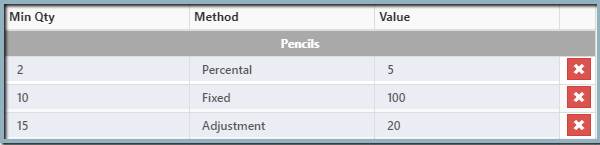
    In the example provided, the price of pencils is $400 per unit, and there are different discounts offered based on the quantity of pencils purchased. When a customer buys 2 to 9 pencils, they will receive a 5% off discount, which would be calculated as $400 x 0.05 = $20 off per unit.

    When a customer buys 10 to 14 pencils, they will receive a fixed discount of $100, regardless of the unit price. And when buying 15 or more pencils, an additional adjustment of $20 per unit will be applied.

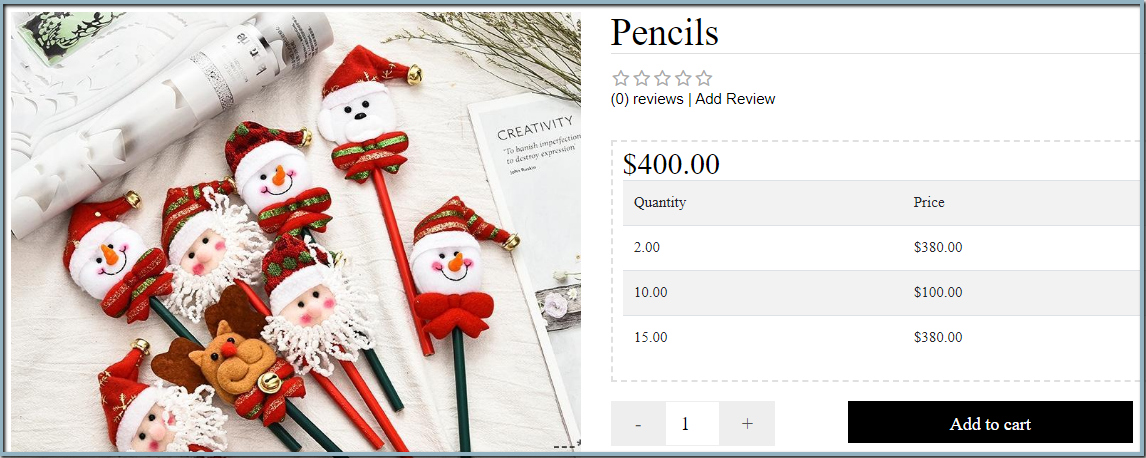
    In O2VEND eCommerce, these volume pricing discounts will be displayed on the product detail page, so customers will be able to see the different discounts that are available to them based on the quantity of pencils they purchase. The different volume pricing options will be displayed in a table or a list format, and the discounts will be automatically applied when the customer adds the pencils to their cart.

    It's important to note that these discounts will only apply to the pencils product, and not to other products in the store. It's also important to keep in mind that these discounts should be aligned with your overall business strategy and that it's necessary to review and adjust them periodically.
    Set Up Pricing

    Key Features: O2VEND Volume Pricing offers three methods for businesses to set discounts for their products. These methods include:

    Method 1: Volume price as a fixed

    Set the method as Fixed. Enter the minimum quantity and set the fixed amount. For example, the discount amount is 300, enter the number 300.

    Method 2: Volume price as a percentage

    Set the method as percentage. Enter the minimum quantity and set the percentage value. For example, for a discount of 5 %, enter the number 5.

    Method 3: Volume price as an adjustment

    Set the method as adjustment. Enter the minimum quantity and set the adjustment price. For example, if the adjustment value is 10, the product price unit will be reduced from 10.

    Add Volume Pricing for a product

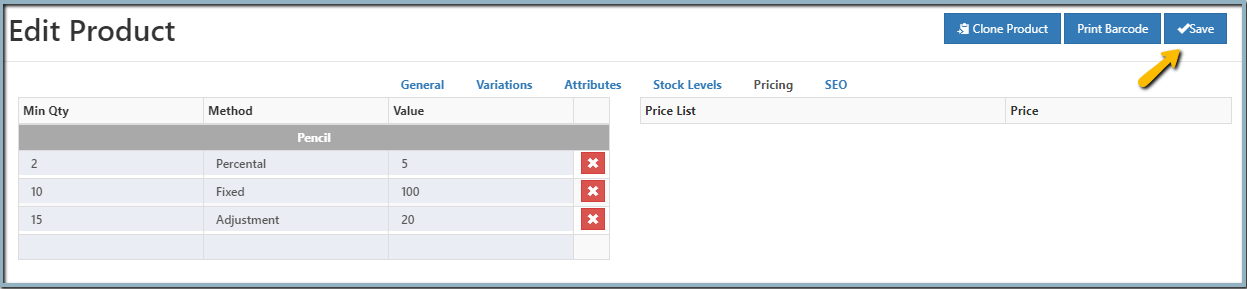
    1. Open the product in edit mode.
    2. Open the Pricing tab.
    3. Set a Volume price for specific products.
    4. Enter the minimum quantity of the products.
    5. Select the methods - fixed, percentage or adjustment.
    6. Set the value of the Volume price.
    7. Click the Save button.
    8. View the updated Volume-price on the eCommerce product detail page.
    Set Up Pricing

    Configure the Pricelist

    Price lists allow administrators to configure different prices for specific items. This pricing strategy is often used for different customer segments, such as wholesalers, retailers, or specific customers. By creating different price lists and assigning specific customers or groups of customers to those lists, you can set different prices for the same product.

    In O2VEND, price lists can be created and managed in the back-end system, and the prices for products can be set up differently for each price list. Once the price lists are set up, the system will automatically apply the correct prices for customers based on their assigned price list.

    It's important to keep in mind that using price lists can make the pricing structure more complex, and it's necessary to make sure that the correct prices are applied to the correct customers. It's also important to keep in mind that these pricing strategies should align with your overall business strategy and that it's necessary to review and adjust them periodically.

    To know how to create a price list and assign a price list to the golden customers. Click here Price List.
    Set Up Pricing

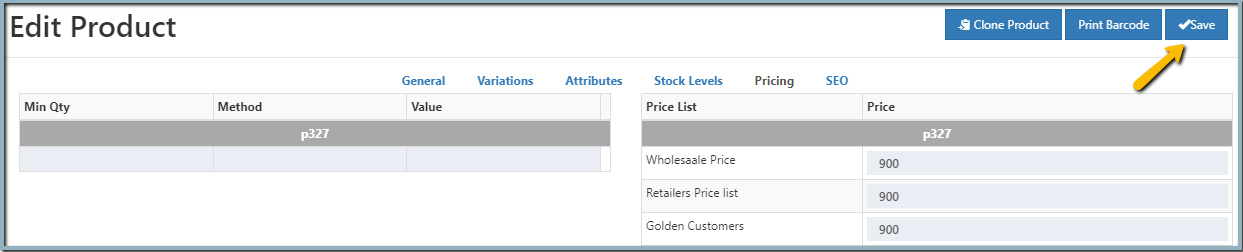
    Add price list for a product

    1. Open the product in edit mode.
    2. Open the Pricing tab.
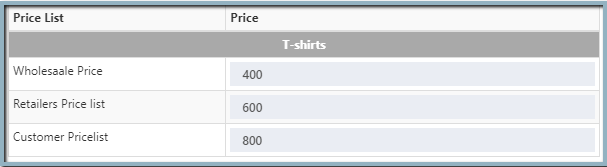
    3. Set a price list price for a product.
    4. Enter the price for the main product or variation products in the price list.
    5. Click the Save button.
    6. Price list price applied on all places (O2VEND eCommerce, POS, Back office and Sales app).
    Set Up Pricing
    • Edit this page
    In this article
    © 2019–2026 Jeyan Technologies Private Limited • www.o2vend.com • Create your own store