Pricing Rule Features
Pricing Rule feature automates product pricing based on configured templates, rates, and attributes.
This helps maintain consistent pricing and reduces manual price calculation errors.
Location in Back Office
Navigation Path:
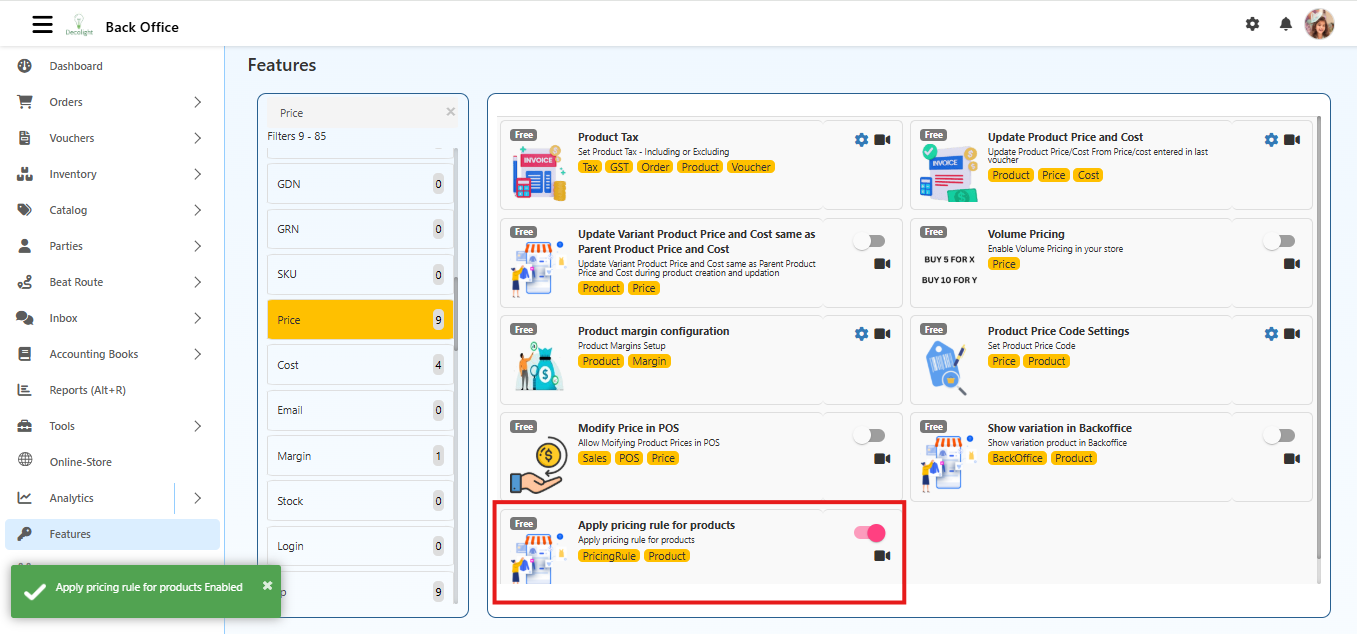
Back Office → Features → PricingRule → Picing Rule
Apply pricing rule for products
Enables automatic pricing rule calculation for products using configured rule setup.
How Pricing Rule Works
Pricing Rule calculates final product price from:
- Template structure
- Rate values
- Attribute values (size, purity, weight, etc.)
After configuration, the system auto-updates product price based on rule logic.
Configuration Steps
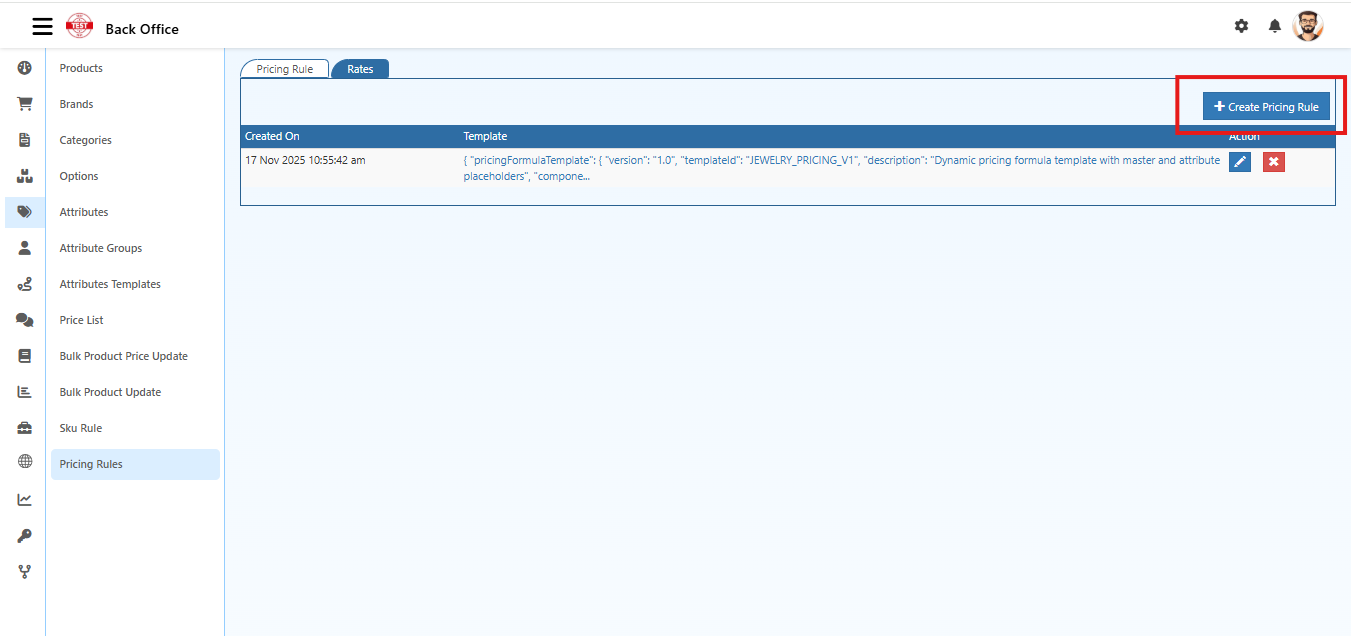
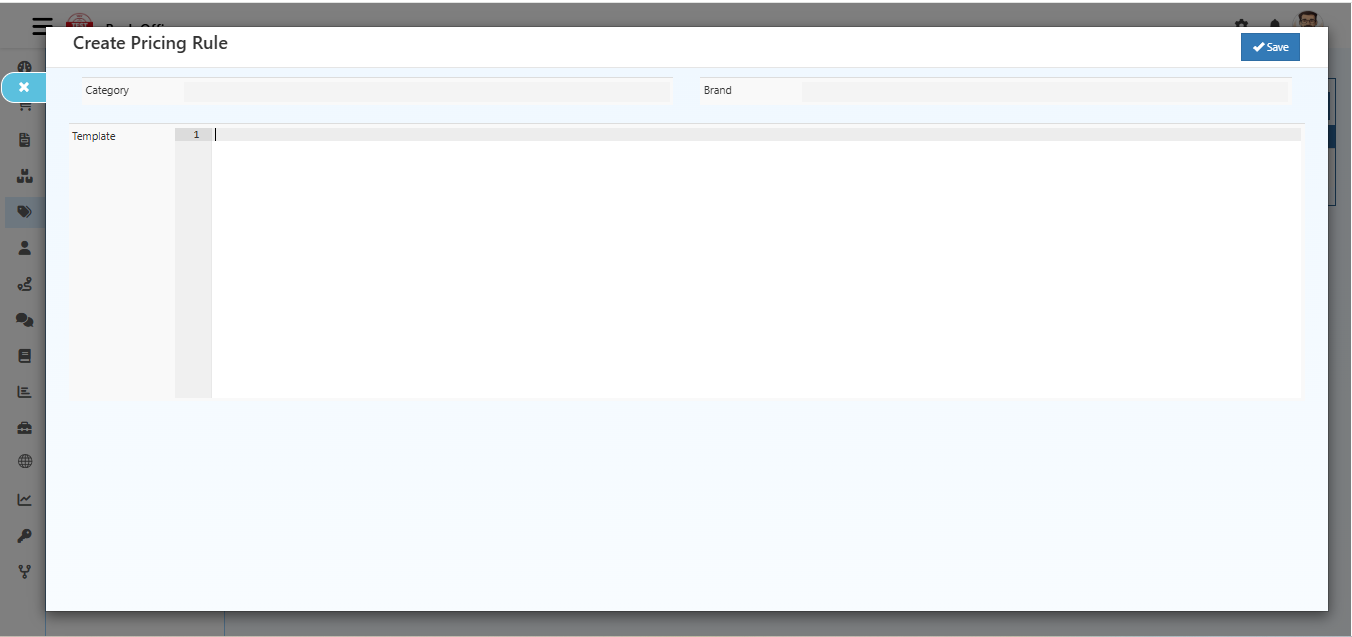
1. Create Pricing Rule Template
Create the rule template that defines how the price should be calculated.
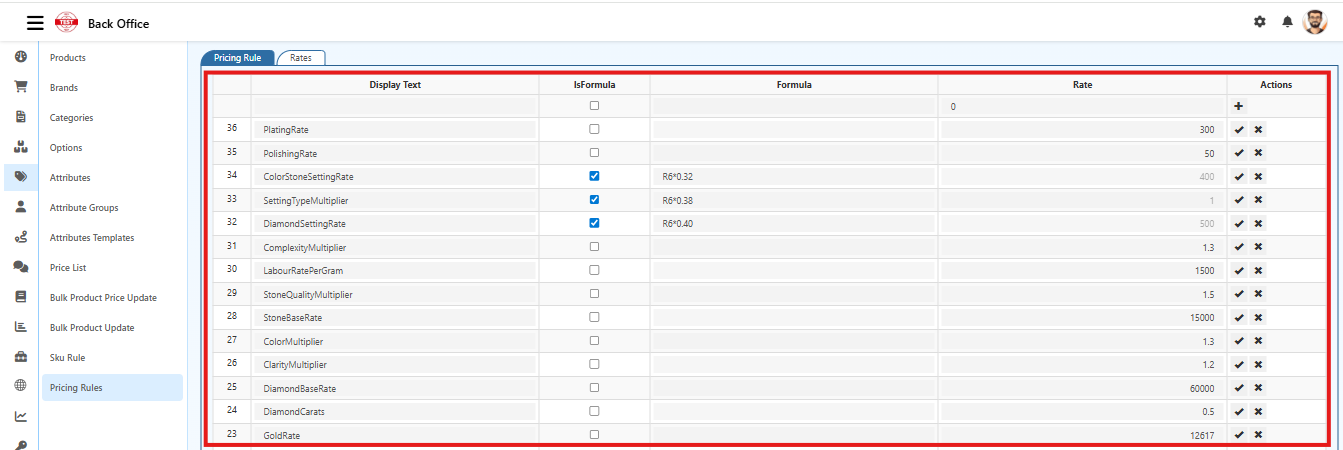
2. Configure Pricing Rates
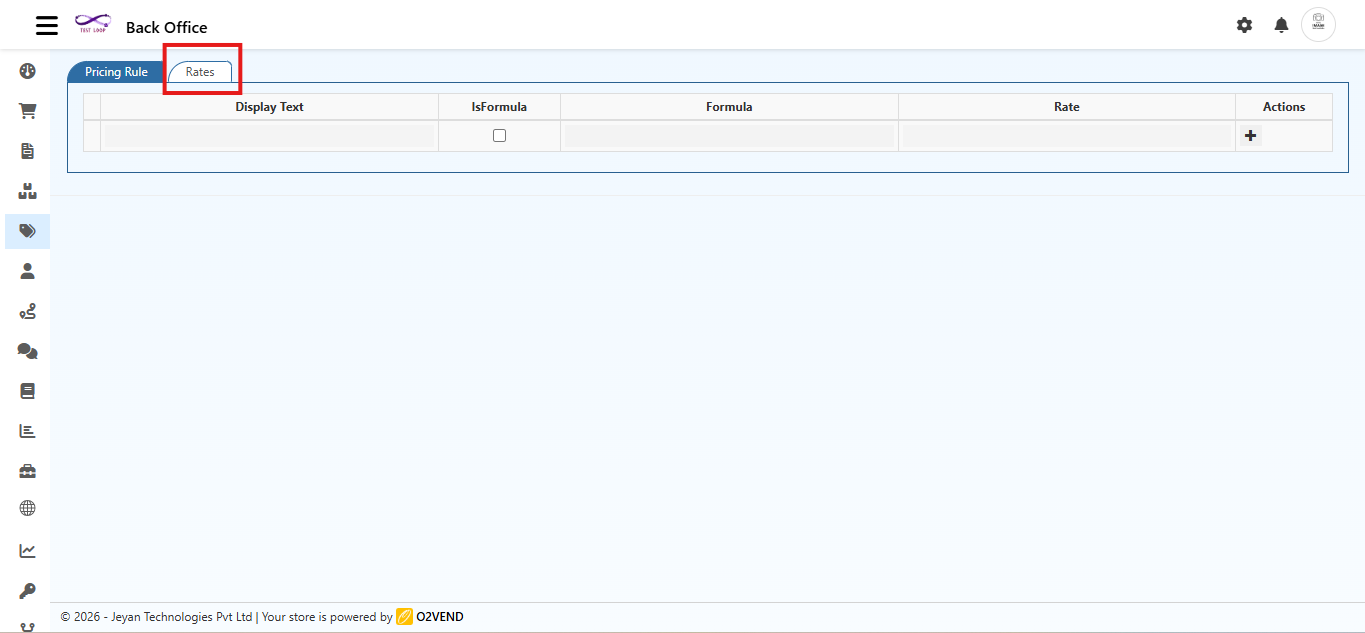
Add rate master values used in the pricing formula.
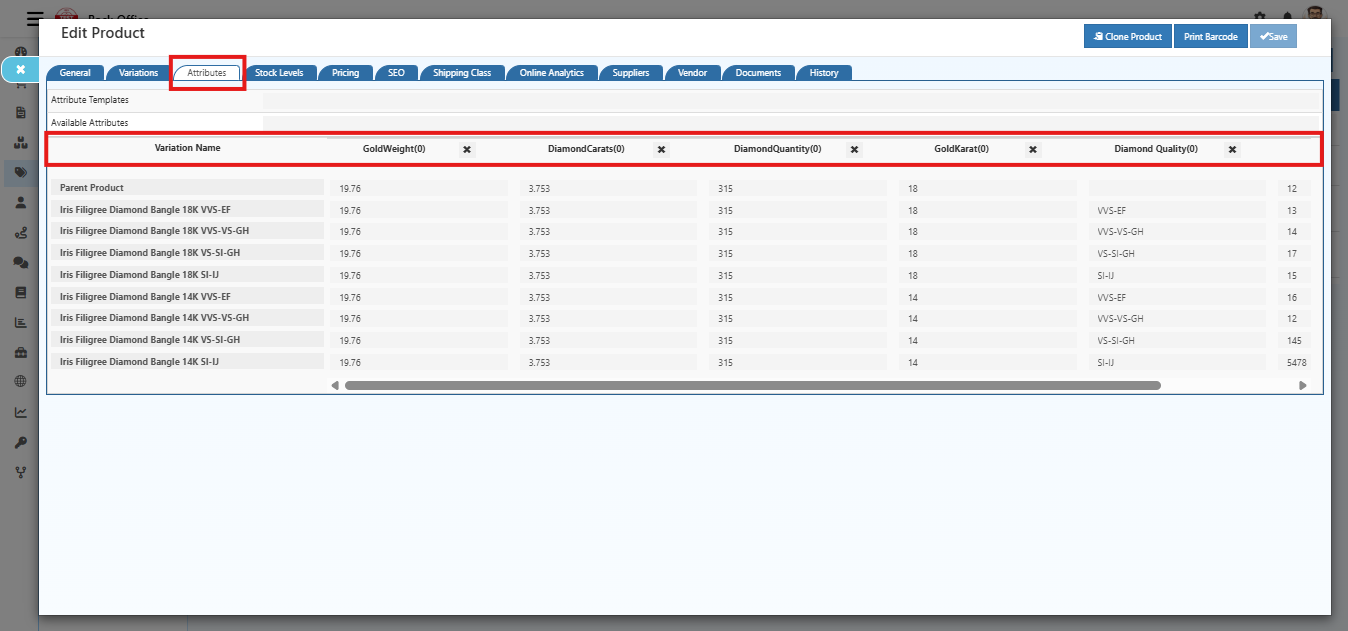
3. Map Product Attributes
Map attributes required for formula-based pricing.
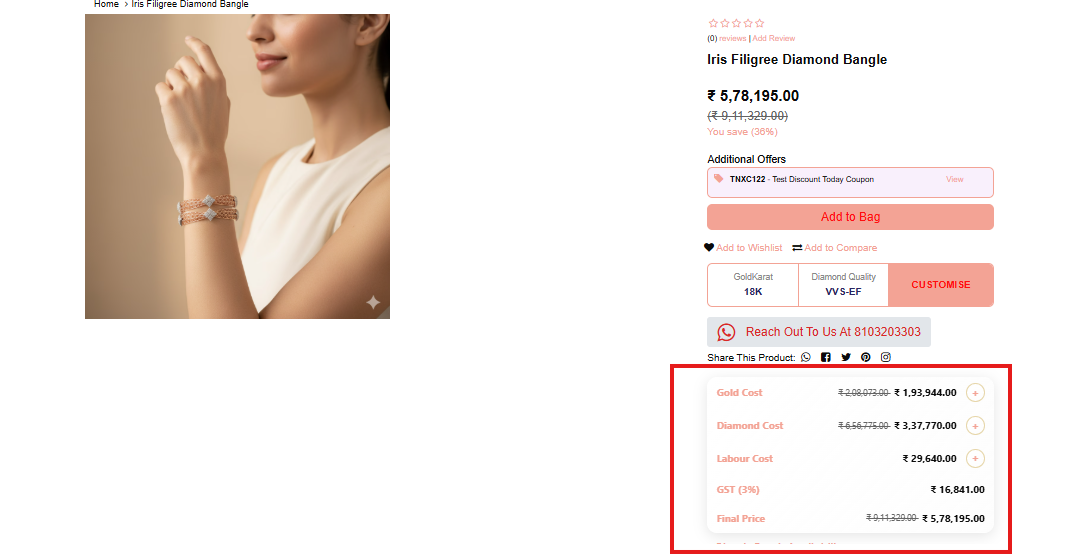
4. Validate Final Product Price
Check how the final computed price is shown in product pricing output.
Business Benefit
Pricing Rule improves pricing accuracy, speeds up product updates, and ensures uniform pricing across catalog items.