Cost Management & Pricing Configuration feature
The Cost Section helps you manage product cost, pricing, tax configuration, and margin calculation accurately. These features ensure correct billing, profit tracking, and price consistency.
Location in Back Office
Navigation Path:
Back Office → Features → Product Management → Product Cost Configuration
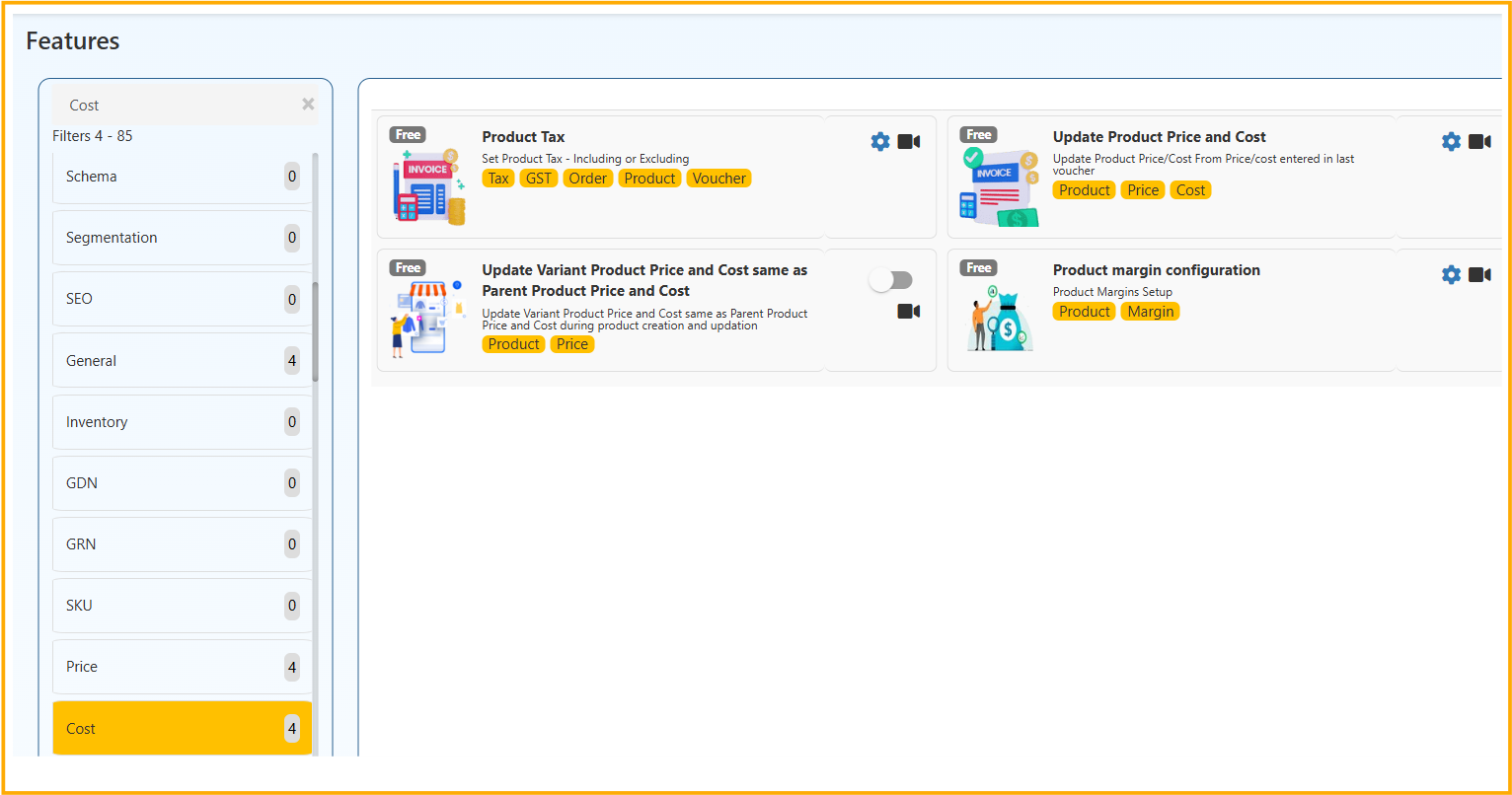
Product Tax Setup
Purpose
Configure tax rules for products (Inclusive or Exclusive GST).
Features
- Set Tax as Inclusive or Exclusive
- Configure GST %
- Apply tax to:
- Product
- Order
- Voucher
Steps to Configure
- Go to Features → Cost
- Click Product Tax
- Choose:
- Tax Type (Inclusive / Exclusive)
- GST Percentage
- Click Save
✅ Example
If GST = 18%:
Exclusive Tax
Cost: ₹100
Final Price: ₹100 + 18% GST = ₹118Inclusive Tax
Final Price: ₹118 (GST already included)
Update Product Price and Cost – Configuration
This section allows you to automatically update product Selling Price, Cost, and Tax Class based on the latest Sales or Purchase transactions.
Update Product Price from Last Sales Voucher
Description:
Automatically update the product's selling price using the price entered in the most recent Sales Voucher.
When to Enable:
- When selling prices change frequently
- When you want the latest billed price to become the default selling price
Exclude Discounts While Updating Product Price
Description:
If enabled, the system will update only the Unit Price, excluding any discounts applied in the Sales Voucher.
Recommended For:
- Businesses that give temporary discounts
- Stores that do not want discount values to affect the base selling price
Update Product Cost from Last PO / PI / RC
Description:
Automatically update product cost based on the price entered in the latest:
- PO (Purchase Order)
- PI (Purchase Invoice)
- RC (Receipt Note)
Best For:
- Businesses where supplier cost changes frequently
- Maintaining accurate profit margins
Exclude Discounts While Updating Product Cost
Description:
If enabled, only the Unit Cost will be updated. Any discounts applied in the purchase document will not affect the product cost.
Recommended For:
- Businesses receiving bulk purchase discounts
- Maintaining a stable base cost
Update Product Tax Class from Last PO / PI / RC
Description:
Automatically update the product's tax class based on the most recent Purchase document.
Useful When:
- Tax structure changes
- Different suppliers apply different tax classes
Update Variant Price Same as Parent Product
Purpose
Automatically sync variant cost and price with the parent product.
Example
Parent Product: T-Shirt
Variants:
- Red (M)
- Red (L)
- Blue (M)
When enabled: All variants will use the same cost and selling price as the parent product.
Benefits
- Saves time
- Avoids pricing mismatch
- Ensures uniform pricing
Product Margin Configuration
The Product Margin Configuration feature allows you to automatically calculate Selling Price and MRP based on Cost using predefined margin rules.
This ensures consistent pricing, accurate profit calculation, and reduced manual work.
🔹 Calculate Margin Based On
This option defines the base value used for margin calculation.
Available Option:
- Cost
When "Cost" is selected, the system calculates Selling Price and MRP based on the product cost.
🔹 Default Product Margin Setup
Base (Product Margin Configuration)
Defines the base value used for margin calculation.
Example:
- Base = Cost
Margin calculations will be applied on product cost.
How It Works
If:
- Cost = ₹100
- Operation = Multiply
- Value = 1.25
Then:
Selling Price = 100 × 1.25
Selling Price = ₹125
Example with Percentage Logic
If you want 25% margin:
Instead of entering 25, enter:
1.25 (because 100 + 25% = 1.25 multiplier)
Formula used:
Selling Price = Cost × Multiplier
🔹 Round Off Option
If enabled:
- Final price will be rounded automatically.
Example: ₹124.75 → ₹125
If disabled:
- Exact calculated value will be saved.