O2VEND Retail ERP
  • Getting Started
  • Ecommerce
  • Back Office
  • POS
  • Agent App
  • PIM
  • Communication
  • CMS
  • OMS
  • WMS
  • O2C
  • Accounting
  • Reports
  • Themes and Apps
Search Results for

    Show / Hide Table of Contents
    • Overview
    • Features
      • Product Management Features
        • Product Management
        • Product Attributes
        • Product Variations
        • SKU Length for Variations
        • Product Pricing
        • Product Margin Settings
        • Product Cost Configuration
        • Product Tax Settings
        • Additional Tax Setup
      • Inventory Management Features
        • Inventory Management
        • Stock Management
        • GRN (Goods Receipt Note)
        • GDN (Goods Delivery Note)
        • Disable Lot Popup Option
      • Order & Sales Features
        • Order Management
        • Point of Sale (POS)
        • Credit Sales & Invoice Return
        • Outstanding Management
        • Voucher Management
        • Guest Checkout Option
      • Marketing & SEO Features
        • SEO Optimization
        • URL Configuration
        • Schema Markup Setup
        • Segmentation
      • Communication & Notification Features
        • Email Settings
        • Communication Settings
        • Notifications
        • Web Notifications
      • System & Security Features
        • Application Settings
        • General Settings
        • Date Configuration
        • IP Restrictions
        • White Listing
        • Print Configuration
        • Option Settings
    • Integrations
      • Marketplace Integrations
        • Amazon Integration
        • Flipkart Integration
        • Myntra Integration
        • Shopify Integration
        • Unicommerce Integration
      • Payment Gateway Integrations
        • Razorpay Integration
        • PayU Integration
        • Paytm Integration
        • PhonePe Integration
        • Cashfree Integration
        • Stripe Integration
        • Paypal Integration
      • Shipping & Logistics Integrations
        • Shiprocket Integration
        • Shipway Integration
        • eShipper Integration
        • Amazon Shipping Integration
        • XpressBees Integration
        • GetDelivered Integration
      • Communication Integrations
        • WhatsApp Integration
        • MSG91 Integration
        • SendGrid Integration
        • Amazon SES Integration
        • Email Integration
      • Marketing & CRM Integrations
        • HubSpot Integration
        • Typesense Integration
      • Tax & Compliance Integrations
        • e-Invoice Integration
        • e-Way Bill Integration
        • Tax Configuration
      • Security & Technical Integrations
        • reCAPTCHA Integration
        • Webhook Integration
        • Custom CDN Domain Setup
      • Inventory & Store Integrations
        • Inventory Integration
        • Storefront Integration
        • Display Configuration
        • General Settings
    • Product Enhancements
      • Affiliate Program Management
      • Back Office Management System
      • Checkout Process Settings
      • Coupon Code Management
      • Currency Configuration Settings
      • Delivery Zone Configuration
      • Discount Management System
      • Product Display Settings
      • Geo IP Location Detection
      • GTIN Product Code Management
      • Invoice Management System
      • Marketing & Campaign Tools
      • Menu Management Settings
      • Pricing Rule Configuration
      • Purchase Management Module
      • Referral Program Settings
      • Return Management Process
      • Sales Management System
      • Shipment & Delivery Tracking
      • SMS Notification Settings
      • Sub Location Management
      • Vendor Management System
      • Product Video Integration
      • Web Store Configuration
      • WhatsApp Integration Settings
    • Blog Categories Setup
    • Blog Management
    • Email Settings
    • Home Page Components
    • Main Menu Management
    • Newsletter Subscription Settings
    • SMS Settings
    • WhatsApp Settings
    • Communication Template Setup
    • Page Header Settings
    • Site Menu Management
    • Site Pages Management

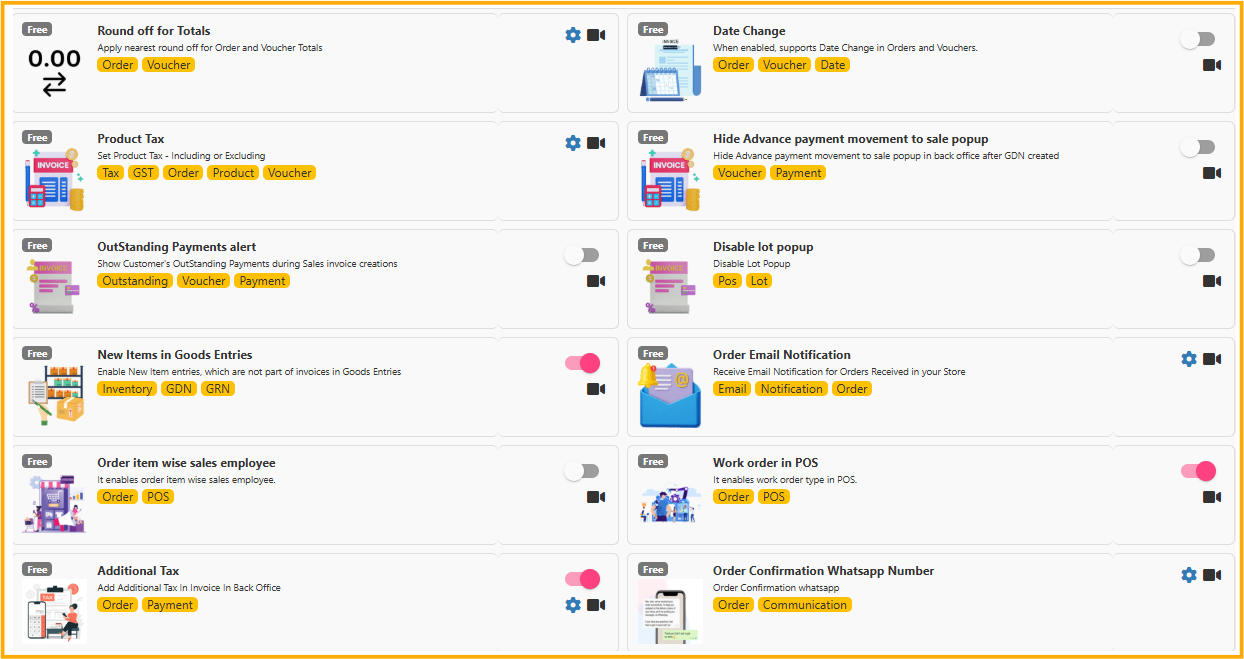
    Round off

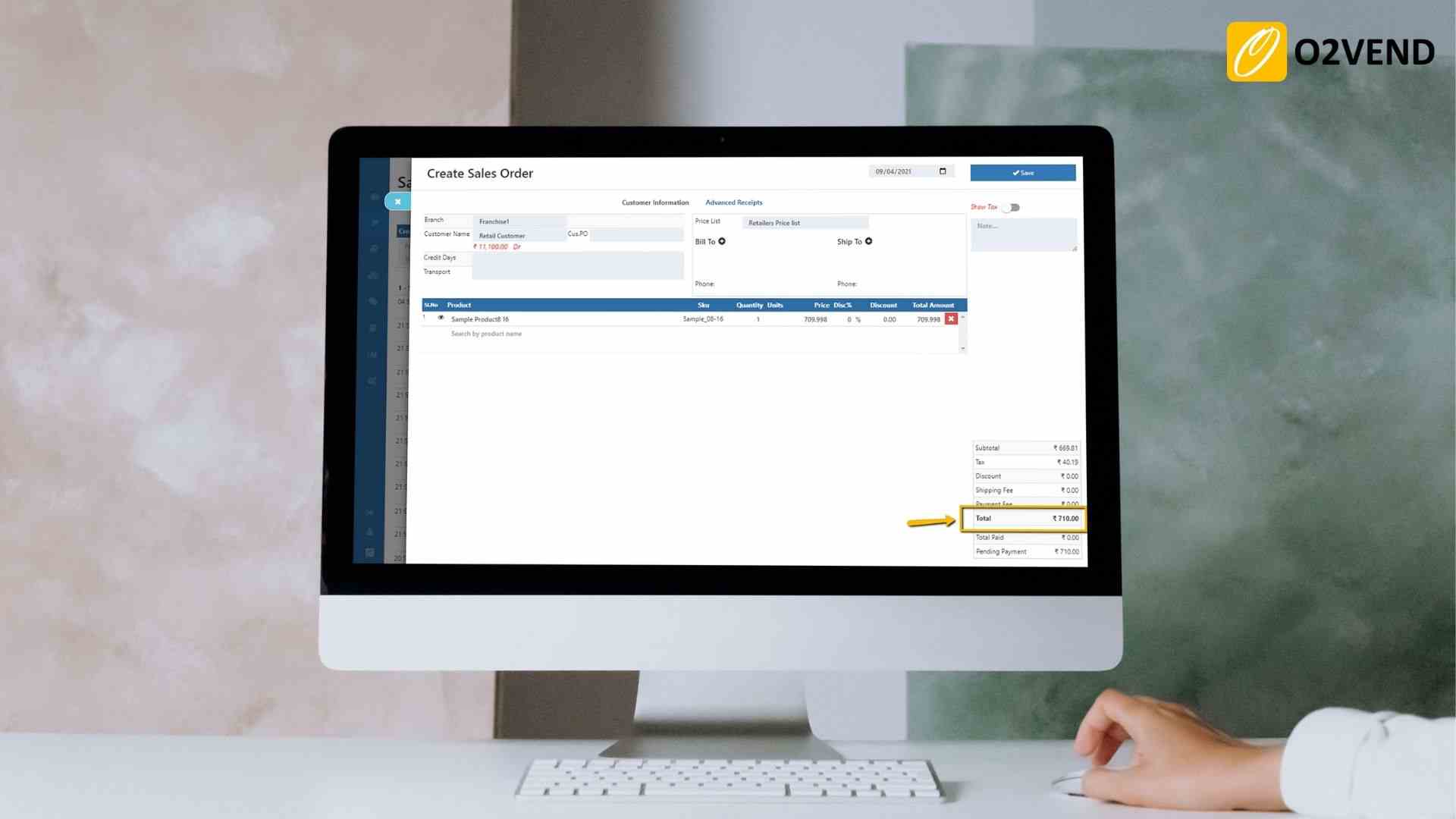
    Apply nearest round off for Order Total

    Order total will be rounded off to the nearest decimal. For example, Rounding to zero decimal places: 15.47 rounds to 15.00

    Round off

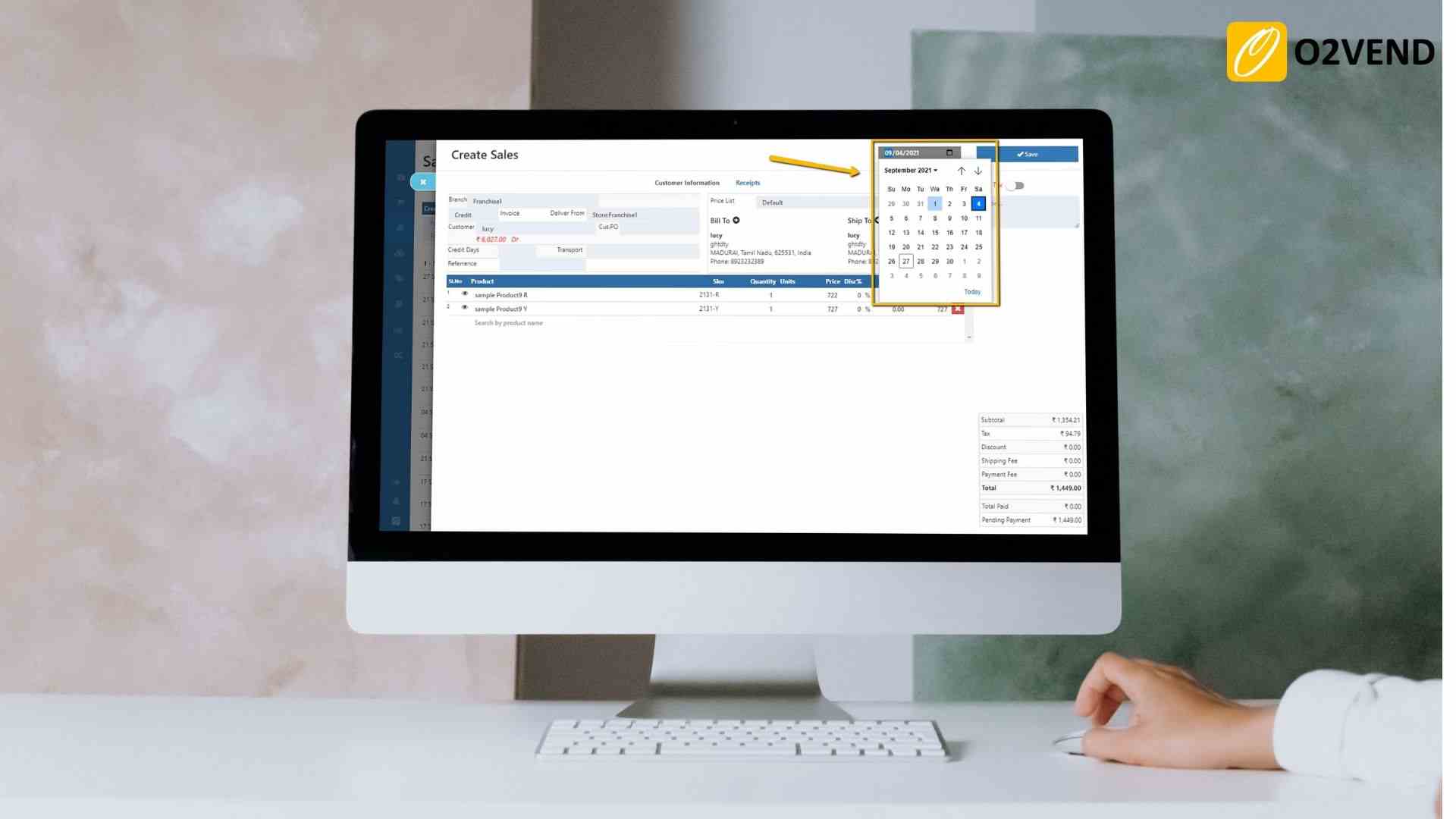
    Date Change

    Remember last date entered in voucher

    If your site is having 'Allow Date Change in Orders and Vouchers' feature enabled, then you can enter voucher dates manaually and also edit them. Everytime whenever a new voucher is created, the voucher date is automatically filled with today's date by default. When 'Remember the last date entered in the voucher' is enabled, everytime a new voucher is created the last entered date will be filled up automaticall in the new voucher.

    Round off

    Allow Date Change in Orders and Vouchers

    It enables manual date change of order and voucher dates.

    Round off

    Product Tax

    Allow Product Price Including Tax

    If enabled, the product selling prices are considered as Including taxes.

    Round off

    Allow Product Cost Including Tax

    If enabled, the product Cost / Purchase prices are considered as Including taxes.

    Round off

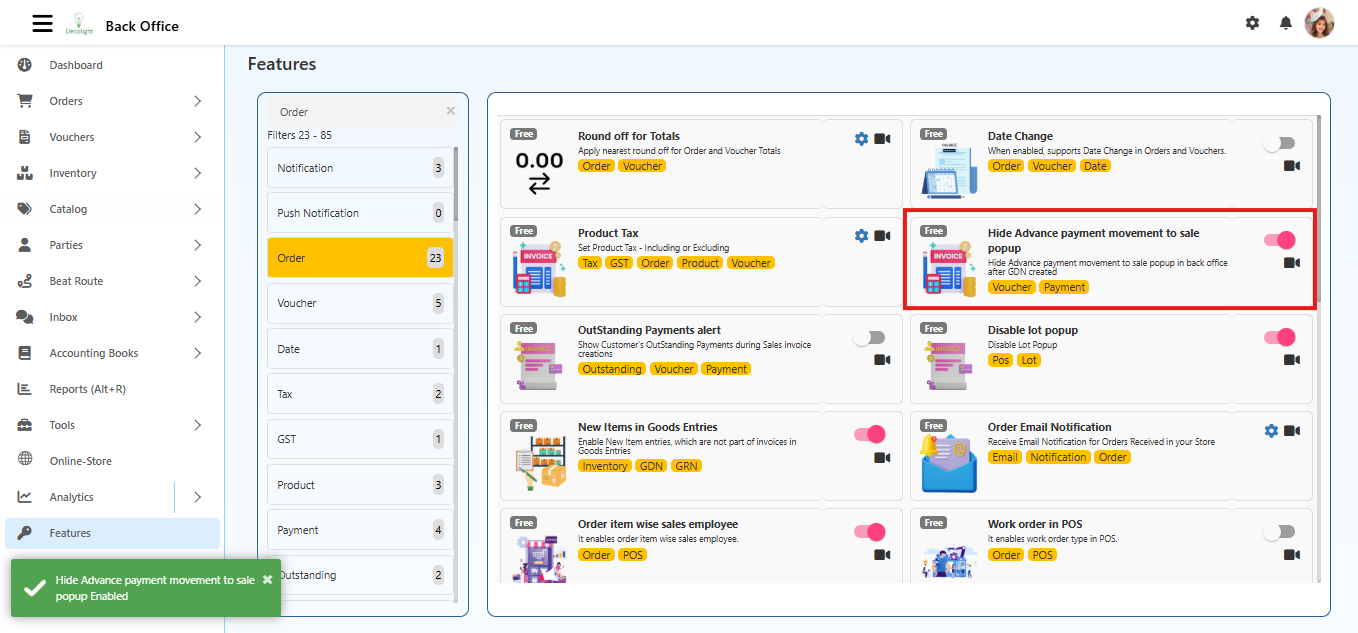
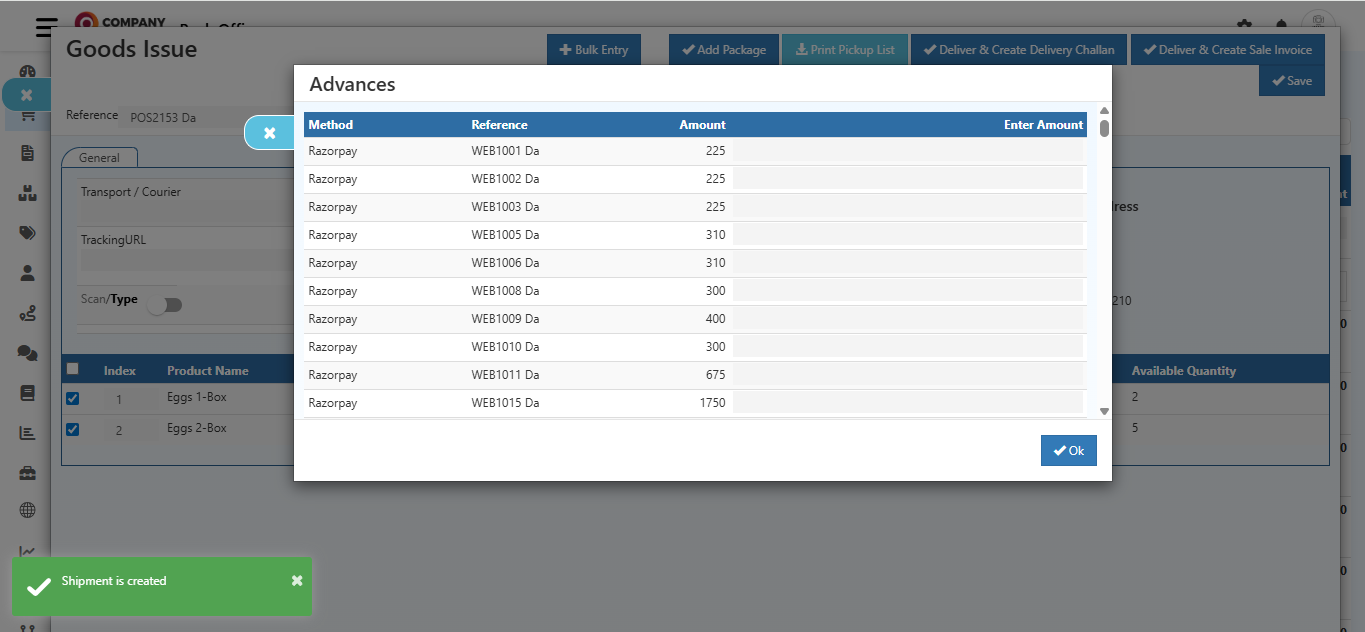
    Hide Advance Payment Movement to Sale Popup

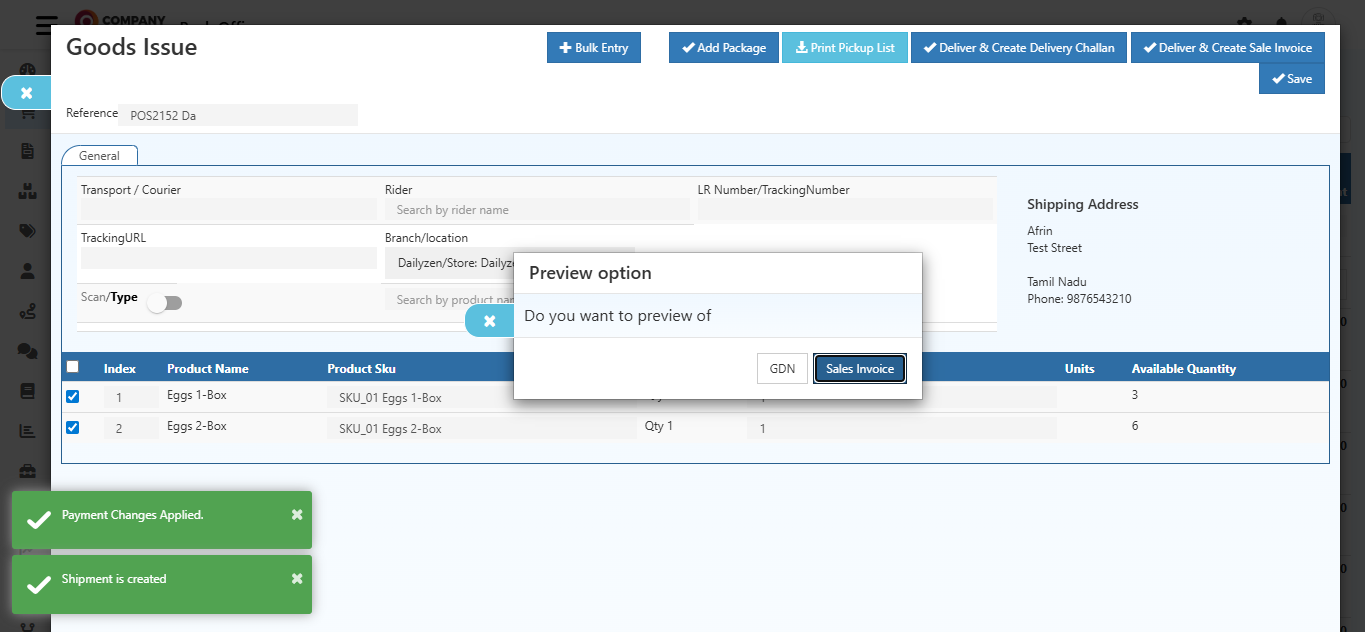
    This feature hides the Advance Payment Movement to Sale popup in the Back Office after a Goods Delivery Note (GDN) is created.

    Location

    Back Office → Features → Hide Advance Payment Movement to Sale Popup

    Round off

    Steps to Enable

    • Log in to the Back Office.
    • Navigate to Features.
    • Locate Hide Advance Payment Movement to Sale Popup.
    • Switch the toggle to ON.

    Before

    Round off

    After

    Round off
    Benefits
    • Prevents interruptions during order processing.
    • Keeps the interface clean and focused.

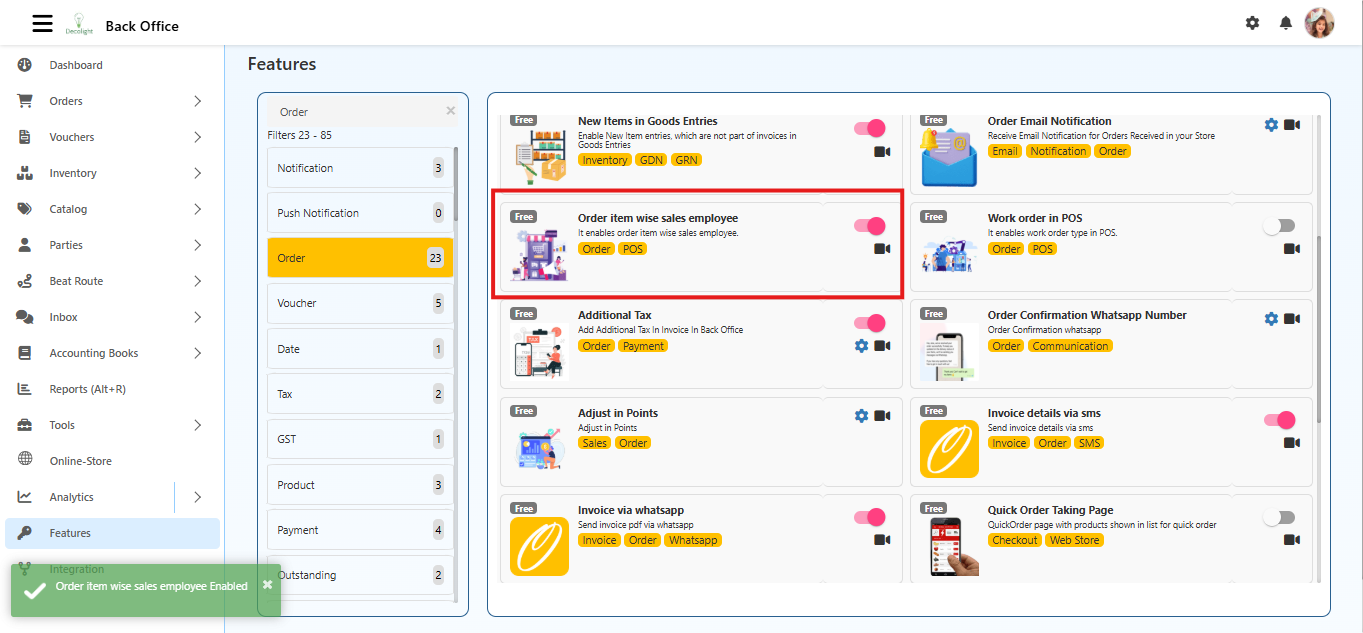
    Order Item Wise Sales Employee

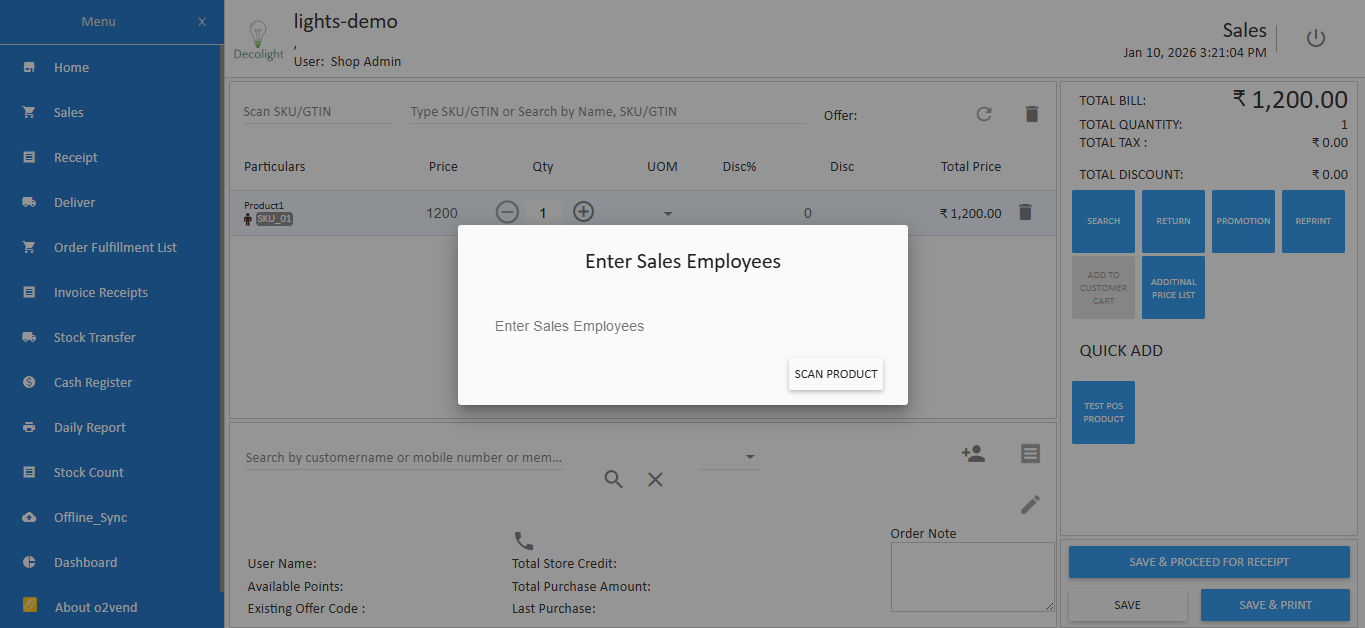
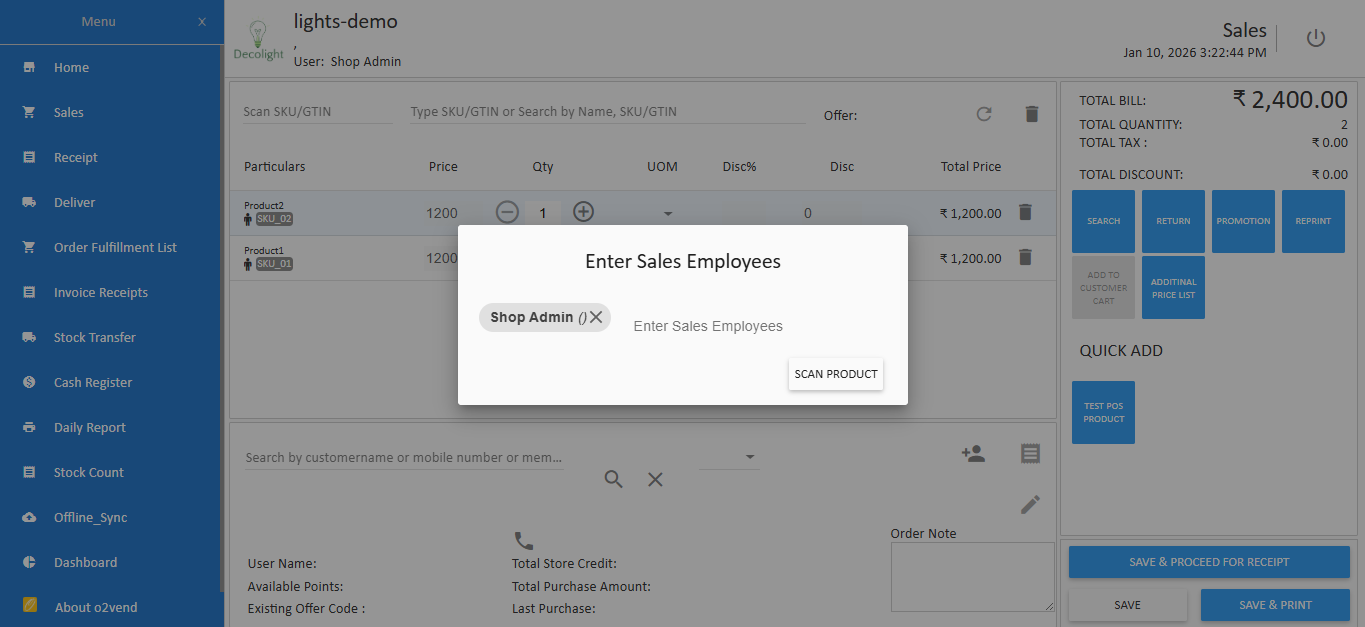
    This feature allows assigning sales employees to individual items within an order. Useful in POS where multiple employees handle different products in a single transaction.

    Location

    Back Office → Features → Order Item Wise Sales Employee

    Round off

    Steps to Enable

    • Log in to the Back Office.
    • Navigate to Features.
    • Click Order Item Wise Sales Employee.
    • Switch the toggle to ON.
    Round off Round off

    Benefits

    • Provides detailed sales attribution.
    • Enables accurate commission calculation.
    • Improves employee accountability and reporting.

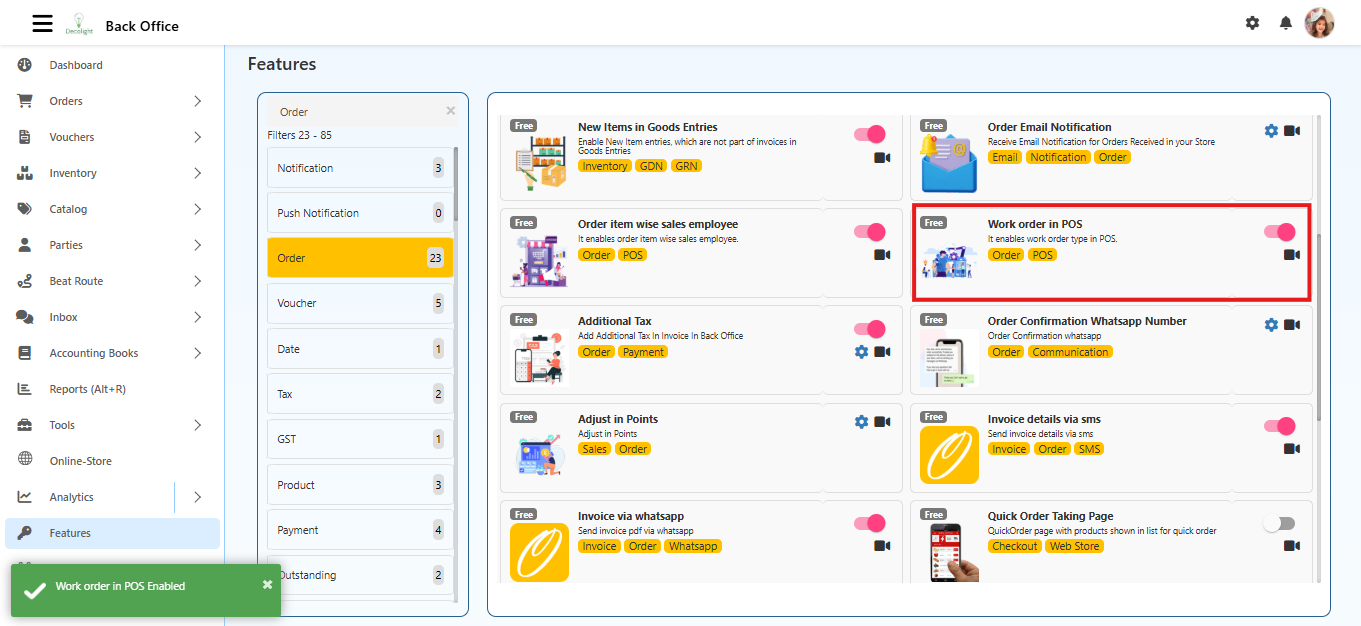
    Work Order in POS

    Enables work order in POS for businesses offering services or custom jobs. A work order represents tasks or services that need completion before delivery.

    Location

    Back Office → Features → Work Order in POS

    Steps to Enable

    • Log in to the Back Office.
    • Navigate to Features.
    • Locate Work Order in POS.
    • Switch the toggle to ON.
    Round off

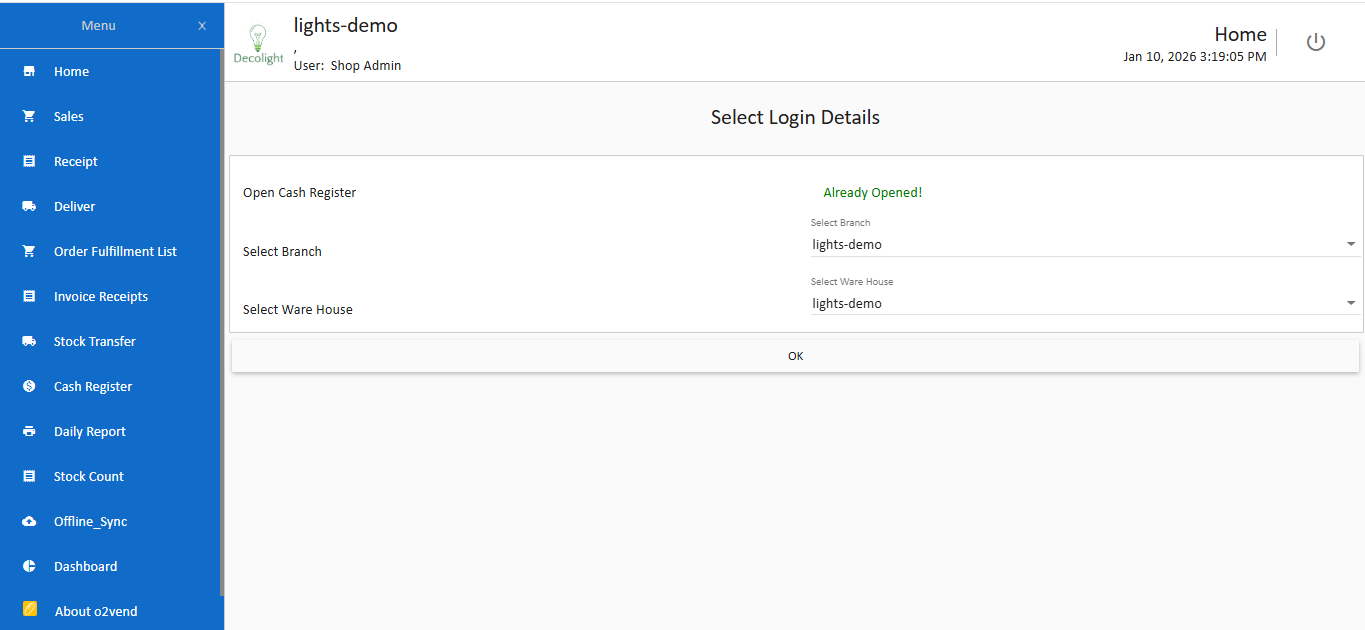
    Before POS

    Round off

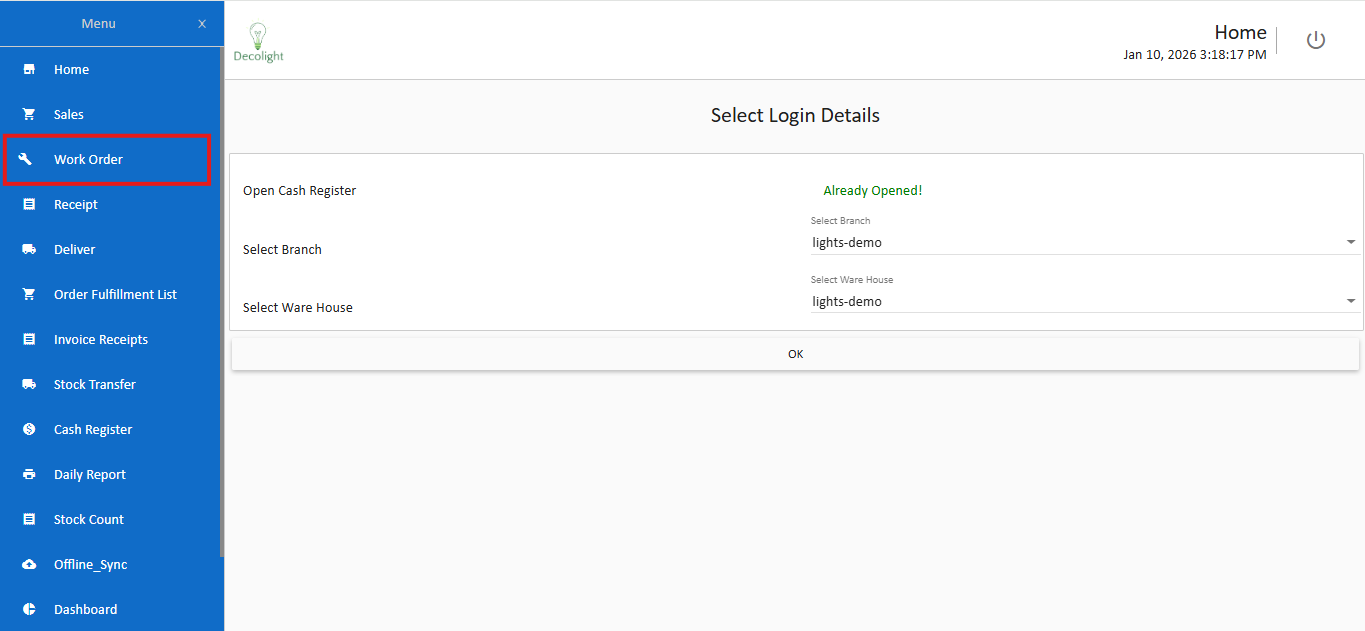
    After POS

    Round off
    Benefits
    • Simplifies service order management.
    • Tracks pending work orders and completion status.
    • Enhances customer experience with clear documentation.

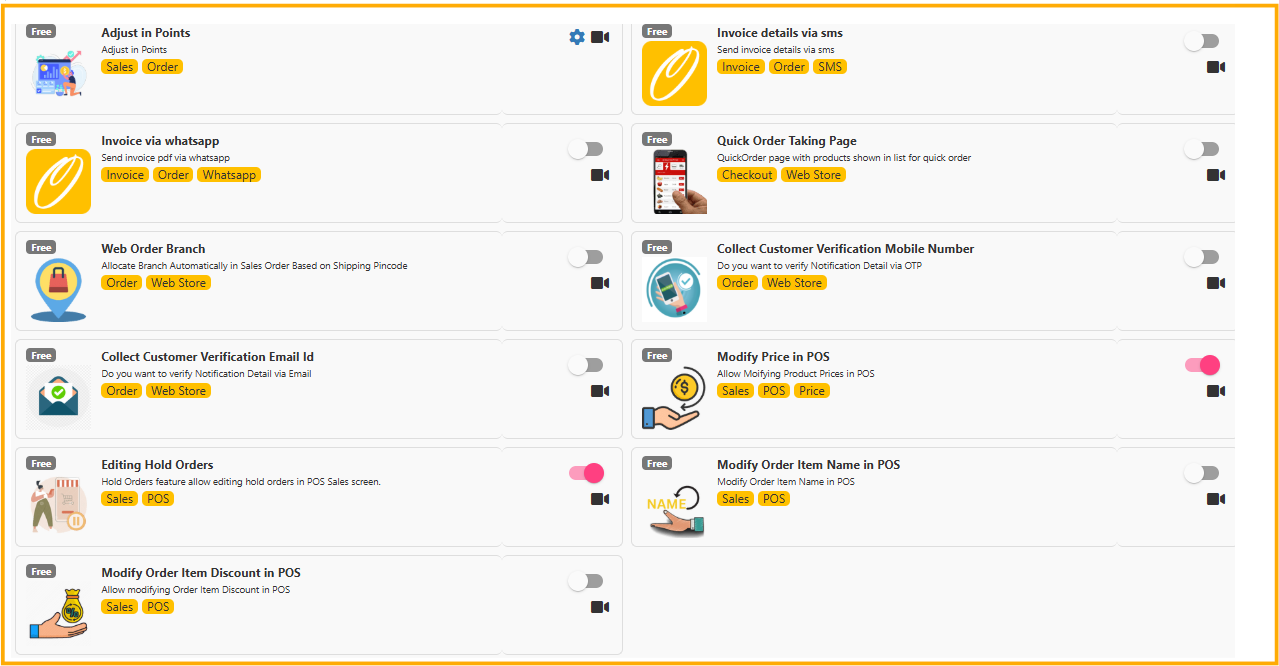
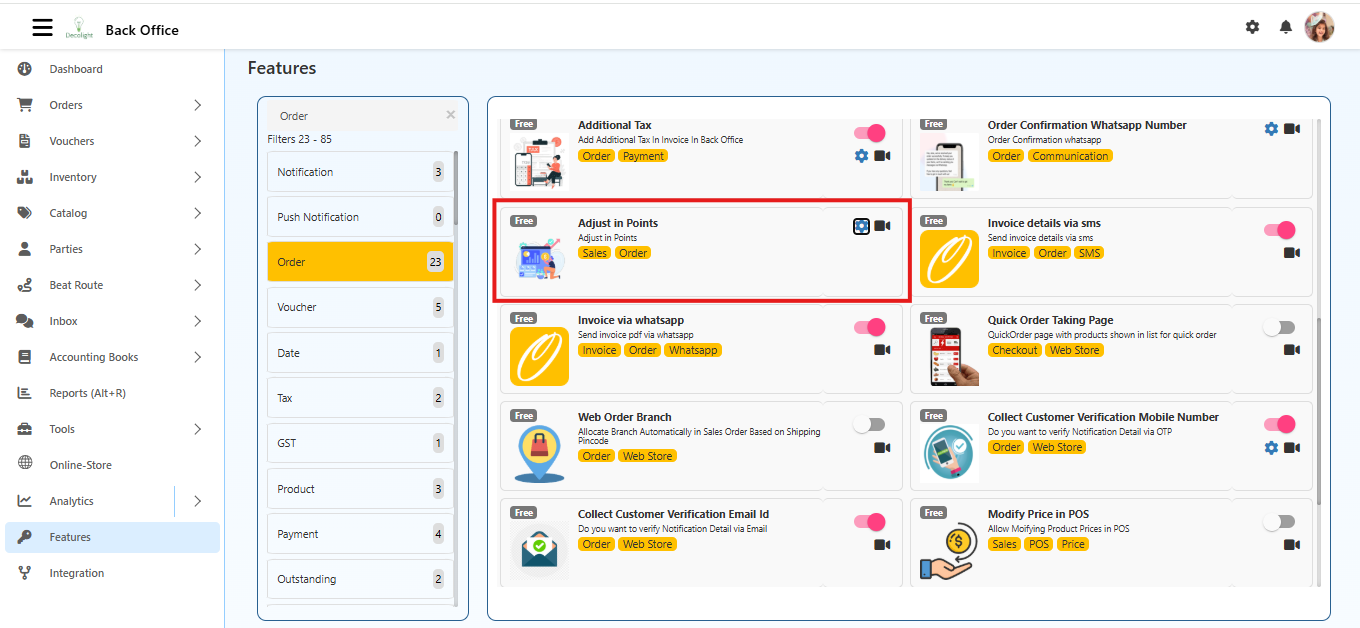
    Adjust in Points

    This feature enables businesses to convert payments into loyalty points or redeem loyalty points as payment, which is particularly useful for handling partial deliveries or rewarding customers.

    Location

    Back Office → Features → Adjust in Points

    Round off

    Steps to Enable

    1. Log in to Back Office.
    2. Navigate to Features.
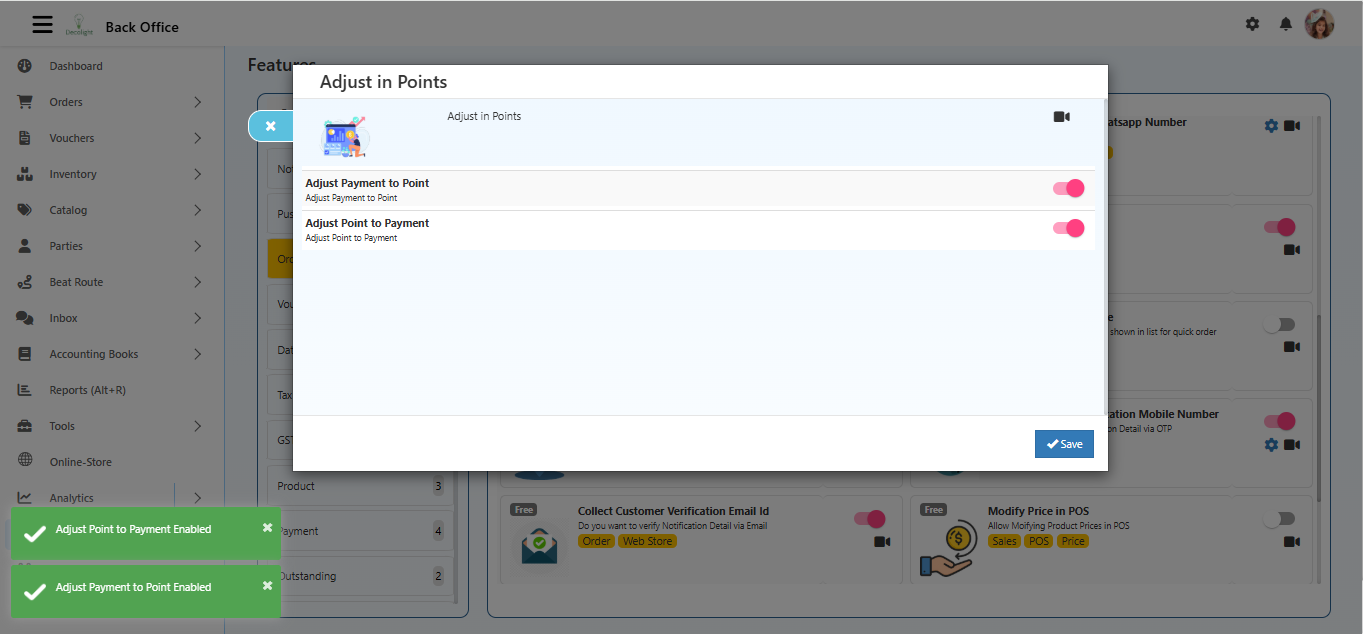
    3. Enable one or both options:
      • Adjust Payment to Point – Converts payment amount into points.
      • Adjust Point to Payment – Converts points into payment amount.
    Round off
    1. Click Save.

    How It Works in Real Scenario

    • A customer places an order for three products and completes payment.
    • During Goods Issue, only two products are delivered.
    • The amount for the undelivered product can be:
      • Converted into loyalty points using Adjust Payment to Point.
    • Later, when a new order is placed:
      • Those points can be redeemed as payment using Adjust Point to Payment.

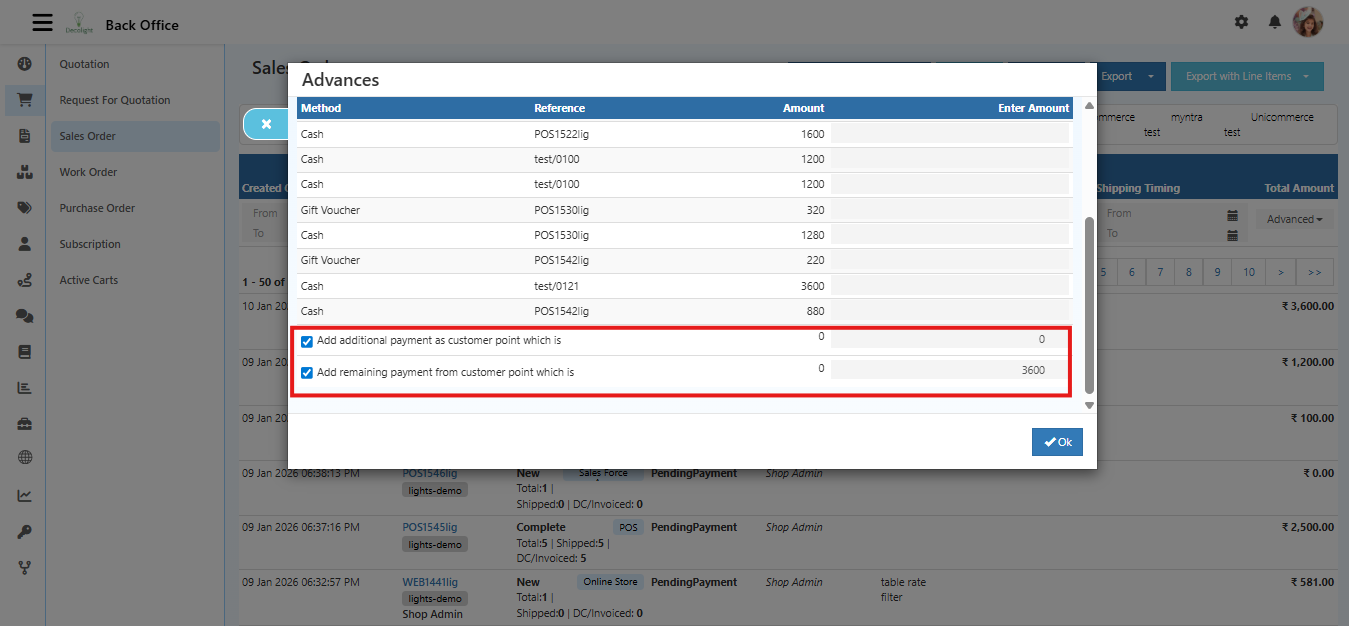
    In the Payment Screen

    As shown in the image:

    Round off
    • Two options are available:
      • Add additional payment as customer point
      • Add remaining payment from customer point
    • Enter the amount or points as required and confirm by clicking OK.
    Benefits
    • Enhances customer engagement.
    • Provides flexibility in payment and rewards.
    • Maintains accurate balances.

    Invoice Details via SMS

    Sends essential invoice details (invoice number, amount, payment status) via SMS instead of a full PDF. This feature integrates with O2VEND SMS module for template setup and message tracking.

    Location

    Back Office → Features → Invoice Details via SMS

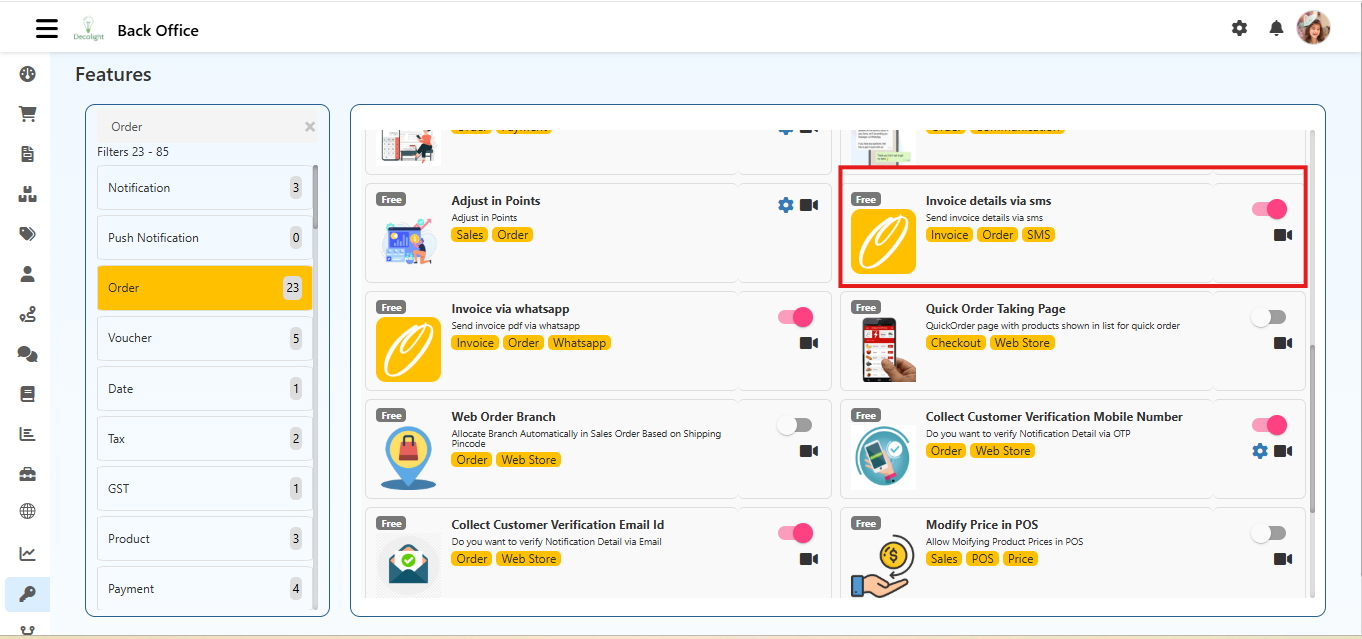
    Steps to Enable

    • Log in to the Back Office.
    • Navigate to Features.
    • Locate Invoice Details via SMS.
    • Switch the toggle to ON.
    Round off

    How It Works

    • After enabling, the system sends invoice details via SMS automatically when an invoice is generated.
    • The SMS includes:
      • Invoice Number
      • Order Total
      • Payment Status
      • Store Name
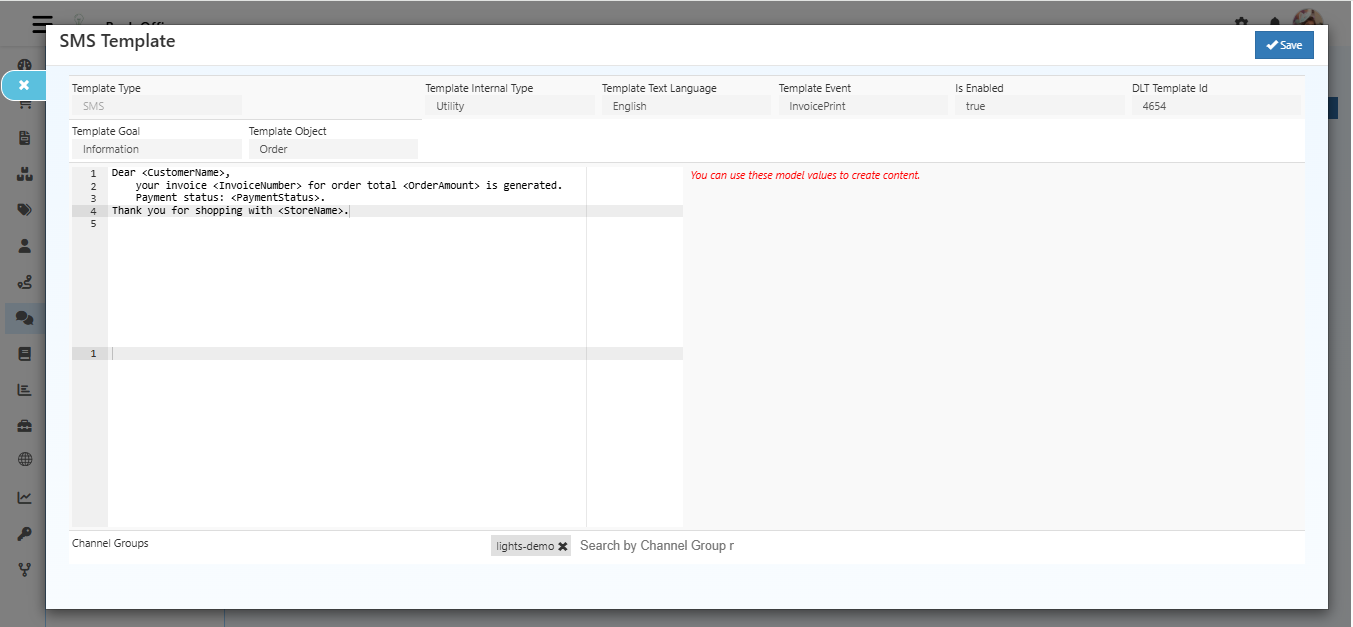
    • Messages are sent using pre-configured templates under Inbox → Configuration → SMS Templates.
    Round off

    SMS Template Setup

    • Template Type: SMS

    • Template Goal: Invoice Notification

    • Template Object: Invoice

    • Template Event: InvoiceCreated

    • DLT Template ID: Required for sending SMS in India

    • Message Content Example: Dear {{CustomerName}},

      your invoice {{InvoiceNumber}} for order total {{OrderAmount}} is generated.

      Payment status: {{PaymentStatus}}.

      Thank you for shopping with {{StoreName}}.

    Benefits
    • Quick communication without internet dependency.
    • Centralized template and message management.
    • Improves customer experience with timely updates.

    Invoice via WhatsApp

    Invoice via WhatsApp feature enables invoice PDFs to be sent directly to customers through WhatsApp. This helps in faster invoice delivery, reduces manual effort, and supports paperless Invoice.

    Feature Location

    Back Office Path: Features → Invoice via WhatsApp

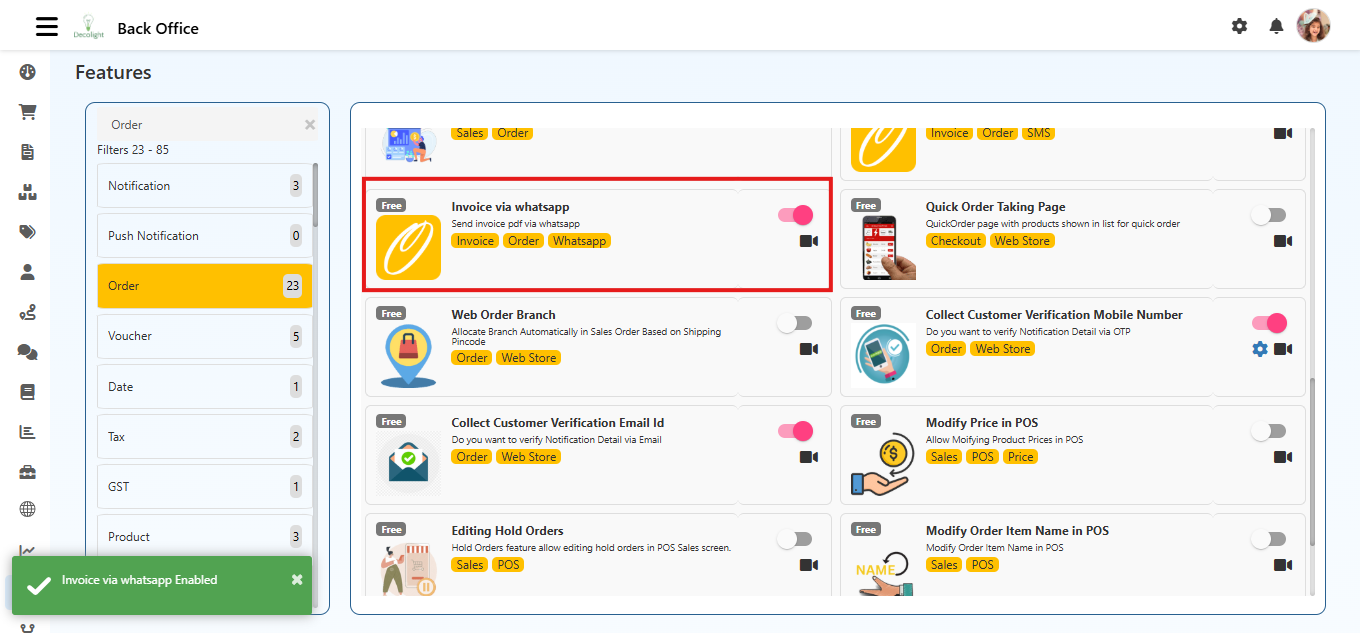
    Enable Invoice via WhatsApp

    1. Log in to O2VEND Back Office.
    2. Open Features from the left-side menu.
    3. Locate Invoice via WhatsApp.
    4. Turn the toggle ON to activate the feature.
    Round off

    Feature Working

    After enabling this feature:

    • Invoice PDFs can be shared with customers through WhatsApp.
    • Invoice sharing can happen in automatically through configured WhatsApp templates.
    • The invoice is delivered as a PDF attachment to the customers registered WhatsApp number.
    • Messages are sent using predefined configured templates under Inbox → Configuration → WhatsApp Templates.

    WhatsApp Template Configuration

    Automatic Invoice Sharing

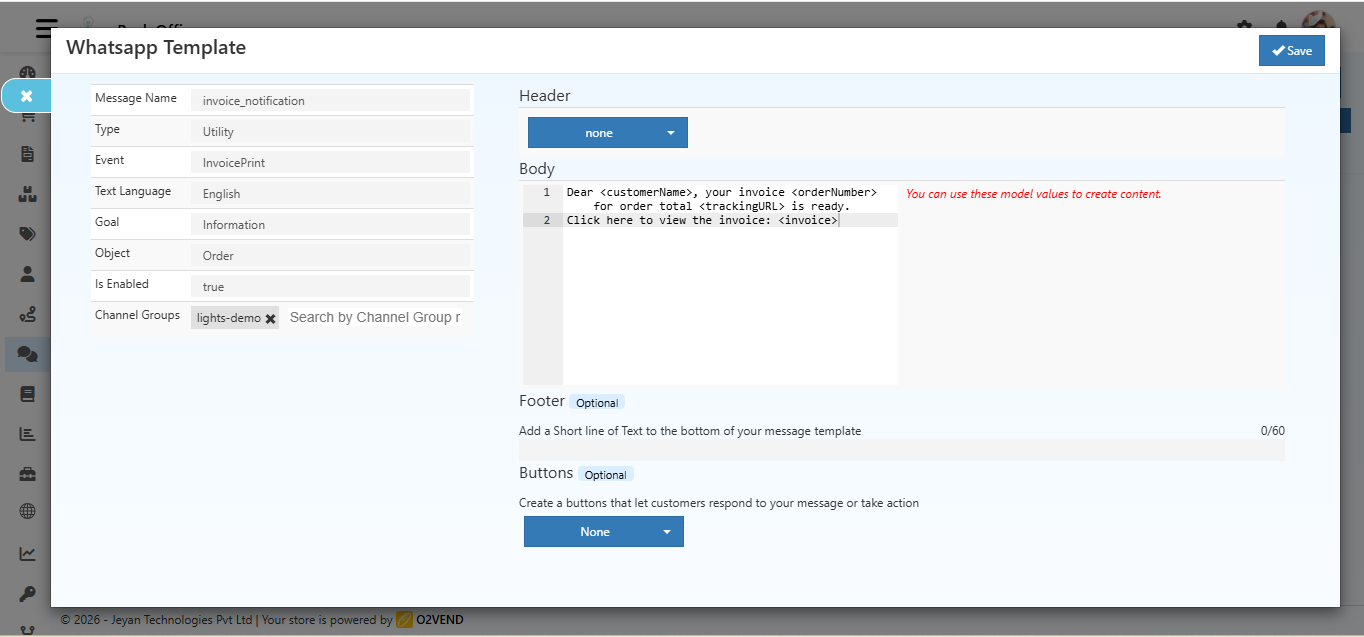
    To automate invoice delivery, a WhatsApp template must be configured.

    Round off
    Template Details
    • Message Name: invoice_notification
    • Template Type: Utility
    • Event: InvoicePrint
    • Language: English
    • Goal: Information
    • Object: Order
    • Template Status: Enabled
    • Channel Groups: Selects which customer groups can use this template.

    Message Body Example

    Dear {{1}}, your invoice {{2}} for order total {{3}} is ready. Click here to view the invoice: {{4}}

    Dynamic Fields Used

    • {{1}} – Customer Name
    • {{2}} – Invoice Number
    • {{3}} – Order Total
    • {{4}} – Invoice PDF link
    In this article
    Back to top _includes/footer.html
    © 2019–2026 Jeyan Technologies Private Limited • www.o2vend.com • Create your own store