O2VEND Retail ERP
  • Product
  • Solutions
  • Resources
    • Blog
    • Community
    • Partnership
    • Find Partner
    • Developer
  • Pricing
  • Docs
    • Getting Started
      • Channels
        • Sales Channel
        • O2VEND to O2VEND Channel
        • Shopify Integration Guide
    • Commerce
      • Ecommerce
      • POS
      • Agent App
      • CMS
      • Themes & Apps
      • Apps
        • Sales Navigator
    • Operations
      • OMS
      • WMS
      • O2C
      • Vendor Portal
      • Supplier Portal
    • Back Office
      • Accounting
      • Reports
      • PIM
      • Communication
      • Back Office
Search Results for

    Show / Hide Table of Contents
    • Overview
    • Features
      • Product Management Features
        • Product Management
        • Product Attributes
        • Product Variations
        • SKU Length for Variations
        • Product Pricing
        • Product Cost Configuration
        • Product Tax Settings
        • Additional Tax Setup
      • Inventory Management Features
        • Inventory Management
        • Stock Management
        • GDN (Goods Delivery Note)
      • Order & Sales Features
        • Order Management
        • Guest Checkout
        • Point of Sale (POS)
        • Credit Sales & Invoice Return
        • Outstanding Management
        • Voucher Management
        • Login Option
        • Payment
      • Marketing & SEO Features
        • SEO Optimization
        • URL Configuration
        • Schema Markup Setup
      • Communication & Notification Features
        • Email Settings
        • Communication Settings
        • Notifications
        • Web Notifications
      • System & Security Features
        • Application Settings
        • General Settings
        • Date Configuration
        • White Listing
        • Option Settings
    • Integrations
      • Marketplace Integrations
        • Amazon Integration
        • Flipkart Integration
        • Myntra Integration
        • Shopify Integration
        • Unicommerce Integration
      • Payment Gateway Integrations
        • Razorpay Integration
        • PayU Integration
        • Paytm Integration
        • PhonePe Integration
        • Cashfree Integration
        • Easebuzz Integration
        • Stripe Integration
        • Paypal Integration
      • Shipping & Logistics Integrations
        • Shiprocket Integration
        • Shipway Integration
        • eShipper Integration
        • ElasticRun Integration
        • Amazon Shipping Integration
        • XpressBees Integration
        • GetDelivered Integration
      • Communication Integrations
        • WhatsApp Integration
        • MSG91 Integration
        • Krispal Integration
        • SendGrid Integration
        • Amazon SES Integration
      • Marketing & CRM Integrations
        • HubSpot Integration
        • Typesense Integration
      • Tax & Compliance Integrations
        • e-Invoice Integration
        • e-Way Bill Integration
      • Security & Technical Integrations
        • reCAPTCHA Integration
        • Webhook Integration
        • Custom CDN Domain Setup
      • Inventory & Store Integrations
        • Storefront Integration
        • Channel-to-Channel Integration
        • General Settings
    • Product Enhancements
      • Affiliate Program Management
      • Back Office Management System
      • Checkout Process Settings
      • Coupon Code Management
      • Currency Configuration Settings
      • Delivery Zone Configuration
      • Discount Management System
      • Product Display Settings
      • GTIN Product Code Management
      • Invoice Management System
      • Marketing & Campaign Tools
      • Menu Management Settings
      • Pricing Rule Configuration
      • Purchase Management Module
      • Referral Program Settings
      • Return Management Process
      • Sales Management System
      • SMS Notification Settings
      • Sub Location Management
      • Vendor Management System
      • Product Video Integration
      • Web Store Configuration
      • WhatsApp Integration Settings
    • Blog Categories Setup
    • Blog Management
    • Home Page Components
    • Main Menu Management
    • Page Header Settings
    • Site Pages Management

    Main Menu Management

    The Site Menus page helps you create and manage the menus shown in your online store. You can use it to maintain the main menu, footer menus, submenus, and custom links so customers can navigate your store easily.

    This guide includes:

    • the Main menu
    • the Smart Menu setup explanation with the older screen references

    Navigation Path

    Back Office -> Online Store -> Site Menus


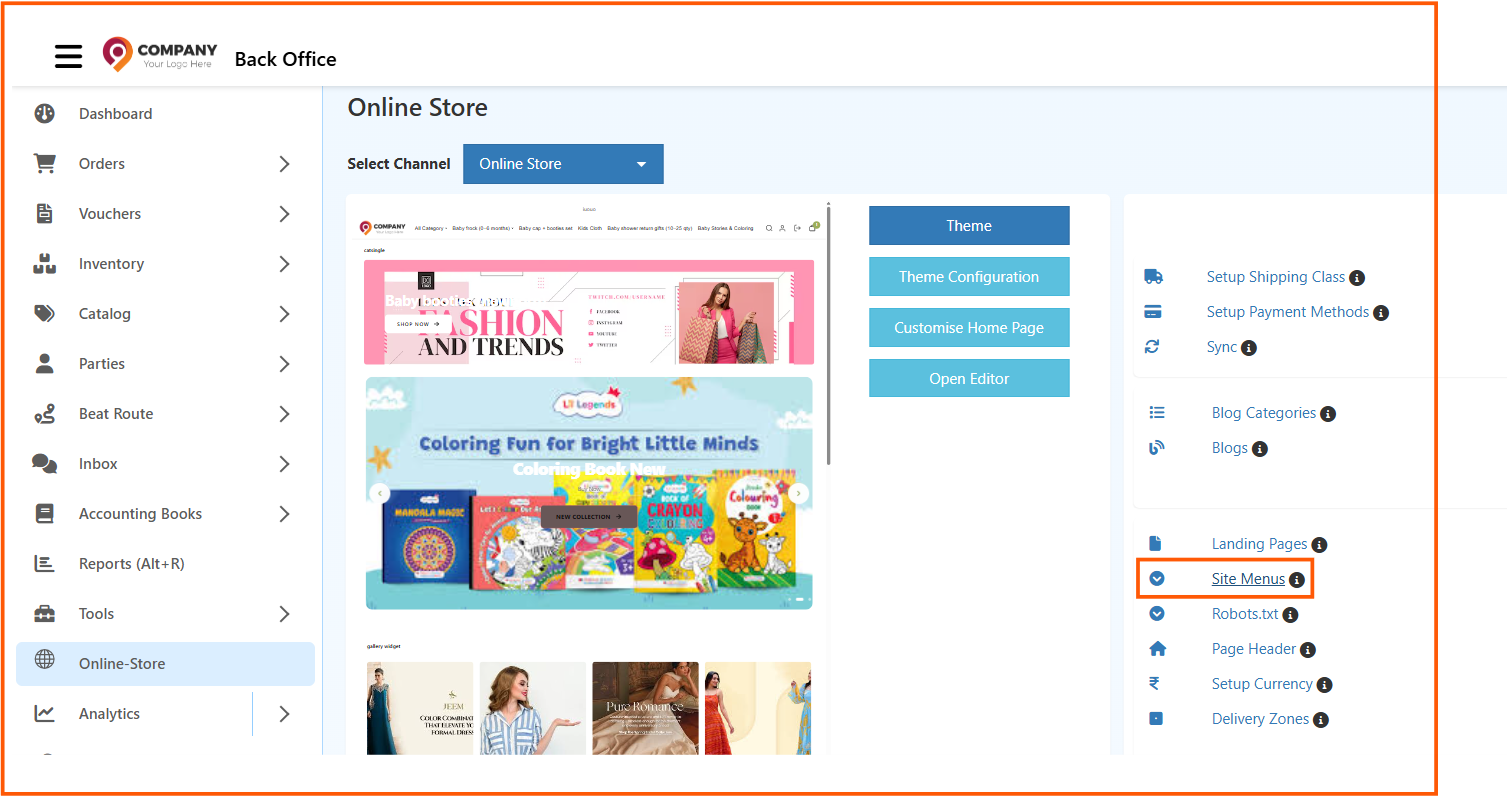
    Access Site Menus

    1. Login to the Back Office
    2. Open Online Store
    3. Select the required store from Select Channel
    4. Click Site Menus

    This opens the menu management area where you can create or edit the menus used in your storefront.
    site menus access


    Menus List Page

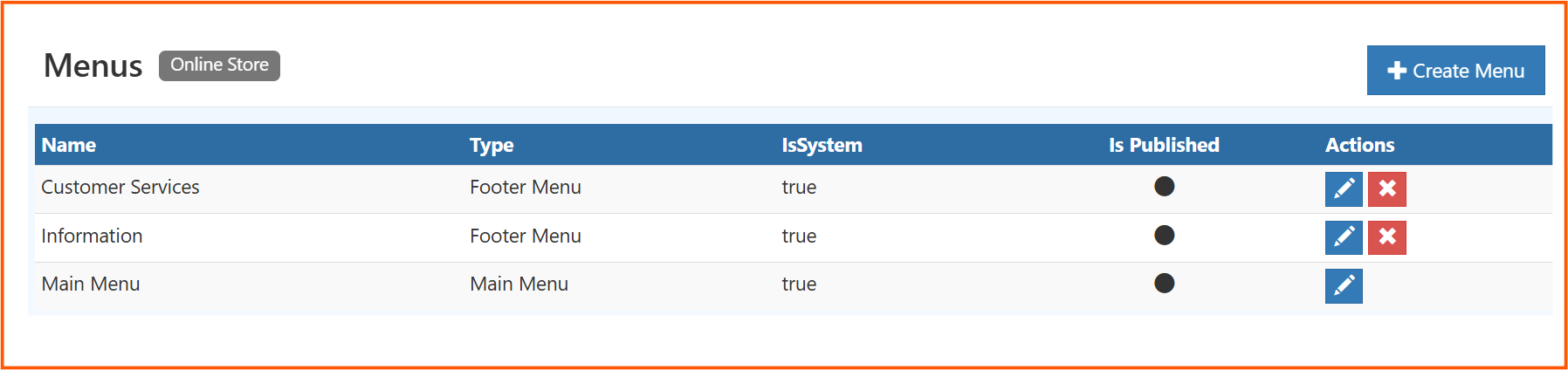
    The Menus page shows all existing menus created for the selected store.

    Examples from the screen:

    • Customer Services
    • Information
    • Main Menu

    mainmenu

    Fields in the Menus List

    Name

    Shows the name of the menu.

    Example:

    • Customer Services
    • Information
    • Main Menu

    Type

    Shows the menu type.

    Common examples:

    • Main Menu
    • Footer Menu

    This helps you identify where the menu is used in the storefront.

    IsSystem

    Shows whether the menu is a system-defined menu.

    • true means it is a system menu created by default
    • system menus are usually important store menus such as Main Menu or default Footer Menus

    Is Published

    Shows whether the menu is active and available in the storefront.

    • published menus can appear in the website
    • unpublished menus remain saved but may not be shown to customers

    Actions

    The action icons allow you to:

    • edit a menu
    • delete a menu, if deletion is allowed

    Create Menu

    The Create Menu button is used to add a new menu.

    Use it when you want to create a separate footer menu, custom navigation group, or any additional menu structure for the store.
    menus list


    Edit Menu Page

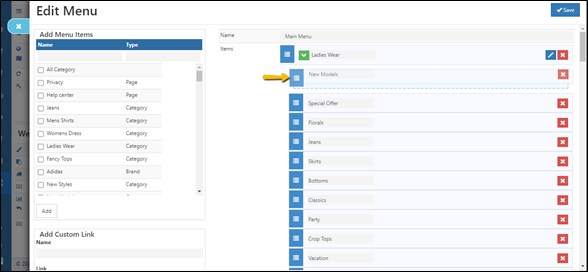
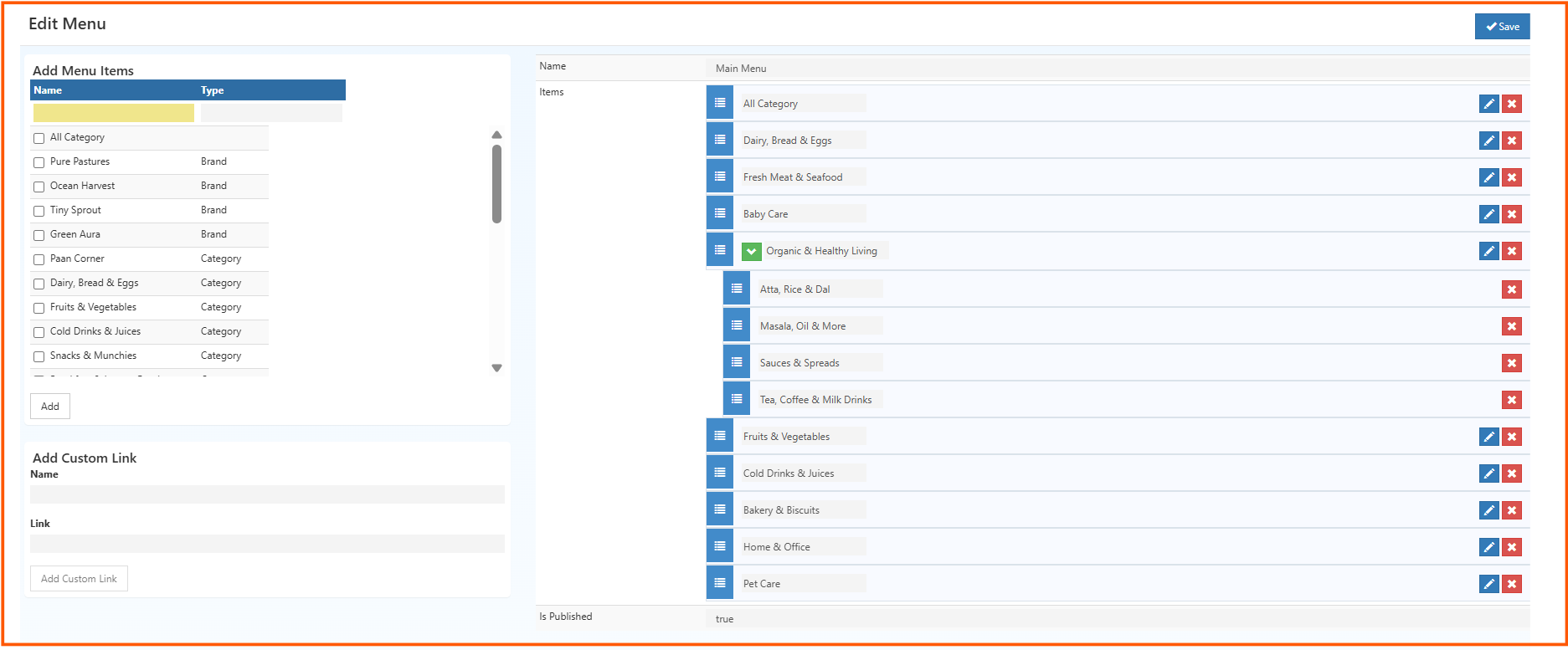
    When you click the edit icon for a menu, the Edit Menu page opens. This is where you build the menu structure by adding categories, brands, submenu items, and custom links.
    edit menu

    Main Sections in the Edit Menu Screen

    Add Menu Items

    This section shows the available items that can be added into the selected menu.

    The list may include:

    • categories
    • brands
    • other supported menu item types

    The columns shown here are:

    • Name: Item name
    • Type: Item type such as Brand or Category

    Use the checkbox to select items and click Add to move them into the menu.

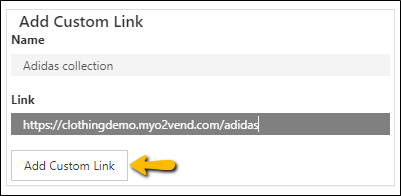
    Add Custom Link

    This section lets you manually create a custom menu link.

    It contains:

    • Name: The text shown in the menu
    • Link: The destination URL or path

    Use this when you want to add:

    • a custom landing page
    • a blog page
    • an offer page
    • an external URL

    After entering the values, click Add Custom Link.

    Name

    This shows the name of the menu currently being edited.

    Example: Main Menu

    Items

    This section displays the items already added to the menu.

    From this area, you can:

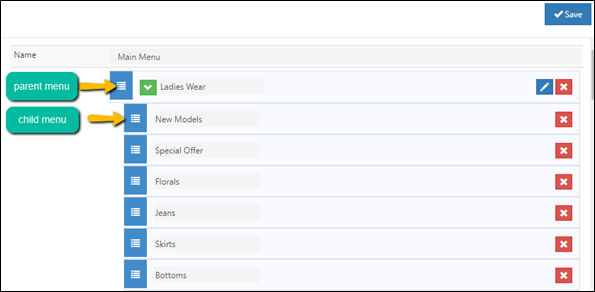
    • arrange menu items
    • create parent and child relationships
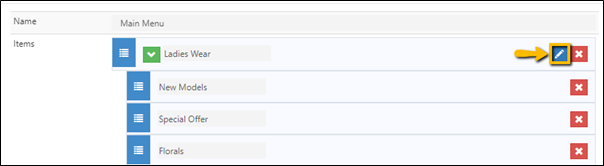
    • edit individual menu entries
    • remove menu entries

    Indented or nested items are usually treated as submenus under the parent menu.

    Is Published

    This controls whether the selected menu should be active on the storefront.

    • true -> The menu is published
    • false -> The menu is saved but not active

    Save

    Click Save after adding items, rearranging the structure, or updating custom links.


    How to Create or Update a Main Menu

    1. Go to Back Office -> Online Store -> Site Menus
    2. Open the required menu using the Edit icon
    3. In Add Menu Items, select categories or brands
    4. Click Add
    5. In the Items section, arrange the menu order
    6. Add submenu items under the required parent item if needed
    7. Use Add Custom Link for any manual menu link
    8. Set Is Published to true
    9. Click Save

    old menu step 3

    old custom link step 1

    old custom link step 2


    Smart Menu

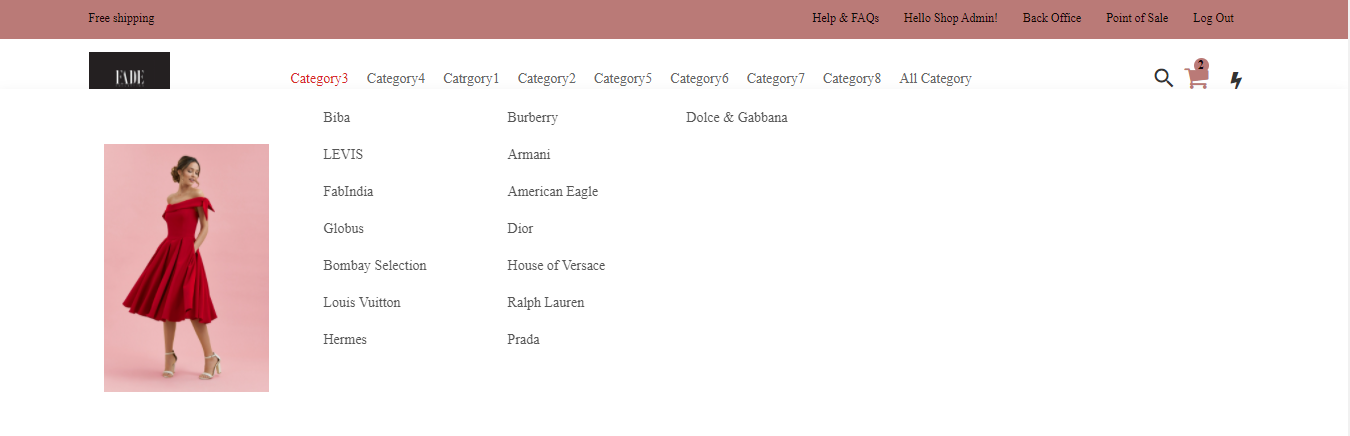
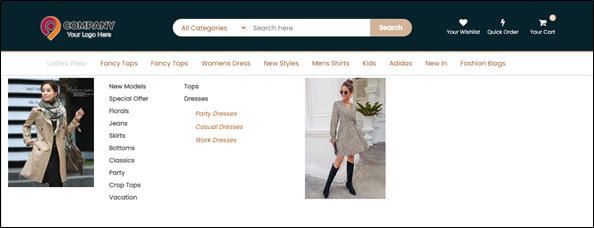
    Smart Menu helps show categories along with page-based enhancements, image support, and submenu visibility for a better browsing experience.

    Smart Menu is useful when you want to:

    • make menu navigation richer
    • display related pages
    • highlight categories with images
    • improve quick browsing for customers

    smart menu overview

    How to Enable Smart Menu

    1. Open the Main Menu edit icon from Site Menus
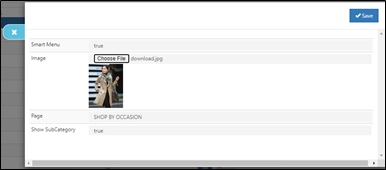
    2. Set Smart Menu to TRUE
    3. Upload the required image
    4. Select the required Page
    5. Set Show Subcategory to TRUE
    6. Save the menu
    7. Add child menus under the required parent category if needed
    8. Set Is Published to TRUE

    smart menu step 1

    smart menu step 2

    smart menu step 3

    smart menu step 4

    If Smart Menu is set to false, the menu behaves like a regular standard menu.

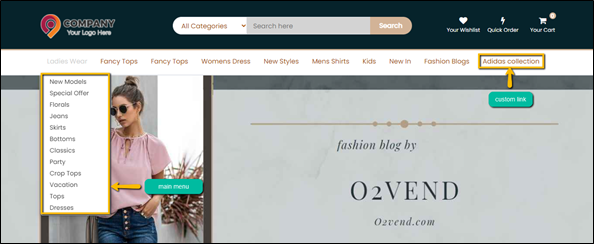
    After saving, the menu structure will be updated on the storefront. Customers will be able to navigate through the menu, submenu items, footer links, or Smart Menu layout based on the configuration you applied.

    In this article
    O2VEND

    O2VEND Help Center for Ecommerce, Back Office, POS, Agent App, PIM, OMS, WMS, Accounting, O2C, CMS, and ERP Reports workflows.

    Get Demo Contact Sales

    Product Docs

    Ecommerce Back Office Point of Sale Agent App Warehouse (WMS)

    Module Docs

    PIM OMS Accounting Order to Cash (O2C) CMS

    Resources

    Ecommerce POS Back Office Agent App Restaurant POS Integrations

    Community and Company

    Blog Community Partnership Find Partner Developer Pricing

    © 2019-2026 Jeyan Technologies Private Limited. All rights reserved.

    Privacy Policy • Terms of Service • Cancellation & Refund