ElasticRun Configuration in O2VEND | Setup Shipping Gateway Integration
Set up ElasticRun in O2VEND with account credentials, pickup pincode, package dimension defaults, and webhook details for shipment processing.
ElasticRun integration helps you connect your O2VEND store with the ElasticRun shipping gateway. From this screen, you can save the login details, enable the shipping setup, keep fallback package dimensions ready, and connect webhook updates back to O2VEND.
If you are comparing courier setups, you can also look at Shiprocket Integration, XpressBees Integration, Amazon Shipping Integration, and eShipper Integration.
Navigation Path
Back Office -> Integration -> ElasticRun
Open ElasticRun from the Integrations List
Go to the Integrations page in Back Office and look for ElasticRun under Shipment Gateways.
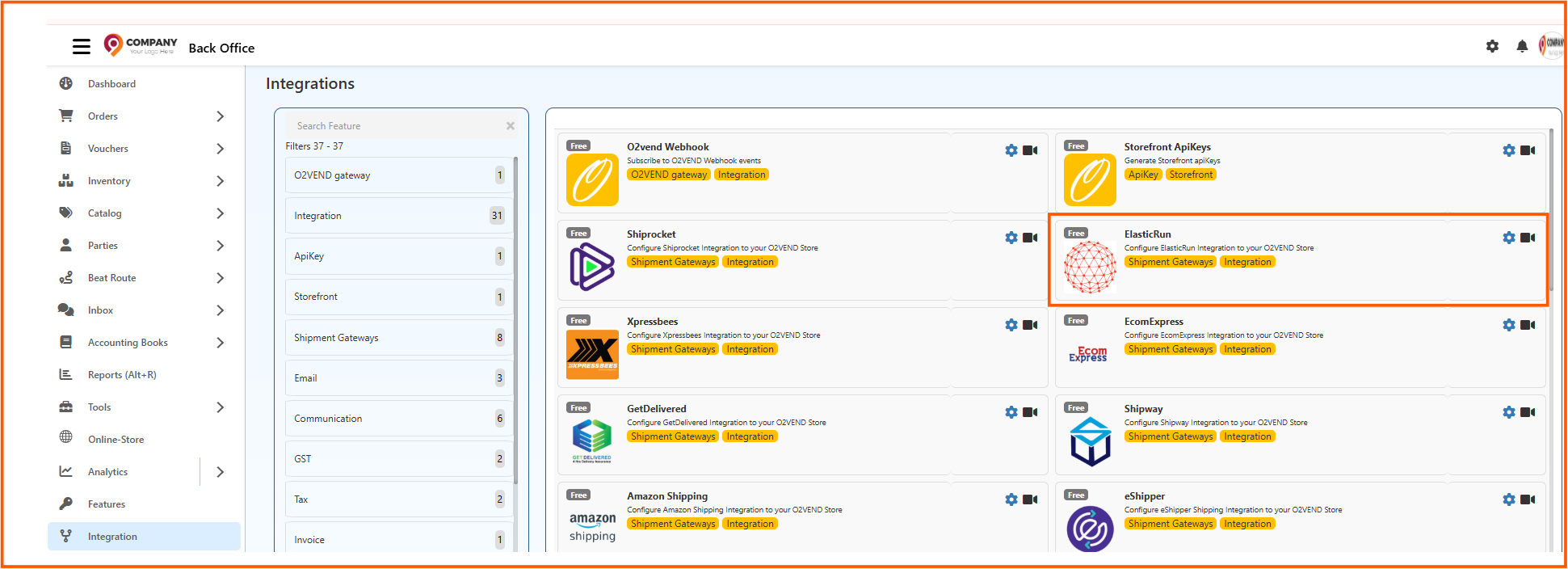
This card tells you two quick things before you open it:
- the integration belongs to the Shipment Gateways group
- the setup is meant for connecting ElasticRun to your O2VEND store
Click the card to open the full configuration screen.
ElasticRun Configuration Screen
Once opened, the ElasticRun Configuration page shows all the main settings in one place.
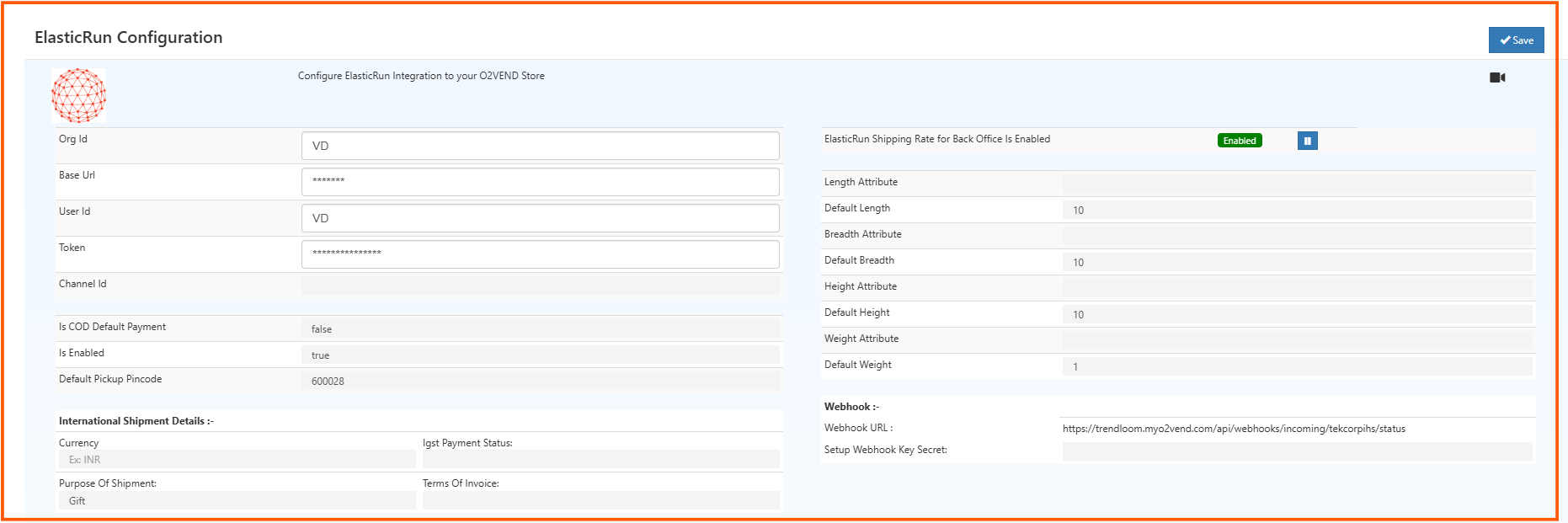
The screen is split into practical sections:
- account and API details
- default shipping behavior
- package dimension and weight settings
- webhook configuration
- international shipment details
Account and API Details
The left side starts with the credentials required for the ElasticRun connection.
| Field | Explanation |
|---|---|
| Org Id | Organization ID provided for your ElasticRun account. |
| Base Url | API base URL used by O2VEND to connect with ElasticRun. |
| User Id | User ID used for authentication. |
| Token | Secure token or API key used for access. |
| Channel Id | Optional channel reference if your ElasticRun setup uses a channel-based connection. |
These values usually come from the ElasticRun team or from your ElasticRun account setup. Even a small mismatch here can stop shipment requests or rate calls from working properly.
Default Shipping Settings
Just below the credentials, O2VEND shows the default shipment-related controls.
| Field | Explanation |
|---|---|
| Is COD Default Payment | Decides whether Cash on Delivery should be treated as the default payment mode. |
| Is Enabled | Turns the ElasticRun integration on or off for the store. |
| Default Pickup Pincode | Default pickup location pincode used during shipment creation. |
In the screenshot, the integration is enabled and a pickup pincode is already saved. If you also review other store-wide integration options, see General Settings.
ElasticRun Shipping Rate for Back Office
On the right side, the page shows whether ElasticRun Shipping Rate for Back Office is enabled.
When this is turned on, the Back Office can use ElasticRun shipping rate logic during shipment-related work. This is helpful when your team wants rate handling to stay consistent inside the ERP instead of relying only on manual courier choices.
Package Dimension Mapping
ElasticRun rate calculation depends on package size and weight, so this section is important. You can either map product attributes or keep default values as a fallback.
| Field | Explanation |
|---|---|
| Length Attribute | Product attribute mapped as package length. |
| Default Length | Length used when no product-level length is available. |
| Breadth Attribute | Product attribute mapped as breadth or width. |
| Default Breadth | Breadth used when no product-level breadth is available. |
| Height Attribute | Product attribute mapped as package height. |
| Default Height | Height used when no product-level height is available. |
| Weight Attribute | Product attribute mapped as package weight. |
| Default Weight | Weight used when no product-level weight is available. |
This is a safeguard. If any product is missing dimension data, O2VEND can still proceed using the default values you saved here.
International Shipment Details
The lower-left block is for International Shipment Details.
| Field | Explanation |
|---|---|
| Currency | Currency used for the shipment setup, for example INR. |
| Igst Payment Status | IGST-related status used for international shipment handling. |
| Purpose Of Shipment | Declared purpose of shipment, such as Gift. |
| Terms Of Invoice | Invoice terms to be used for shipment documents when required. |
If you are not handling international shipments right now, these values may still stay as saved defaults based on your shipping process.
Webhook Settings
The bottom-right section handles shipment status callbacks from ElasticRun.
| Field | Explanation |
|---|---|
| Webhook URL | O2VEND-generated URL that receives shipment updates from ElasticRun. |
| Setup Webhook Key Secret | Secret key used to validate webhook calls securely. |
In practice, you copy the Webhook URL from this page and configure it on the ElasticRun side. That way shipment status changes can flow back into O2VEND automatically. For a broader webhook overview, see Webhook Integration.
Save the Configuration
After reviewing the values on the page:
- Open Back Office -> Integration -> ElasticRun
- Enter the ElasticRun account details
- Check the default pickup and payment settings
- Save the dimension and weight fallback values
- Review the webhook details
- Click Save
The Save button is available in the top-right corner of the screen.