O2VEND Retail ERP
  • Getting Started
  • Ecommerce
  • Back Office
  • POS
  • Agent App
  • PIM
  • Communication
  • CMS
  • OMS
  • WMS
  • O2C
  • Accounting
  • Reports
  • Themes and Apps
Search Results for

    Show / Hide Table of Contents
    • Getting Started with Online Store
    • Create Online Store
    • Store Initial Setup Guide
    • Manage Store Settings
    • Manage Billing & Subscription
    • Customer Support Helpdesk

    Store Setup Retail ERP – Create a Store in O2VEND

    Create a free O2VEND store with secure OTP login. Set up POS billing, inventory, and ecommerce in minutes. Step-by-step ERP setup guide. O2VEND is a cloud-based retail ERP that supports omnichannel commerce, allowing businesses to manage POS billing, ecommerce orders, and inventory from a single platform.

    O2VEND is a secure cloud ERP trusted by retail and ecommerce businesses to manage billing, stock, orders, and multiple stores from one dashboard.

    O2VEND combines POS billing, ecommerce, and inventory management in one cloud ERP.

    Start Selling Online & Managing POS — Today

    Create your store, generate invoices, track inventory, and manage multiple locations securely — all from one cloud ERP.

    🚀 Ready to try? Create your free store now – it takes only minutes.

    Create your free store and access POS, inventory & ecommerce in minutes.

    No credit card required • Free to start • Cancel anytime

    Begin O2VEND Store Setup

    Login to O2VEND Account

    Creating a free online store or logging into the O2VEND Cloud ERP dashboard is fast and simple. Just enter an email address and verify it using the OTP sent to the inbox.

    Watch: O2VEND Login & Store Setup Walkthrough

    This short video shows:

    • OTP login process
    • Store creation flow
    • Dashboard access after setup
    ---

    How to Login or Create a Free O2VEND Store

    Follow these steps to create a new store or log in to an existing O2VEND account:

    1. Click “Create Your Free Store” or “Login” from the main menu.
    2. New users: Select Create Your Free Store to begin the setup process.
      Existing users: Select Login to access the dashboard.
    3. Enter a valid, active email address—used for verification and important notifications.
    4. Check for any spelling errors to avoid login or registration issues.
    5. Open the inbox and locate the OTP (One-Time Password) sent by O2VEND.

    If the OTP Is Not Received

    • Check Spam, Junk, or Promotions folders.
    • Ensure the email address entered is correct.
    • Allow a few moments for possible network delays.

    Enter the OTP before it expires.
    If the OTP is incorrect or expired, request a new one.

    After verification, access to the store dashboard becomes available, allowing the setup of an eCommerce store to continue smoothly on O2VEND.

    🔗 O2VEND Platform Modules

    Explore all O2VEND modules and resources from one place:

    Product Modules

    • POS Billing Software – Fast billing & checkout
    • Ecommerce Platform – Online store & orders
    • Back Office Dashboard – Central business control
    • Inventory Management – Stock & location tracking

    🚀 Learn the Essentials of E‑commerce!

    This blog explains what e‑commerce is, how it works, and how to start selling products online successfully.

    Read the Full Blog

    Business Growth & Support

    • Find a Partner – Local implementation support
    • Partnership Program – Grow with O2VEND
    • O2VEND Community – Discussions, help & updates
    🚀 Create Free Store

    O2VEND – Store Creation & Store Management Tutorial

    A complete guide to creating, managing, and controlling stores in the O2VEND Back Office.
    This tutorial helps businesses set up branches, access POS, ecommerce, inventory, and billing from a single platform.

    Store Creation & Management (Click to Expand)

    ➕ Create Store – Store Details

    Store Details Form

    This is the first step in creating a store. It defines login access and store identity.

    • Store Name – Display name of the online store
    • Store User Name – Login ID for Back Office
    • Store Password – Secure admin password
    • Store Website – Default domain ends with .myo2vend.com
    • Use .myo2vend.com Domain – Enables system-generated domain
    • Select Industry – Business category (retail, grocery, fashion, etc.)
    • Select Subscription Plan – Plan used to activate the store

    NEXT button moves to the next step.

    Store Setup Retail ERP – Create a Store in O2VEND

    Business Information

    This step captures official business contact details.

    • Business Name – Legal business name

    • Business Phone – Primary contact number

    • Business Email – Receives notifications and invoices

    • PREVIOUS – Go back and edit store details

    • NEXT – Continue to address configuration

    Store Setup Retail ERP – Create a Store in O2VEND

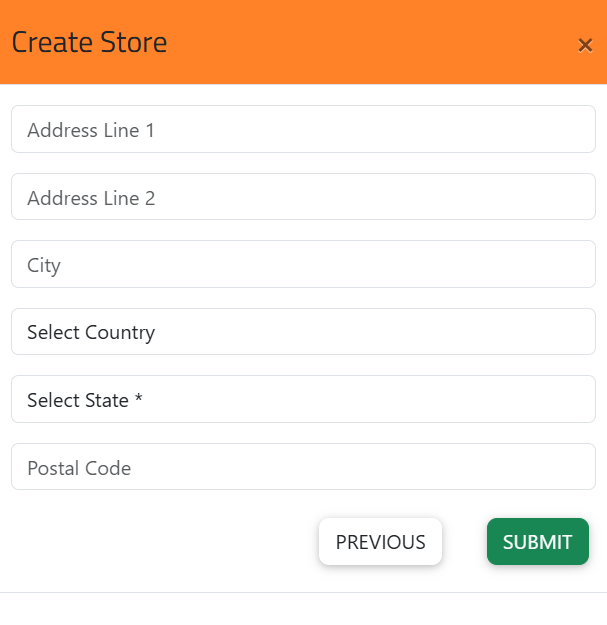
    Address Configuration

    Defines the physical location of the store for billing, GST, and delivery rules.

    • Address Line 1 – Primary store address

    • Address Line 2 – Optional extended address

    • City – Used for city-wise reporting

    • Country – Aligns tax and currency rules

    • State (Mandatory) – Required for GST/VAT

    • Postal Code – Used for logistics and invoices

    • PREVIOUS – Return to previous step

    • SUBMIT – Complete store creation

    Store Setup Retail ERP – Create a Store in O2VEND

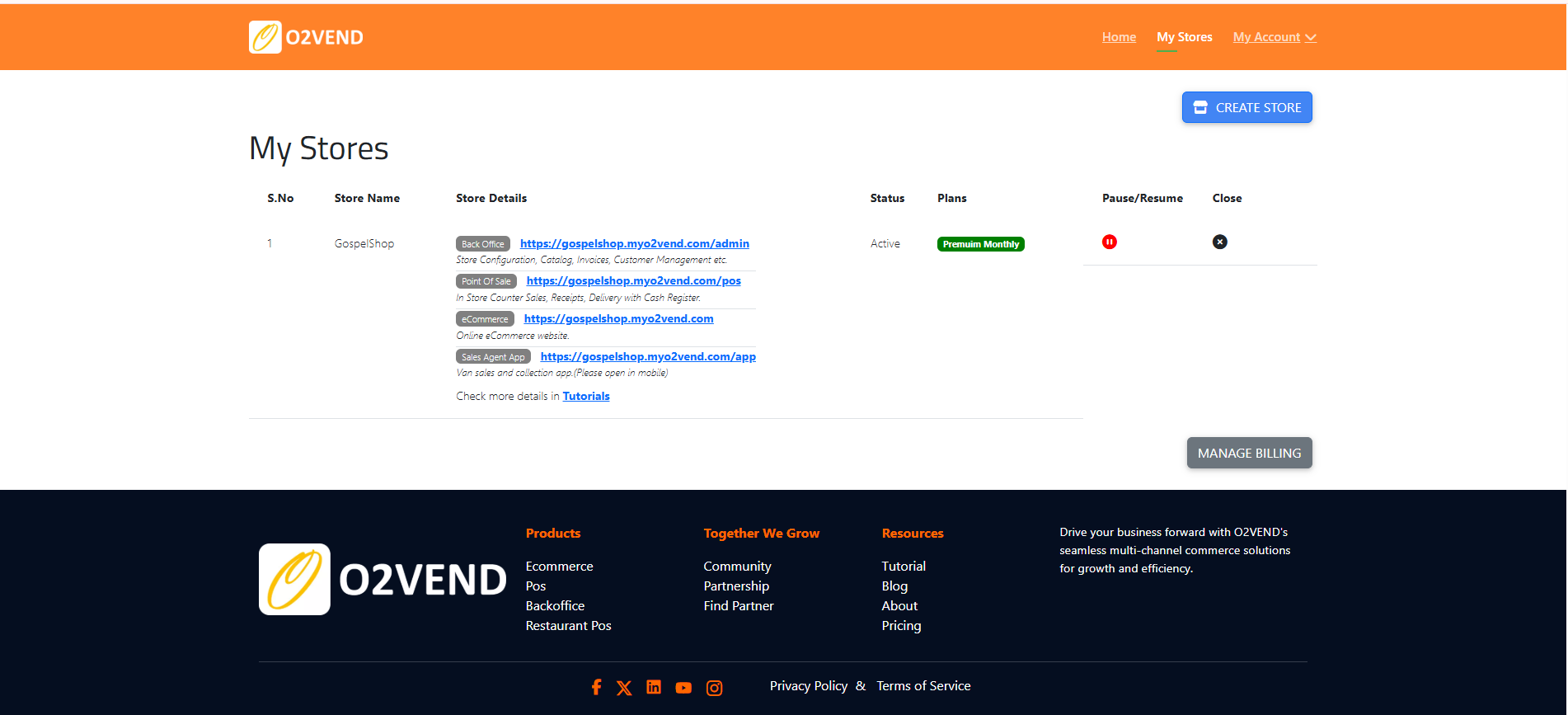
    My Stores – Store List & Access URLs

    All created stores appear in the My Stores dashboard.

    Each store displays:

    • Store Name
    • Back Office URL – Admin & configuration
    • POS URL – Billing interface
    • eCommerce URL – Customer storefront
    • Sales Agent App URL – Field sales access
    Store Setup Retail ERP – Create a Store in O2VEND

    Store Status & Subscription

    • Status – Active, Paused, or Closed
    • Plans – Subscription type and feature limits

    Pause / Resume Store

    Temporarily disables store operations without deleting data.

    Used during:

    • Renovation
    • Temporary shutdown
    • Seasonal business pauses

    Close Store

    Permanently closes a store when:

    • A branch is shut down
    • Ownership changes
    • Operations are consolidated

    Manage Billing

    Access subscription and payment management:

    • Upgrade or downgrade plans
    • Add payment methods
    • View billing history
    • Check renewal dates

    Contact Jeyan Technologies

    For business enquiries, partnership discussions, product information, or any other related details, reach out to our team for clear assistance.

    Email Our Team

    🔗 Related Topics

    Once your store is created, continue with:

    • Configure Products & Inventory
    • Set Up POS Billing
    • Manage Taxes & GST Settings - View Sales & Purchase Reports
    In this article
    Back to top _includes/footer.html
    © 2019–2026 Jeyan Technologies Private Limited • www.o2vend.com • Create your own store