O2VEND Retail ERP
  • Getting Started
  • Ecommerce
  • Back Office
  • POS
  • Agent App
  • PIM
  • Communication
  • CMS
  • OMS
  • WMS
  • O2C
  • Accounting
  • Reports
  • Themes and Apps
Search Results for

    Show / Hide Table of Contents
    • Overview
    • Features
      • Product Management Features
        • Product Management
        • Product Attributes
        • Product Variations
        • SKU Length for Variations
        • Product Pricing
        • Product Margin Settings
        • Product Cost Configuration
        • Product Tax Settings
        • Additional Tax Setup
      • Inventory Management Features
        • Inventory Management
        • Stock Management
        • GRN (Goods Receipt Note)
        • GDN (Goods Delivery Note)
        • Disable Lot Popup Option
      • Order & Sales Features
        • Order Management
        • Point of Sale (POS)
        • Credit Sales & Invoice Return
        • Outstanding Management
        • Voucher Management
        • Guest Checkout Option
      • Marketing & SEO Features
        • SEO Optimization
        • URL Configuration
        • Schema Markup Setup
        • Segmentation
      • Communication & Notification Features
        • Email Settings
        • Communication Settings
        • Notifications
        • Web Notifications
      • System & Security Features
        • Application Settings
        • General Settings
        • Date Configuration
        • IP Restrictions
        • White Listing
        • Print Configuration
        • Option Settings
    • Integrations
      • Marketplace Integrations
        • Amazon Integration
        • Flipkart Integration
        • Myntra Integration
        • Shopify Integration
        • Unicommerce Integration
      • Payment Gateway Integrations
        • Razorpay Integration
        • PayU Integration
        • Paytm Integration
        • PhonePe Integration
        • Cashfree Integration
        • Stripe Integration
        • Paypal Integration
      • Shipping & Logistics Integrations
        • Shiprocket Integration
        • Shipway Integration
        • eShipper Integration
        • Amazon Shipping Integration
        • XpressBees Integration
        • GetDelivered Integration
      • Communication Integrations
        • WhatsApp Integration
        • MSG91 Integration
        • SendGrid Integration
        • Amazon SES Integration
        • Email Integration
      • Marketing & CRM Integrations
        • HubSpot Integration
        • Typesense Integration
      • Tax & Compliance Integrations
        • e-Invoice Integration
        • e-Way Bill Integration
        • Tax Configuration
      • Security & Technical Integrations
        • reCAPTCHA Integration
        • Webhook Integration
        • Custom CDN Domain Setup
      • Inventory & Store Integrations
        • Inventory Integration
        • Storefront Integration
        • Display Configuration
        • General Settings
    • Product Enhancements
      • Affiliate Program Management
      • Back Office Management System
      • Checkout Process Settings
      • Coupon Code Management
      • Currency Configuration Settings
      • Delivery Zone Configuration
      • Discount Management System
      • Product Display Settings
      • Geo IP Location Detection
      • GTIN Product Code Management
      • Invoice Management System
      • Marketing & Campaign Tools
      • Menu Management Settings
      • Pricing Rule Configuration
      • Purchase Management Module
      • Referral Program Settings
      • Return Management Process
      • Sales Management System
      • Shipment & Delivery Tracking
      • SMS Notification Settings
      • Sub Location Management
      • Vendor Management System
      • Product Video Integration
      • Web Store Configuration
      • WhatsApp Integration Settings
    • Blog Categories Setup
    • Blog Management
    • Email Settings
    • Home Page Components
    • Main Menu Management
    • Newsletter Subscription Settings
    • SMS Settings
    • WhatsApp Settings
    • Communication Template Setup
    • Page Header Settings
    • Site Menu Management
    • Site Pages Management

    Integrate Shopify with O2VEND | Orders, Inventory & Webhooks Setup

    Shopify users can connect their store with O2VEND to use POS, Back Office, apps, inventory, eCommerce, and accounting, and manage online and in-store sales from one platform.

    Integrate Shopify with O2VEND to automatically sync orders in real time and manage inventory and fulfillment from one platform. This step-by-step guide explains API access, webhooks, and configuration to reduce manual work and improve operational accuracy.

    Why Integrate Shopify with O2VEND?

    Integrating Shopify with O2VEND streamlines Ecommerce operations and supports scalable business growth.

    • Automatic synchronization of Shopify orders into O2VEND
    • Centralized management of orders and inventory
    • Real time order creation using Shopify webhooks
    • Reduced manual data entry and processing errors
    • Improved order fulfillment speed and efficiency

    Common Shopify Integration Use Cases

    The Shopify�O2VEND integration supports multiple real-world business scenarios:

    • Retailers managing both physical POS stores and Shopify online stores from one system
    • Brands syncing Shopify online orders directly into O2VEND Sales Orders
    • Businesses maintaining real-time inventory accuracy across POS and Shopify
    • Operations teams automating order creation, payment updates, and cancellations
    • Growing businesses integrating Shopify with accounting, logistics, and automation apps

    Supercharge Shopify Operations with O2VEND

    Explore how O2VEND Back Office enhances Shopify operations through seamless integration flows, centralized order management, and efficient inventory and fulfillment control.

    Read Shopify Integration Blog

    Step 1: Create or Access a Shopify Account

    Step 1: Register for a Shopify account at: https://accounts.shopify.com

    Step 2: If an account already exists, log in to the Shopify Admin Panel.

    Step 2: Create a Custom App in Shopify

    A Shopify custom app is required to generate the Admin API access token used for integration with O2VEND.

    Step 1: Log in to the Shopify account.

    Step 2: From the Shopify admin panel, navigate to Apps.

    Step 3: Click Apps and sales channel settings.

    Step 4: Select Develop apps.

    Step 5: Click Allow custom app development.

    Step 6: Click Create app.

    Step 7: Enter an App Name and click Create app.

    Step 3: Configure Admin API Access

    Step 1: Open Admin API integration within the created app.

    Step 2: Select the required Admin API access scopes based on integration requirements.

    Step 3: Click Save.

    Step 4: Click Install app.

    Step 5: After installation, an Admin API Access Token is generated.

    Important: The Admin API access token is displayed only once. Ensure the token is copied and stored securely.

    Step 6: Copy the API Access Token and retain it in a secure location.

    Step 4: Configure Shopify Sales Channel in O2VEND

    To continue with the integration, the Shopify sales channel must be enabled in O2VEND.

    Important: Contact O2VEND Support to enable the Shopify sales channel for the account.

    Shopify Integration with O2VEND

    Connect Shopify with O2VEND to enable real-time order synchronization, centralized inventory management, and streamlined fulfillment through a single platform.

    Contact O2VEND Support Login to Your Store

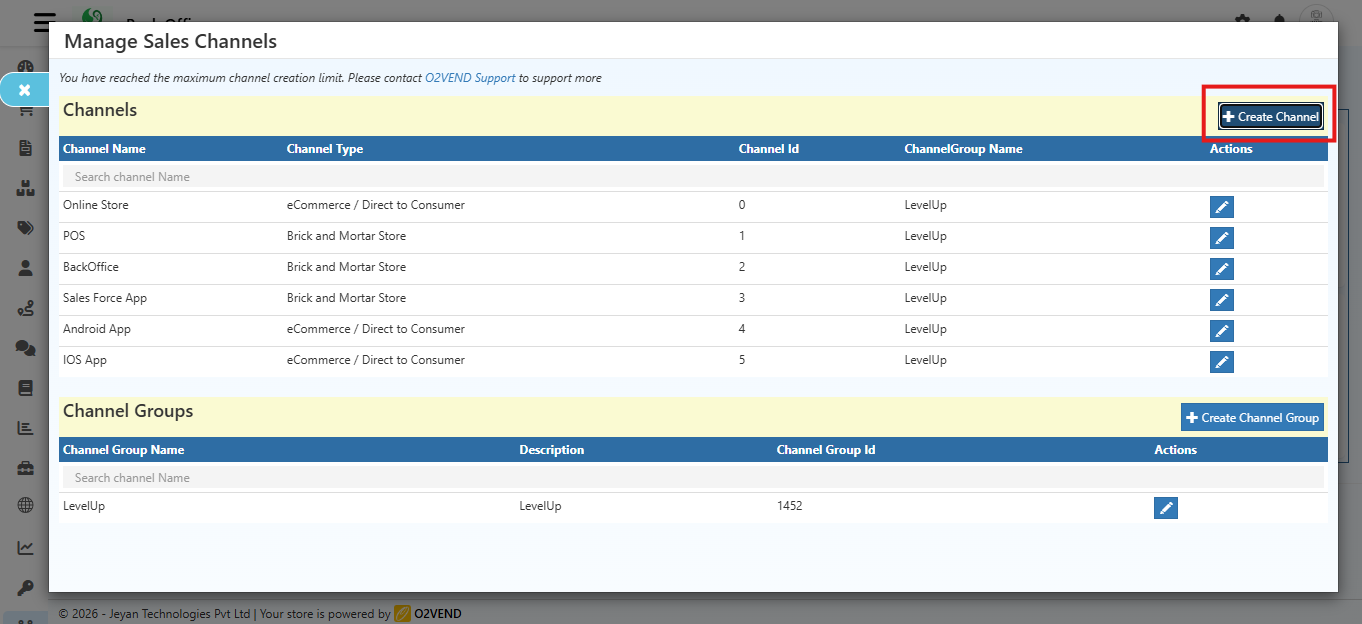
    Step 1: Navigate to Back Office – Settings – Sales Channel – Shopify.

    • Click the Create Channel button on the top-right side of the screen.
    Integrate Shopify with O2VEND | Orders, Inventory & Webhooks Setup
    Initial Screen

    The Create Channel form will display the following fields:

    • Channel Id
    • Channel Name
    • ChannelGroup Name
    • Channel Type

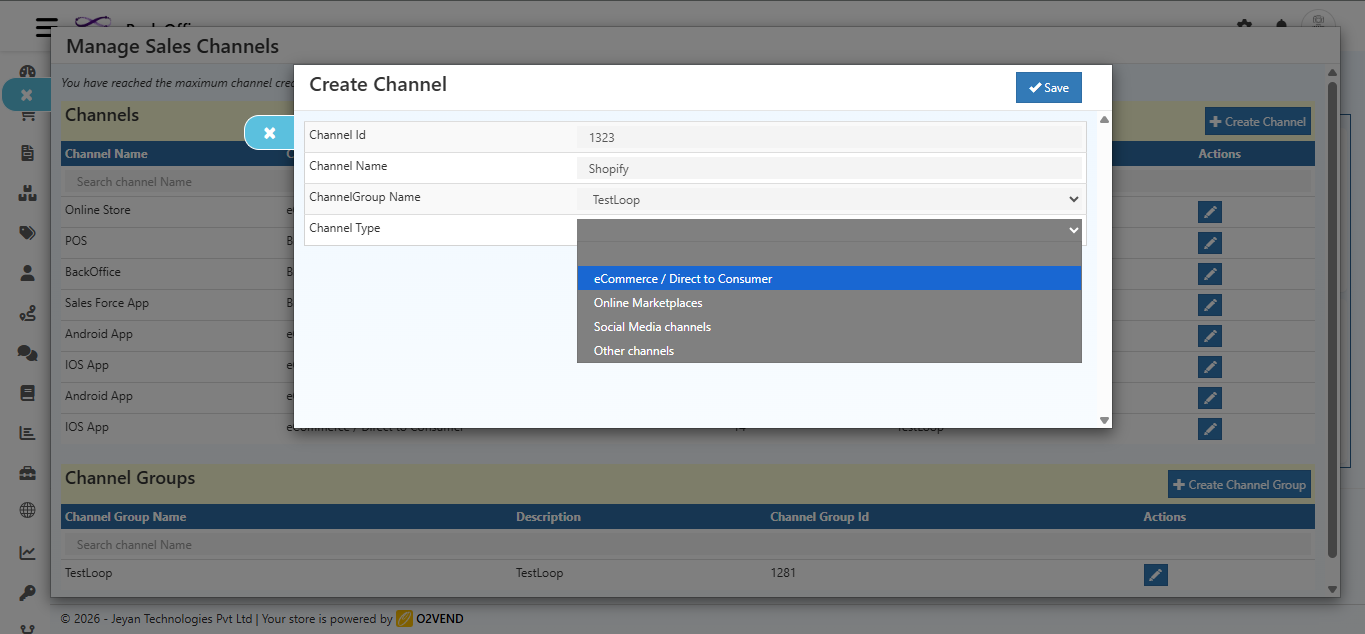
    Select Channel Type

    • Click the Channel Type dropdown.
    • Choose eCommerce / Direct to Consumer.
    Integrate Shopify with O2VEND | Orders, Inventory & Webhooks Setup

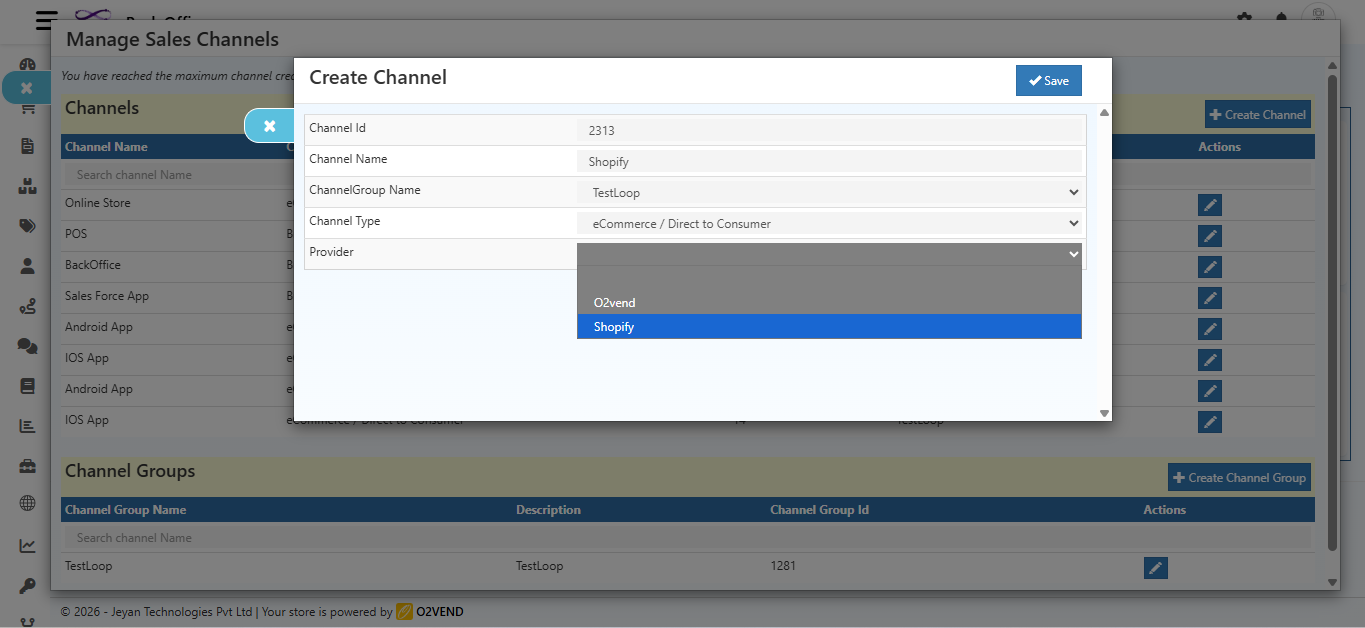
    Select Provider

    • After selecting eCommerce / Direct to Consumer, a new field Provider will appear.
    • Click the Provider dropdown.
    • Select Shopify.
    Integrate Shopify with O2VEND | Orders, Inventory & Webhooks Setup

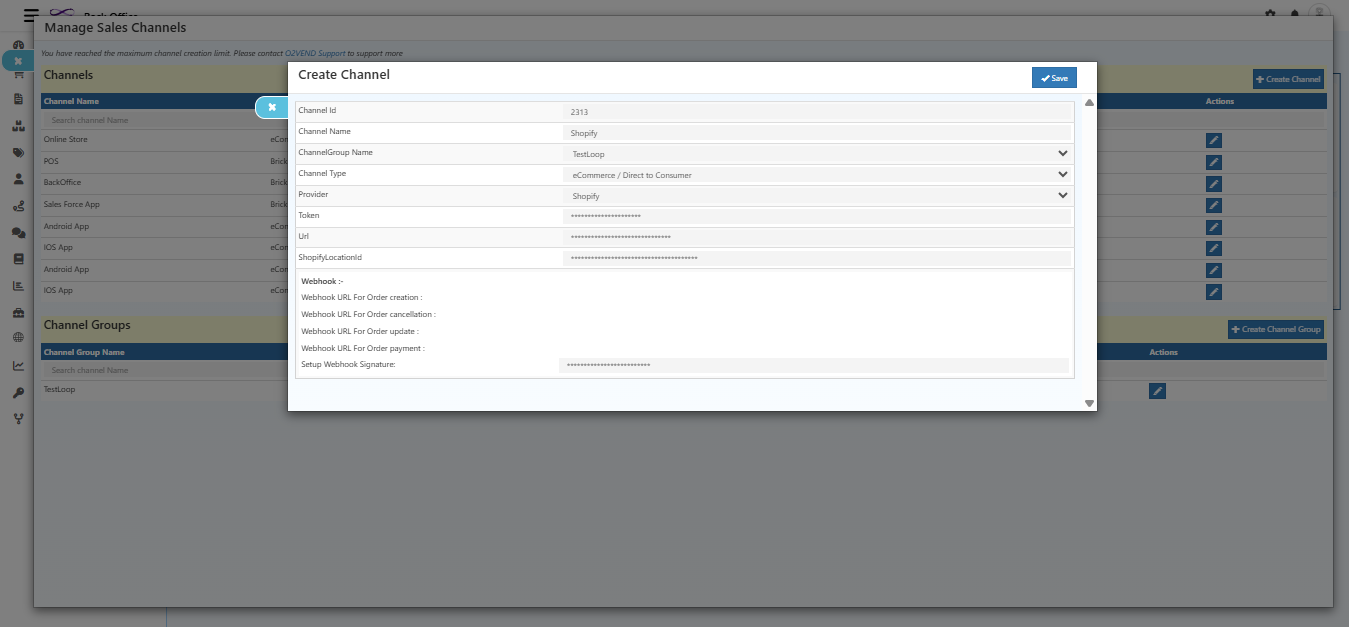
    Additional Fields Appear

    Once Shopify is selected, the following fields will appear on the same screen:

    • Token
    • URL
    • ShopifyLocationId
    • Webhook URL for Order Creation
    • Webhook URL for Order Cancellation
    • Webhook URL for Order Update
    • Webhook URL for Order Payment
    • Setup Webhook Signature
    Integrate Shopify with O2VEND | Orders, Inventory & Webhooks Setup

    Field Details

    Field Description
    Channel Id Unique identifier for the Shopify sales channel.
    Channel Name Friendly name for the Shopify store integration.
    ChannelGroup Name Used to group Shopify with related sales channels.
    Channel Type Select eCommerce / Direct to Consumer.
    Provider Select Shopify from the dropdown.
    Token Admin API Access Token generated from Shopify Custom App.
    URL Shopify store URL (example: https://store-name.myshopify.com).
    ShopifyLocationId Location ID configured in Shopify for inventory syncing.
    Webhook URL – Order Creation URL used to receive new order notifications from Shopify.
    Webhook URL – Order Cancellation URL to capture cancelled orders.
    Webhook URL – Order Update URL to capture order status updates.
    Webhook URL – Order Payment URL to receive payment updates.
    Setup Webhook Signature Secret signature generated by Shopify for webhook validation.

    Step 2: Paste the Admin API Access Token into the configuration field.

    Step 3: Save the configuration.

    Notes

    • Always select Channel Type – eCommerce / Direct to Consumer before choosing Provider ? Shopify.
    • Generate the Admin API Access Token from a Shopify Custom App.
    • Configure Shopify webhooks using the URLs shown in this screen.
    • Keep API tokens and webhook signatures secure.
    • Click Save after completing all required fields.

    Enable Shopify Integration

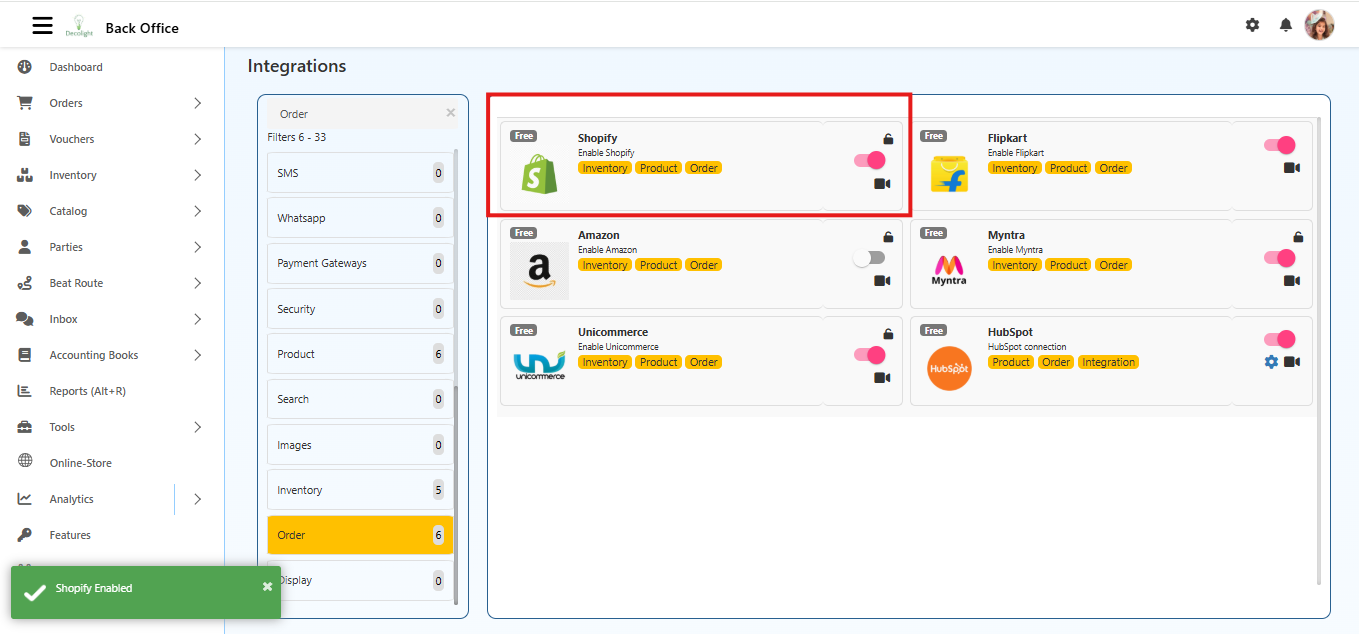
    Go to: Back Office – Integrations – Order

    Integrate Shopify with O2VEND | Orders, Inventory & Webhooks Setup

    Process

    • Select Shopify from the integrations list.

    • Click the toggle switch for Shopify to enable the integration.

    • Once enabled, Shopify supports:

      • Order Synchronization
      • Inventory Sync
      • Product Management
      • Payment & Order Status Updates

    Step 5: Create Shopify Webhook for Order Creation

    Shopify webhooks notify O2VEND automatically when a new order is created.

    Step 1: Open the Shopify Admin Panel.

    Step 2: Click Settings.

    Step 3: Navigate to Notifications.

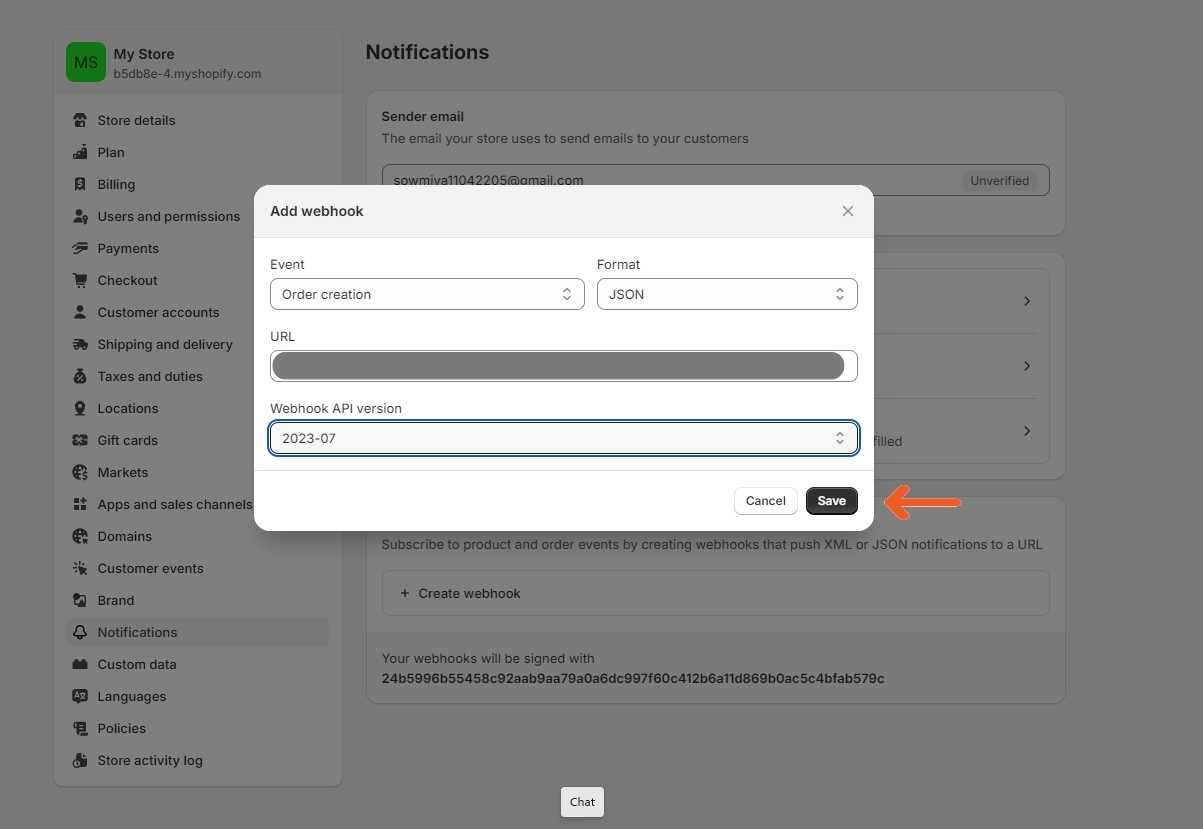
    Step 4: Scroll to the bottom and click Create webhook.

    Step 5: In the Event field, select Order creation and choose JSON as the format.

    Step 6: Copy the Webhook URL for Order Creation from:

    Back Office – Settings –Sales Channel – Shopify.

    Step 7: Paste the copied Webhook URL into the Shopify webhook URL field.

    Step 8: Select the Webhook API version as 2023–07.

    Integrate Shopify with O2VEND | Orders, Inventory & Webhooks Setup

    Step 9: Click Save.

    Step 6: Generate and Configure Webhook Signature

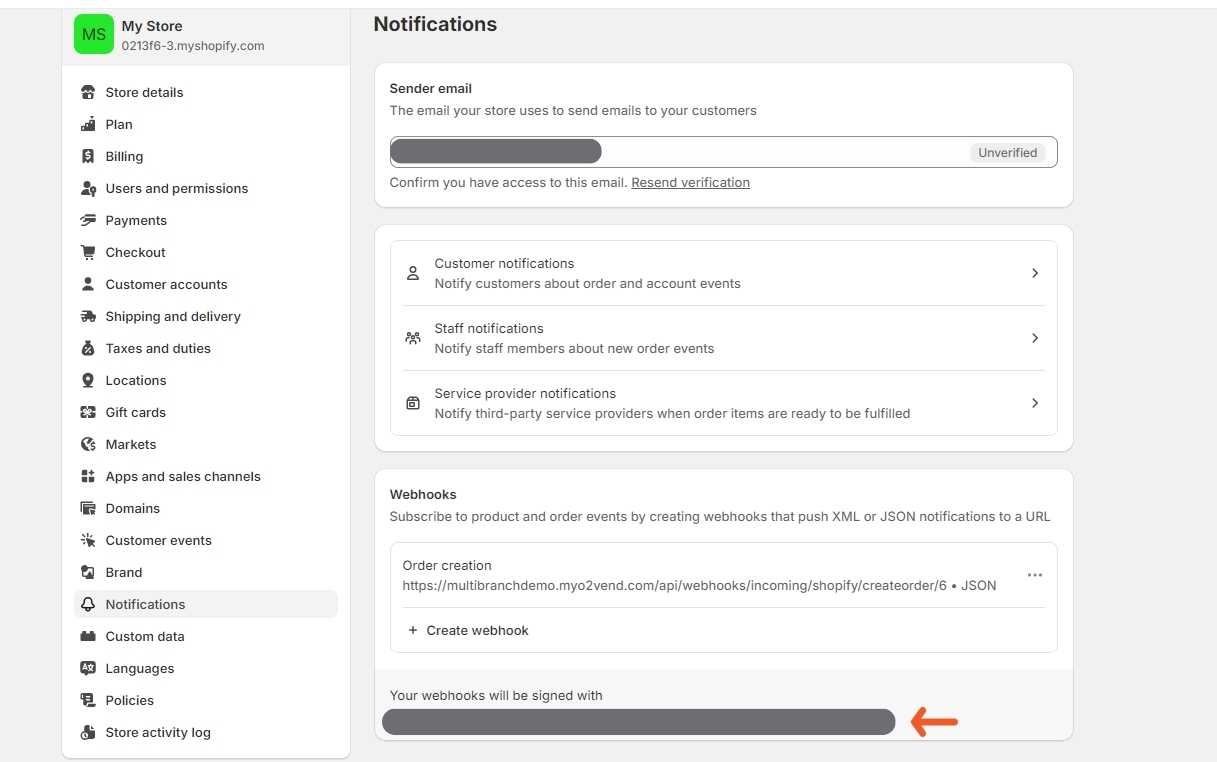
    Step 1: After saving the webhook, Shopify automatically generates a Webhook Signature.

    Integrate Shopify with O2VEND | Orders, Inventory & Webhooks Setup

    Step 2: Copy the generated Webhook Signature.

    Step 3: Navigate to Back Office – Settings – Sales Channel – Shopify in O2VEND.

    Step 4: Paste the Webhook Signature into the designated field.

    Integrate Shopify with O2VEND | Orders, Inventory & Webhooks Setup

    Step 5: Click Save.

    Integration Status

    Once both the Admin API access token and webhook signature are configured successfully, the Shopify integration with O2VEND becomes active.

    All newly created Shopify orders will be automatically recorded in O2VEND, ensuring consistent order synchronization and streamlined processing.

    Related Integration Tutorials

    Below are additional tutorials and integration guides that complement the Shopify integration workflow. These resources help extend Shopify automation with payment, webhook, shipment, and compliance setups.

    • O2VEND Webhook Integration
      Learn how webhooks deliver real-time events (orders, products, inventory, shipment) from Shopify to O2VEND.

    • Razorpay Payment Gateway Integration
      Configure Razorpay for handling online payments for Shopify orders synced into O2VEND.

    • XpressBees Shipment Gateway Integration
      Automate shipping and tracking updates for Shopify orders using XpressBees within O2VEND.

    • Myntra Order Integration
      Understand how marketplace order sync works � useful for Shopify + marketplace hybrid setups.

    • E-Way Bill Integration
      Learn how E-Way Bill automation works for Shopify orders that require tax compliance and transport documentation.

    Related Blog Reading

    • Shopify, Square & O2VEND POS Compared � Which Multichannel Platform Powers Your US Store in 2025 A detailed comparison of Shopify, Square, and O2VEND POS, highlighting key differences in multichannel selling, integrations, and scalability for US retailers.

    • Shopify vs Zoho Inventory vs GoFrugal � A Practical Migration Checklist for Indian Retailers Moving to O2VEND A step-by-step migration guide comparing Shopify, Zoho Inventory, and GoFrugal, helping Indian retailers plan a smooth transition to O2VEND.

    🚀 Integrate Shopify

    Explore O2VEND Integrations

    Connect Shopify and other platforms with O2VEND to manage orders, inventory, and fulfillment from a single back office.

    View All Integrations
    In this article
    Back to top _includes/footer.html
    © 2019–2026 Jeyan Technologies Private Limited • www.o2vend.com • Create your own store