O2VEND Retail ERP
  • Getting Started
  • Ecommerce
  • Back Office
  • POS
  • Agent App
  • PIM
  • Communication
  • CMS
  • OMS
  • WMS
  • O2C
  • Accounting
  • Reports
  • Themes and Apps
Search Results for

    Show / Hide Table of Contents
    • Overview
    • Features
      • Product Management Features
        • Product Management
        • Product Attributes
        • Product Variations
        • SKU Length for Variations
        • Product Pricing
        • Product Margin Settings
        • Product Cost Configuration
        • Product Tax Settings
        • Additional Tax Setup
      • Inventory Management Features
        • Inventory Management
        • Stock Management
        • GRN (Goods Receipt Note)
        • GDN (Goods Delivery Note)
        • Disable Lot Popup Option
      • Order & Sales Features
        • Order Management
        • Point of Sale (POS)
        • Credit Sales & Invoice Return
        • Outstanding Management
        • Voucher Management
        • Guest Checkout Option
      • Marketing & SEO Features
        • SEO Optimization
        • URL Configuration
        • Schema Markup Setup
        • Segmentation
      • Communication & Notification Features
        • Email Settings
        • Communication Settings
        • Notifications
        • Web Notifications
      • System & Security Features
        • Application Settings
        • General Settings
        • Date Configuration
        • IP Restrictions
        • White Listing
        • Print Configuration
        • Option Settings
    • Integrations
      • Marketplace Integrations
        • Amazon Integration
        • Flipkart Integration
        • Myntra Integration
        • Shopify Integration
        • Unicommerce Integration
      • Payment Gateway Integrations
        • Razorpay Integration
        • PayU Integration
        • Paytm Integration
        • PhonePe Integration
        • Cashfree Integration
        • Stripe Integration
        • Paypal Integration
      • Shipping & Logistics Integrations
        • Shiprocket Integration
        • Shipway Integration
        • eShipper Integration
        • Amazon Shipping Integration
        • XpressBees Integration
        • GetDelivered Integration
      • Communication Integrations
        • WhatsApp Integration
        • MSG91 Integration
        • SendGrid Integration
        • Amazon SES Integration
        • Email Integration
      • Marketing & CRM Integrations
        • HubSpot Integration
        • Typesense Integration
      • Tax & Compliance Integrations
        • e-Invoice Integration
        • e-Way Bill Integration
        • Tax Configuration
      • Security & Technical Integrations
        • reCAPTCHA Integration
        • Webhook Integration
        • Custom CDN Domain Setup
      • Inventory & Store Integrations
        • Inventory Integration
        • Storefront Integration
        • Display Configuration
        • General Settings
    • Product Enhancements
      • Affiliate Program Management
      • Back Office Management System
      • Checkout Process Settings
      • Coupon Code Management
      • Currency Configuration Settings
      • Delivery Zone Configuration
      • Discount Management System
      • Product Display Settings
      • Geo IP Location Detection
      • GTIN Product Code Management
      • Invoice Management System
      • Marketing & Campaign Tools
      • Menu Management Settings
      • Pricing Rule Configuration
      • Purchase Management Module
      • Referral Program Settings
      • Return Management Process
      • Sales Management System
      • Shipment & Delivery Tracking
      • SMS Notification Settings
      • Sub Location Management
      • Vendor Management System
      • Product Video Integration
      • Web Store Configuration
      • WhatsApp Integration Settings
    • Blog Categories Setup
    • Blog Management
    • Email Settings
    • Home Page Components
    • Main Menu Management
    • Newsletter Subscription Settings
    • SMS Settings
    • WhatsApp Settings
    • Communication Template Setup
    • Page Header Settings
    • Site Menu Management
    • Site Pages Management

    Pricing Rules in O2VEND

    Pricing Rules in O2VEND enable automatic calculation of product prices using predefined formulas, rates, and product attributes. This eliminates manual price entry, ensures consistent pricing across the store, and reduces calculation errors.

    The system calculates the final product price by combining configured rates, formulas, and attribute values, providing a precise, component-wise cost breakdown automatically.

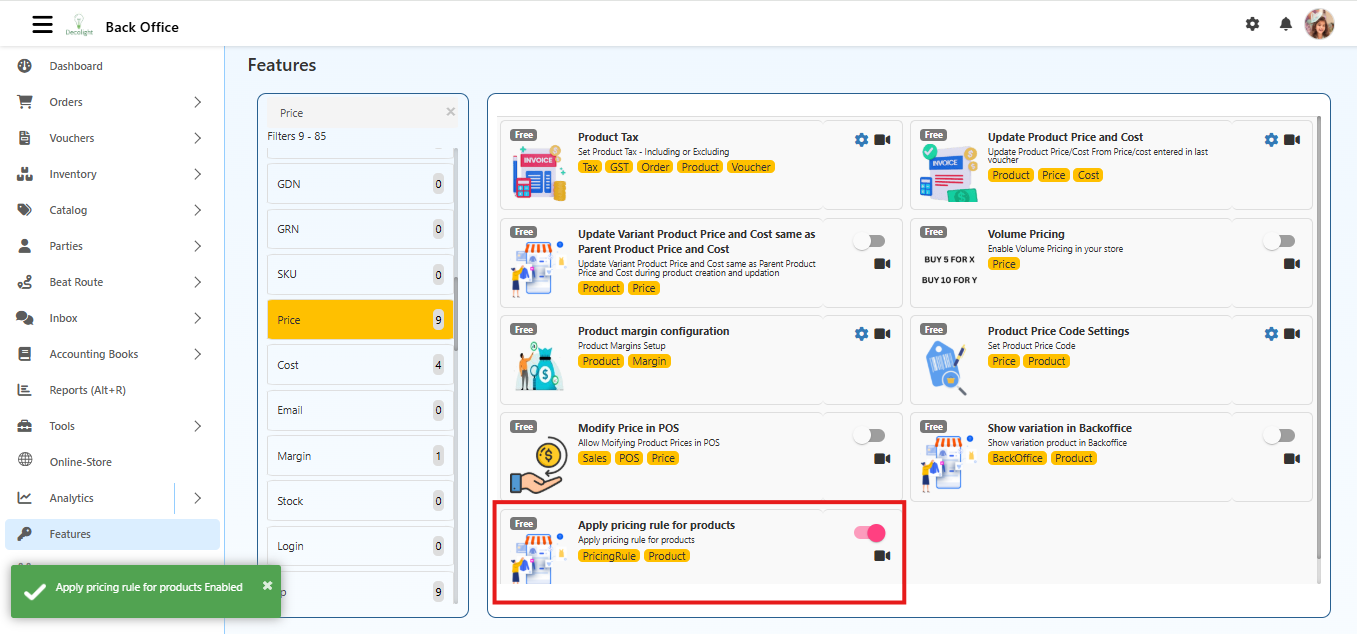
    Enable Pricing Rule Feature

    1. Navigate to Back Office → Features → Price → Apply Pricing Rule for Products.
    Pricing Rules in O2VEND
    1. Turn ON Apply Pricing Rule for Products.

    Activating the feature alone does not calculate prices. A template, rates, and product attributes must exist for calculations to work.

    Summary of Pricing Rule Workflow

    1. Create Template – Defines the calculation structure.
    2. Configure Rates & Formulas – Specifies all pricing components.
    3. Assign Product Attributes – Adds relevant product data.
    4. Enable Feature – Activates Pricing Rule in Back Office.
    5. View Prices – Final price is calculated and displayed automatically.

    This workflow ensures consistent, accurate, and automated pricing across all products in the store.

    Purpose of Pricing Rules

    • Automates price calculation for products.
    • Ensures uniform and accurate pricing across the store.
    • Saves time and reduces manual errors.
    • Prices update automatically based on changes in base rates or product attributes.

    How Pricing Rules Operate

    1. Create a Pricing Rule Template – Defines the structure for price calculation.
    2. Configure Rates and Formulas – Adds all components, such as base rate, labor, service charges, or multipliers.
    3. Assign Product Attributes – Attribute values like weight, size, or quality are entered.
    4. Enable Pricing Rules – Activates the feature in Back Office.
    5. Final Price Display – The system calculates and displays a detailed cost breakdown on the product page.

    Step 1: Create a Pricing Rule Template

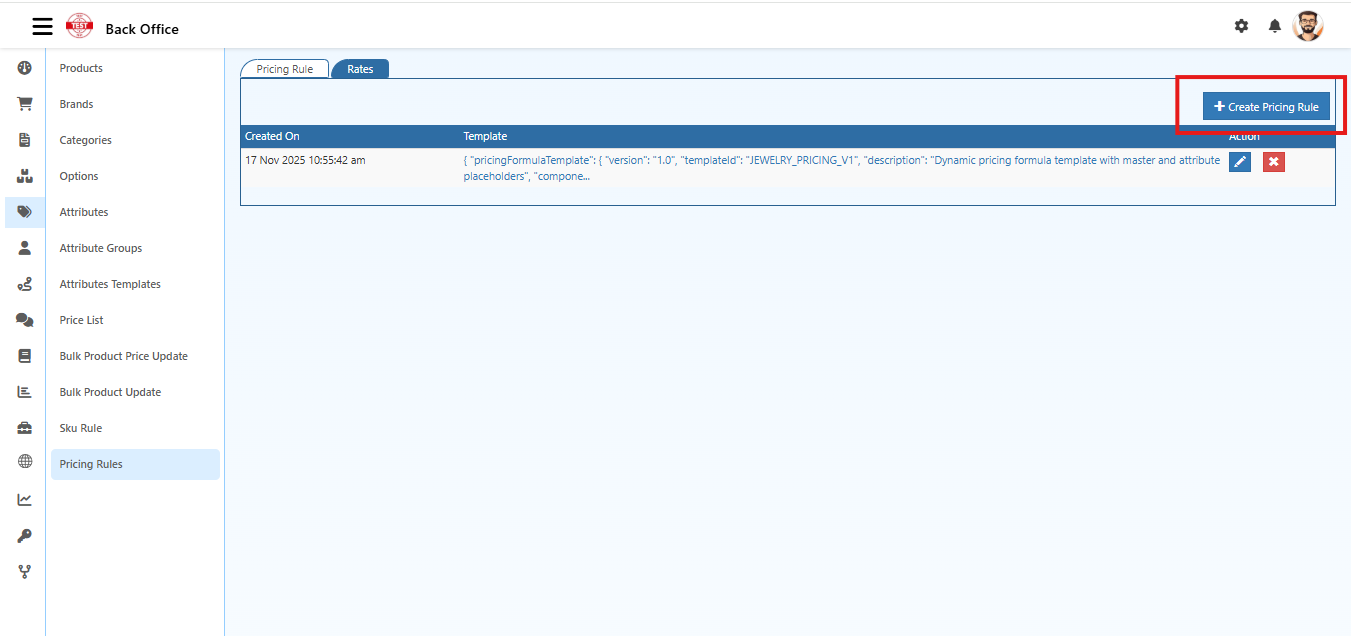
    1. Navigate to Back Office → Catalog → Pricing Rules.
    Pricing Rules in O2VEND
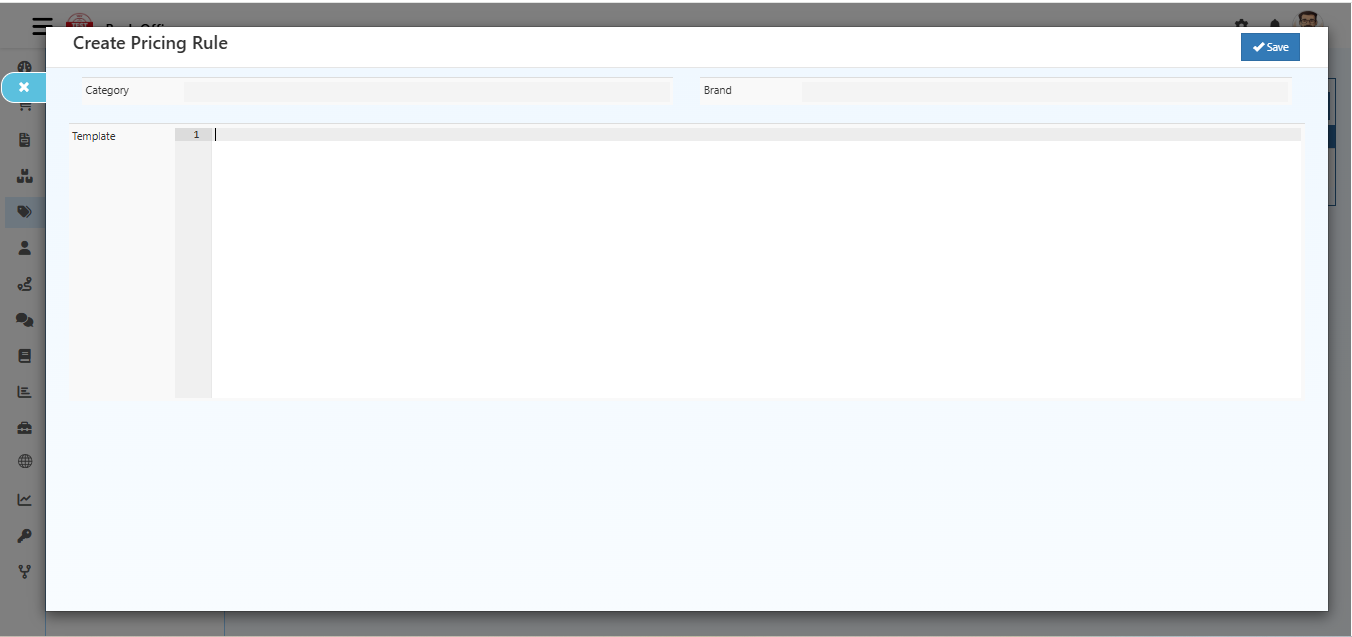
    1. Click Create Pricing Rule.
    Pricing Rules in O2VEND
    1. Enter the following details:

      • Category: Select the relevant category for category-level filtering.
      • Template: Use the defined JSON structure for dynamic price calculation.
      • Brand: Select the relevant brand for brand-level filtering.
    2. Click Save to create the template.

    Templates can be reused across multiple products for consistent pricing.

    Step 2: Configure Rates

    The Rates tab defines pricing components for calculation.

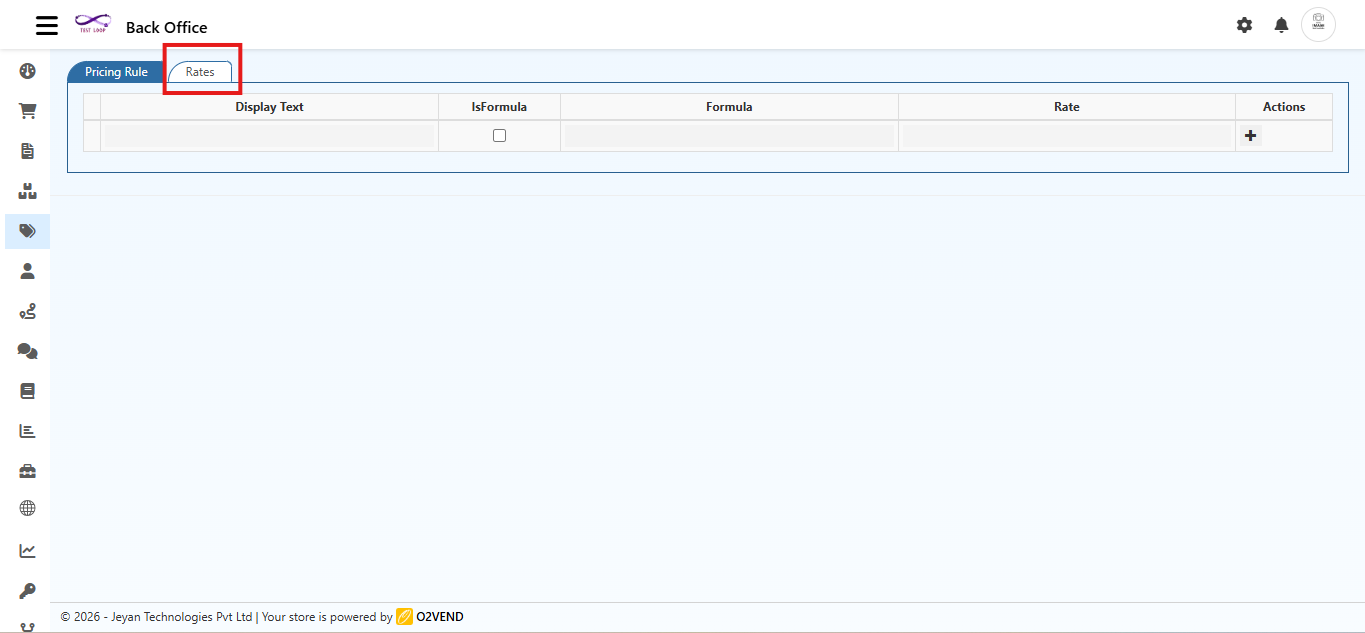
    • Navigate to Back Office → Catalog → Pricing Rules → Rates Tab.
    Pricing Rules in O2VEND
    1. Open the Rates tab in the pricing rule.

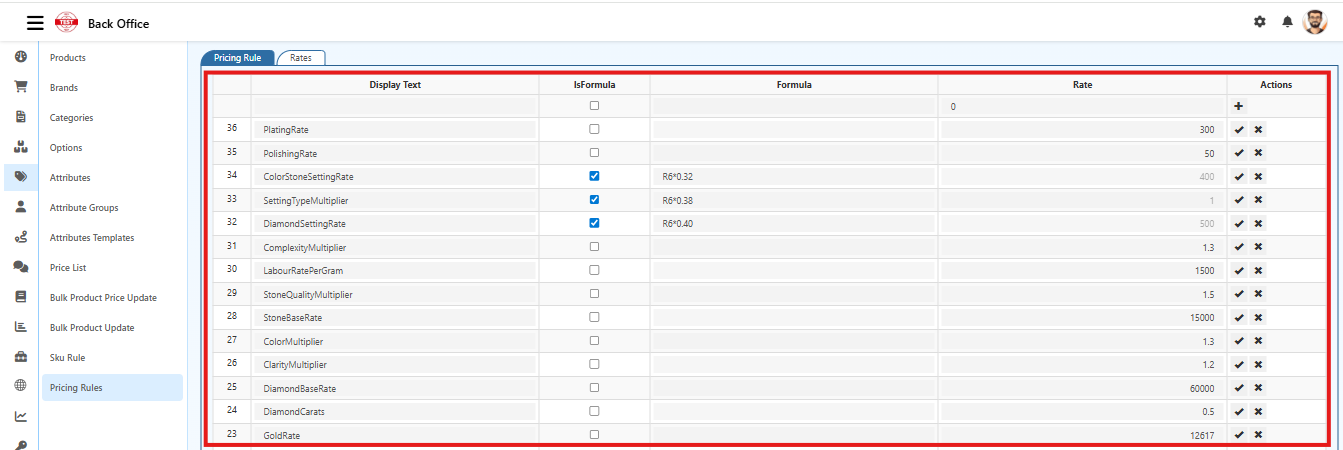
    2. Add components required for price calculation, such as:

      • Base Rate (Gold, Diamond, Raw Material)
      • Labour Rate
      • Service Charges
      • Multipliers based on product attributes
    Pricing Rules in O2VEND
    1. For each component, specify:

      • Display Text: Name of the component (e.g., Gold Rate, Labour Cost)
      • Rate: Fixed value if not formula-based
      • Is Formula: Enable if calculated from other rates
      • Formula: Define the calculation, e.g., R13 * 0.92 (R13 represents Gold Rate)
    2. Save all entries.

    Example Formula: R13 × 0.92 (R13 refers to another rate in the list).

    Rates can be edited or deleted later to reflect updated costs or business rules.

    Step 3: Assign Product Attributes

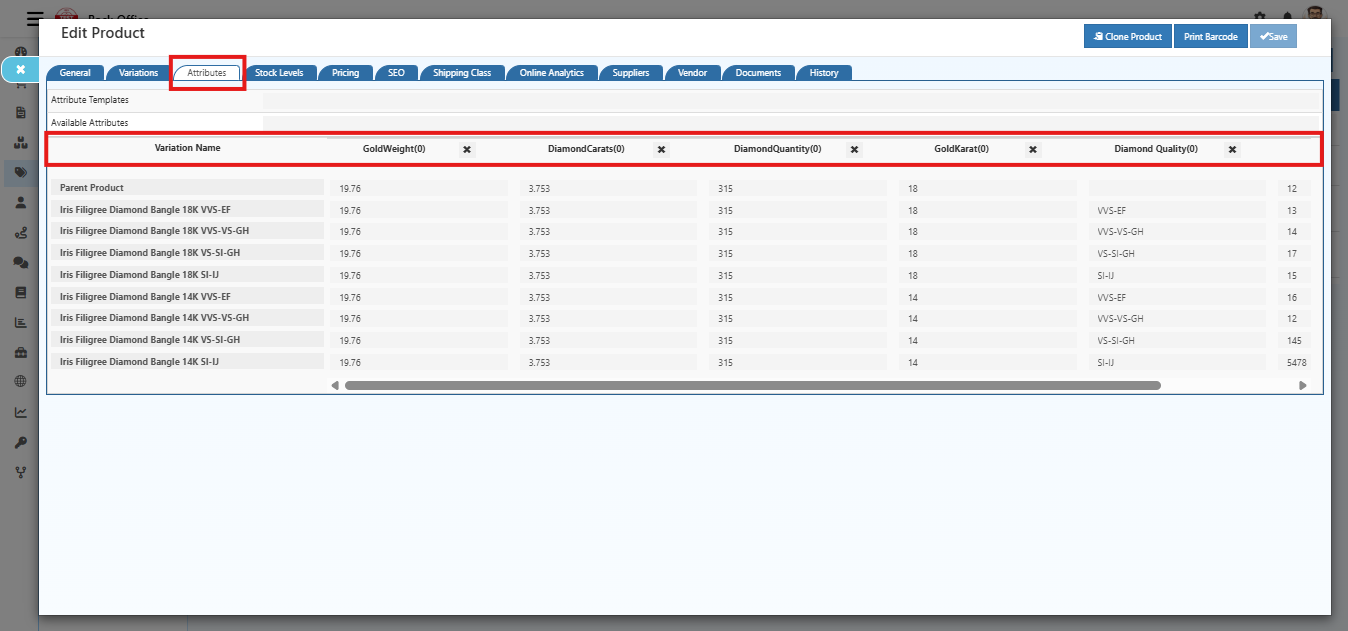
    Pricing Rules calculate the final price using product attributes.

    1. Navigate to Back Office → Catalog → Product → Attributes.

    2. Enter values for all attributes used in pricing.
    Pricing Rules in O2VEND

    Example Attributes:

    • Gold Weight
    • Diamond Carat
    • Diamond Quantity
    • Gold Karat
    • Diamond Quality
    1. Save the product.

    Attribute values directly impact the calculated price using the configured formula.

    Step 4: View Final Price

    After enabling:

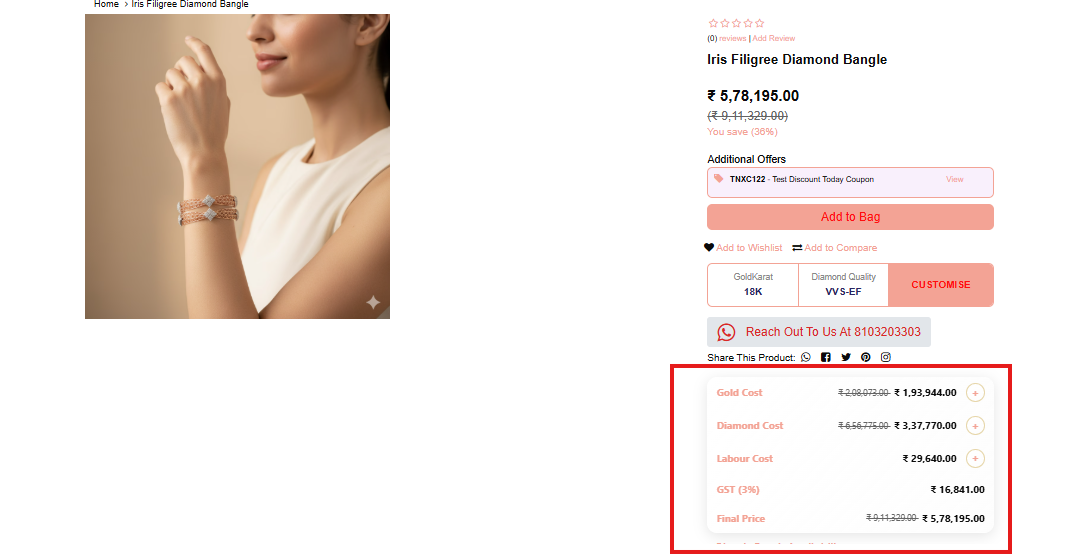
    • The product page displays a component-wise cost breakdown (e.g., Gold cost, Diamond cost, Labour, Tax).
    • The final selling price is calculated automatically.
    Pricing Rules in O2VEND

    All calculations are performed in real-time based on the template, rates, and product attributes.

    In this article
    Back to top _includes/footer.html
    © 2019–2026 Jeyan Technologies Private Limited • www.o2vend.com • Create your own store