Krispal SMS Configuration in O2VEND | Set Up SMS Integration
Configure Krispal SMS integration in O2VEND by selecting a channel, entering the API key and SenderId, and saving the communication settings.
Krispal integration lets you connect an SMS provider to O2VEND so your store can use Krispal for communication workflows. The setup is simple: choose the channel, enter the Krispal credentials, and save the configuration.
If you are comparing communication providers, you can also check MSG91 Integration, SendGrid Integration, and WhatsApp Integration.
Navigation Path
Back Office -> Integration -> Krispal
Open Krispal from the Integrations List
Go to the Integrations page in Back Office and search for Krispal.
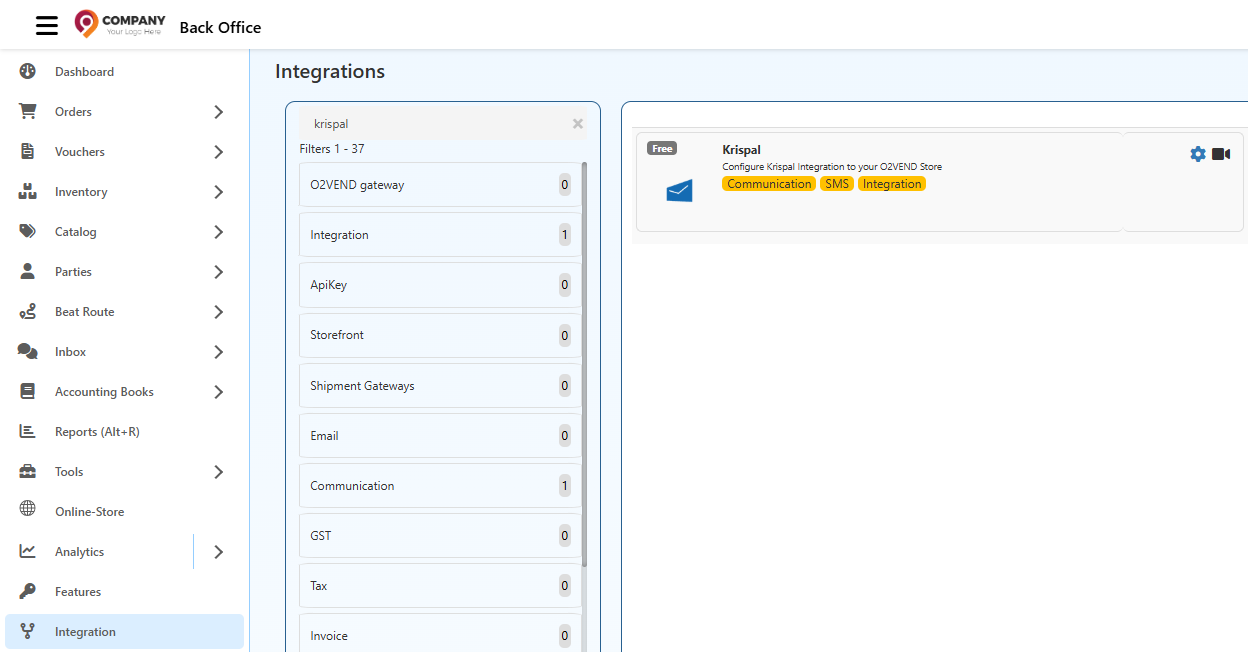
From the list view, you can confirm that:
- Krispal is available under Communication
- it is marked as an SMS Integration
- opening the card takes you to the Krispal SMS configuration page
Krispal SMS Configuration Screen
After opening the integration, O2VEND shows the Krispal sms Configuration page.
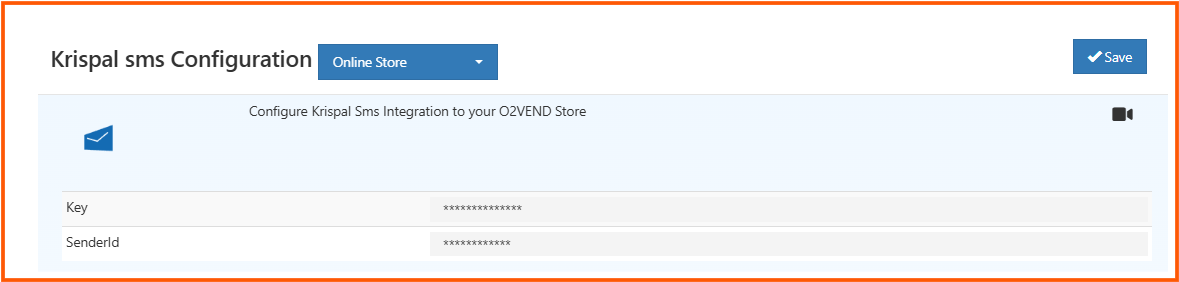
This screen is kept intentionally simple. It includes:
- a channel selector at the top, such as Online Store
- the required SMS integration fields
- a Save button in the top-right corner
Channel Selection
At the top of the page, you can choose the channel for which the Krispal SMS settings should apply.
In the screenshot, the selected channel is Online Store. If your business uses multiple channels, make sure you save the configuration for the correct one.
If you need to review or organize your store channels first, see Sales Channels.
Fields Available in the Configuration
The Krispal screen shows two main fields.
| Field | What it is used for |
|---|---|
| Key | The API key or authentication key provided for your Krispal SMS account. |
| SenderId | The sender name or sender ID used for outgoing SMS messages. |
Both values should match the details approved or shared for your Krispal account. If either value is incorrect, message delivery may fail.
Save the Configuration
Once the required details are entered:
- Open Back Office -> Integration -> Krispal
- Select the required channel
- Enter the Key
- Enter the SenderId
- Click Save
The Save button is available in the top-right corner of the screen.
When to Use This Integration
Krispal is useful when you want O2VEND to use an SMS provider for communication-related workflows.
This setup is typically relevant when your store needs to:
- send SMS notifications from a selected channel
- keep channel-specific communication settings
- manage SMS credentials directly from Back Office