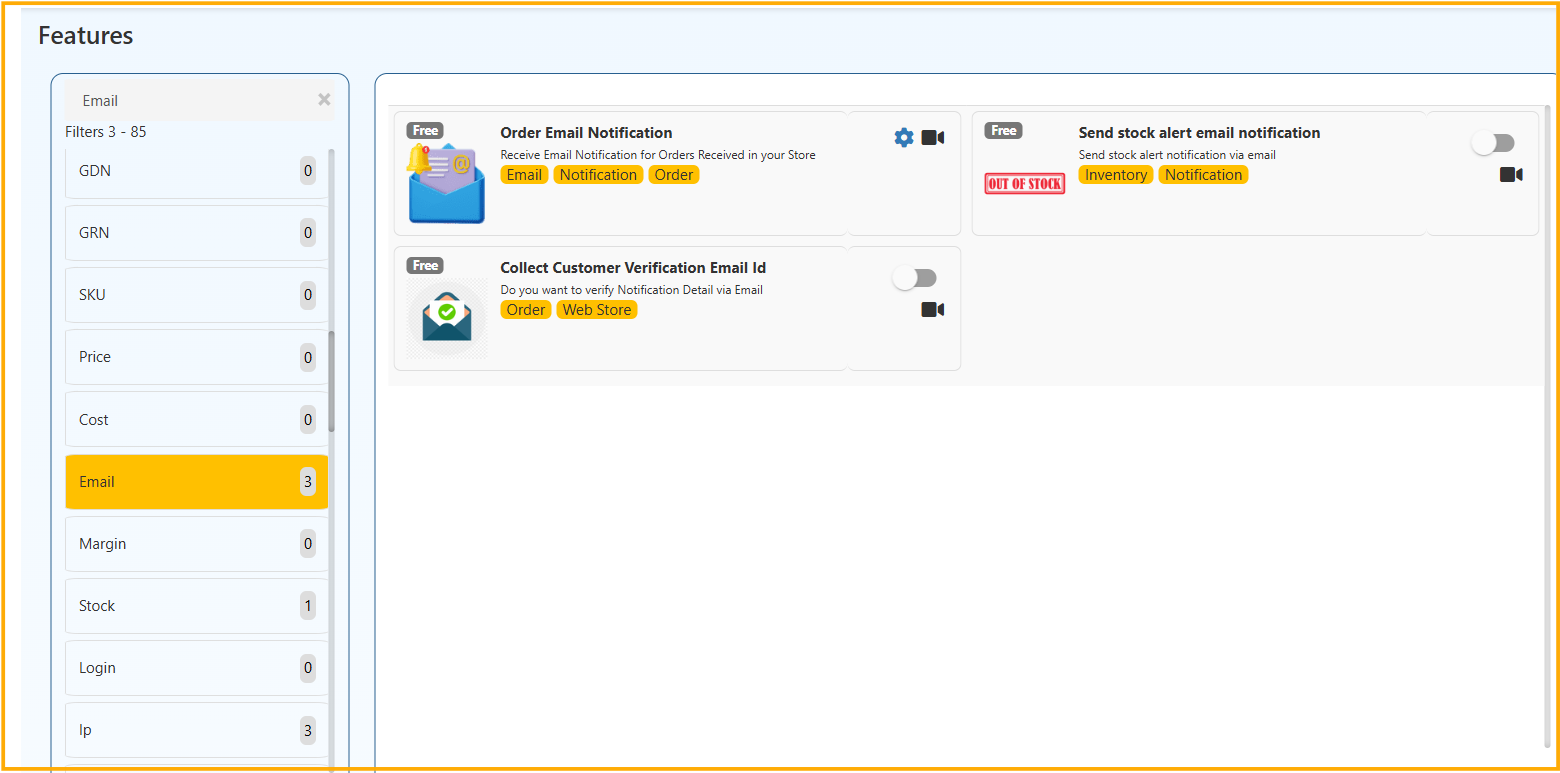
Email Features
Enable real-time order, stock, and customer email notifications for Web Store, POS, and Back Office. Never miss a sale or stock alert.
How to Configure
- Go to Features → Notification
- Open Order Email Notification
- Enable required order type toggles
- Enter Notification Email ID
- Click Save
Order Email Notification
Sends email notification when a new order is received in the store.
Useful for:
- Instant order alerts
- Admin monitoring
Order Email Notification Settings – Automatic Order Alerts for Web Store, POS & Back Office
This feature allows you to receive email alerts whenever an order is placed in your system.
🔹 Order Sources
You can enable email notifications separately for different order types:
Web Store Order
Receive email notifications for orders placed through the Web Store.
Back Office Order
Receive email notifications for orders created from the Back Office.
Agent App Order
Receive email notifications for orders placed through the Agent App.
POS Order
Receive email notifications for orders generated from the POS system.
🔹 Notification Email ID
Enter the email address where order notifications should be sent.
Example: [email protected]
You can use:
- Store owner email
- Manager email
- Accounts department email
This ensures you never miss any order placed through different sales channels.
2️⃣ Send Stock Alert Email Notification
Sends email alerts when product stock becomes low or out of stock.
Helps in:
- Inventory control
- Preventing stock shortages
3️⃣ Collect Customer Verification Email ID
Collects and verifies customer email ID during order placement (Web Store).
Used for:
- Order confirmation
- Customer communication
- Email validation