O2VEND Retail ERP
  • Product
  • Solutions
  • Resources
    • Blog
    • Community
    • Partnership
    • Find Partner
    • Developer
  • Pricing
  • Docs
    • Getting Started
      • Channels
        • Sales Channel
        • O2VEND to O2VEND Channel
        • Shopify Integration Guide
    • Commerce
      • Ecommerce
      • POS
      • Agent App
      • CMS
      • Themes & Apps
      • Apps
        • Sales Navigator
    • Operations
      • OMS
      • WMS
      • O2C
      • Vendor Portal
      • Supplier Portal
    • Back Office
      • Accounting
      • Reports
      • PIM
      • Communication
      • Back Office
Search Results for

    Show / Hide Table of Contents
    • Overview
    • Features
      • Product Management Features
        • Product Management
        • Product Attributes
        • Product Variations
        • SKU Length for Variations
        • Product Pricing
        • Product Cost Configuration
        • Product Tax Settings
        • Additional Tax Setup
      • Inventory Management Features
        • Inventory Management
        • Stock Management
        • GRN (Goods Receipt Note)
        • GDN (Goods Delivery Note)
        • Disable Lot Popup Option
      • Order & Sales Features
        • Order Management
        • Point of Sale (POS)
        • Credit Sales & Invoice Return
        • Outstanding Management
        • Voucher Management
        • Guest Checkout Option
      • Marketing & SEO Features
        • SEO Optimization
        • URL Configuration
        • Schema Markup Setup
      • Communication & Notification Features
        • Email Settings
        • Communication Settings
        • Notifications
        • Web Notifications
      • System & Security Features
        • Application Settings
        • General Settings
        • Date Configuration
        • White Listing
        • Option Settings
    • Integrations
      • Marketplace Integrations
        • Amazon Integration
        • Flipkart Integration
        • Myntra Integration
        • Shopify Integration
        • Unicommerce Integration
      • Payment Gateway Integrations
        • Razorpay Integration
        • PayU Integration
        • Paytm Integration
        • PhonePe Integration
        • Cashfree Integration
        • Stripe Integration
        • Paypal Integration
      • Shipping & Logistics Integrations
        • Shiprocket Integration
        • Shipway Integration
        • eShipper Integration
        • Amazon Shipping Integration
        • XpressBees Integration
        • GetDelivered Integration
      • Communication Integrations
        • WhatsApp Integration
        • MSG91 Integration
        • SendGrid Integration
        • Amazon SES Integration
        • Email Integration
      • Marketing & CRM Integrations
        • HubSpot Integration
        • Typesense Integration
      • Tax & Compliance Integrations
        • e-Invoice Integration
        • e-Way Bill Integration
        • Tax Configuration
      • Security & Technical Integrations
        • reCAPTCHA Integration
        • Webhook Integration
        • Custom CDN Domain Setup
      • Inventory & Store Integrations
        • Inventory Integration
        • Storefront Integration
        • Channel-to-Channel Integration
        • Display Configuration
        • General Settings
    • Product Enhancements
      • Affiliate Program Management
      • Back Office Management System
      • Checkout Process Settings
      • Coupon Code Management
      • Currency Configuration Settings
      • Delivery Zone Configuration
      • Discount Management System
      • Product Display Settings
      • GTIN Product Code Management
      • Invoice Management System
      • Marketing & Campaign Tools
      • Menu Management Settings
      • Pricing Rule Configuration
      • Purchase Management Module
      • Referral Program Settings
      • Return Management Process
      • Sales Management System
      • Shipment & Delivery Tracking
      • SMS Notification Settings
      • Sub Location Management
      • Vendor Management System
      • Product Video Integration
      • Web Store Configuration
      • WhatsApp Integration Settings
    • Blog Categories Setup
    • Blog Management
    • Email Settings
    • Home Page Components
    • Main Menu Management
    • Newsletter Subscription Settings
    • SMS Settings
    • WhatsApp Settings
    • Communication Template Setup
    • Page Header Settings
    • Site Menu Management
    • Site Pages Management

    Sales & POS Configuration Features – Tutorial Guide

    This guide explains:

    1. Outstanding Payments Alert
    2. Disable Lot Popup in POS

    Both features help improve billing accuracy and sales workflow control.


    🔹 1. Outstanding Payments Alert

    Overview

    The Outstanding Payments Alert feature shows a customer's pending dues while creating a Sales Invoice.

    This helps prevent credit risk and ensures better payment tracking.


    Purpose

    When creating a sales invoice:

    • System automatically checks customer outstanding balance
    • Displays pending amount alert
    • Helps sales team take decision before billing

    What Is Considered Outstanding?

    • Unpaid sales invoices
    • Partial payments
    • Overdue vouchers
    • Pending credit balances

    ⚙️ How to Enable

    1. Go to Back office - Features
    2. Navigate to Outstanding
    3. Find:

    Show Outstanding Payments Alert

    1. Enable the option
    2. Save changes

    📊 Benefits

    • Prevents excess credit sales
    • Improves payment recovery
    • Reduces bad debts
    • Better financial control

    🔹 2. Disable Lot Popup (POS)

    📌 Overview

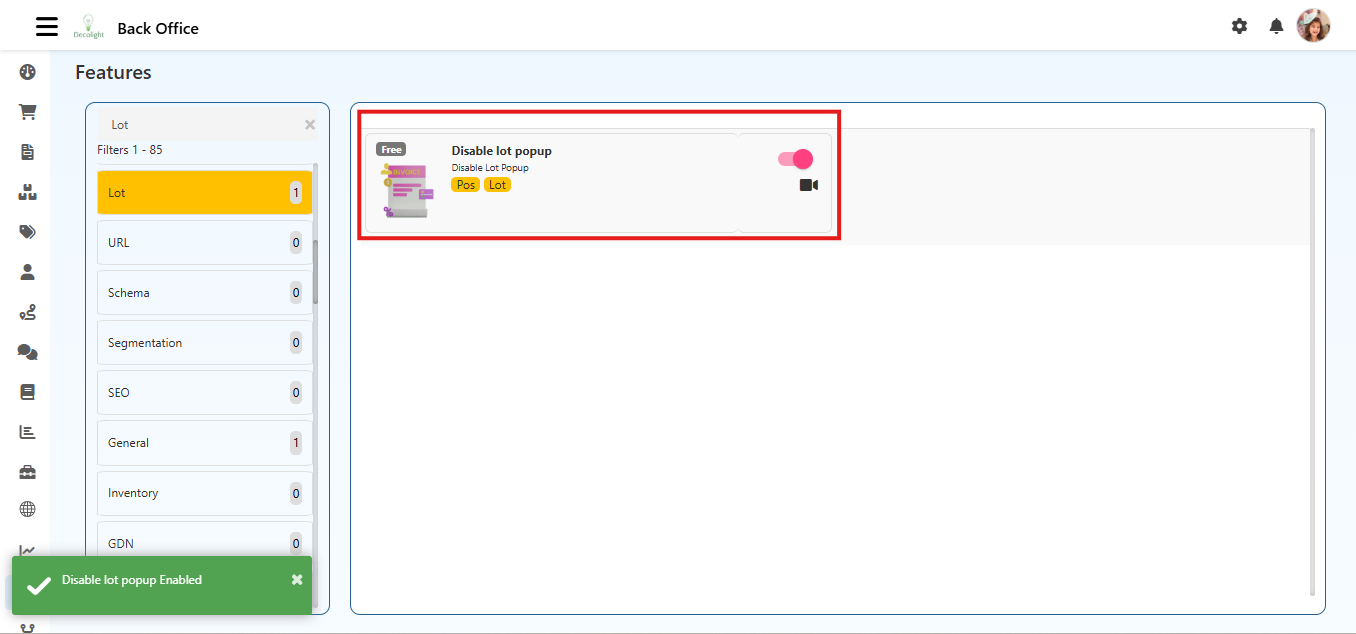
    The Disable Lot Popup feature removes the automatic lot selection popup in POS billing.

    This is useful when:

    • Lot tracking not required
    • Single lot available
    • Faster billing required

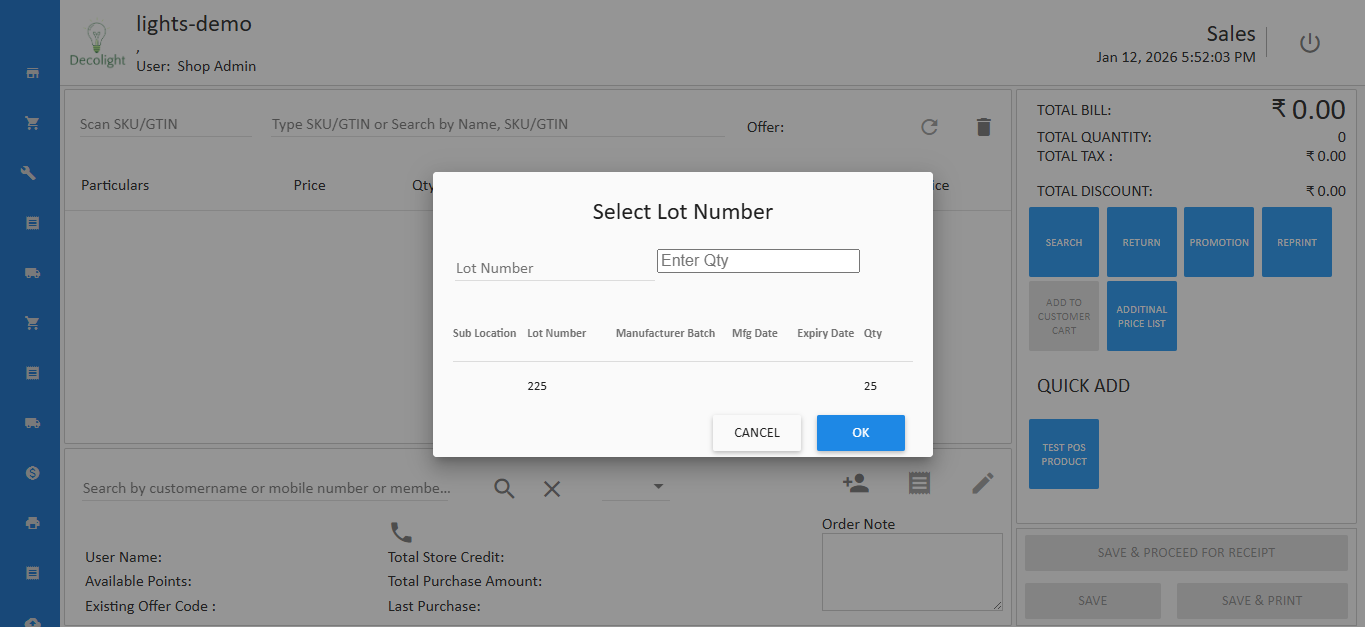
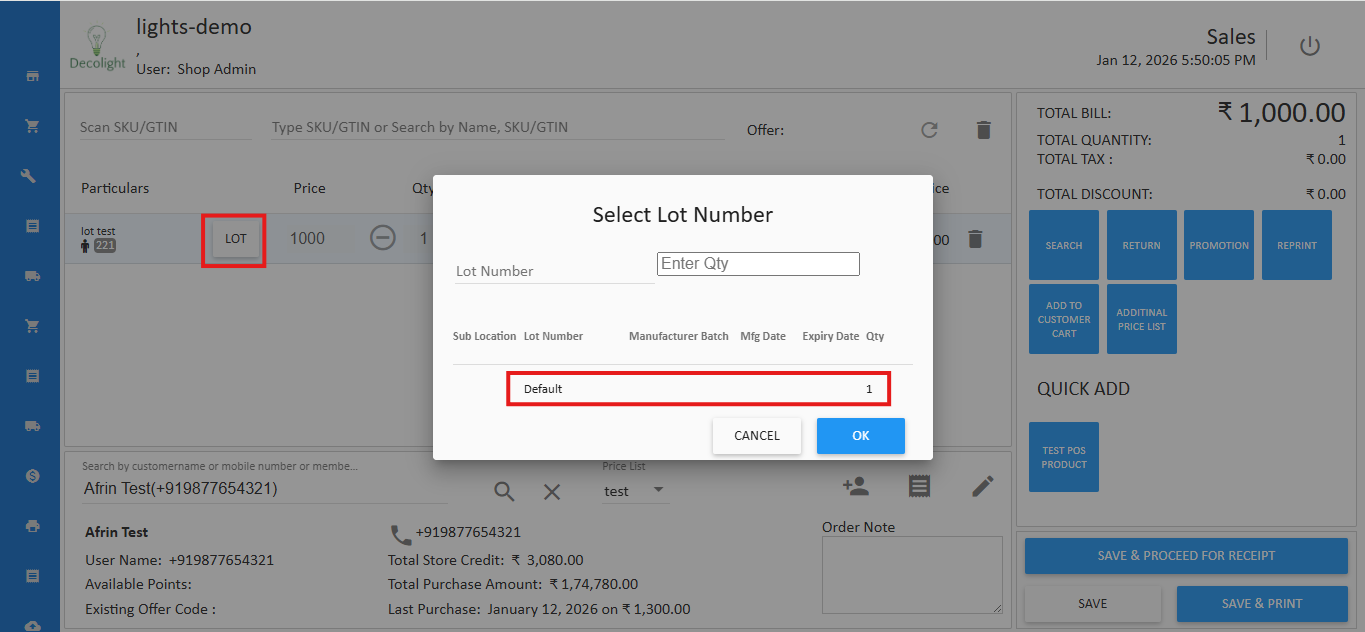
    🏷 What Is Lot Popup?

    When selling a lot-tracked product:

    • System shows lot selection window
    • User must select lot before billing

    Example:

    Select Lot: LOT-001 (10 Qty) LOT-002 (5 Qty)


    ⚙️ How to Disable

    1. Go to POS Settings
    2. Navigate to Lot Configuration
    3. Enable:

    Disable Lot Popup

    1. Save settings

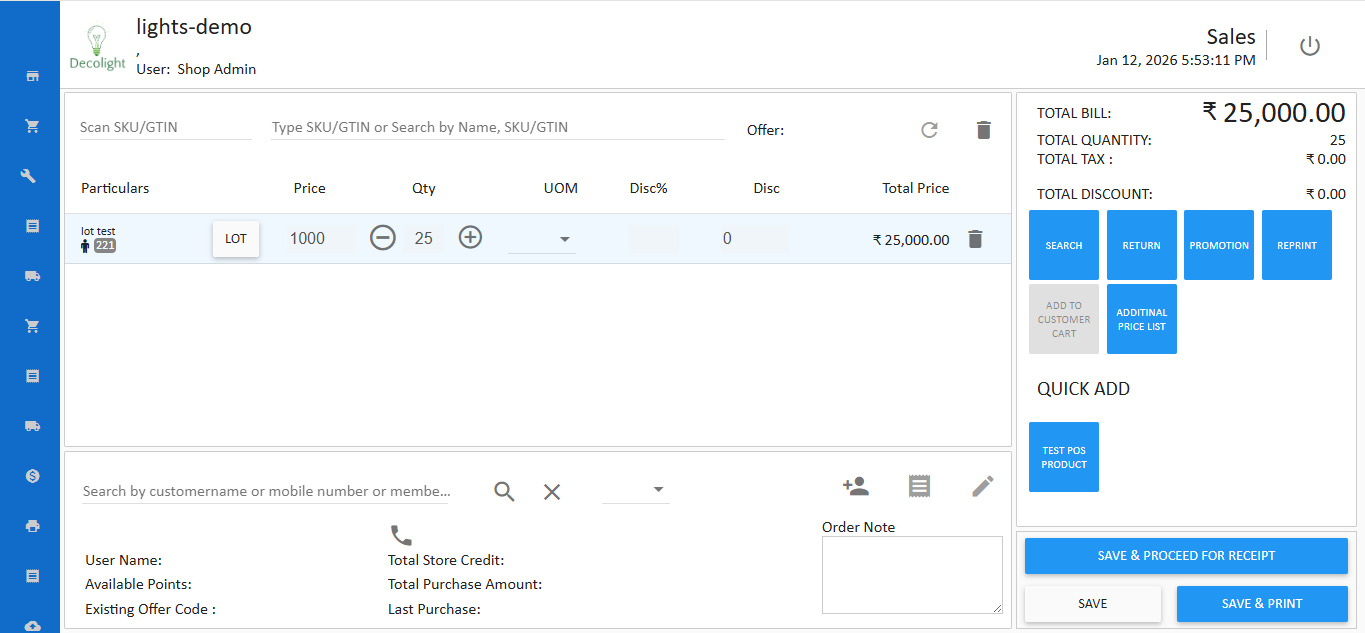
    🎯 What Happens After Disabling?

    • System automatically selects lot
    • No popup during billing
    • Faster checkout process

    ⚠️ Important Note

    Disable only if:

    • FIFO auto lot selection enabled
    • No manual lot control required
    • Retail environment needs speed billing

    If strict batch control required → keep popup enabled.

    These features improve:

    • Financial control during sales
    • Faster POS billing process
    • Customer credit monitoring
    • Operational efficiency

    Proper configuration ensures smooth and secure sales workflow.

    In this article
    © 2019-2026 Jeyan Technologies Private Limited • www.o2vend.com • Create your own store