O2VEND Retail ERP
  • Getting Started
  • Ecommerce
  • Back Office
  • POS
  • Agent App
  • PIM
  • Communication
  • CMS
  • OMS
  • WMS
  • O2C
  • Accounting
  • Reports
  • Themes and Apps
Search Results for

    Show / Hide Table of Contents
    • Overview
    • Features
      • Product Management Features
        • Product Management
        • Product Attributes
        • Product Variations
        • SKU Length for Variations
        • Product Pricing
        • Product Margin Settings
        • Product Cost Configuration
        • Product Tax Settings
        • Additional Tax Setup
      • Inventory Management Features
        • Inventory Management
        • Stock Management
        • GRN (Goods Receipt Note)
        • GDN (Goods Delivery Note)
        • Disable Lot Popup Option
      • Order & Sales Features
        • Order Management
        • Point of Sale (POS)
        • Credit Sales & Invoice Return
        • Outstanding Management
        • Voucher Management
        • Guest Checkout Option
      • Marketing & SEO Features
        • SEO Optimization
        • URL Configuration
        • Schema Markup Setup
        • Segmentation
      • Communication & Notification Features
        • Email Settings
        • Communication Settings
        • Notifications
        • Web Notifications
      • System & Security Features
        • Application Settings
        • General Settings
        • Date Configuration
        • IP Restrictions
        • White Listing
        • Print Configuration
        • Option Settings
    • Integrations
      • Marketplace Integrations
        • Amazon Integration
        • Flipkart Integration
        • Myntra Integration
        • Shopify Integration
        • Unicommerce Integration
      • Payment Gateway Integrations
        • Razorpay Integration
        • PayU Integration
        • Paytm Integration
        • PhonePe Integration
        • Cashfree Integration
        • Stripe Integration
        • Paypal Integration
      • Shipping & Logistics Integrations
        • Shiprocket Integration
        • Shipway Integration
        • eShipper Integration
        • Amazon Shipping Integration
        • XpressBees Integration
        • GetDelivered Integration
      • Communication Integrations
        • WhatsApp Integration
        • MSG91 Integration
        • SendGrid Integration
        • Amazon SES Integration
        • Email Integration
      • Marketing & CRM Integrations
        • HubSpot Integration
        • Typesense Integration
      • Tax & Compliance Integrations
        • e-Invoice Integration
        • e-Way Bill Integration
        • Tax Configuration
      • Security & Technical Integrations
        • reCAPTCHA Integration
        • Webhook Integration
        • Custom CDN Domain Setup
      • Inventory & Store Integrations
        • Inventory Integration
        • Storefront Integration
        • Display Configuration
        • General Settings
    • Product Enhancements
      • Affiliate Program Management
      • Back Office Management System
      • Checkout Process Settings
      • Coupon Code Management
      • Currency Configuration Settings
      • Delivery Zone Configuration
      • Discount Management System
      • Product Display Settings
      • Geo IP Location Detection
      • GTIN Product Code Management
      • Invoice Management System
      • Marketing & Campaign Tools
      • Menu Management Settings
      • Pricing Rule Configuration
      • Purchase Management Module
      • Referral Program Settings
      • Return Management Process
      • Sales Management System
      • Shipment & Delivery Tracking
      • SMS Notification Settings
      • Sub Location Management
      • Vendor Management System
      • Product Video Integration
      • Web Store Configuration
      • WhatsApp Integration Settings
    • Blog Categories Setup
    • Blog Management
    • Email Settings
    • Home Page Components
    • Main Menu Management
    • Newsletter Subscription Settings
    • SMS Settings
    • WhatsApp Settings
    • Communication Template Setup
    • Page Header Settings
    • Site Menu Management
    • Site Pages Management

    PayPal Integration for O2VEND | Easy Setup & Configuration

    Set up PayPal in O2VEND quickly and securely. Enable smooth payments, improve checkout reliability, and give customers a trusted transaction experience. Follow our step-by-step guide to integrate PayPal, optimize checkout flow, and boost sales across all channels.

    Create and Configure a PayPal Business Account

    Step 1: Create Your PayPal Business Account Quickly

    1. Click here to Sign Up for a PayPal Business account.
    2. Enter your Name, Email, Password, and Phone Number.
    3. Click Agree and Create Account to complete registration.

    Step 2: Access Your PayPal Dashboard

    1. Log in to your PayPal account.
    2. Navigate to your Dashboard to manage account settings and tools.

    Step 3: Open Business Tools

    1. In the dashboard, select Business Tools.
    2. This section contains features required for API integration.

    Step 4: Copy Your API Keys for Secure Transactions

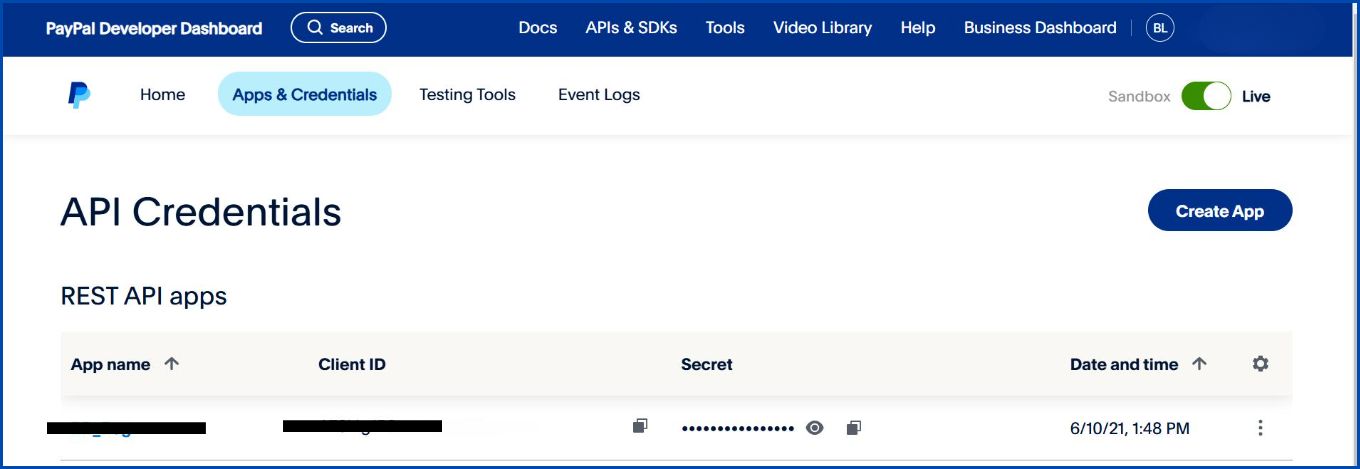
    1. Scroll to the API Credentials section.
    2. Click API Credentials to reveal your Client ID and Client Secret.
    Easily find API credentials in your PayPal dashboard
    PayPal Integration for O2VEND | Easy Setup & Configuration

    Step 5: Copy Your API Keys

    1. Copy your Client ID and Client Secret.
    2. Use Production keys for live transactions; Sandbox keys are for testing.
    3. These keys are now ready to integrate PayPal into O2VEND.

    Configure PayPal Payment Gateway in O2VEND

    • Open the O2VEND Admin Panel.
    PayPal Integration for O2VEND | Easy Setup & Configuration
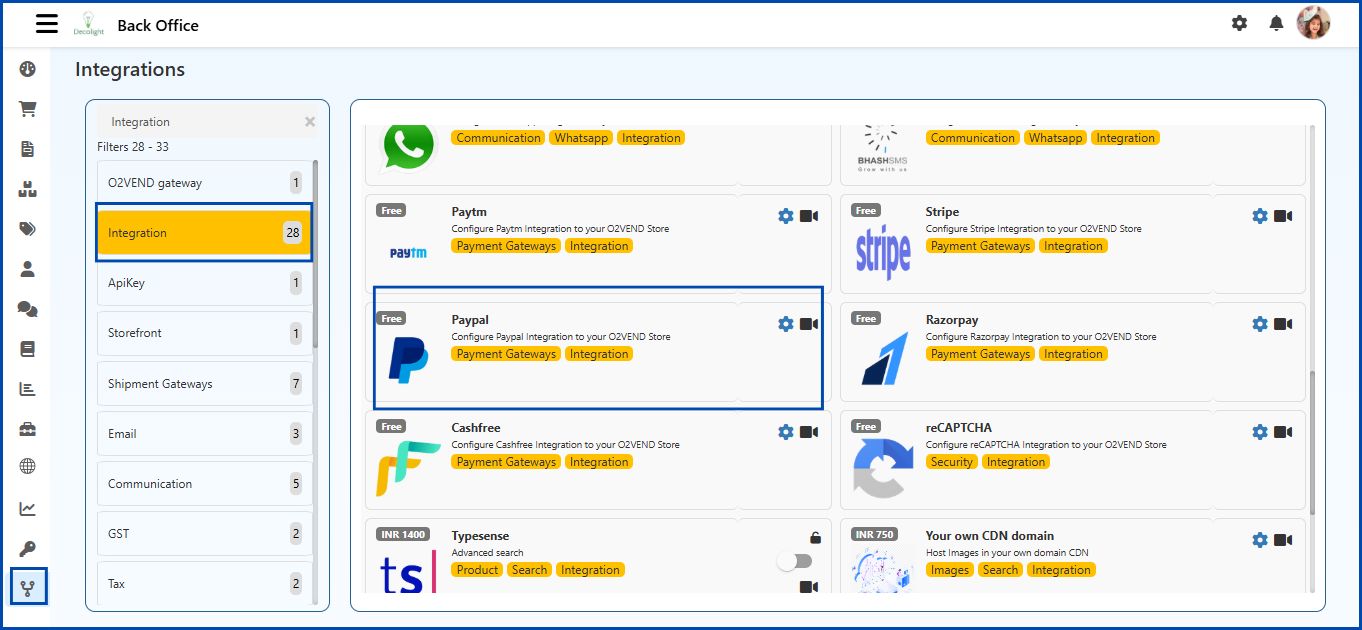
    • Go to Integration – Integration from the menu.
    • Scroll through the available payment gateways and select PayPal.
    PayPal Integration for O2VEND | Easy Setup & Configuration
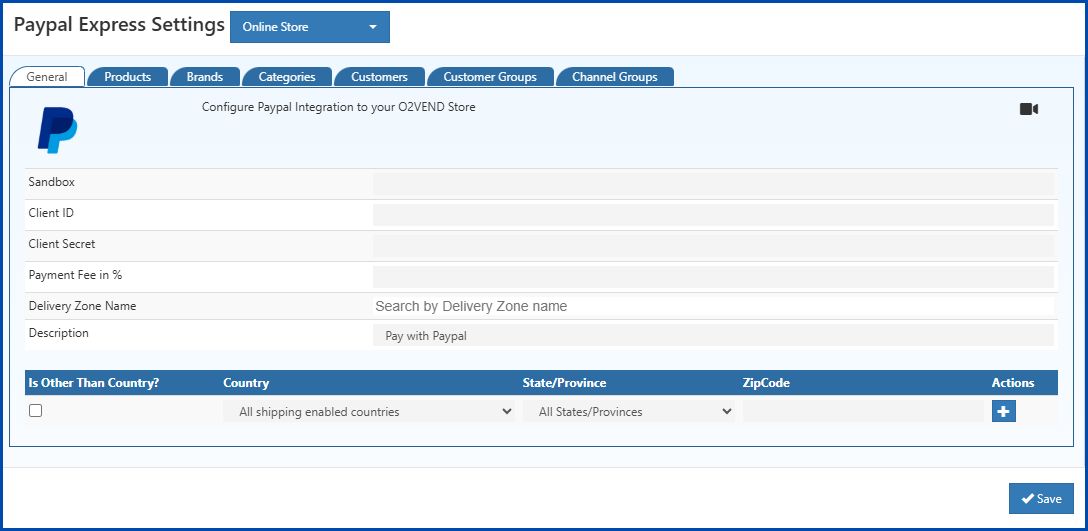
    • The PayPal configuration page opens for setup.
    PayPal Integration for O2VEND | Easy Setup & Configuration
    • Enter your Client ID and Client Secret provided by PayPal

    Channel-Based Configuration & Tabs Overview (PayPal)

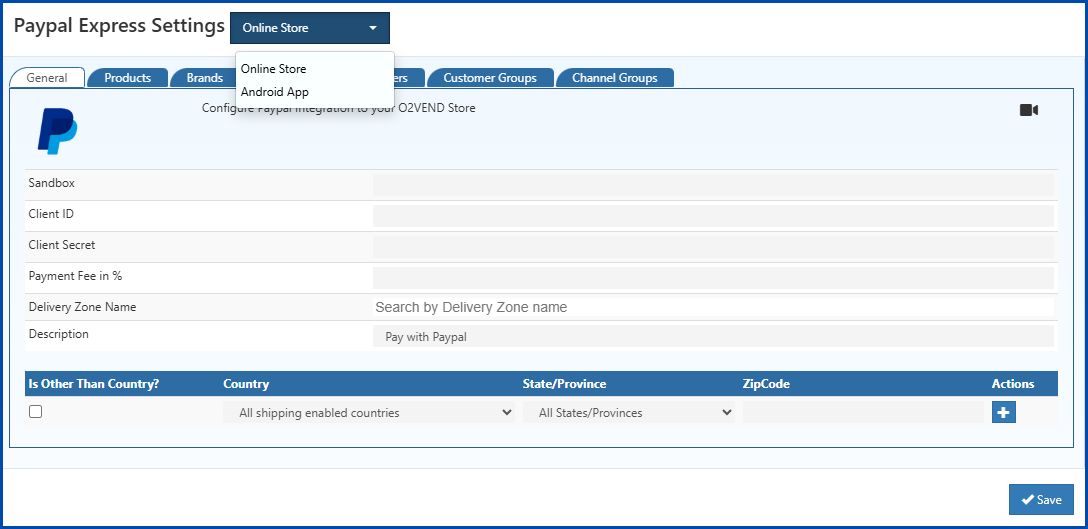
    The Channel Selector at the top of the PayPal configuration page lets you manage payment availability separately for each sales channel. This section explains how all tabs (General, Products, Brands, Categories, Customers, Customer Groups, and Channel Groups) work together to control where and how PayPal appears.
    PayPal Integration for O2VEND | Easy Setup & Configuration

    Supported Channels

    You can configure PayPal individually for every channel created in your O2VEND store, such as:

    • Online Store
    • Android App
    • iOS App
    • POS
    • Any custom sales channel

    Each channel maintains its own PayPal setup, allowing different API credentials and availability rules per platform.

    How Channel-Wise Configuration Works

    • Settings applied to a channel affect only that specific channel.

    • This allows flexible use cases, for example:

      • Enable PayPal only for the Online Store while disabling it for POS.
      • Use different PayPal credentials for mobile apps if required.

    This approach ensures better control, security, and customization across platforms.

    General Tab

    The General Tab contains the core settings required to activate PayPal payments.

    PayPal Integration for O2VEND | Easy Setup & Configuration
    • Client ID – Unique PayPal identifier used to authenticate transactions.

    • Client Secret – Secure key provided by PayPal for payment validation.

    • Sandbox Mode – Select the transaction environment:

      • True – Testing mode (Sandbox)
      • False – Live mode (Production)
    • Description – Name of the payment method displayed on the checkout page.

    • Payment Fee % – Percentage charged per transaction for processing payments.

    • Country / State / Zip Code – Restrict PayPal availability to specific regions; leave blank to enable for all.

    • Save Settings – Click Save to apply changes.

    Products Tab
    PayPal Integration for O2VEND | Easy Setup & Configuration
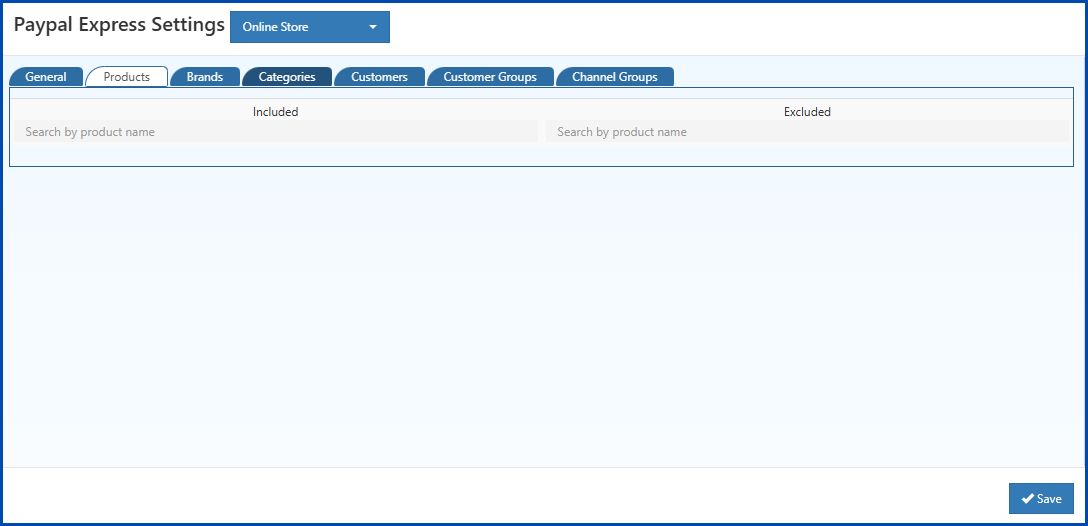
    • Included – PayPal appears only for selected products.
    • Excluded – PayPal is hidden for selected products.
    • Search – Quickly find and manage products.
    Brands Tab
    PayPal Integration for O2VEND | Easy Setup & Configuration
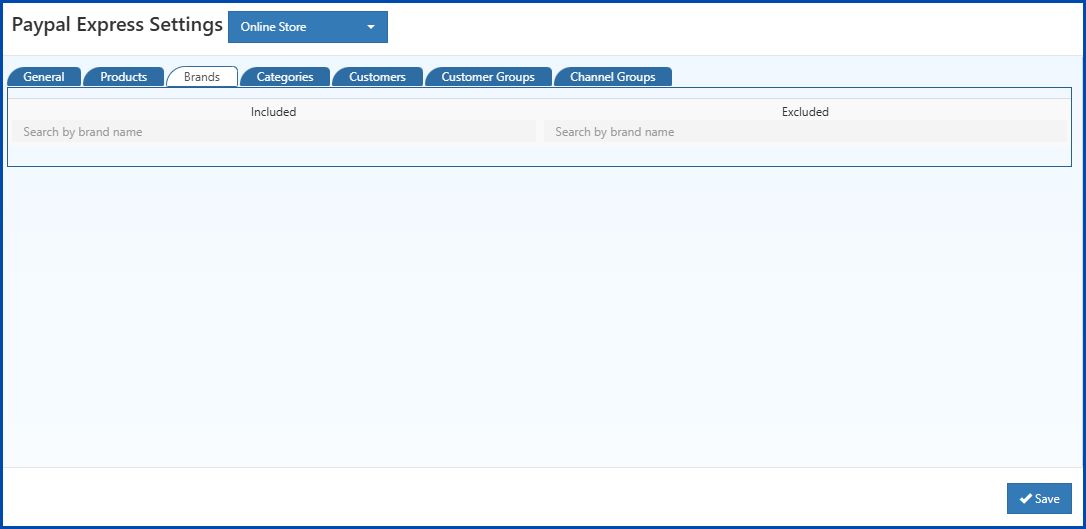
    • Included – PayPal is available for products under selected brands.
    • Excluded – PayPal is hidden for products under selected brands.
    • Search – Easily locate brands and configure availability.
    Categories Tab
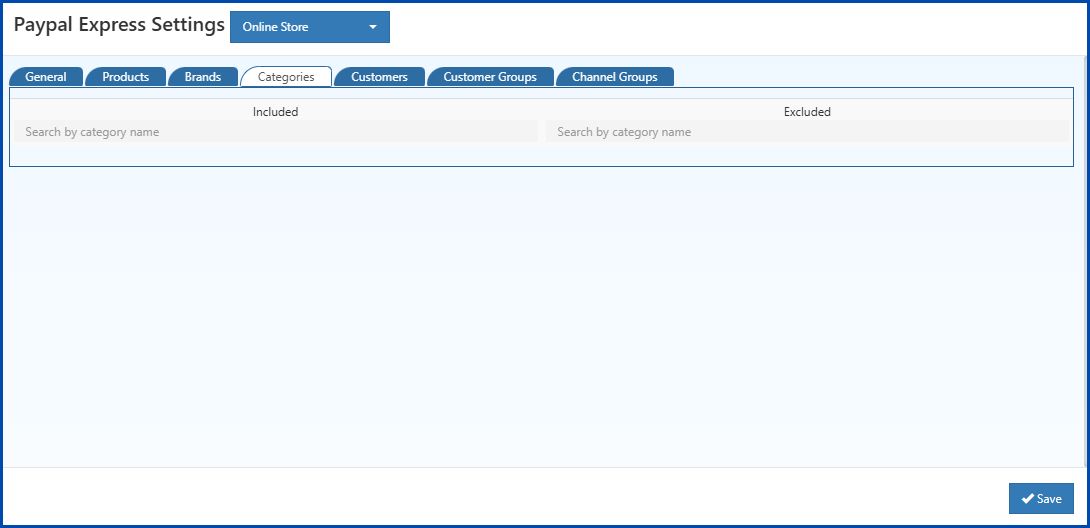
    PayPal Integration for O2VEND | Easy Setup & Configuration
    • Included – Enable PayPal only for chosen categories.
    • Excluded – Disable PayPal for specific categories.
    • Search – Quickly assign categories.
    Customers Tab
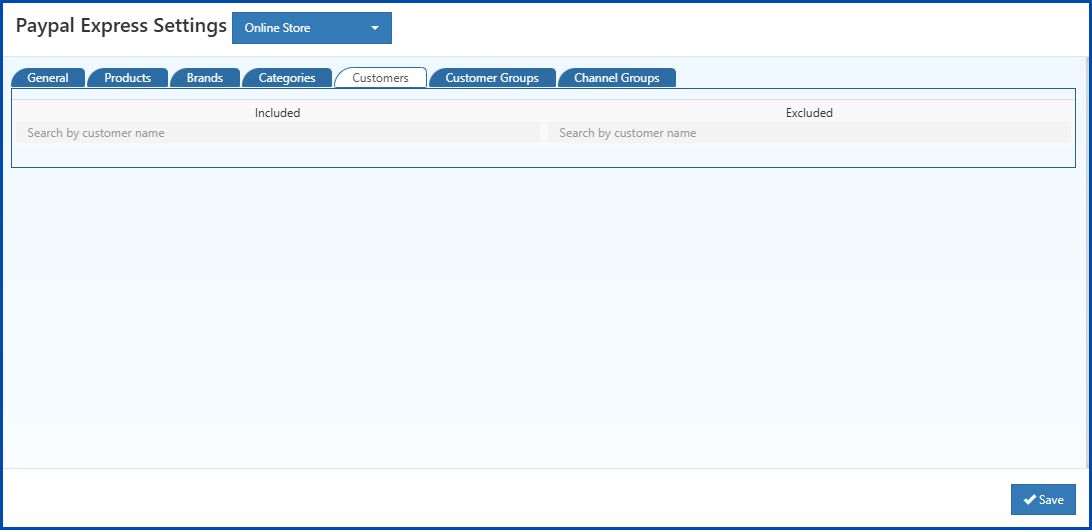
    PayPal Integration for O2VEND | Easy Setup & Configuration
    • Included – Only selected customers can use PayPal.
    • Excluded – Selected customers will not see PayPal.
    • Search – Find customers easily and manage access.
    Customer Groups Tab
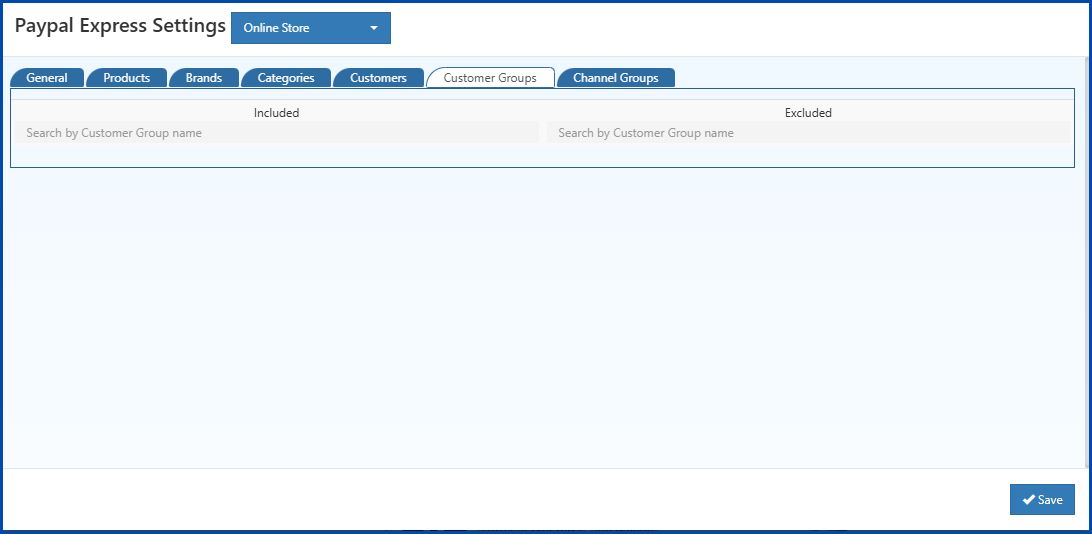
    PayPal Integration for O2VEND | Easy Setup & Configuration
    • Included – PayPal is enabled for selected customer groups.
    • Excluded – PayPal is disabled for specific groups.
    • Search – Quickly manage group-based availability.
    Channel Groups Tab
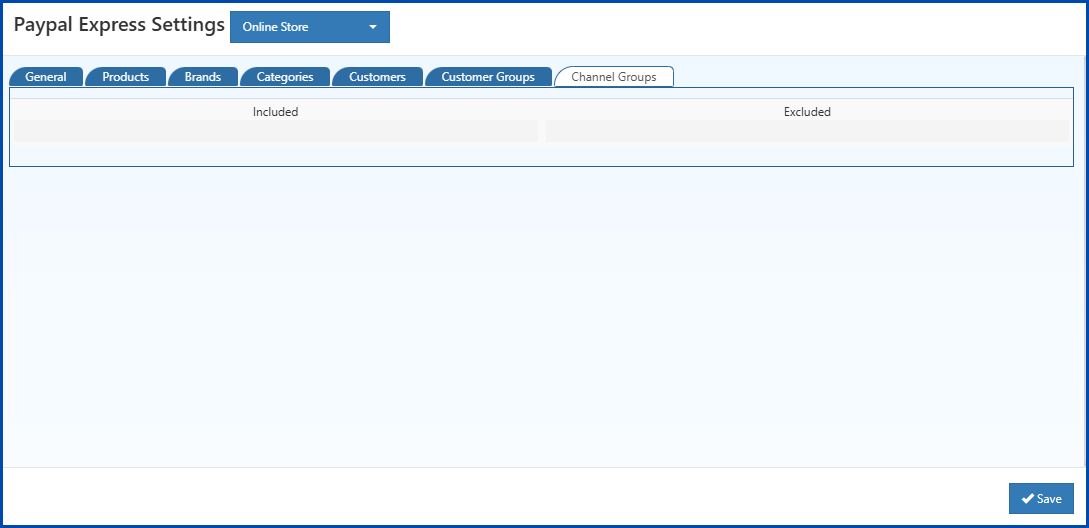
    PayPal Integration for O2VEND | Easy Setup & Configuration
    • Included – PayPal is enabled for selected channel groups.
    • Excluded – PayPal is hidden for selected channel groups.
    • Search – Easily locate and assign channel groups.
    How These Rules Apply
    • Included list used – PayPal works only for selected items.
    • Excluded list used – PayPal works for everything except selected items.
    • Both lists empty – PayPal is available across all products, customers, and channels.

    This rule-based configuration gives complete control while keeping PayPal setup simple and scalable.

    Enable PayPal Payments in the O2VEND Store

    Step 1: Access Back Office

    • Log in to your O2VEND Back Office.

    Step 2: Go to Online Store Settings

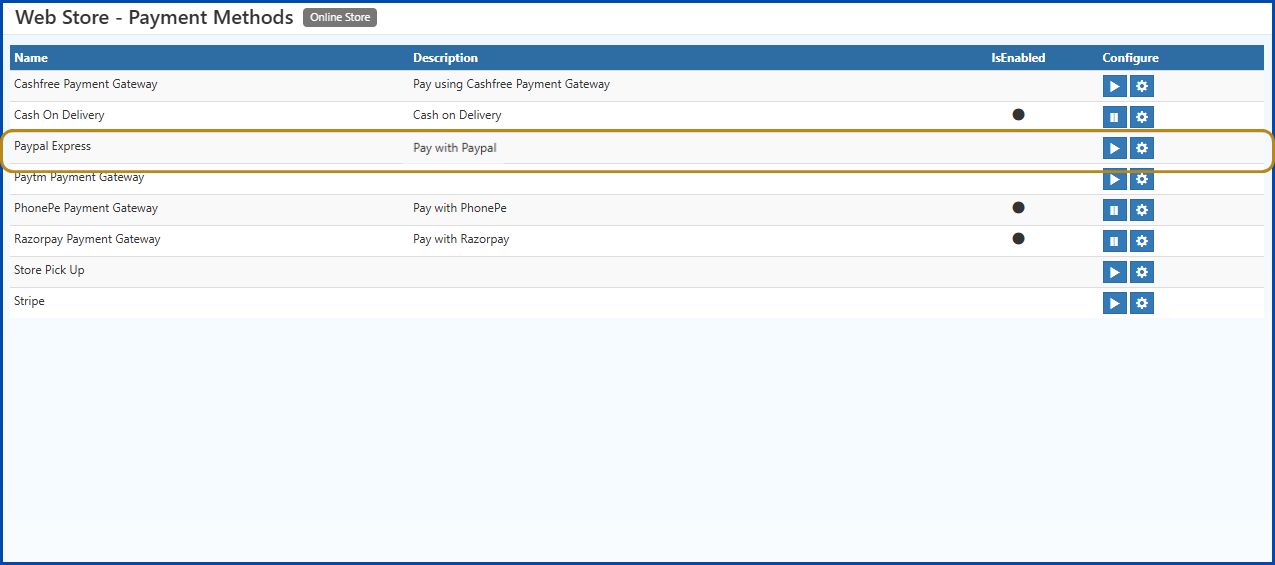
    • Navigate to Online Store – Setup Payment Method.

    Step 3: Enable PayPal

    • When the pop-up appears, click OK to activate the PayPal payment gateway.
    PayPal Integration for O2VEND | Easy Setup & Configuration

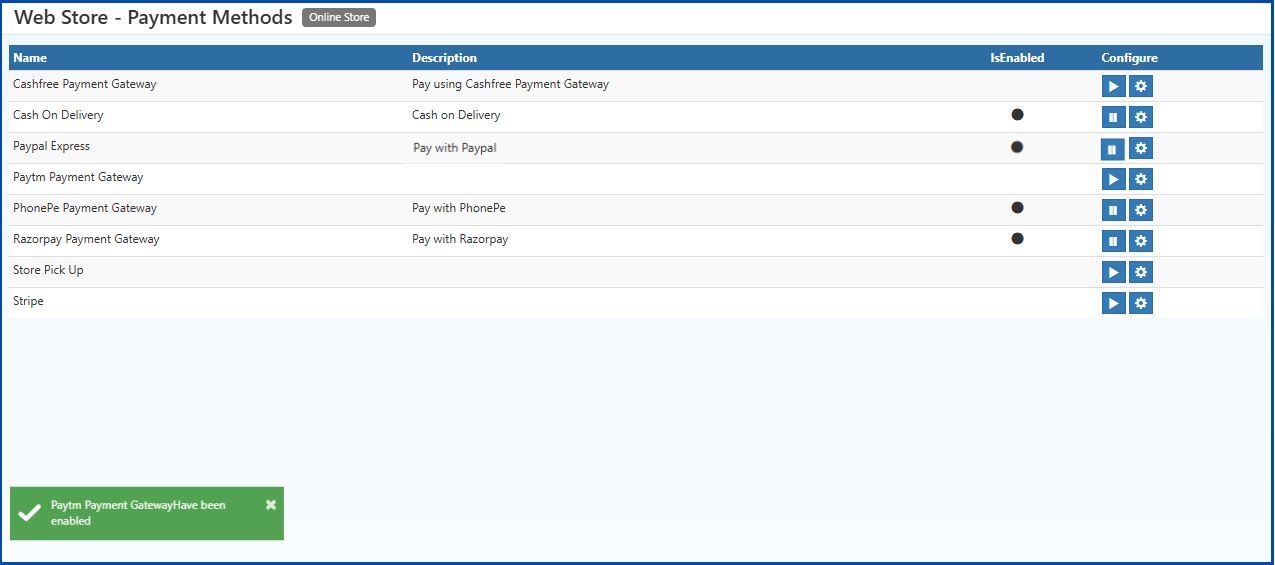
    Step 4: Confirmation

    • PayPal Payments Gateway is now enabled and ready for transactions.
    PayPal Integration for O2VEND | Easy Setup & Configuration PayPal Integration for O2VEND | Easy Setup & Configuration

    How to Enable PayPal Payment for O2VEND Stores

    Learn how to quickly integrate PayPal with your O2VEND store and start accepting secure, trusted online payments from global customers.

    Contact O2VEND Team

    Login to Your Store

    In this article
    Back to top _includes/footer.html
    © 2019–2026 Jeyan Technologies Private Limited • www.o2vend.com • Create your own store