O2VEND Retail ERP
  • Getting Started
  • Ecommerce
  • Back Office
  • POS
  • Agent App
  • PIM
  • Communication
  • CMS
  • OMS
  • WMS
  • O2C
  • Accounting
  • Reports
  • Themes and Apps
Search Results for

    Show / Hide Table of Contents
    • Overview
    • Features
      • Product Management Features
        • Product Management
        • Product Attributes
        • Product Variations
        • SKU Length for Variations
        • Product Pricing
        • Product Margin Settings
        • Product Cost Configuration
        • Product Tax Settings
        • Additional Tax Setup
      • Inventory Management Features
        • Inventory Management
        • Stock Management
        • GRN (Goods Receipt Note)
        • GDN (Goods Delivery Note)
        • Disable Lot Popup Option
      • Order & Sales Features
        • Order Management
        • Point of Sale (POS)
        • Credit Sales & Invoice Return
        • Outstanding Management
        • Voucher Management
        • Guest Checkout Option
      • Marketing & SEO Features
        • SEO Optimization
        • URL Configuration
        • Schema Markup Setup
        • Segmentation
      • Communication & Notification Features
        • Email Settings
        • Communication Settings
        • Notifications
        • Web Notifications
      • System & Security Features
        • Application Settings
        • General Settings
        • Date Configuration
        • IP Restrictions
        • White Listing
        • Print Configuration
        • Option Settings
    • Integrations
      • Marketplace Integrations
        • Amazon Integration
        • Flipkart Integration
        • Myntra Integration
        • Shopify Integration
        • Unicommerce Integration
      • Payment Gateway Integrations
        • Razorpay Integration
        • PayU Integration
        • Paytm Integration
        • PhonePe Integration
        • Cashfree Integration
        • Stripe Integration
        • Paypal Integration
      • Shipping & Logistics Integrations
        • Shiprocket Integration
        • Shipway Integration
        • eShipper Integration
        • Amazon Shipping Integration
        • XpressBees Integration
        • GetDelivered Integration
      • Communication Integrations
        • WhatsApp Integration
        • MSG91 Integration
        • SendGrid Integration
        • Amazon SES Integration
        • Email Integration
      • Marketing & CRM Integrations
        • HubSpot Integration
        • Typesense Integration
      • Tax & Compliance Integrations
        • e-Invoice Integration
        • e-Way Bill Integration
        • Tax Configuration
      • Security & Technical Integrations
        • reCAPTCHA Integration
        • Webhook Integration
        • Custom CDN Domain Setup
      • Inventory & Store Integrations
        • Inventory Integration
        • Storefront Integration
        • Display Configuration
        • General Settings
    • Product Enhancements
      • Affiliate Program Management
      • Back Office Management System
      • Checkout Process Settings
      • Coupon Code Management
      • Currency Configuration Settings
      • Delivery Zone Configuration
      • Discount Management System
      • Product Display Settings
      • Geo IP Location Detection
      • GTIN Product Code Management
      • Invoice Management System
      • Marketing & Campaign Tools
      • Menu Management Settings
      • Pricing Rule Configuration
      • Purchase Management Module
      • Referral Program Settings
      • Return Management Process
      • Sales Management System
      • Shipment & Delivery Tracking
      • SMS Notification Settings
      • Sub Location Management
      • Vendor Management System
      • Product Video Integration
      • Web Store Configuration
      • WhatsApp Integration Settings
    • Blog Categories Setup
    • Blog Management
    • Email Settings
    • Home Page Components
    • Main Menu Management
    • Newsletter Subscription Settings
    • SMS Settings
    • WhatsApp Settings
    • Communication Template Setup
    • Page Header Settings
    • Site Menu Management
    • Site Pages Management

    Additional Tax in O2VEND

    Overview

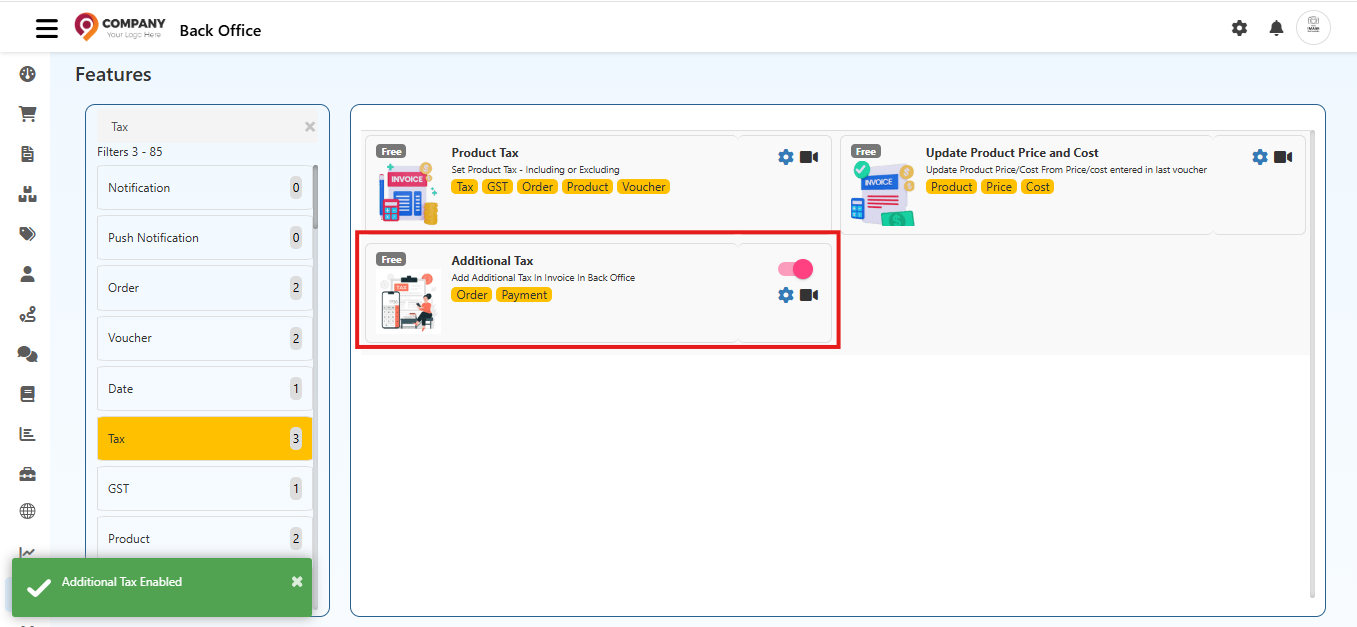
    The Additional Tax feature in O2VEND allows adding extra tax charges to invoices from the Back Office. This is useful for applying taxes other than standard GST, such as service charges, handling fees, or any custom tax defined by the business.

    Once enabled and configured, the system automatically calculates and applies the additional tax during invoice generation.

    Location in Back Office

    Navigation Path:
    Back Office → Features → Tax → Additional Tax
    Additional Tax in O2VEND

    Purpose of Additional Tax

    The Additional Tax feature helps to:

    • Apply custom tax percentages apart from GST.
    • Maintain flexibility for business-specific tax requirements.
    • Accurately reflect extra charges in invoices.
    • Map additional taxes to proper accounting ledgers.

    Enabling Additional Tax

    • Navigate to the Additional Tax feature under Tax.
    • Use the toggle switch to enable the feature.
    • Once enabled, configuration options become active.

    Configuration Fields
    Additional Tax in O2VEND

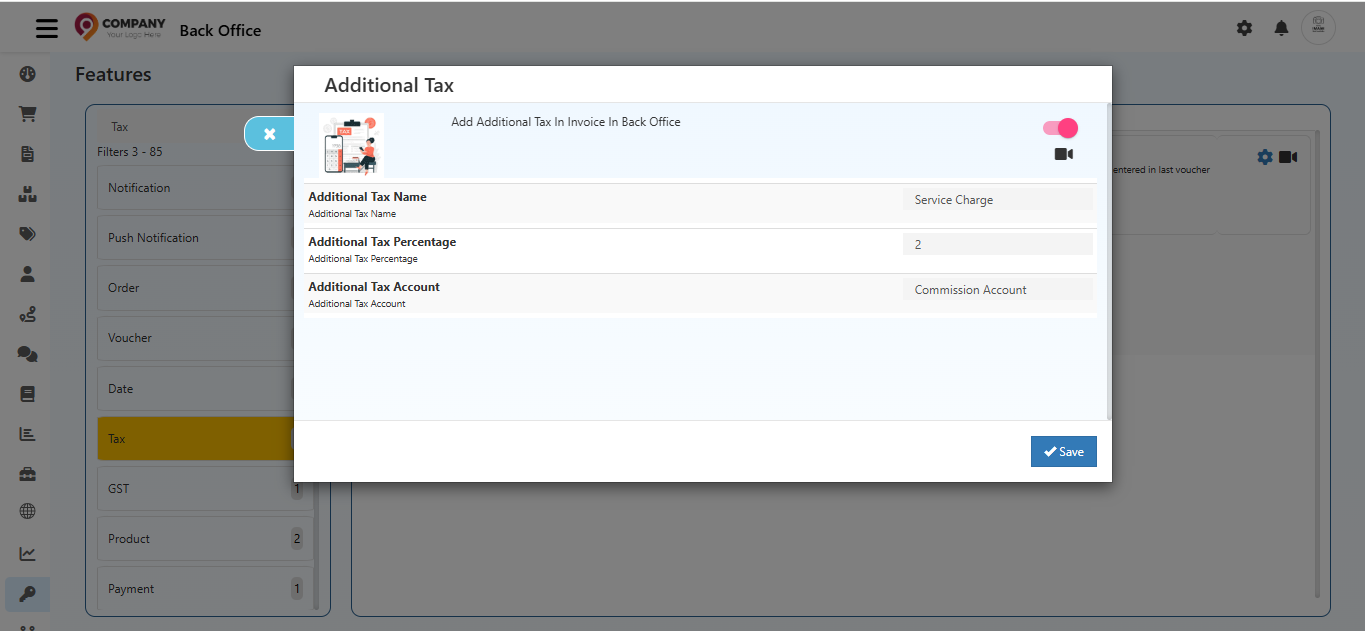
    Additional Tax Name

    • Defines the display name of the tax.
    • This name appears on invoices and reports.
    • Example: Service Charge, Packing Tax, Environmental Fee.

    Additional Tax Percentage

    • Specifies the percentage to be applied on the invoice amount.
    • Accepts numeric values only.
    • Example:
      • Enter 2 for 2%.
      • Enter 5 for 5%.

    Additional Tax Account

    • Selects the accounting ledger to which the tax amount is posted.
    • Ensures accurate financial tracking and reporting.
    • Ledger should be pre-created in Accounting Books.

    Saving Configuration

    • After entering all required details, click Save.
    • The configuration is applied immediately.
    • Additional Tax becomes active for applicable invoices.

    How Additional Tax Works

    • Additional Tax is calculated based on the configured percentage.
    • It is applied along with other applicable taxes.
    • The tax amount appears as a separate line item in the invoice.
    • Accounting entries are posted to the selected tax account.

    Example:
    If the invoice amount is ?10,000 and Additional Tax is 2%, then ?200 will be added as Additional Tax.

    Note
    • Use clear and meaningful tax names like Service Charge or Environmental Fee.
    • Double-check the tax percentage before enabling in production.
    • Align tax accounts with accounting standards.
    • Test invoices after configuration to ensure accuracy.
    In this article
    Back to top _includes/footer.html
    © 2019–2026 Jeyan Technologies Private Limited • www.o2vend.com • Create your own store