O2VEND Retail ERP
  • Getting Started
  • Ecommerce
  • Back Office
  • POS
  • Agent App
  • PIM
  • Communication
  • CMS
  • OMS
  • WMS
  • O2C
  • Accounting
  • Reports
  • Themes and Apps
Search Results for

    Show / Hide Table of Contents
    • Overview
    • Features
      • Product Management Features
        • Product Management
        • Product Attributes
        • Product Variations
        • SKU Length for Variations
        • Product Pricing
        • Product Margin Settings
        • Product Cost Configuration
        • Product Tax Settings
        • Additional Tax Setup
      • Inventory Management Features
        • Inventory Management
        • Stock Management
        • GRN (Goods Receipt Note)
        • GDN (Goods Delivery Note)
        • Disable Lot Popup Option
      • Order & Sales Features
        • Order Management
        • Point of Sale (POS)
        • Credit Sales & Invoice Return
        • Outstanding Management
        • Voucher Management
        • Guest Checkout Option
      • Marketing & SEO Features
        • SEO Optimization
        • URL Configuration
        • Schema Markup Setup
        • Segmentation
      • Communication & Notification Features
        • Email Settings
        • Communication Settings
        • Notifications
        • Web Notifications
      • System & Security Features
        • Application Settings
        • General Settings
        • Date Configuration
        • IP Restrictions
        • White Listing
        • Print Configuration
        • Option Settings
    • Integrations
      • Marketplace Integrations
        • Amazon Integration
        • Flipkart Integration
        • Myntra Integration
        • Shopify Integration
        • Unicommerce Integration
      • Payment Gateway Integrations
        • Razorpay Integration
        • PayU Integration
        • Paytm Integration
        • PhonePe Integration
        • Cashfree Integration
        • Stripe Integration
        • Paypal Integration
      • Shipping & Logistics Integrations
        • Shiprocket Integration
        • Shipway Integration
        • eShipper Integration
        • Amazon Shipping Integration
        • XpressBees Integration
        • GetDelivered Integration
      • Communication Integrations
        • WhatsApp Integration
        • MSG91 Integration
        • SendGrid Integration
        • Amazon SES Integration
        • Email Integration
      • Marketing & CRM Integrations
        • HubSpot Integration
        • Typesense Integration
      • Tax & Compliance Integrations
        • e-Invoice Integration
        • e-Way Bill Integration
        • Tax Configuration
      • Security & Technical Integrations
        • reCAPTCHA Integration
        • Webhook Integration
        • Custom CDN Domain Setup
      • Inventory & Store Integrations
        • Inventory Integration
        • Storefront Integration
        • Display Configuration
        • General Settings
    • Product Enhancements
      • Affiliate Program Management
      • Back Office Management System
      • Checkout Process Settings
      • Coupon Code Management
      • Currency Configuration Settings
      • Delivery Zone Configuration
      • Discount Management System
      • Product Display Settings
      • Geo IP Location Detection
      • GTIN Product Code Management
      • Invoice Management System
      • Marketing & Campaign Tools
      • Menu Management Settings
      • Pricing Rule Configuration
      • Purchase Management Module
      • Referral Program Settings
      • Return Management Process
      • Sales Management System
      • Shipment & Delivery Tracking
      • SMS Notification Settings
      • Sub Location Management
      • Vendor Management System
      • Product Video Integration
      • Web Store Configuration
      • WhatsApp Integration Settings
    • Blog Categories Setup
    • Blog Management
    • Email Settings
    • Home Page Components
    • Main Menu Management
    • Newsletter Subscription Settings
    • SMS Settings
    • WhatsApp Settings
    • Communication Template Setup
    • Page Header Settings
    • Site Menu Management
    • Site Pages Management

    Shiprocket Integration in O2VEND

    Integrating Shiprocket to O2VEND is a great way to streamline shipping and order fulfillment. Shiprocket's robust features and easy integration enhance the efficiency of handling orders, shipping, and tracking on O2VEND.

    Easily integrate Shiprocket by following these straightforward steps:

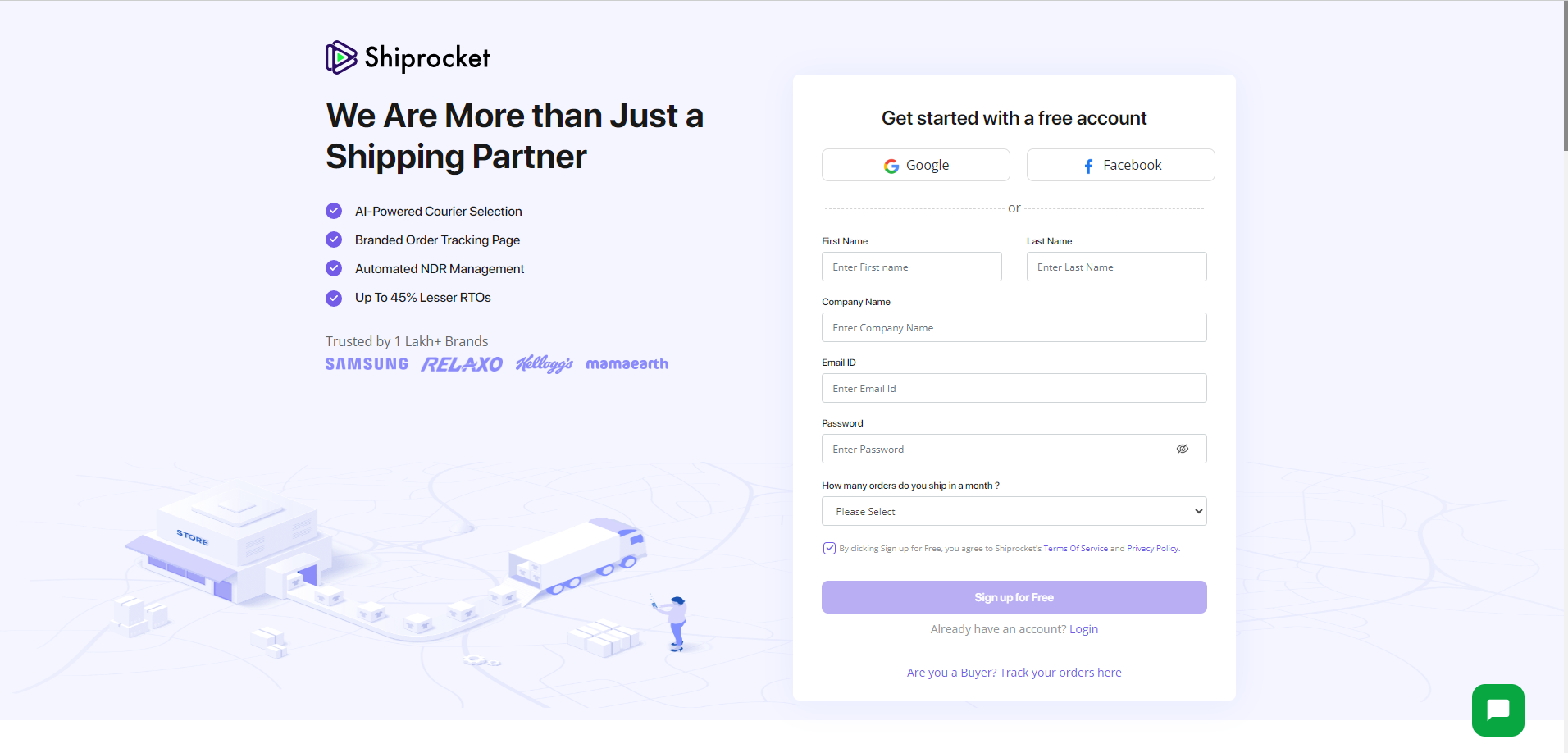
    STEP-1: Click Here to Registration

    Shiprocket Integration in O2VEND

    STEP-2: Sign up by entering your email, password, and phone number. Once done, click the "Submit" button.

    STEP-3: Complete KYC Process.

    STEP-4: Access Side Menu.

    STEP-5: Select Setup & Manage.

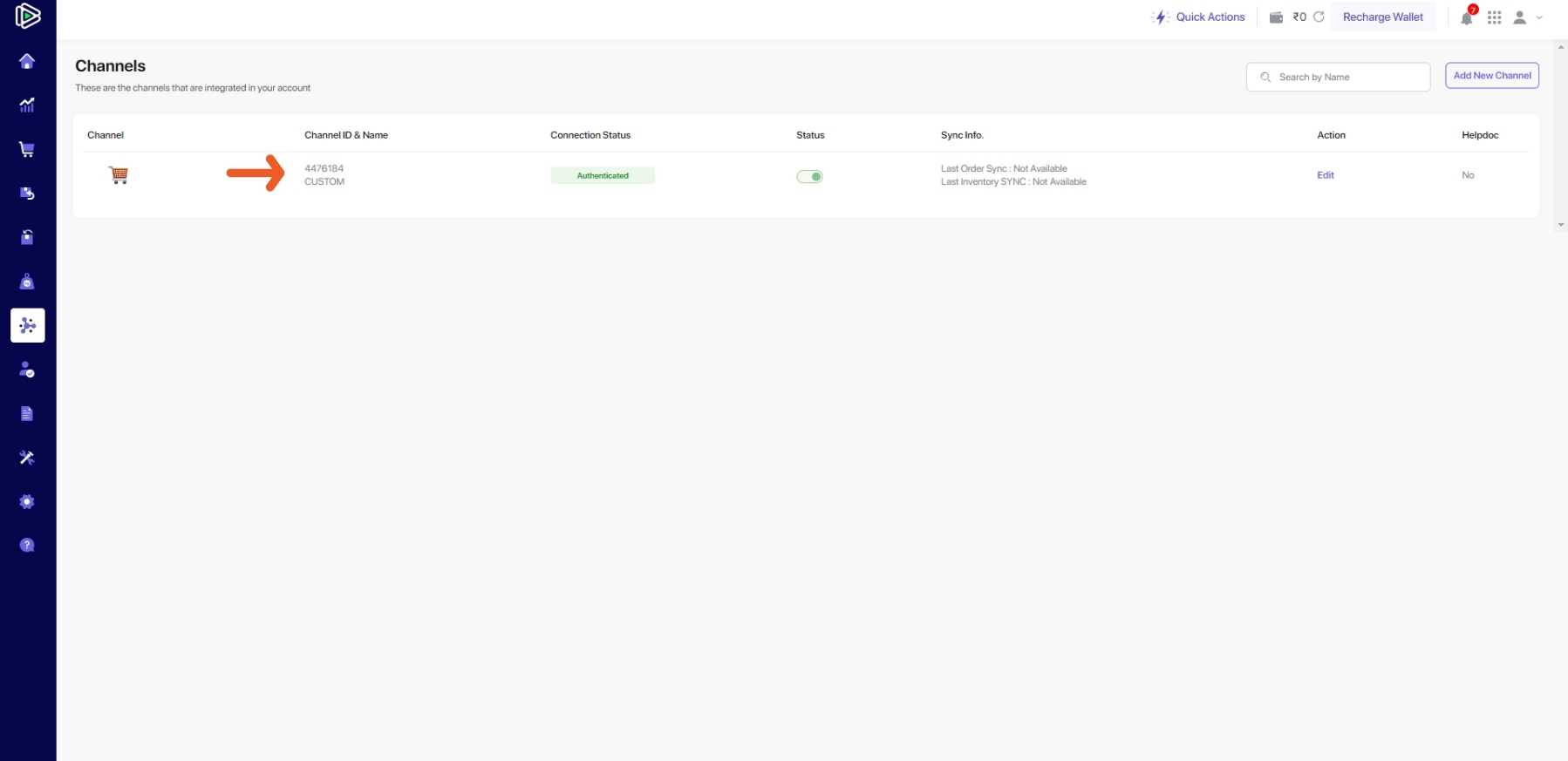
    STEP-6: Click the Channel Button.

    STEP-7: In the channel settings, locate your unique Channel ID. Keep it for your records or any needed configurations.

    Shiprocket Integration in O2VEND

    STEP-8: Navigate to the side menu bar and locate the settings option.

    STEP-9: In Settings, Select the API section and continue with the setup.

    STEP-10: Initiate the creation of an API user by clicking the designated button.

    Shiprocket Integration in O2VEND

    STEP-11: Modify the information in the create API user box, ensuring the email-id entered differs from the registered email-id.

    STEP-12: Trigger the generation of API credentials by selecting the Generate API Credential option.

    STEP-13: Copy both email and password after the generation process is complete.

    Shiprocket Integration in O2VEND

    STEP-14: Go to the Shiprocket page, click the settings button

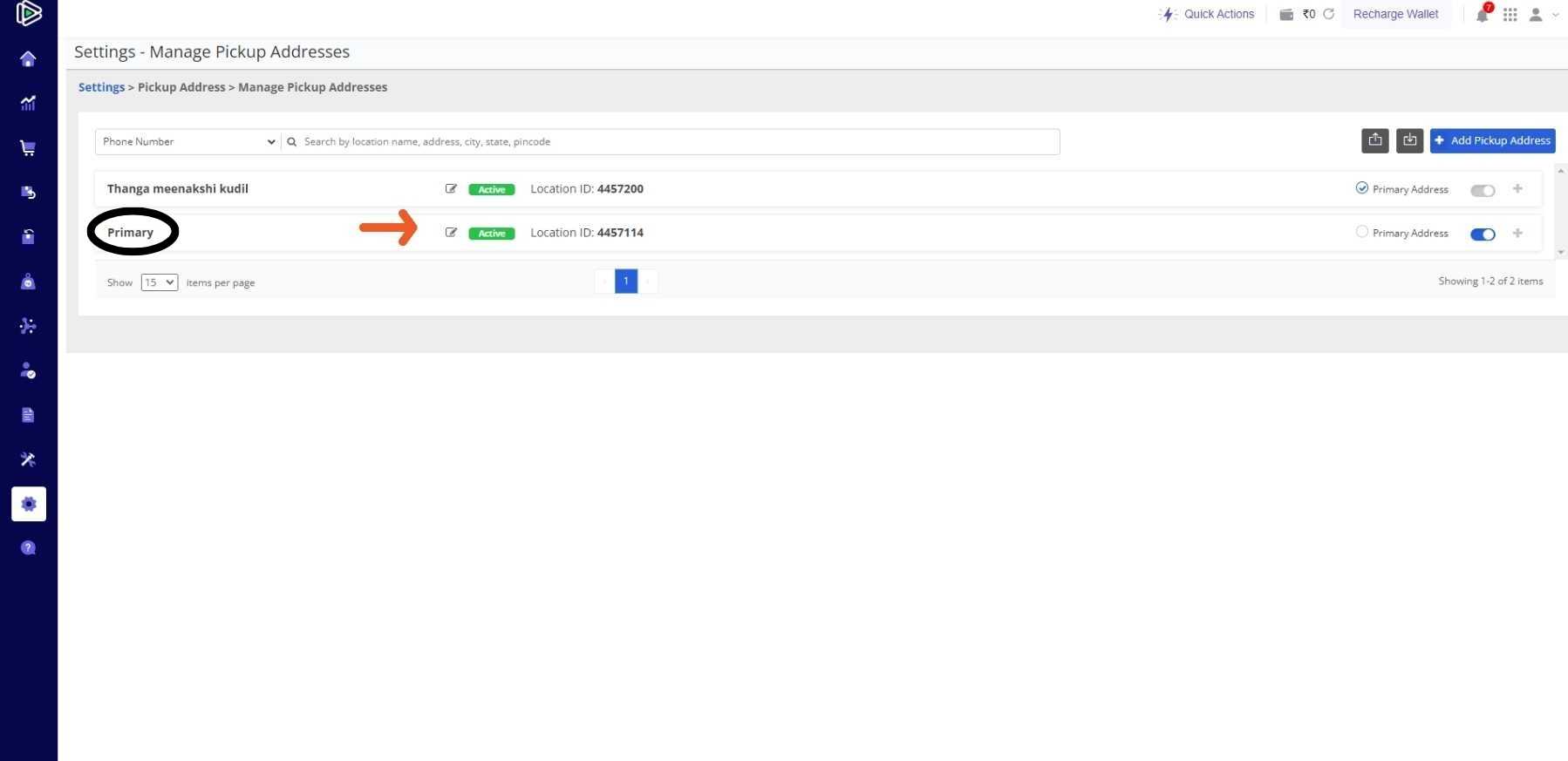
    STEP-15: Click the icon below to see your Manage pickup address.

    STEP-16: Access the Edit pickup address box by selecting the appropriate option.

    STEP-17: If you need to update your pickup address, Simply make the desired edits and save the changes.

    STEP-18: Access the O2VEND Back Office, log in, and click the settings button.

    STEP-19: Click the Inventory section and locate the desired location for editing.

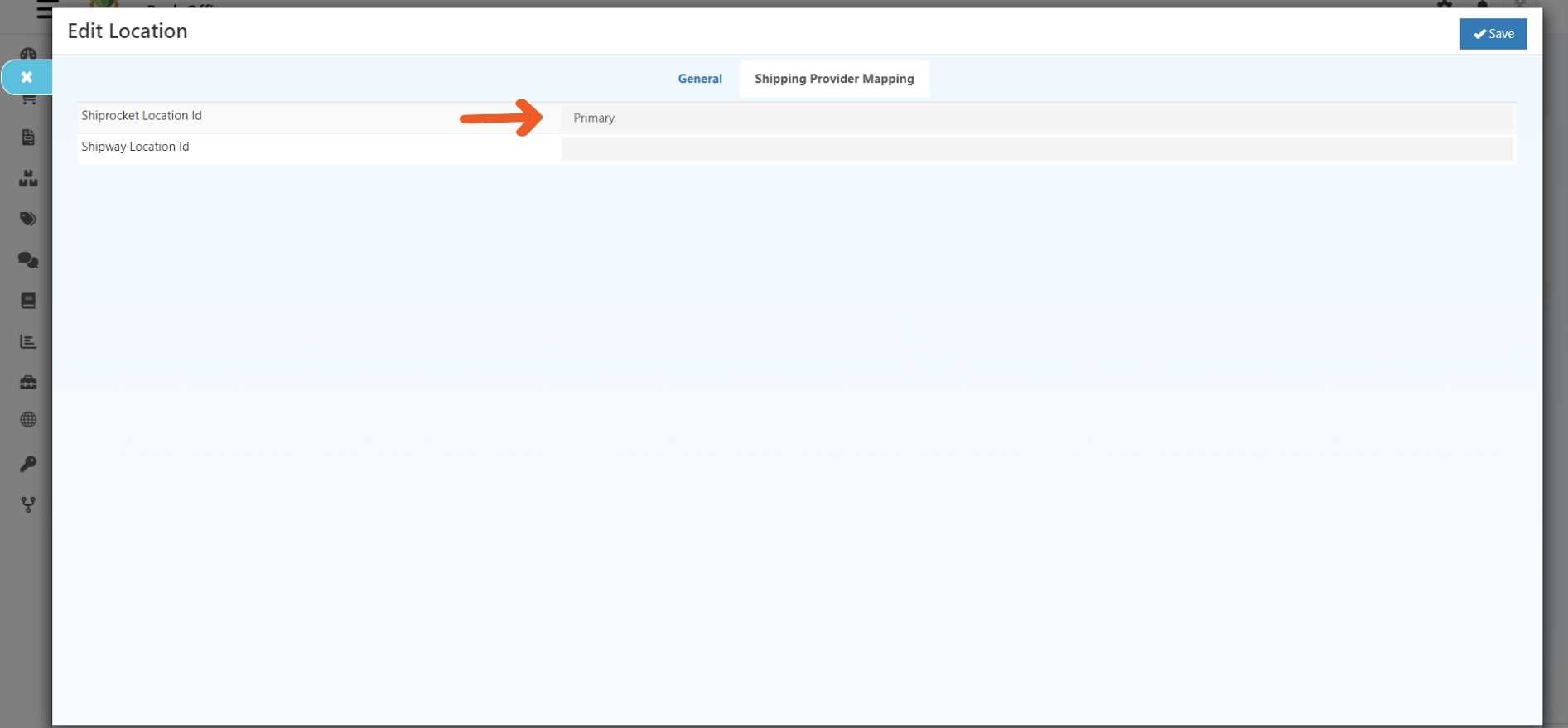
    STEP-20: Edit the selected location, then proceed to the shipping provider mapping within the edit location menu.

    STEP-21: Paste the Shiprocket location ID copied before and save.

    Shiprocket Integration in O2VEND

    O2VEND Integration: Connecting with Shiprocket in Easy Steps

    STEP-1: Log in to the O2VEND Backoffice

    STEP-2: Proceed to the integration option in the side menu.

    Shiprocket Integration in O2VEND

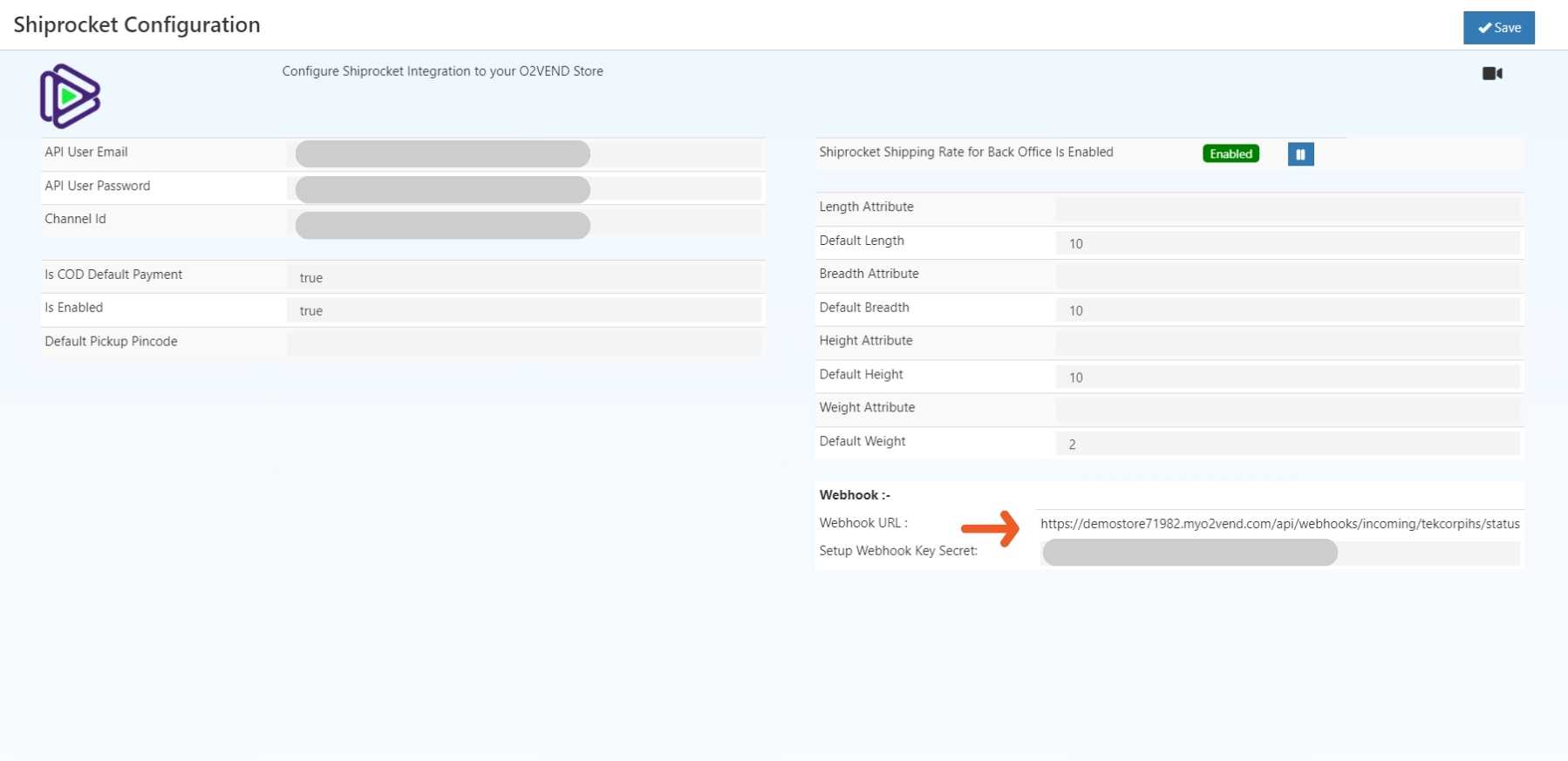
    STEP-3: Click the Shiprocket settings button to configure the integration with your O2VEND store.

    STEP-4: Enter your User email ID and password (copied from "Generate API Credential"), Along with the channel ID.

    STEP-5: Set the default pickup PIN code and choose the desired attributes.

    STEP-6: Always keep the Is enabled button. Set to true to determine if the couriers will shown on the goods issue page.

    STEP-7: Clicking the Shiprocket Shipping Rate column shows that Shiprocket is now active.

    Shiprocket Integration in O2VEND

    STEP-8: To update your shipping status, copy the webhook URL and set up the Webhook Key Secret in the Shiprocket configuration box within the O2VEND Backoffice.

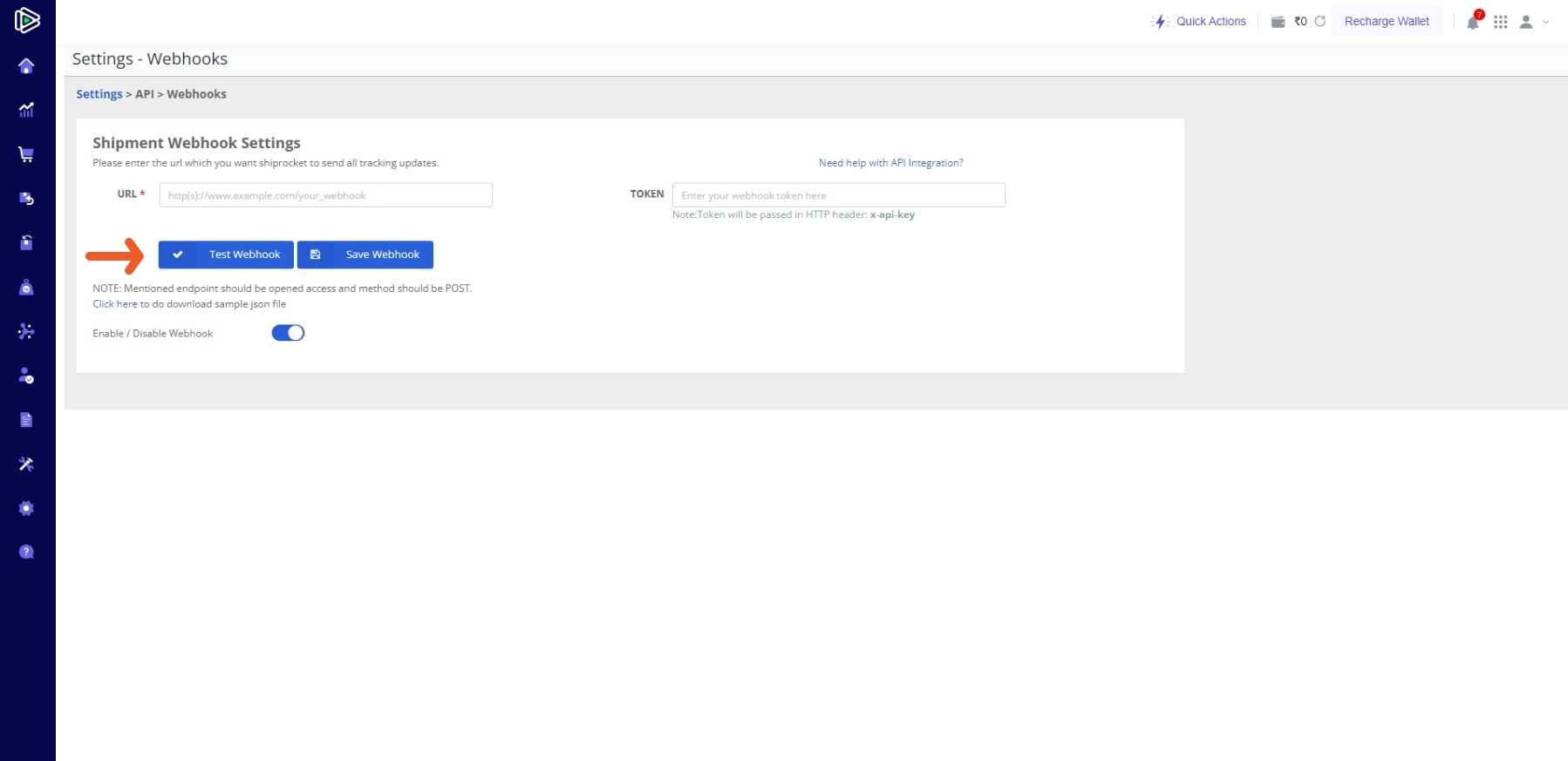
    STEP-9: Navigate to the Shiprocket side menu bar, then choose the settings option.

    STEP-10: In the API section, go to webhooks settings and turn on the webhook feature.

    STEP-11: Paste webhook URL and Key Secret keys into their respective boxes.

    Shiprocket Integration in O2VEND

    STEP- 12: Choose the Test Webhook option and save the webhook.

    STEP-13: The endpoint has been saved.

    Here's a step-by-step guide on how to process your orders

    STEP-1: Log in to the O2VEND Back Office using your credentials.

    STEP-2: On the side menu, choose the Order Option.

    STEP-3: Within the Orders section, locate and open the Sales Order area.

    STEP-4: Start creating a new sales order and make sure all the details are correct.

    STEP-5: From the generated orders, access the Issue Goods option and input relevant details.

    Shiprocket Integration in O2VEND

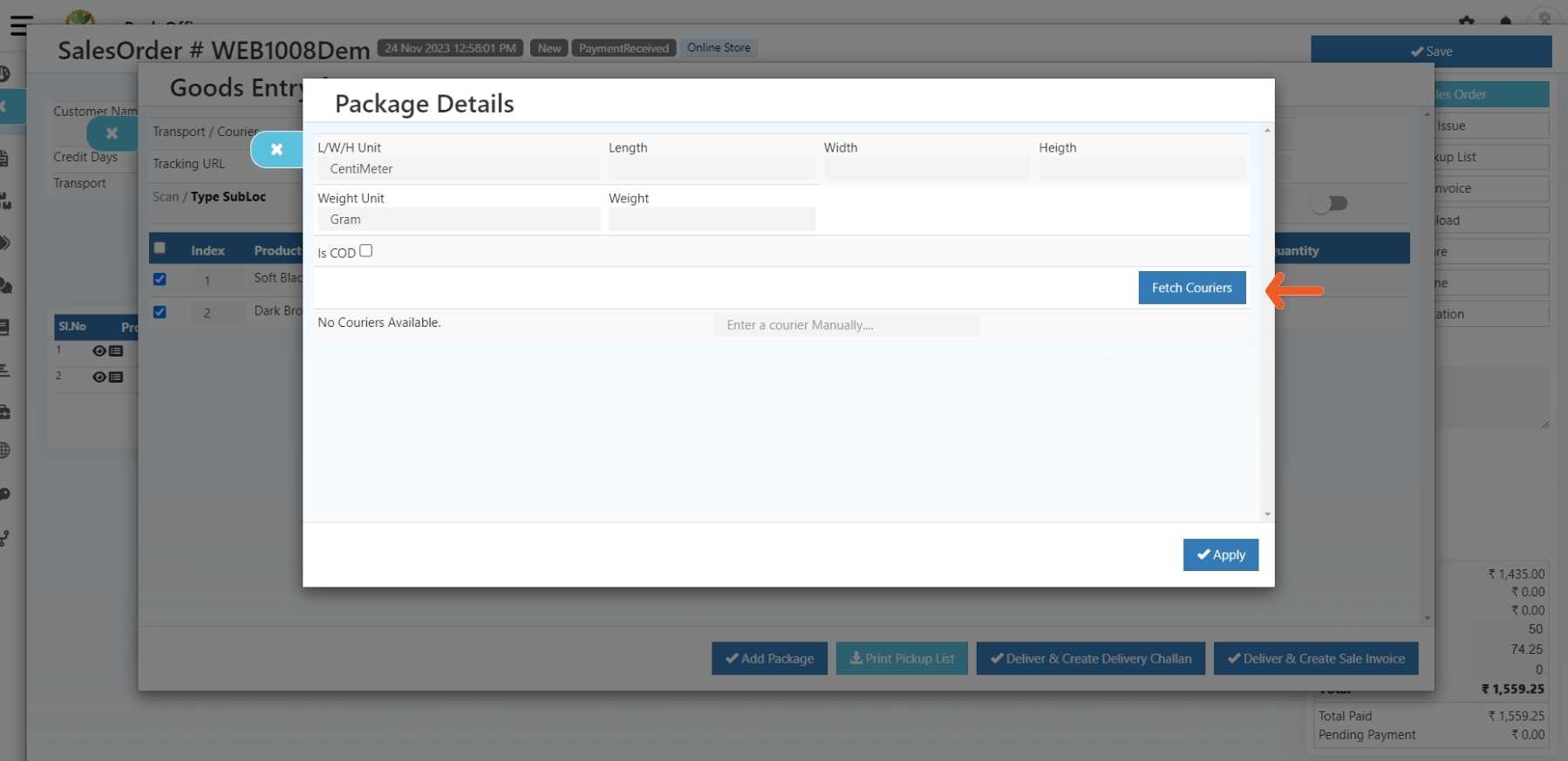
    STEP-6: Select the item from the orders list and Click Add Package.

    Step-7: click the Fetch Courier.

    Shiprocket Integration in O2VEND

    STEP-7: Provide the required package details and get the courier to complete the order smoothly.

    Important

    First, recharge your wallet; it's essential before placing any courier orders. If you don't add money to your Shiprocket wallet, Your order won't be created on the Shiprocket order page.

    In this article
    Back to top _includes/footer.html
    © 2019–2026 Jeyan Technologies Private Limited • www.o2vend.com • Create your own store