Easebuzz Settings in O2VEND
Easebuzz settings in O2VEND let you connect the Easebuzz payment gateway to a selected sales channel and control where the gateway is available.
Navigation Path
Back Office -> Integrations -> Easebuzz
Open Easebuzz Integration
- Log in to Back Office.
- Open the Integrations module.
- Search for Easebuzz in the integrations list.
- Open the Easebuzz integration card to start configuration.
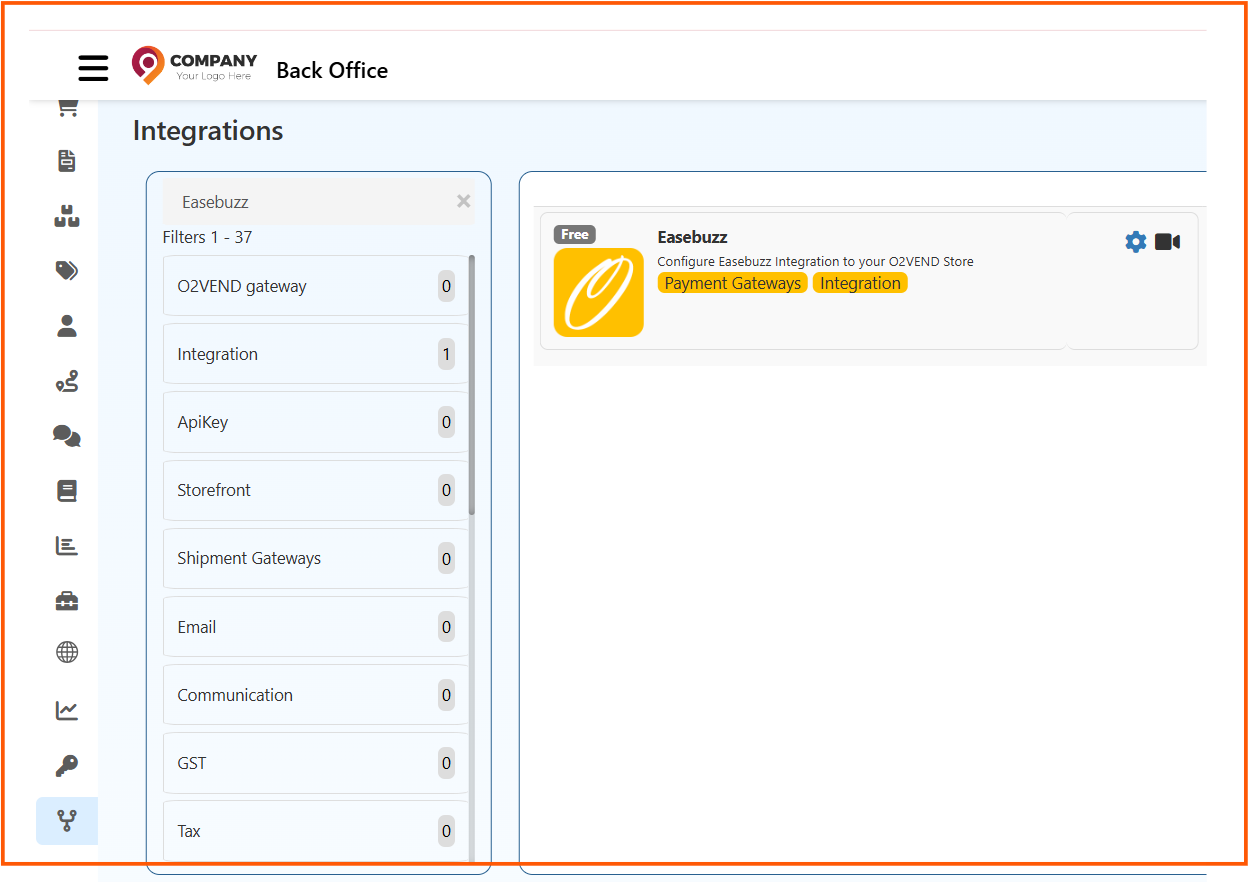
Choose the Sales Channel
At the top of the settings page, select the required channel from the dropdown, such as Online Store.
The settings and filters you save apply to the currently selected channel.
General Tab
Use the General tab to enter the main Easebuzz credentials and checkout details.
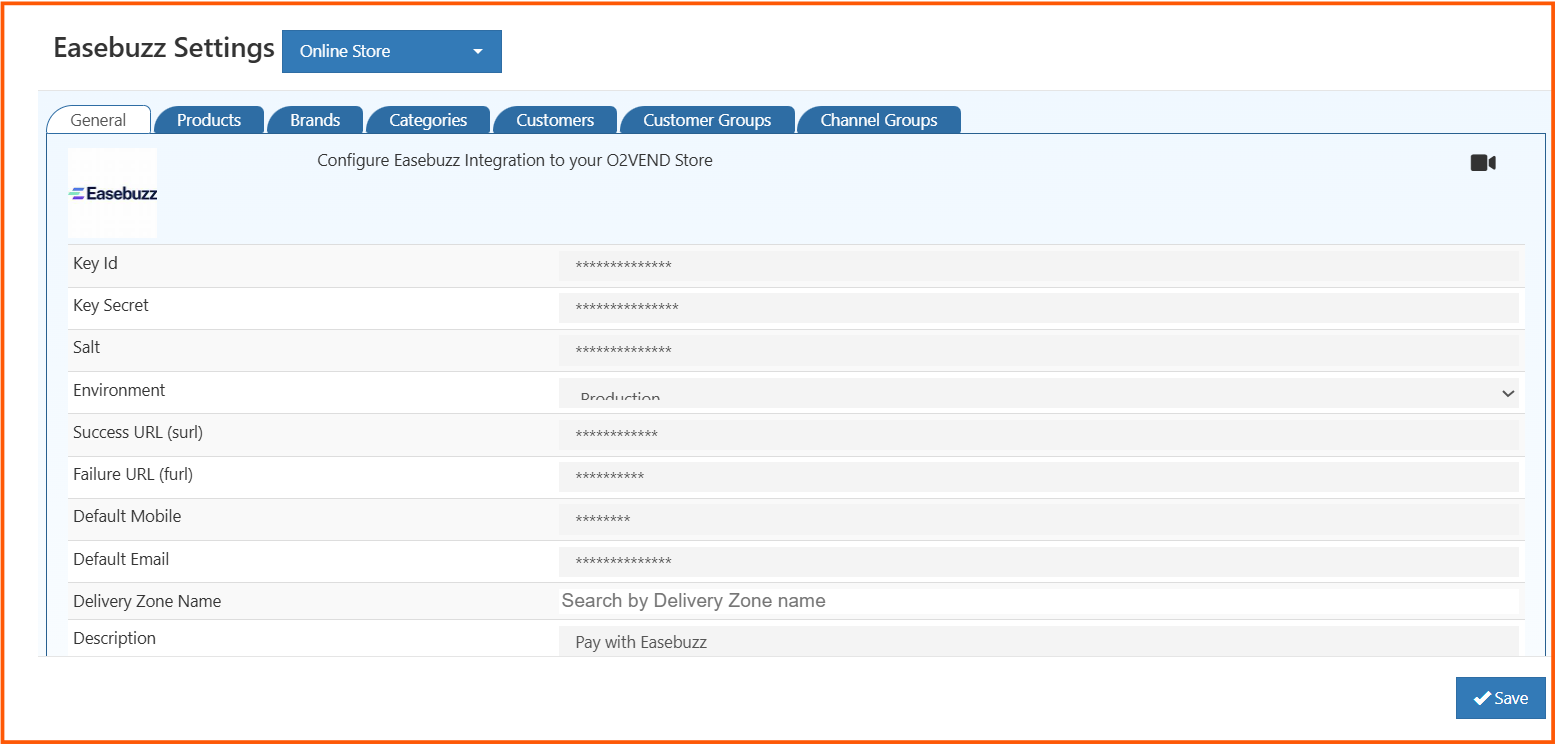
Fill in these fields:
- Key Id - Merchant key provided for your Easebuzz account
- Key Secret - Secret credential used for secure payment processing
- Salt - Salt value used for payment validation
- Environment - Choose the required mode, such as Production
- Success URL (surl) - Redirect URL after successful payment
- Failure URL (furl) - Redirect URL after failed payment
- Default Mobile - Default mobile number passed with the payment request when needed
- Default Email - Default email address used during checkout when needed
- Delivery Zone Name - Delivery zone where this payment method should be available
- Description - Label shown to the customer, such as Pay with Easebuzz
After entering the required values, click Save.
Filter Tabs
Easebuzz availability can also be controlled by filters shown in the tabs at the top of the page.
How the Filters Work
- Included - Easebuzz is available only for the selected records
- Excluded - Easebuzz is hidden for the selected records
- No selection - Easebuzz remains available for all records in that tab
Products Tab
Use Products to search by product name and include or exclude specific products for Easebuzz payments.
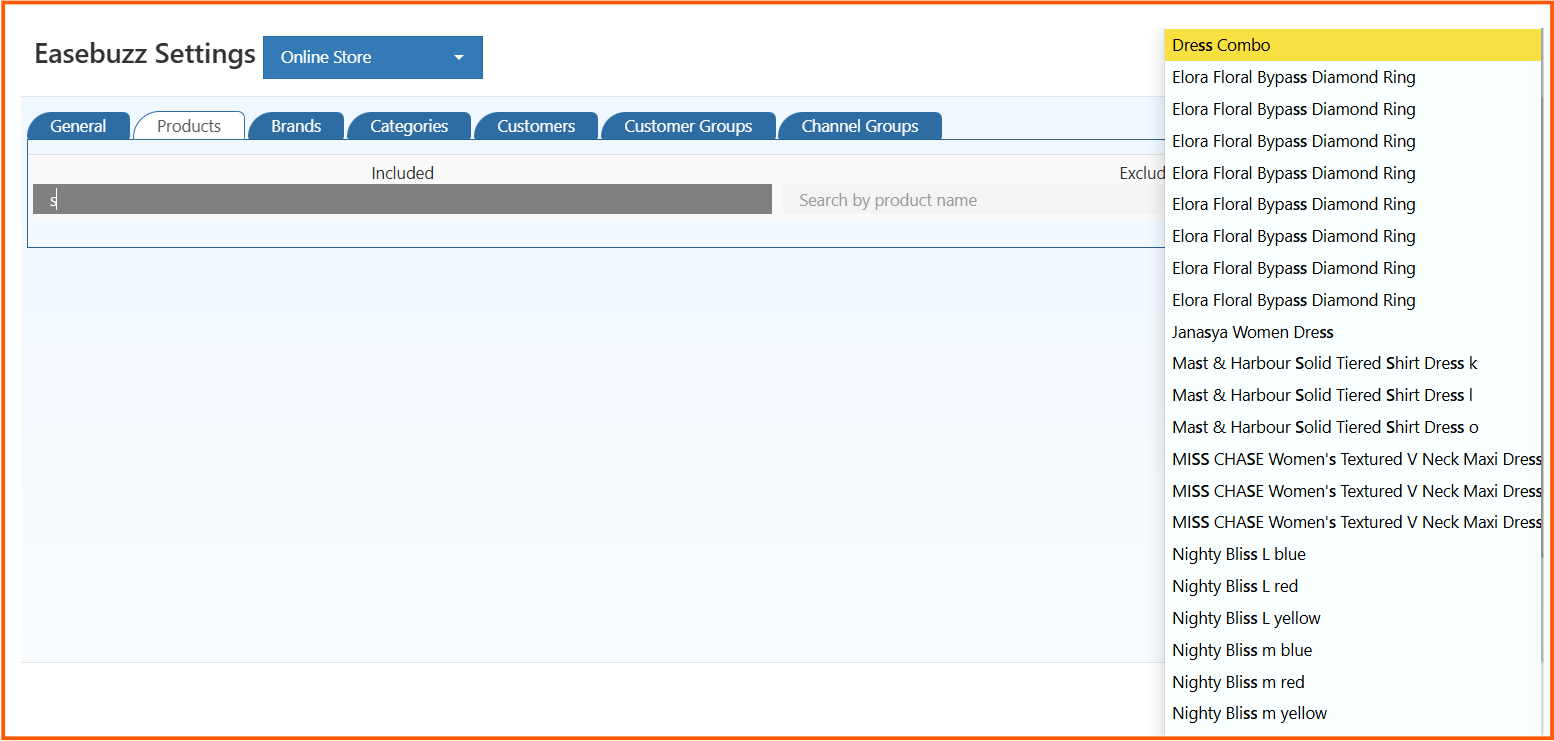
This tab is useful when the gateway should be offered only for selected SKUs or blocked for a specific set of products.
Brands Tab
Use Brands to control Easebuzz availability for products belonging to selected brands.
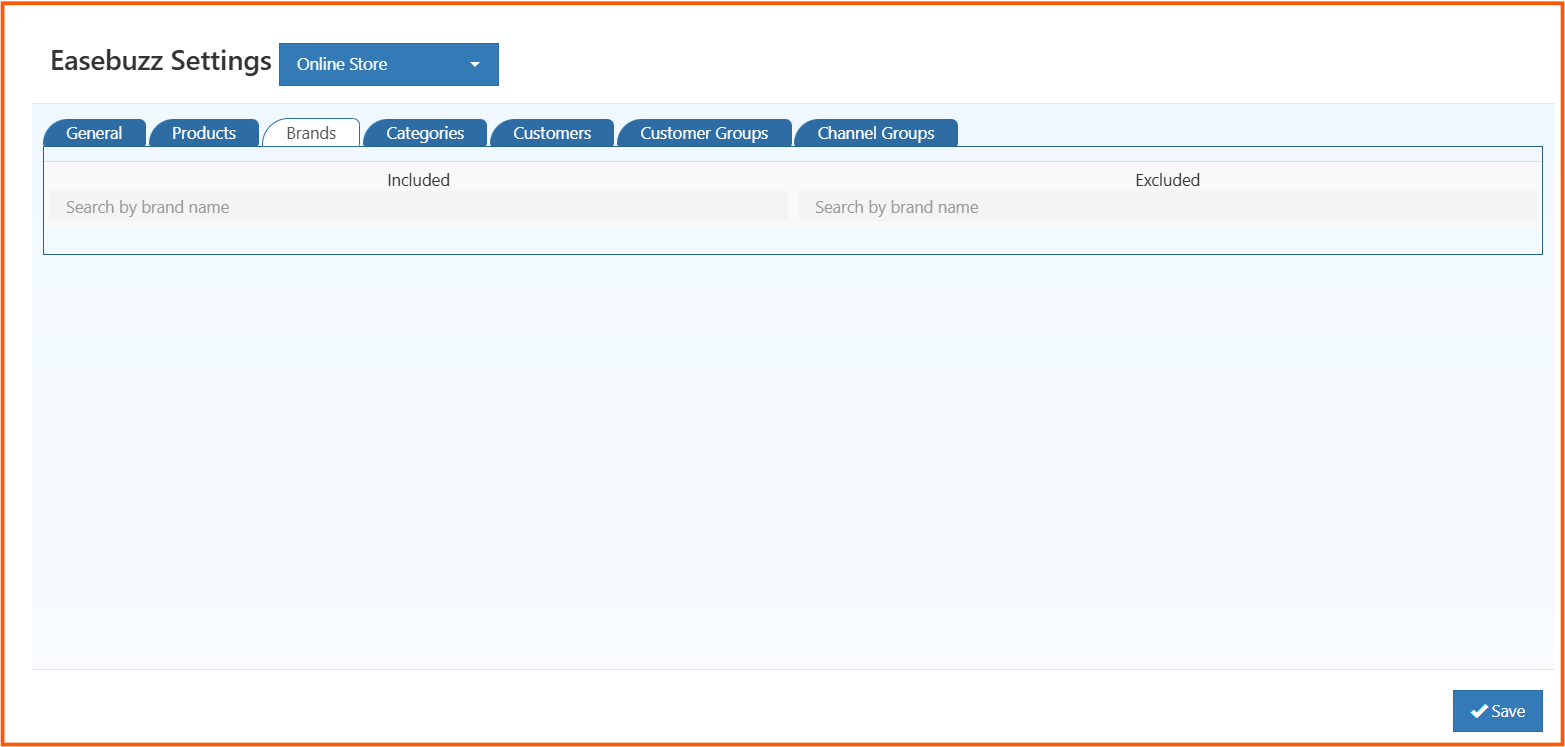
Add brands to Included when Easebuzz should be available only for those brands, or add them to Excluded to block the gateway for those brands.
Categories Tab
Use Categories to apply the payment rule to selected product categories.

This helps you enable or disable Easebuzz for entire category groups instead of configuring products one by one.
Customers Tab
Use Customers to allow or restrict Easebuzz for selected customer accounts.

This is helpful when the gateway should be visible only to specific customers or hidden from selected accounts.
Customer Groups Tab
Use Customer Groups to apply the same rule to a full customer segment.

You can use this tab to control Easebuzz availability for wholesale groups, retail groups, loyalty groups, or other customer segments configured in your store.
Channel Groups Tab
Use Channel Groups to include or exclude the payment gateway for selected channel groups.

This is useful when you manage multiple channel groups and want to control where Easebuzz is available without changing each channel one by one.
After saving the General tab and the required filter tabs, Easebuzz is configured for the selected channel with the exact availability rules you set for products, brands, categories, customers, customer groups, and channel groups.