O2VEND Retail ERP
  • Getting Started
  • Ecommerce
  • Back Office
  • POS
  • Agent App
  • PIM
  • Communication
  • CMS
  • OMS
  • WMS
  • O2C
  • Accounting
  • Reports
  • Themes and Apps
Search Results for

    Show / Hide Table of Contents
    • Overview
    • Features
      • Product Management Features
        • Product Management
        • Product Attributes
        • Product Variations
        • SKU Length for Variations
        • Product Pricing
        • Product Margin Settings
        • Product Cost Configuration
        • Product Tax Settings
        • Additional Tax Setup
      • Inventory Management Features
        • Inventory Management
        • Stock Management
        • GRN (Goods Receipt Note)
        • GDN (Goods Delivery Note)
        • Disable Lot Popup Option
      • Order & Sales Features
        • Order Management
        • Point of Sale (POS)
        • Credit Sales & Invoice Return
        • Outstanding Management
        • Voucher Management
        • Guest Checkout Option
      • Marketing & SEO Features
        • SEO Optimization
        • URL Configuration
        • Schema Markup Setup
        • Segmentation
      • Communication & Notification Features
        • Email Settings
        • Communication Settings
        • Notifications
        • Web Notifications
      • System & Security Features
        • Application Settings
        • General Settings
        • Date Configuration
        • IP Restrictions
        • White Listing
        • Print Configuration
        • Option Settings
    • Integrations
      • Marketplace Integrations
        • Amazon Integration
        • Flipkart Integration
        • Myntra Integration
        • Shopify Integration
        • Unicommerce Integration
      • Payment Gateway Integrations
        • Razorpay Integration
        • PayU Integration
        • Paytm Integration
        • PhonePe Integration
        • Cashfree Integration
        • Stripe Integration
        • Paypal Integration
      • Shipping & Logistics Integrations
        • Shiprocket Integration
        • Shipway Integration
        • eShipper Integration
        • Amazon Shipping Integration
        • XpressBees Integration
        • GetDelivered Integration
      • Communication Integrations
        • WhatsApp Integration
        • MSG91 Integration
        • SendGrid Integration
        • Amazon SES Integration
        • Email Integration
      • Marketing & CRM Integrations
        • HubSpot Integration
        • Typesense Integration
      • Tax & Compliance Integrations
        • e-Invoice Integration
        • e-Way Bill Integration
        • Tax Configuration
      • Security & Technical Integrations
        • reCAPTCHA Integration
        • Webhook Integration
        • Custom CDN Domain Setup
      • Inventory & Store Integrations
        • Inventory Integration
        • Storefront Integration
        • Display Configuration
        • General Settings
    • Product Enhancements
      • Affiliate Program Management
      • Back Office Management System
      • Checkout Process Settings
      • Coupon Code Management
      • Currency Configuration Settings
      • Delivery Zone Configuration
      • Discount Management System
      • Product Display Settings
      • Geo IP Location Detection
      • GTIN Product Code Management
      • Invoice Management System
      • Marketing & Campaign Tools
      • Menu Management Settings
      • Pricing Rule Configuration
      • Purchase Management Module
      • Referral Program Settings
      • Return Management Process
      • Sales Management System
      • Shipment & Delivery Tracking
      • SMS Notification Settings
      • Sub Location Management
      • Vendor Management System
      • Product Video Integration
      • Web Store Configuration
      • WhatsApp Integration Settings
    • Blog Categories Setup
    • Blog Management
    • Email Settings
    • Home Page Components
    • Main Menu Management
    • Newsletter Subscription Settings
    • SMS Settings
    • WhatsApp Settings
    • Communication Template Setup
    • Page Header Settings
    • Site Menu Management
    • Site Pages Management

    PhonePe Integration in O2VEND

    PhonePe integration in O2VEND will provide diverse payment options by improving the overall customer experience, ensuring secure transactions, and aligning with mobile-centric trends in e-commerce. Businesses can leverage these benefits to enhance their payment processes and drive growth.

    To create an account on PhonePe, you can proceed by following these steps:

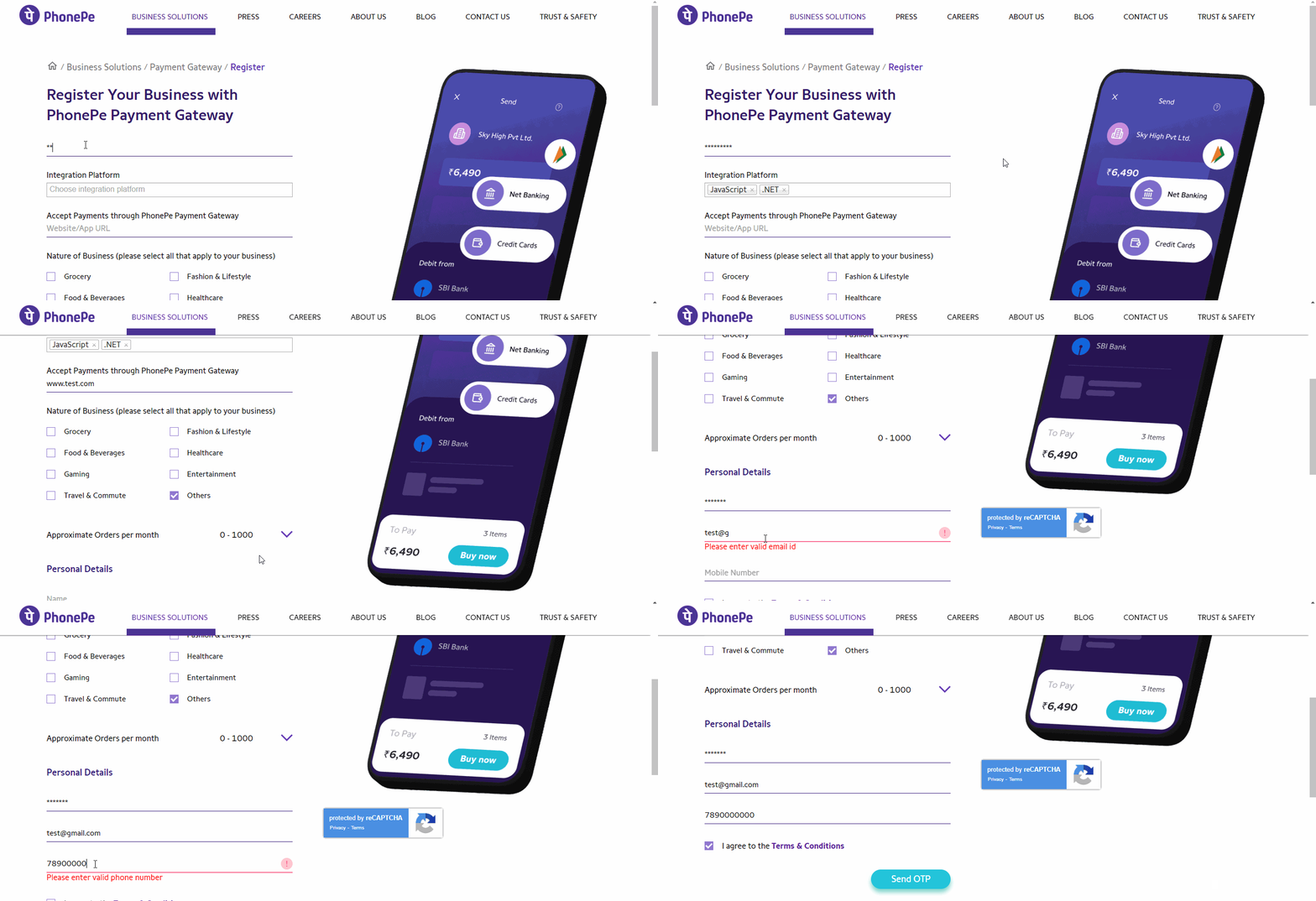
    1. Click here for Registration

    2. You'll taken to the sign-up form on the PhonePe website.

    3. In the required details in the registration form. The form may include fields such as:

      • Business name
      • Integration Platform
      • Business website
      • Contact person's name
      • Contact person's email address and phone number
      • Type of business
      • Expected monthly transaction

      Make sure to check the details you gave to make sure they're correct.

      PhonePe Integration in O2VEND
    4. Then PhonePe will send a code to your phone for registration.

    5. Enter the code, and you will get a popup confirming your form submission.

    6. Once you submit the registration form, PhonePe will review your application and may reach out for additional documents or information to complete the verification process.

    7. Submit the required documents and any extra information to PhonePe following their instructions, like proof of business registration, identity, address, and bank account details.

    8. PhonePe will assess your documents, confirm your application, and keep you informed about the status of your application, along with any additional steps required.

    9. Once verified, PhonePe will email you the production credentials and essential details, including the integration-required production quotations.

    10. After getting the production credentials, Follow these steps to connect PhonePe with O2VEND.

    Steps to integrate PhonePe with O2VEND:

    STEP 1: Configure PhonePe Settings:

    1.1 - Go To BackOffice.

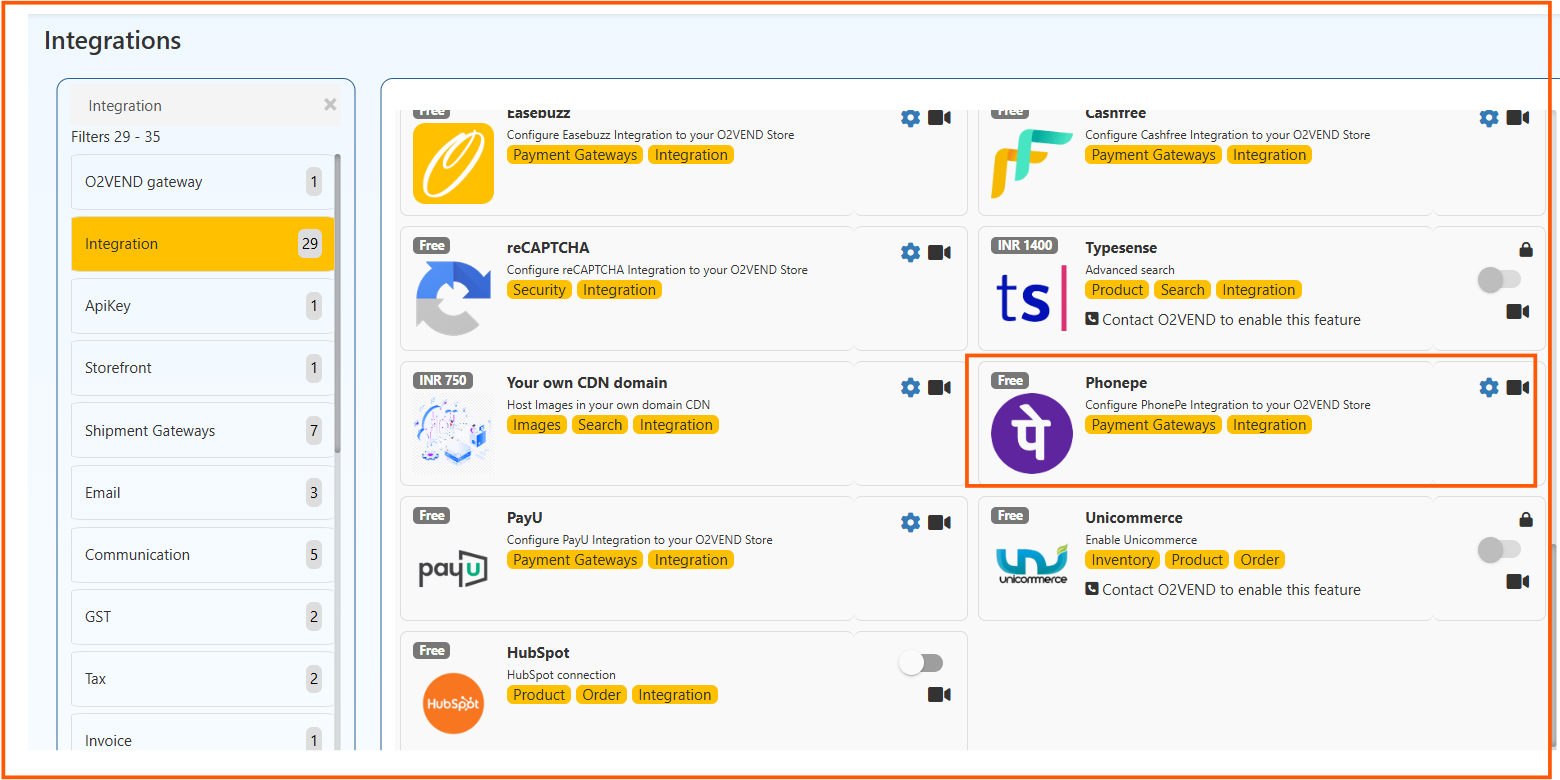
    1.2 - Open Integration -> Click PhonePe.

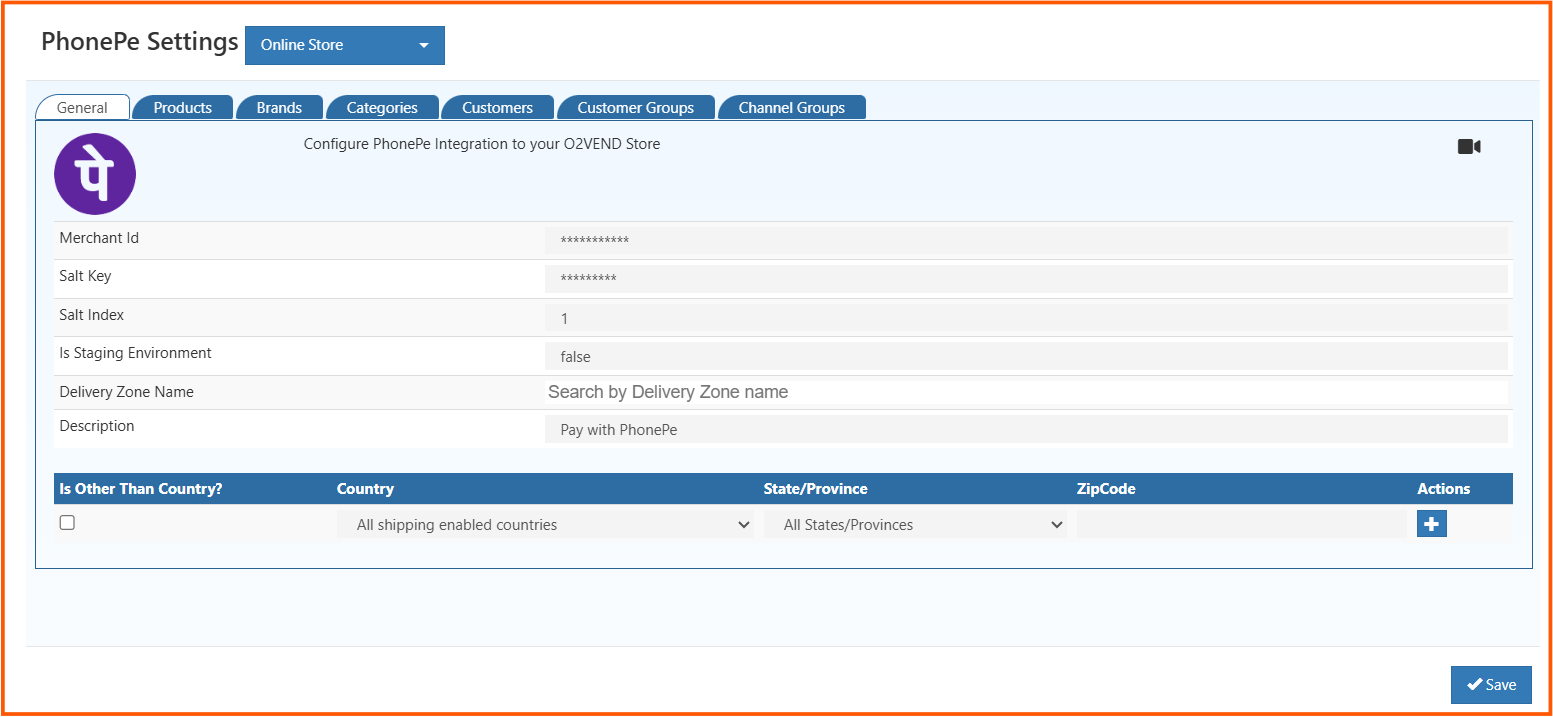
    1.3 - Enter the necessary details, MerchantID, Salt Key, and SaltIndex as received from PhonePe.

    1.4 - Enter the value for IsStagingEnvironment as True Or False. Enter the value as 'True' if you connect to PhonePe Production. Enter the value as 'False' if you connect to the PhonePe UAT / Sandbox environment.

    1.5 - The description field denotes the selected payment method, and this choice is subsequently reflected on the Order Payment page.

    1.6 - Choose your country and state and enter your zip code. Afterward, click the "save" button.

    For Example:

    1.7 - If you select India as the country and Tamil Nadu as the state and enter a zip code like (623153), then PhonePe Integration becomes a payment option. However, it's only available if your transaction meets these conditions and won't show up for transactions in other countries or states.

    1.8 - If the country, state, and zip code are left unspecified, the system will default to making the item or service available for all countries.

    PhonePe Integration in O2VEND

    STEP 2: Enable Phonepe Integration:

    2.1 - Go To Backoffice

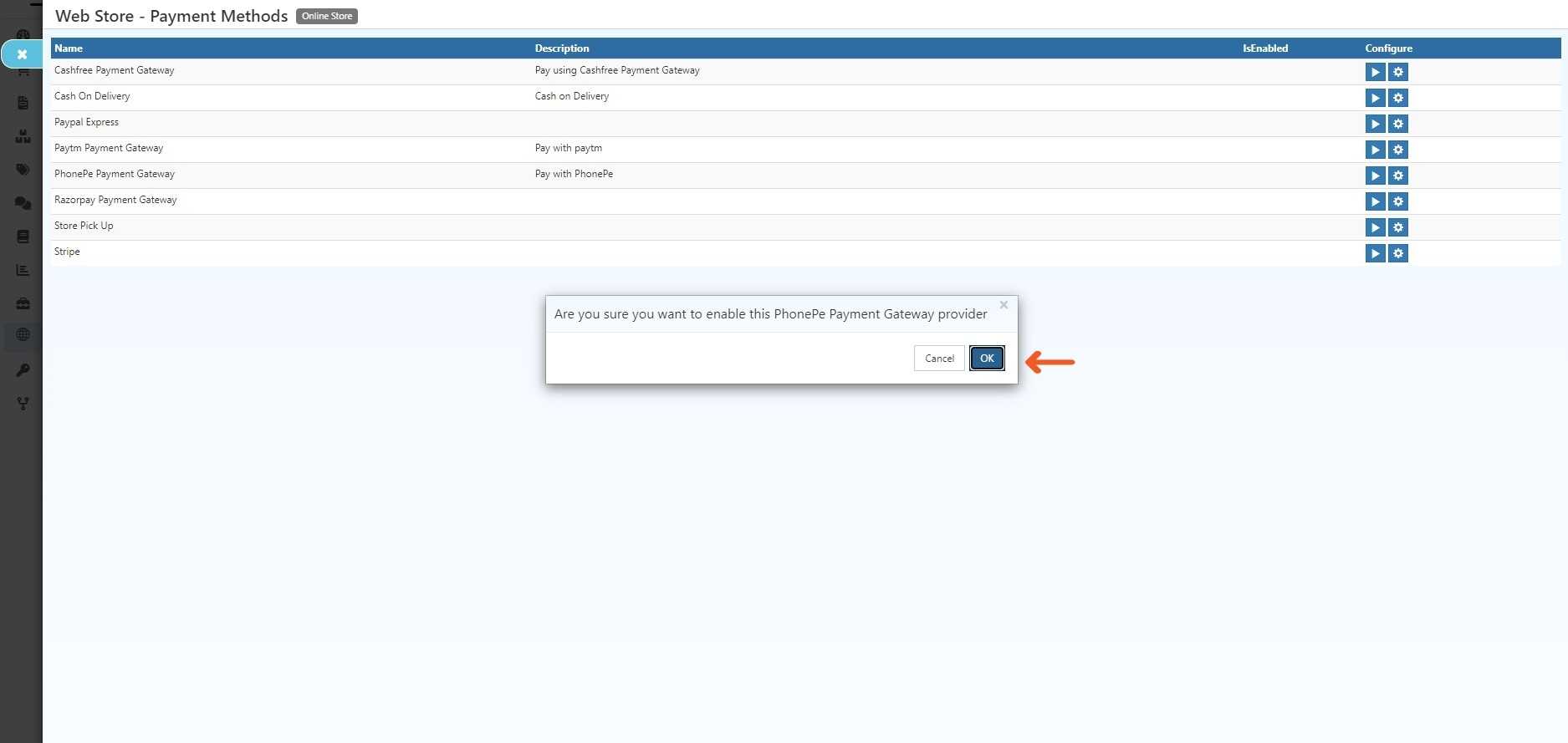
    2.2 - Go to the online store -> select Setup Payment Method.

    2.3 - Activate the PhonePe payment gateway, when a pop-up appears and click OK.

    PhonePe Integration in O2VEND

    2.4 - Phonepe Payments Gateway has been Enabled.

    PhonePe Integration in O2VEND
    In this article
    Back to top _includes/footer.html
    © 2019–2026 Jeyan Technologies Private Limited • www.o2vend.com • Create your own store