Supplier Purchase Report
The Supplier Purchase Report gives you full visibility into your procurement transactions — from order creation to current stock status. Whether you're tracing a specific order, auditing costs, or following up on incomplete deliveries, this report has everything you need in one place.
What Is the Supplier Purchase Report?
The Supplier Purchase Report in O2VEND ERP gives you a detailed view of every purchase order placed with your suppliers. Unlike the Supplier Report (which shows summary stock movement), this report goes deeper — showing each individual purchase transaction, what was ordered, how much it cost, and what the current stock looks like for each item.
It's your go-to report when you need to trace a specific purchase, verify a delivery, or audit procurement history.
How to Access It
- Log in to the O2VEND Back Office
- Navigate to Reports from the main menu
- Click on Supplier Purchase Report
- Select the Branch (or keep it as Consolidated for all branches)
- Apply your filters and view the results
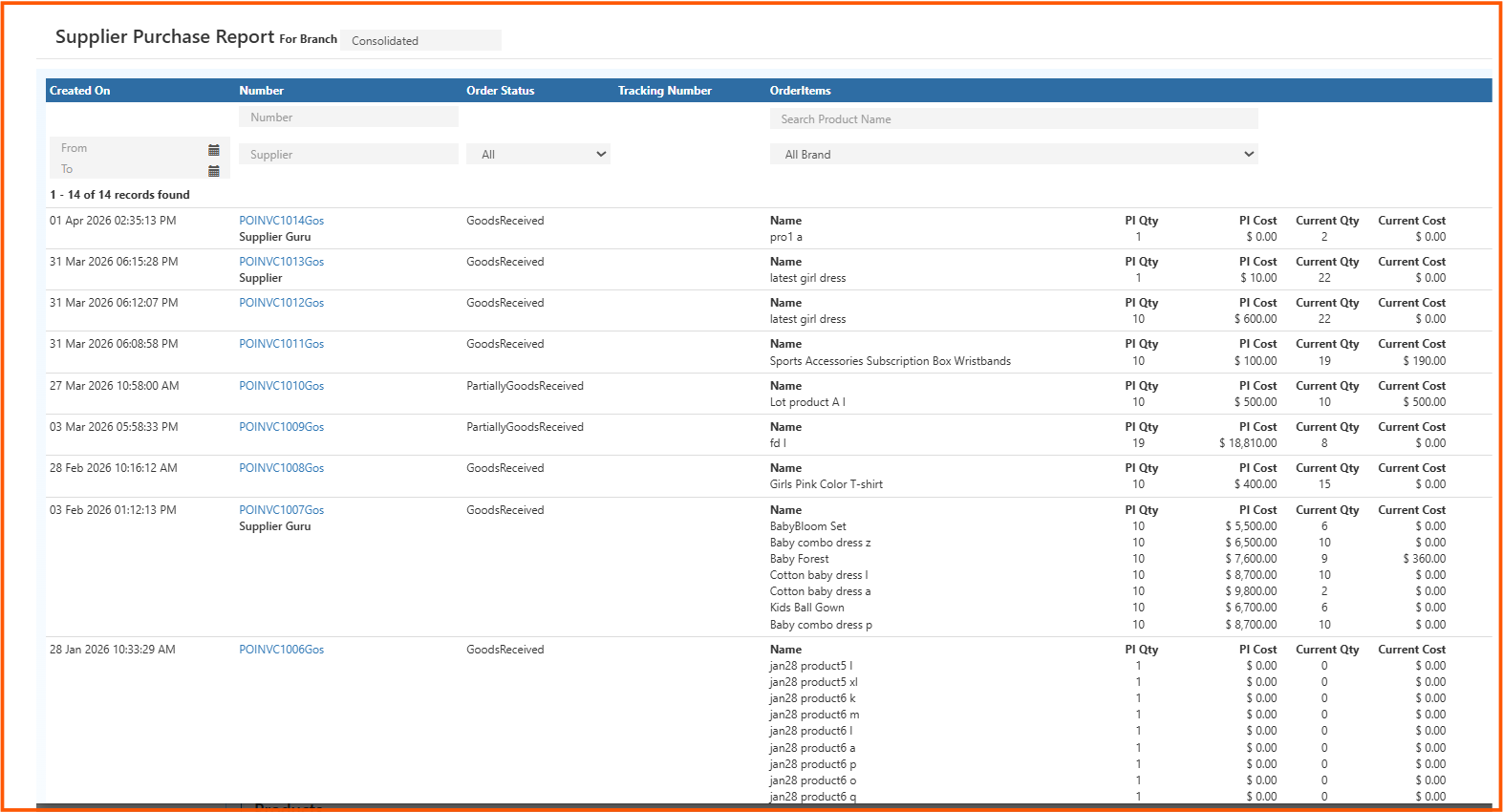
Understanding Each Column
Created On
The date and time the purchase order was created. Helps you trace when a procurement happened.
Number
The unique purchase order ID (e.g., POINVC1014Gos). Clicking on this number usually opens the full order details for deeper inspection.
Order Status
Shows the current state of the purchase order. Common statuses include:
- GoodsReceived – The full order has been received into stock
- PartiallyGoodsReceived – Only part of the order has been received so far
Tracking Number
An optional field to log the shipment or courier tracking number for the order.
Order Items
Lists all the products included in that purchase order — including product name, PI Qty, PI Cost, Current Qty, and Current Cost.
PI Qty (Purchase Invoice Quantity)
The number of units ordered from the supplier in that purchase invoice.
PI Cost (Purchase Invoice Cost)
The total cost of the items as invoiced by the supplier.
Current Qty
How many units from this purchase are still in stock right now. Useful for checking if items have been sold since they were received.
Current Cost
The current value of the remaining stock from that purchase.
Filters and Controls
The report comes with several filters to help you find exactly what you need:
Date Range (From / To) Filter purchase orders by the date they were created. Useful for monthly or quarterly procurement reviews.
Number Search by a specific purchase order number if you know the reference.
Supplier Filter by a specific supplier name to see all orders placed with them.
Order Status Filter by status — All, GoodsReceived, or PartiallyGoodsReceived — to focus on pending or completed deliveries.
Search Product Name Find orders that include a specific product across all suppliers.
All Brand Filter by brand if you want to see purchases for a particular product brand.
How to Read the Report – Practical Insights
GoodsReceived with Low Current Qty Items were received but most have already been sold. Stock is moving well — consider reordering soon.
PartiallyGoodsReceived The order is incomplete. Follow up with the supplier to confirm when the remaining items will arrive.
High PI Cost, Zero Current Cost All purchased items have been sold. No stock remains from that invoice.
Multiple Orders for the Same Product Could indicate frequent restocking of a fast-moving item — or inconsistent ordering patterns worth reviewing.
Zero PI Cost The purchase was recorded without a cost entry. This may need to be corrected for accurate financial reporting.
Real-World Use Cases
Verifying a Delivery
Use the order number and status to confirm whether a supplier's shipment has been fully or partially received.
Tracking Product Procurement History
Search by product name to see all purchases made for that item across all suppliers and time periods.
Supplier Accountability
Filter by supplier to review their order history — delivery completeness, costs, and any partially received orders.
Cost Auditing
Cross-check PI Cost vs Current Cost to understand how much of the purchased stock has been consumed or sold.
Identifying Pending Deliveries
Filter by PartiallyGoodsReceived to get a list of all open orders that still need follow-up.