O2VEND Retail ERP
  • Product
  • Solutions
  • Resources
    • Blog
    • Community
    • Partnership
    • Find Partner
    • Developer
  • Pricing
  • Docs
    • Getting Started
      • Channels
        • Sales Channel
        • O2VEND to O2VEND Channel
        • Shopify Integration Guide
    • Commerce
      • Ecommerce
      • POS
      • Agent App
      • CMS
      • Themes & Apps
      • Apps
        • Sales Navigator
    • Operations
      • OMS
      • WMS
      • O2C
      • Vendor Portal
      • Supplier Portal
    • Back Office
      • Accounting
      • Reports
      • PIM
      • Communication
      • Back Office
Search Results for

    Show / Hide Table of Contents
    • Reports and Analytics
    • Order Reports
      • Web Orders Progress Report
      • Back Order Items Report
      • Purchase Order Pending Item Report
      • Sales Order Pending Item Summary Report
      • Sales Shipping Status Report
      • Sales Order Summary
      • Sales Order Progress Report
      • Purchase Order Progress Report
      • Sales Order with Product Line Item Report
      • Sales Order Packing Sheet Report
      • Back Order Report
      • Purchase Order Summary
      • Sales Order Shipment Report
      • Sales Order Shipping Address Report
      • Sales Order Pending Item Reports
      • Unpaid Orders
    • Sales/Purchase Reports
      • Sales Invoice Report
      • Sales Invoice Summary
      • Sales Items Summary
      • Purchase Invoice Report
      • Purchase Invoice Summary
      • Purchase Items Summary
      • Receipt Report
      • Daily Settlement Report
      • Contribution Margin Report
      • Agent Sales Report
      • Agent Report
      • Employee Sales Report
      • Employee Report
      • Employee Product Sales & Commission Report
    • Supplier Reports
      • Supplier Report
      • Supplier Purchase Report
      • Supplier Detail Report
    • Inventory Reports
      • Stock Summary
      • Stock Valuation Summary
      • Stock Ageing Report
      • Location Summary
      • Stock Ledger Report
      • Stock/Location Summary
      • Stock Movement And Valuation Summary
      • Stock Movement Summary Report
      • Stock Summary Detail
    • Products
      • Sold Product Categories
      • Product Category Summary
      • Product Sale Summary
      • Category Sale Summary
      • Brand Sale Summary
      • Reordering Stock Summary
      • Price Movement
      • Product Seasonal Demand
      • Product Stock Analysis Report
      • Stock Projection Report
      • Low Stocks
    • Pos Reports
      • Cash Register Summary
      • Current Cash Registers
    • Account Reports
      • Day Book
      • Ledger
      • Cash Book
      • Sales Books
      • Purchase Books
      • Daily Sales and Payment Report
      • Balance Sheet
      • Profit and Loss Report
      • Trial Balance
    • Miscellaneous Reports
      • Output Detailed Tax Report
      • Output Tax Report Summary
      • Account Receivable Report
      • Gross Profit Report
      • Daily Tax Report
      • GSTR-1 Report
      • External API Logs
      • Benefit Usage
      • Offers Usage
      • Coupon Usage
      • Channel Report
      • Configuration Change History
      • VisitLog

    📑 How to Generate & Download GSTR-1 JSON in O2VEND

    The GSTR-1 Report in O2VEND ERP helps businesses prepare accurate monthly or quarterly GST returns.
    It consolidates B2B, B2C, and HSN summaries into a filing-ready format and allows instant download of a GST-compliant JSON file for portal upload.


    What is the GSTR-1 Report?

    The GSTR-1 Report is an outward supply summary that compiles sales invoice data for a selected period.
    It categorizes transactions into:

    • B2B Invoices – Registered customers
    • B2C Large Invoices – High-value unregistered sales
    • B2C Other Invoices – Retail transactions
    • Nil Rated / Exempt Supplies
    • Credit & Debit Notes
    • HSN-wise Summary
    • Total Taxable Value & GST Amount

    Reports can be generated at branch level or consolidated level.


    Why It’s Important

    Accurate GSTR-1 filing requires structured outward supply data. This report ensures:

    • GST compliance
    • Eliminates manual tax errors
    • Improves reconciliation accuracy
    • Auto-classifies invoices (B2B/B2C)
    • Provides audit-ready documentation

    Use this report to:

    • Prepare monthly/quarterly GSTR-1 returns
    • Download GST JSON file for portal upload
    • Validate invoice tax totals
    • Review HSN-wise turnover
    • Cross-check branch-wise outward supply

    How to Access the GSTR-1 Report

    Navigation Path:
    Back Office → Reports → Miscellaneous → GSTR-1

    Steps:

    1. Select required Date Range
    2. Choose Branch or Consolidated
    3. Review invoice summaries
    4. Click Export JSON to download GST-ready file
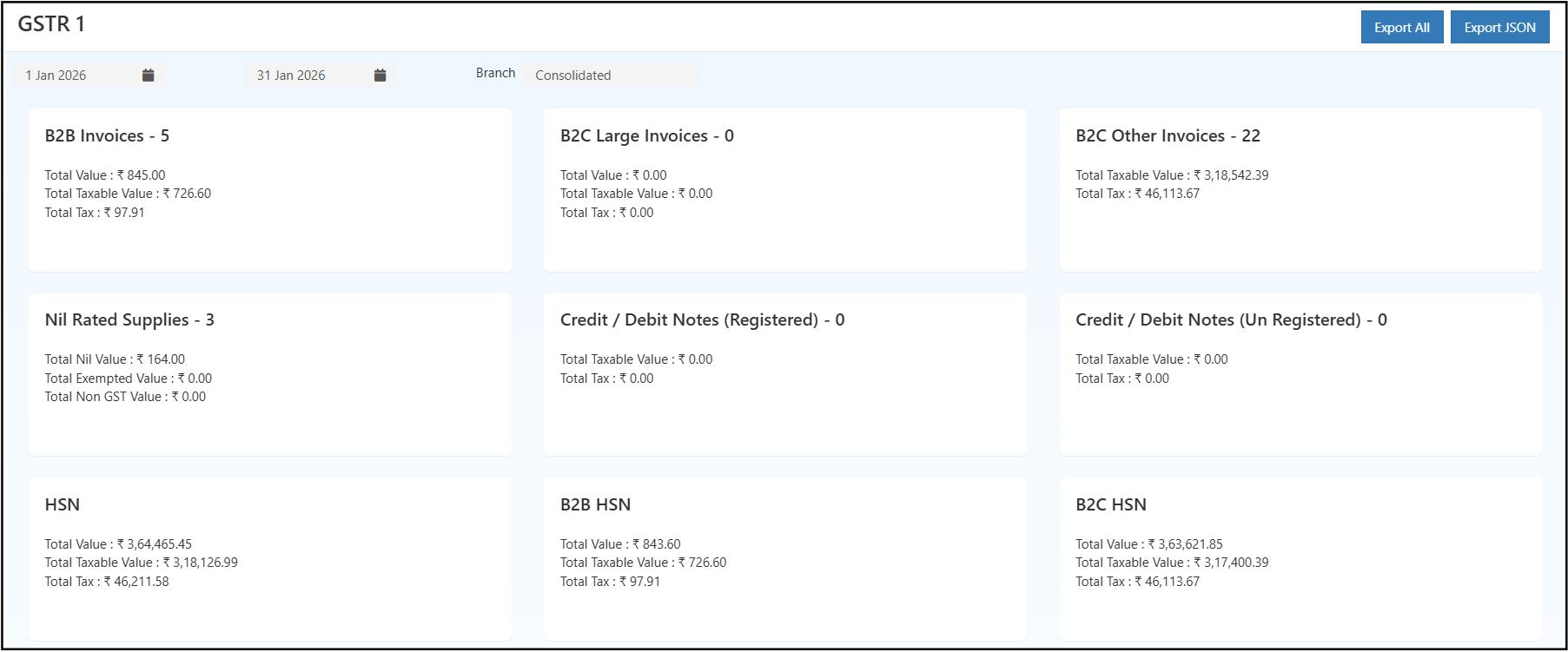
    GSTR1 Report


    How to Download GSTR-1 JSON File

    1. Open Back Office
    2. Navigate to Reports → Miscellaneous → GSTR-1
    3. Select filing period (Monthly / Quarterly)
    4. Verify B2B, B2C, and HSN summary
    5. Click Export JSON
    6. Upload the file to the GST portal

    Filters & Controls

    • Date Range Filter → Select month, quarter, or custom period
    • Branch Selection → View branch-specific or consolidated data
    • Export Options → Export All / Export JSON

    Report View Explained

    The dashboard displays categorized GST sections:

    • B2B Invoices – Registered customer sales with GST breakup
    • B2C Large Invoices – High-value unregistered transactions
    • B2C Other Invoices – Retail sales summary
    • Nil Rated Supplies – Exempt or non-taxable transactions
    • Credit/Debit Notes – Sales adjustments
    • HSN Summary – HSN-wise taxable value and tax totals

    Each section shows:

    • Total Value
    • Taxable Value
    • GST Amount

    Invoice Verification

    • Review detailed invoice data
    • Validate tax breakdown per invoice
    • Identify discrepancies before export

    This minimizes filing corrections and improves submission accuracy.


    How to Use Effectively

    1. Generate report for current filing month
    2. Compare totals with Sales Register
    3. Verify tax summary using Tax Reports
    4. Validate HSN breakup
    5. Download JSON file
    6. Upload to GST portal

    For cross-verification, refer to:

    • Tax Reports
    • Account Receivable Report
    • Purchase Summary
    • Sales Summary Report

    Business Benefits

    • Accurate GST Compliance → Auto-classified outward supply data
    • Faster JSON Export → Instant GST-ready file generation
    • Better Tax Visibility → Clear breakdown of B2B, B2C, and HSN data

    Export Options

    • Export All → Full structured report data
    • Export JSON → GST-compliant JSON file for portal upload

    Related Reports

    • Sales Report
    • Daily Settlement Report
    • Sales Item Summary Report

    ###Refer Blog

    • How to Export GSTR-1 Report from O2VEND Back Office
    In this article
    O2VEND

    O2VEND Help Center for Ecommerce, Back Office, POS, Agent App, PIM, OMS, WMS, Accounting, O2C, CMS, and ERP Reports workflows.

    Get Demo Contact Sales

    Product Docs

    Ecommerce Back Office Point of Sale Agent App Warehouse (WMS)

    Module Docs

    PIM OMS Accounting Order to Cash (O2C) CMS

    Resources

    Ecommerce POS Back Office Agent App Restaurant POS Integrations

    Community and Company

    Blog Community Partnership Find Partner Developer Pricing

    © 2019-2026 Jeyan Technologies Private Limited. All rights reserved.

    Privacy Policy • Terms of Service • Cancellation & Refund