Product Sale Summary Report in O2VEND
Product-wise Sales Analysis & Scheduled Reports
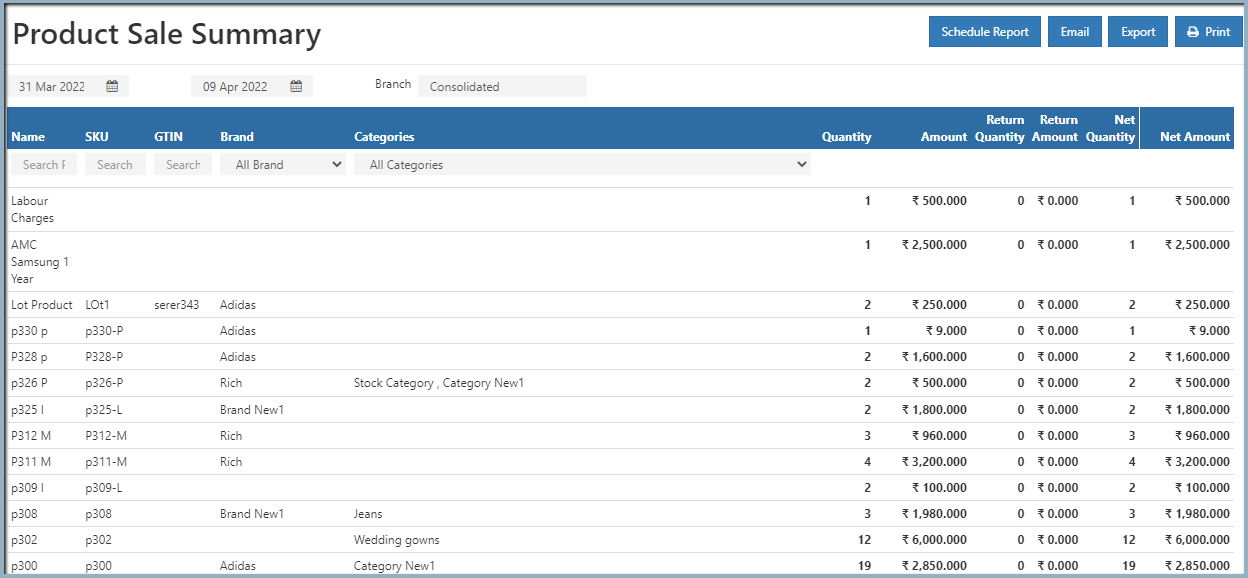
The Product Sale Summary Report in O2VEND Back Office provides a detailed breakdown of product sales performance. Organized by brand and category, it shows sold quantities, total quantities, and total sales amounts. This helps businesses identify top-performing products, track trends, and make data-driven decisions.
How to Access the Report
- Open Back Office
- Navigate to the Reports section
- Select Product Sale Summary
- By default, the report displays data for the current date
- Adjust Start Date and End Date to view historical data
- Apply filters for branch, category, or brand
Tip
Use Export All or Export Current Page to download the report in CSV format for offline analysis or documentation.
Scheduled Reports
You can automate reporting by scheduling the Product Sale Summary Report to run daily, weekly, monthly, or yearly. Scheduled reports are automatically sent to designated users, ensuring timely insights without manual effort.
How to Schedule a Report
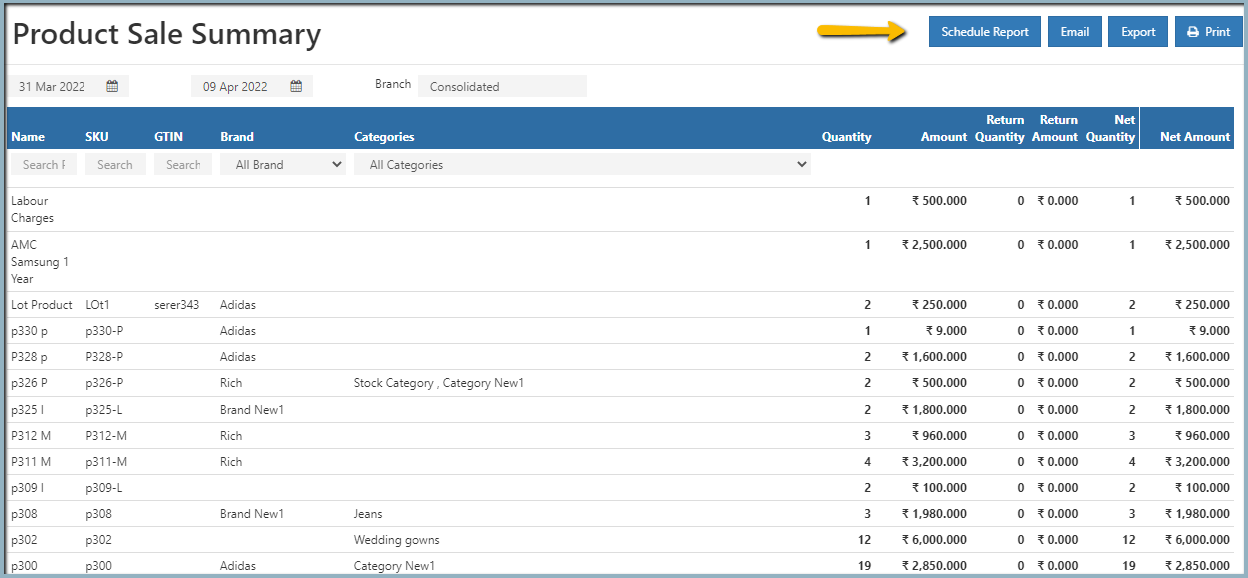
- Click the Schedule Report button in the top-right corner
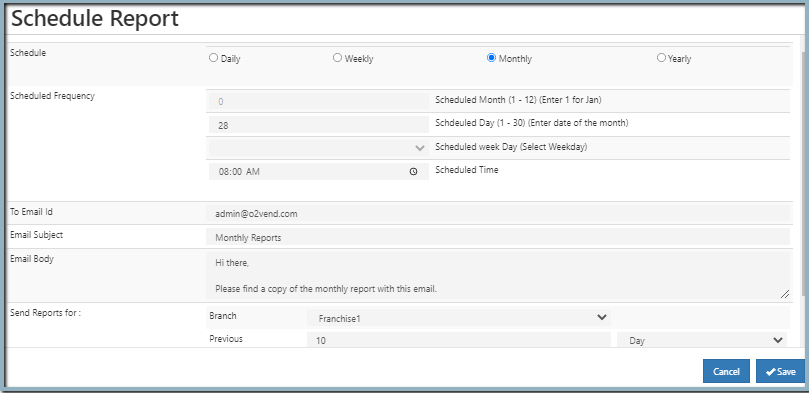
- Enter scheduling criteria (frequency, recipients, email details)
- Save the schedule to activate automated reporting
Scheduling Options
| Option | Description |
|---|---|
| Schedule | Choose frequency: Daily, Weekly, Monthly, or Yearly |
| Scheduled Frequency | Configure time/day/month based on frequency |
| To Email ID | Enter recipient email addresses |
| Email Subject | Define subject line for the report email |
| Email Body | Add message content for the email |
| Branch Selection | Choose which branch data to send |
| Previous Period | Select how many days/months/years of past data to include |
Profile Management
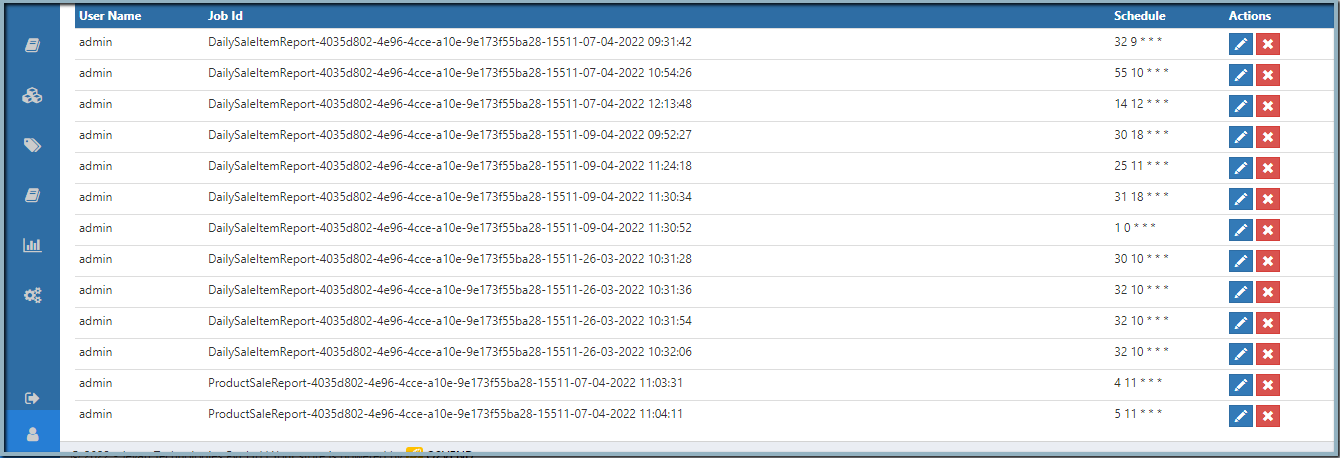
Once scheduled, reports appear in the Profile section of O2VEND Back Office.
- Edit → Update schedule details
- Delete → Remove a scheduled report
Benefits
- Provides clear product-wise sales insights
- Identifies top-performing brands and categories
- Automates reporting for regular updates
- Supports financial documentation and audits
- Saves time with scheduled delivery to stakeholders