O2VEND Retail ERP
  • Product
  • Solutions
  • Resources
    • Blog
    • Community
    • Partnership
    • Find Partner
    • Developer
  • Pricing
  • Docs
    • Getting Started
      • Channels
        • Sales Channel
        • O2VEND to O2VEND Channel
        • Shopify Integration Guide
    • Commerce
      • Ecommerce
      • POS
      • Agent App
      • CMS
      • Themes & Apps
      • Apps
        • Sales Navigator
    • Operations
      • OMS
      • WMS
      • O2C
      • Vendor Portal
      • Supplier Portal
    • Back Office
      • Accounting
      • Reports
      • PIM
      • Communication
      • Back Office
Search Results for

    Show / Hide Table of Contents
    • Reports and Analytics
    • Order Reports
      • Web Orders Progress Report
      • Back Order Items Report
      • Purchase Order Pending Item Report
      • Sales Order Pending Item Summary Report
      • Sales Shipping Status Report
      • Sales Order Summary
      • Sales Order Progress Report
      • Purchase Order Progress Report
      • Sales Order with Product Line Item Report
      • Sales Order Packing Sheet Report
      • Back Order Report
      • Purchase Order Summary
      • Sales Order Shipment Report
      • Sales Order Shipping Address Report
      • Sales Order Pending Item Reports
      • Unpaid Orders
    • Sales/Purchase Reports
      • Sales Invoice Report
      • Sales Invoice Summary
      • Sales Items Summary
      • Purchase Invoice Report
      • Purchase Invoice Summary
      • Purchase Items Summary
      • Receipt Report
      • Daily Settlement Report
      • Contribution Margin Report
      • Agent Sales Report
      • Agent Report
      • Employee Sales Report
      • Employee Report
      • Employee Product Sales & Commission Report
    • Supplier Reports
      • Supplier Report
      • Supplier Purchase Report
      • Supplier Detail Report
    • Inventory Reports
      • Stock Summary
      • Stock Valuation Summary
      • Stock Ageing Report
      • Location Summary
      • Stock Ledger Report
      • Stock/Location Summary
      • Stock Movement And Valuation Summary
      • Stock Movement Summary Report
      • Stock Summary Detail
    • Products
      • Sold Product Categories
      • Product Category Summary
      • Product Sale Summary
      • Category Sale Summary
      • Brand Sale Summary
      • Reordering Stock Summary
      • Price Movement
      • Product Seasonal Demand
      • Product Stock Analysis Report
      • Stock Projection Report
      • Low Stocks
    • Pos Reports
      • Cash Register Summary
      • Current Cash Registers
    • Account Reports
      • Day Book
      • Ledger
      • Cash Book
      • Sales Books
      • Purchase Books
      • Daily Sales and Payment Report
      • Balance Sheet
      • Profit and Loss Report
      • Trial Balance
    • Miscellaneous Reports
      • Output Detailed Tax Report
      • Output Tax Report Summary
      • Account Receivable Report
      • Gross Profit Report
      • Daily Tax Report
      • GSTR-1 Report
      • External API Logs
      • Benefit Usage
      • Offers Usage
      • Coupon Usage
      • Channel Report
      • Configuration Change History
      • VisitLog

    Sales Item Summary Report

    The Sales Item Summary Report in O2VEND gives a complete view of product-level sales along with stock details. It brings together sales, returns, and inventory data into a single screen, making it easier to understand how each product is performing.

    Instead of checking separate reports for sales and stock, this report combines everything so you can quickly analyze performance and take action.

    How to view the Sales Item Summary Report

    1. Open Back Office
    2. Click Reports Section or use shortcut key (Alt+R) the reports section willbe open.
    3. Click Sales Item Summary to view the report.
    4. The Sales Item Summary will be shown for the current date.
    5. Change Start Date and End Date.
    6. The report will be automatically refreshed with the values for new dates selected.
    Tip

    Use Export All options to export the report details in to comma seperated CSV file.
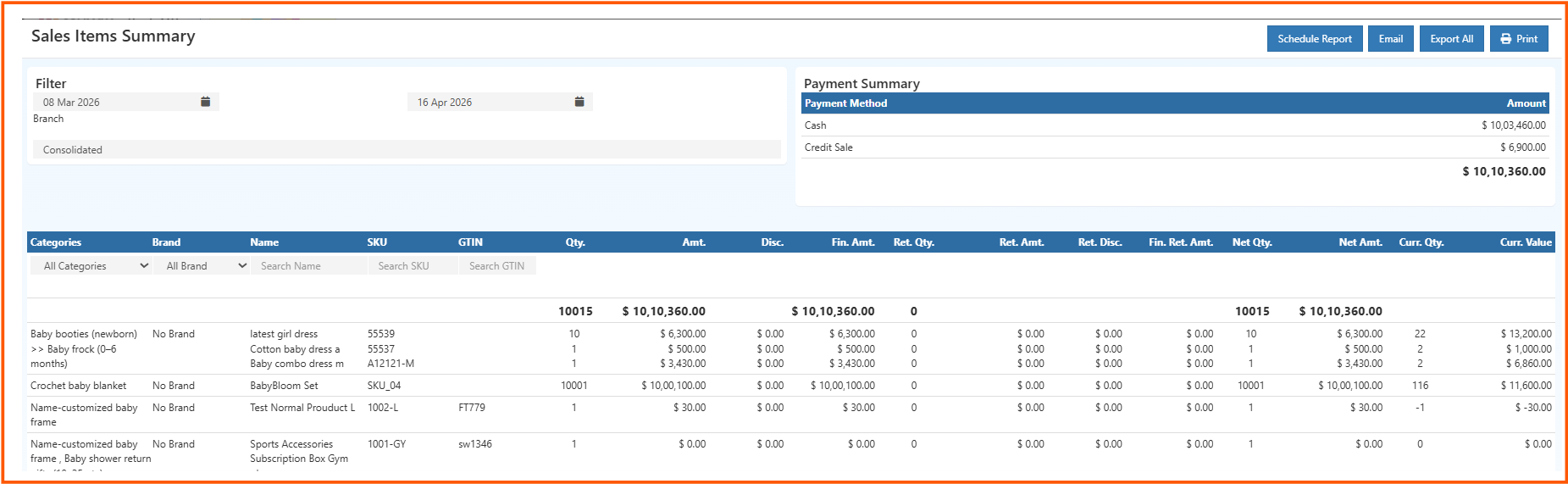
    salesitemsummary report

    How the Report Works

    At the top of the report, you’ll find basic filters to control the data:

    • Date Range – Select the period you want to analyze
    • Branch – Choose consolidated view or a specific branch

    Once you update these filters, the report refreshes automatically and shows updated results.

    On the right side, there is a Payment Summary section. This gives a quick breakdown of total revenue based on payment methods like cash and credit sales. It helps you quickly understand how payments are being collected.


    Report Overview

    Each row in the report represents a product, along with detailed information about its sales and stock.

    You’ll be able to see:

    • Product details like category, brand, name, and SKU
    • Quantity sold and total sales amount
    • Discounts applied and final sales value
    • Return quantities and return amounts
    • Net sales quantity and value after returns
    • Current stock quantity and stock value

    This combination makes it easy to compare sales performance with available inventory.


    Filters Inside the Report

    To make analysis easier, you can filter data within the report itself:

    • Filter by Category
    • Filter by Brand
    • Search using Product Name, SKU, or GTIN

    These filters are useful when working with a large number of products.


    Key Actions

    At the top right corner, you’ll find important actions:

    • Export All – Download the report for offline use
    • Print – Generate a printable version
    • Email – Share the report instantly
    • Schedule Report – Automate report delivery

    Schedule Report

    You can automate this report to run at regular intervals and send it directly to your email or team.
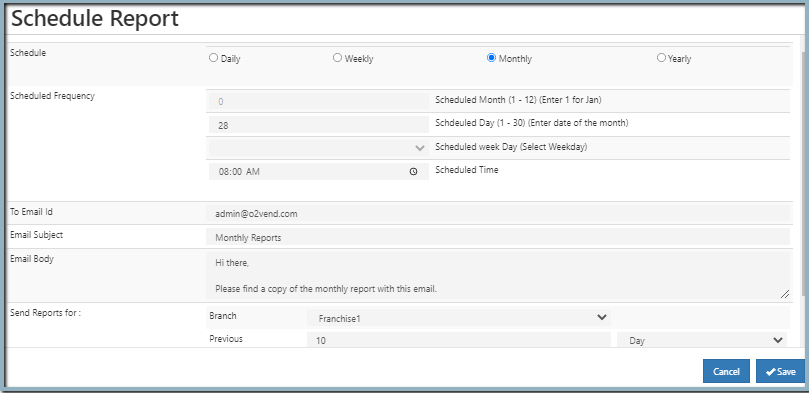
    Schedule Report

    To set it up:

    • Select frequency (daily, weekly, monthly, or yearly)
    • Choose the time for execution
    • Enter email details (recipients, subject, message)
    • Select branch and reporting period
    • Save the schedule

    Once configured, the system will automatically generate and send the report.


    Managing Scheduled Reports

    After scheduling, all reports can be managed from the profile section.
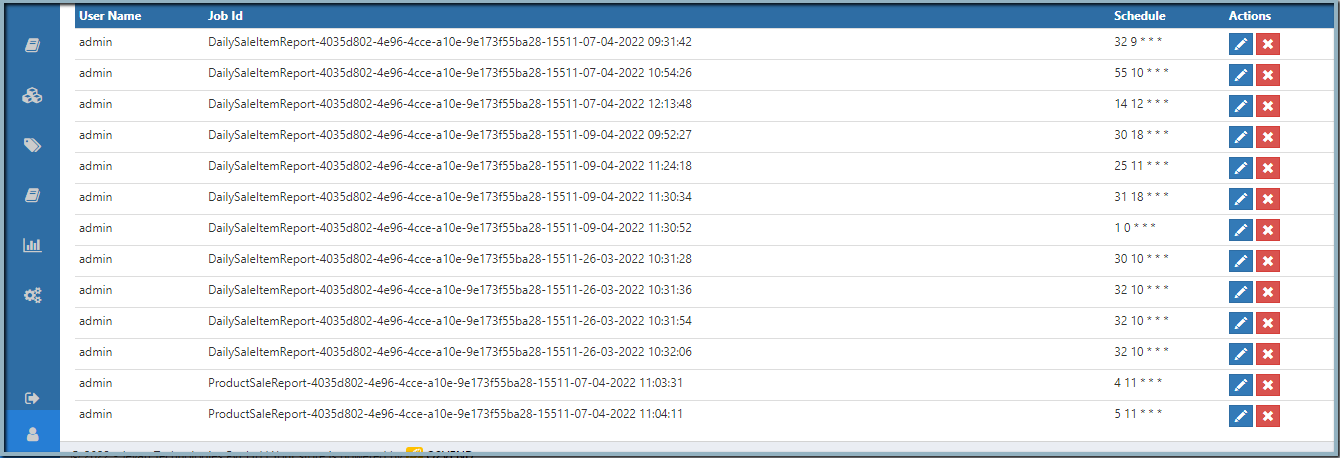
    Profile Section

    From here, you can:

    • View all scheduled reports
    • Edit schedules if changes are needed
    • Delete reports that are no longer required

    Why This Report is Useful

    This report helps you make better decisions by answering questions like:

    • Which products are selling the most?
    • Are there products with high returns?
    • Is stock aligned with demand?
    • Which items need restocking?

    By combining sales and inventory data, it reduces manual work and improves accuracy.


    Tip

    Use the Export All option regularly to maintain backup records or to share insights with your team.

    In this article
    O2VEND

    O2VEND Help Center for Ecommerce, Back Office, POS, Agent App, PIM, OMS, WMS, Accounting, O2C, CMS, and ERP Reports workflows.

    Get Demo Contact Sales

    Product Docs

    Ecommerce Back Office Point of Sale Agent App Warehouse (WMS)

    Module Docs

    PIM OMS Accounting Order to Cash (O2C) CMS

    Resources

    Ecommerce POS Back Office Agent App Restaurant POS Integrations

    Community and Company

    Blog Community Partnership Find Partner Developer Pricing

    © 2019-2026 Jeyan Technologies Private Limited. All rights reserved.

    Privacy Policy • Terms of Service • Cancellation & Refund