Delivery Zone
Delivery Zones (Shipping Zones) allows to specify which zip codes will receive your product. Delivery zones can be linked to inventory locations and product categories, so a specific warehouse can serve a zone with specific categories. So a designated warehouse serves the zone with in the categories mapped.
A delivery zone is a collection of zip codes and categories (groups of products). Allows customers to place orders from a specific geographic region within the delivery zone. Allows adding several zip codes in the same delivery zone.
Each delivery zone has a primary warehouse, and each zip code has its own warehouse. When the customer enters their zip code, a list of items relevant to that zip code is displayed, allowing them to know which products are available in that region.
Delivery zone model
A delivery zone is a geographical area where deliveries are made. There are two types of delivery zones: parent delivery zones and sub delivery zones.
Parent Delivery zones(Dzs) > sub delivery zones(SDZs)
Parent Delivery zones(DZs)
A parent delivery zone is a larger geographical area that contains one or more sub-delivery zones.
Sub Delivery Zones(SDZs)
A sub-delivery zone is a smaller geographical area that is contained within a parent delivery zone.
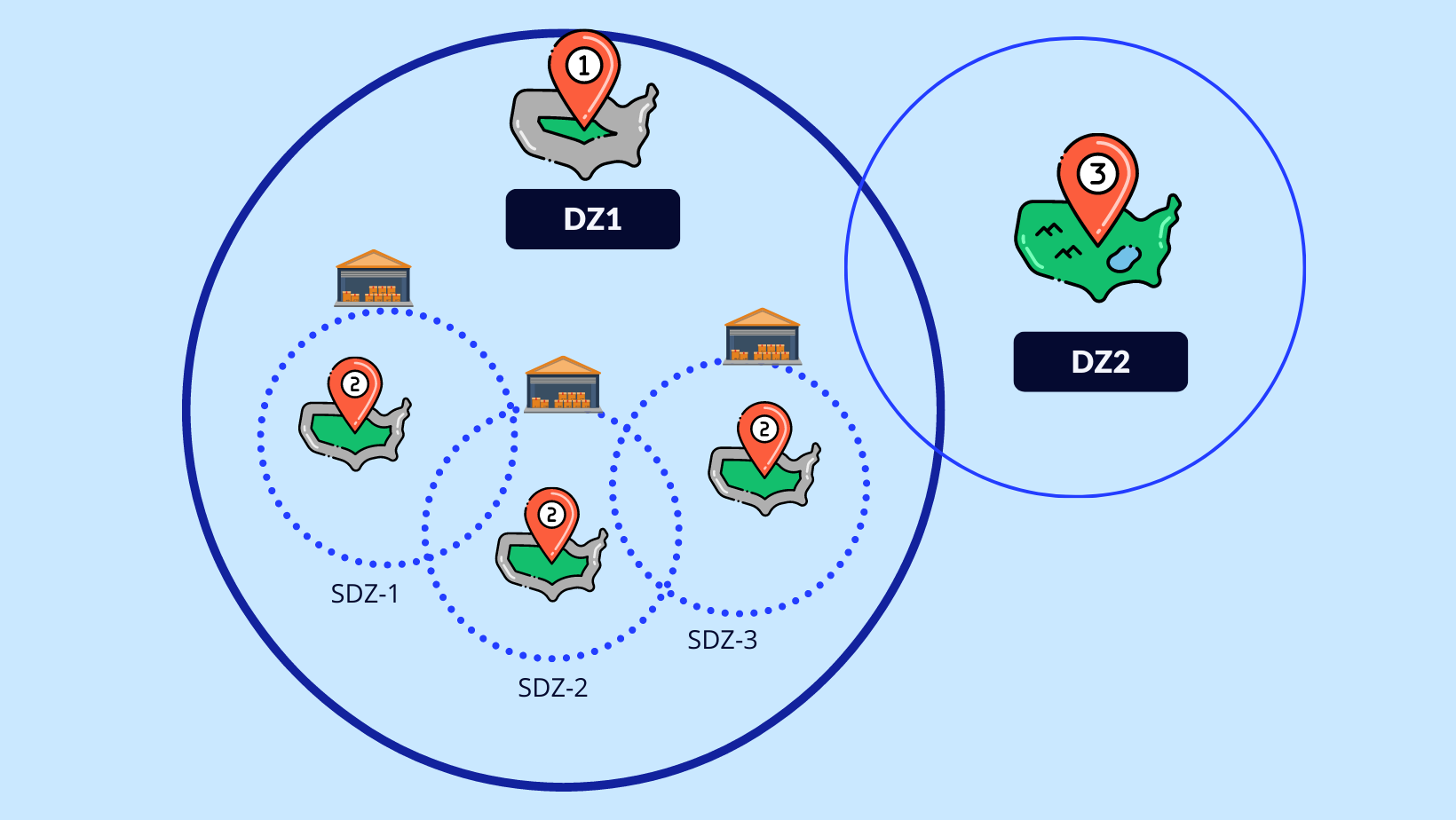
This section will explain how to set up delivery zone in O2VEND settings.
Products serviceability Zone categories refers to a group of items. When the allocated zone categories are unavailable, the grouped items are presented in the displayable categories.
Products availability When this zone availability key is enabled, the store's stock availability for each product in the specified zip code is checked with warehouse quantities. For this functionality, choose "enable" by going to Back office -> Settings -> Features -> In the Web store section, set "enable" in the zone availability.
How to create delivery zone
Open Back Office.
Go to the Settings menu and see Branch/Location/Stock section.
Click and open Delivery Zone.
Click the Create Zone button.
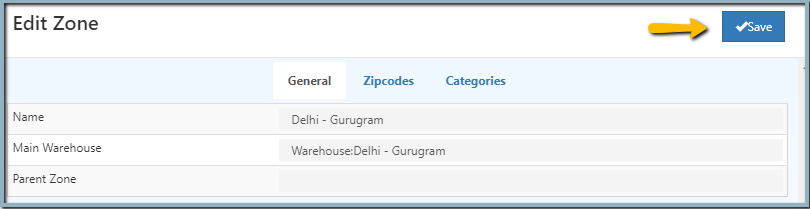
In the general section, type the name of the zone and choose the parent/main warehouse.
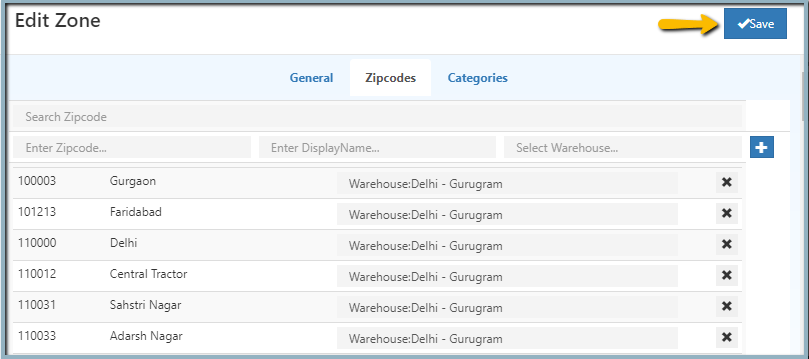
Enter the display name, warehouse, and zip codes in the zip code field. Click the Add button after adding these details.
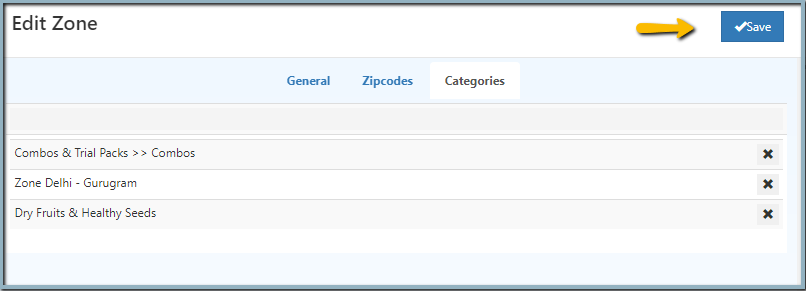
Select the category name in the categories section.
Click the Save button in the upper right corner after filling out this information.
General
Zone name
Enter a zone name so that it can be easily identified and differentiated from other zone names.
Main warehouse
The main warehouse is a primary warehouse in this zone. Choose this zone's main warehouse.
Parent Zone
This zone is a sub zone when choosing the parent zone. chooses the parent zone to identify this zone's parent.
Zip codes
Zip code
A zip code is a unique code for all districts. Enter the zip code displayed in the online store. This section allows you to add new zip codes.
display name
Enter the display name associated with the zip code.
Warehouse name
A warehouse is a location where items are kept before being sold. Choose a warehouse or store in this zone.
Category
Choose which categories will appear in the delivery zone.
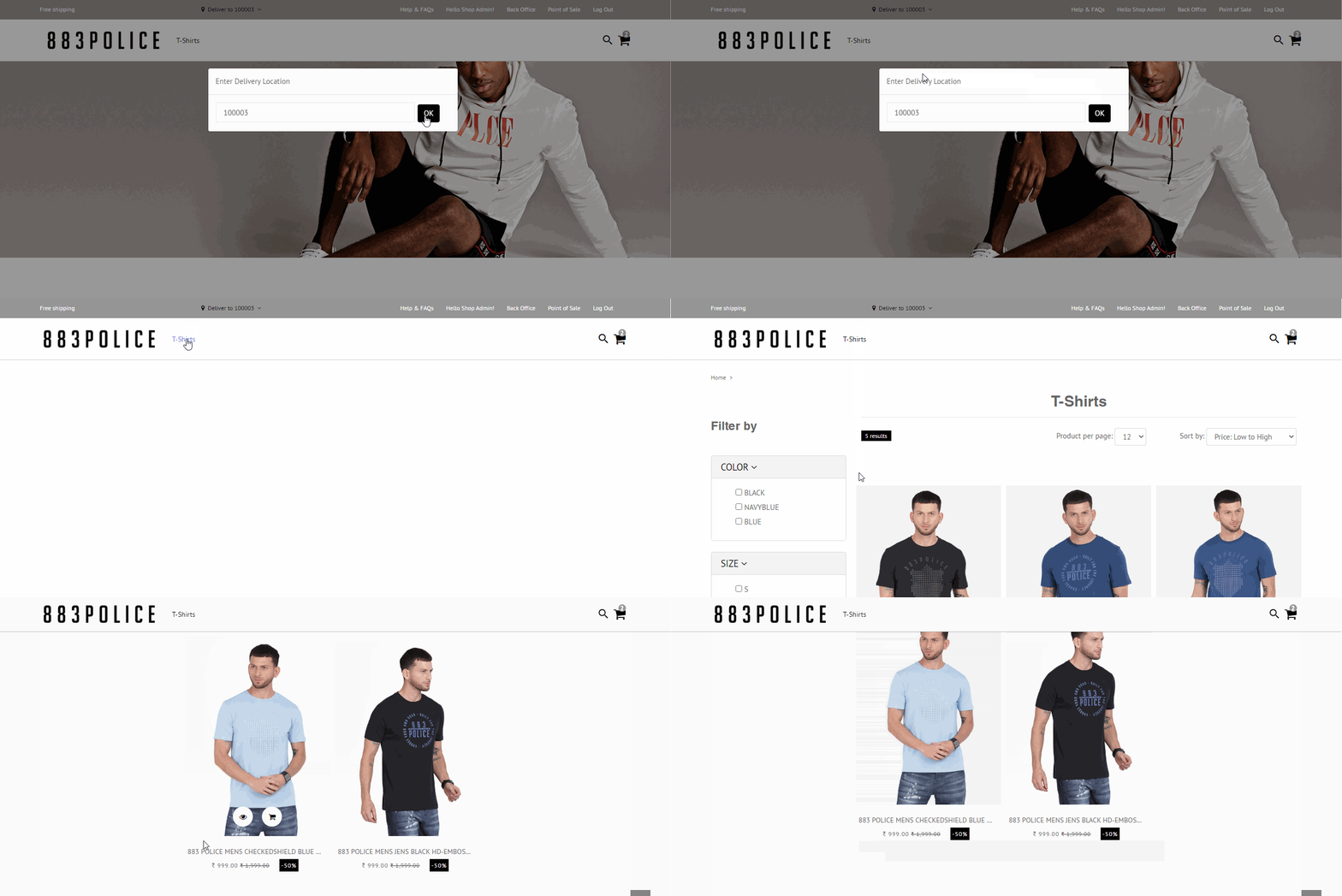
How to set a shipping rates for particular delivery zone
Use delivery zones to provide different shipping prices based on the customer's location. For example, users can provide free shipping or set shipping charges for all orders with a destination in a specific zone.
Navigate to the O2VEND Settings section.
Look to the Web Store section.
Navigate to the Shipping Methods area.
Open the Table rates by clicking on it.
Choose the delivery zones and input the shipping charges here.
Click the Save option.