Unit of Measure (UOM) Setup in O2VEND for Accurate Inventory Management
Learn how to create and manage Units of Measure (UOM) in O2VEND Back Office to improve inventory accuracy, pricing consistency, and stock control.
The Unit of Measure (UOM) feature in O2VEND Back Office defines how products are purchased, stored, and sold. It ensures consistency across inventory, pricing, and billing processes.
Products can be managed in units such as pieces, kilograms, litres, or in grouped formats like 6-pack or 12-pack, depending on business needs.
Why Unit of Measure Setup Is Important in Inventory Systems
Configuring UOM correctly helps maintain consistency across all operations:
- Improves inventory tracking accuracy
- Ensures consistent pricing and billing
- Supports accurate order fulfilment
- Reduces errors in stock handling
- Enables multi-unit product management
UOM Configuration for Retail and POS Efficiency
O2VEND supports flexible UOM structures, making it suitable for:
- Supermarkets and FMCG businesses
- Pharmacies and retail stores
- Omnichannel eCommerce operations
This flexibility helps maintain accurate stock levels and simplifies managing products sold in multiple units or packaging formats.
Video Tutorial: How to Configure UOM in O2VEND
How to Navigate to Unit of Measure Settings in O2VEND
Follow these steps to access the UOM configuration page:
- Go to Back Office Dashboard
- Navigate to Settings > Inventory
- Click Unit of Measure
Here, you can view and manage all measurement units such as grams, litres, pieces, and more.
How to Create a Unit of Measure in O2VEND
To add a new UOM:
- Click Create UOM
- Enter the required details
- Click Save
UOM Fields and Their Meaning
| Field | Description |
|---|---|
| Name | Full name of the unit (e.g., Kilogram, Litre, Packet) |
| Symbol | Short form (e.g., Kg, Lt, Pc) |
| Active | Enable or disable the unit |
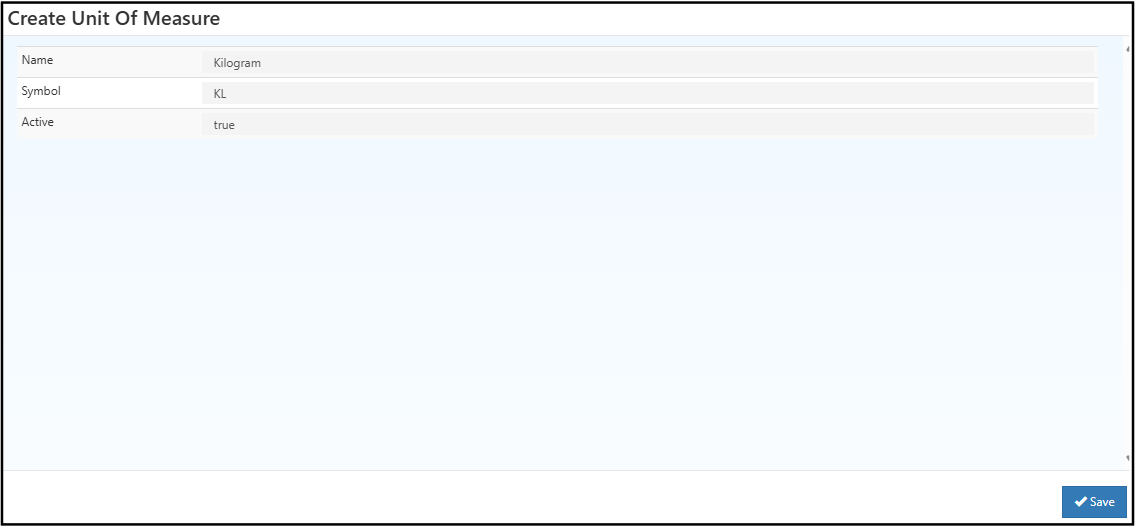
Step-by-Step Process to Add or Manage UOM
- Open O2VEND Back Office
- Go to Settings > Inventory > Unit of Measure
- Click Create UOM
- Enter Name and Symbol
- Set Active status
- Click Save
- Assign the UOM during Product Creation or updates
- Use Edit/Delete options as needed
This ensures accurate product configuration and supports multi-unit pricing across POS and online platforms.
How to Edit or Update a Unit of Measure
You can modify existing UOM details at any time.
Available Fields
- Name – Full unit name (e.g., Kilogram)
- Symbol – Abbreviation (e.g., Kg)
- Active – Status of the unit
- True – Active
- False – Inactive
Click Save to apply changes.
Best Practices for UOM Setup in Retail Inventory
Use Standard Unit Abbreviations
Use commonly accepted formats such as Kg, Lt, Ml, Pc for clarity.
Avoid Duplicate Units
Do not create multiple variations like Piece, Pc, Pcs—choose one standard.
Assign UOM During Product Setup
Always link the correct unit when creating products to avoid pricing and stock errors.
Related Inventory Configuration Pages
Get Started with UOM Setup
Start configuring your units today to improve inventory accuracy and efficiency.
Proper UOM setup helps reduce errors, streamline operations, and improve overall inventory control across your business.