Stock Levels | Inventory Reorder and Safety Stock Settings
Learn how to configure Stock Levels in O2VEND Back Office, including reorder quantity, minimum and maximum stock, lead time, and safety stock.
Stock Levels help you control how much stock should be available for each product. By setting reorder points and safety stock, you can reduce stockouts, avoid overstocking, and keep replenishment easier to manage.
Navigation
Open the page from the Back Office navigation:
Back Office > Settings > Inventory > Stock Levels
The inventory shortcut area also includes:
- Locations
- Sub Locations
- Unit Of Measure
- Unit Of Measure Conversion
- Print Barcode Label Settings
- Package Material
What Do Stock Levels Control?
Stock Levels define the quantity limits used to manage product availability and replenishment.
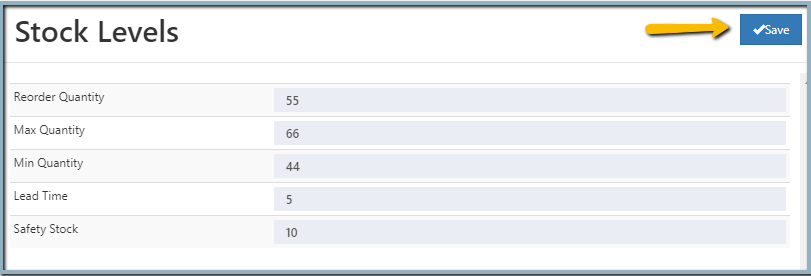
- Reorder Quantity - The quantity that triggers a new purchase or replenishment
- Max Quantity - The highest stock level you want to keep
- Min Quantity - The lowest stock level before reorder planning starts
- Lead Time - The time needed to restock after ordering
- Safety Stock - Extra stock kept for unexpected demand or delays
How Do I Set Up Stock Levels?
- Open Stock Levels from the Inventory settings.
- Enter the required values for each field.
- Review the numbers before saving.
- Click Save.
Where Are Stock Levels Used?
Stock levels are also visible while creating or editing a product.
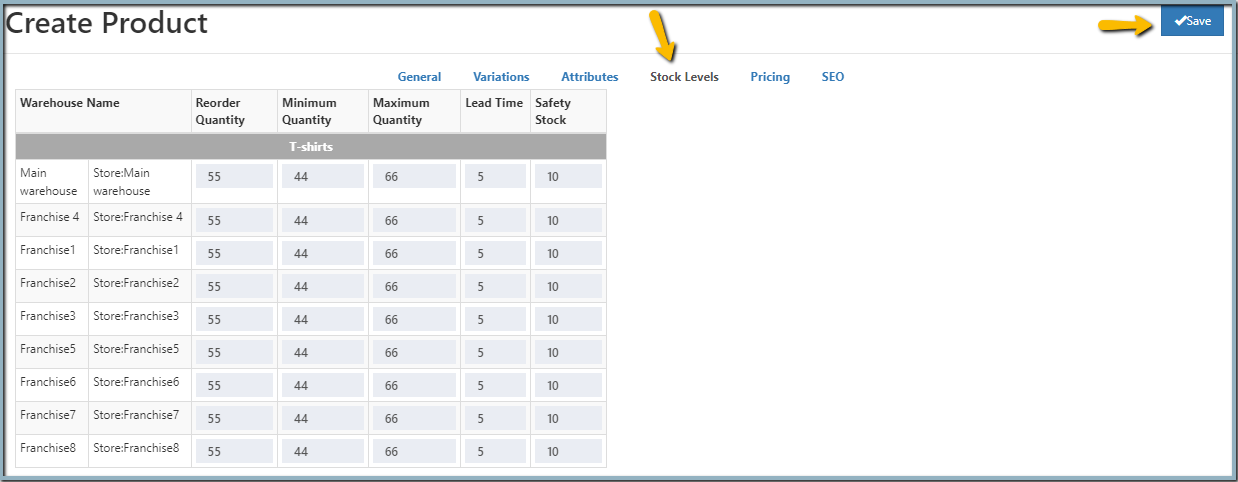
This helps you set product-wise stock control for each warehouse or branch.
Helpful Related Links
Use these pages when you are setting up inventory controls:
- Locations - Define warehouses and stores
- Sub Locations - Organize stock inside a location
- Unit Of Measure - Set the stock measurement unit
- Unit Of Measure Conversion - Convert one unit of measure to another
- Print Barcode Label Settings - Print labels for inventory items
- Package Material - Set packaging used in dispatch workflows
- Branches - Link inventory to branch records
- Sales Channels - Connect stock flow with sales channels
- Store Business Details - Review the business setup used across inventory modules
Why Use Stock Levels?
- It helps prevent stockouts
- It reduces excess inventory
- It keeps reorder planning simple
- It supports better stock control across locations