POS Print Settings | Configure Receipt and Invoice Print Details
Learn how to configure POS Print Settings in O2VEND. Set branch-wise or consolidated print options, choose what appears on receipts, and customize header and footer text.
The POS Print Settings page in O2VEND Back Office controls what appears on printed receipts and invoices from the Point of Sale module. You can apply the settings for one branch or use the consolidated option for all branches.
Use this page to:
- choose the print format
- show or hide order details
- customize receipt headings
- manage header and footer text
- control what is printed on POS receipts and invoices
Open Print Settings
- Sign in to Back Office.
- Go to Settings -> Point Of Sale.
- Click Print Settings.
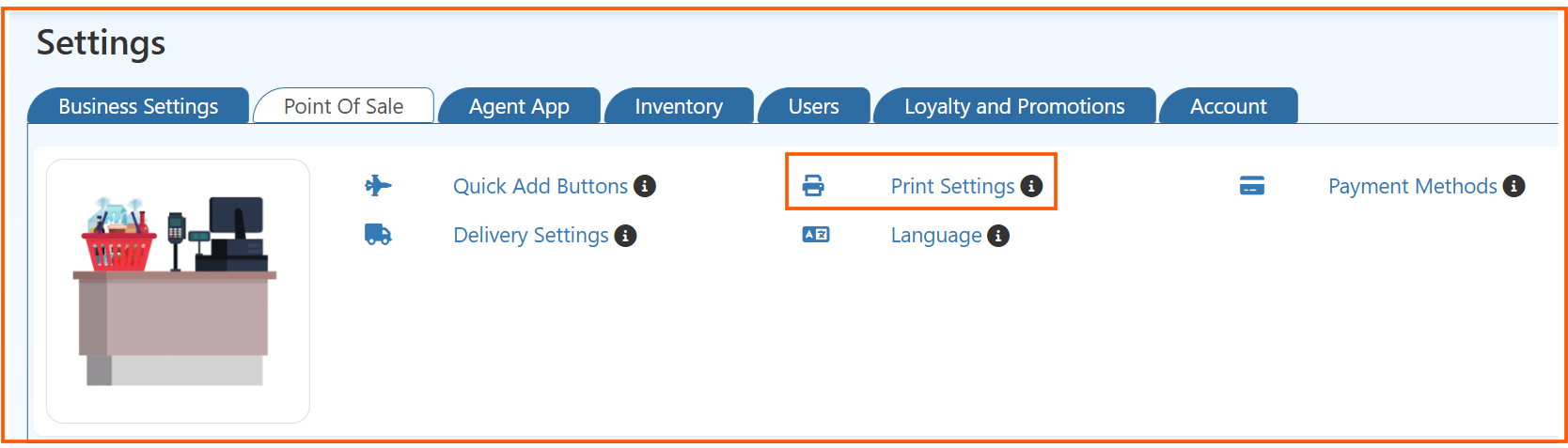
Configure Print Details
Select the required Branch or choose Consolidated to apply the same settings for all branches.
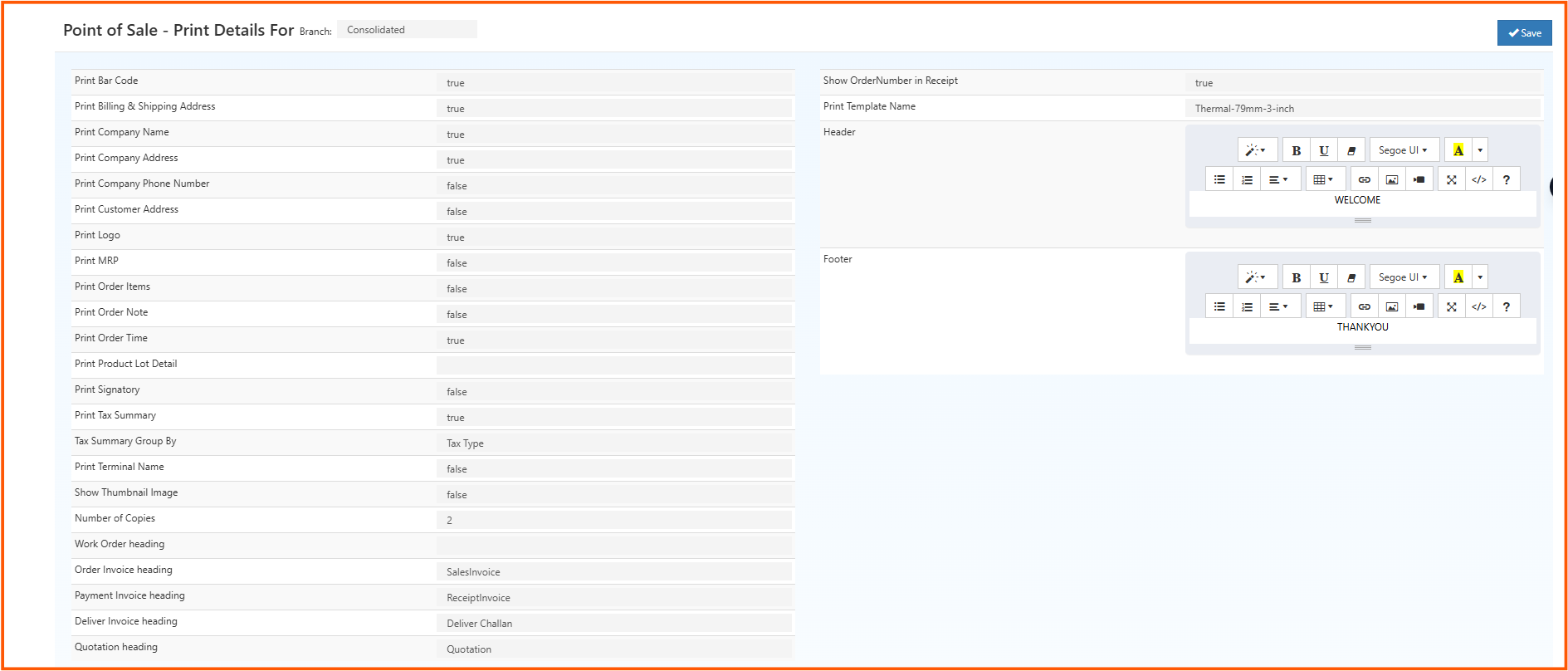
Enter the details below:
- Print Bar Code: Enable this to print barcode on the receipt
- Print Billing & Shipping Address: Enable this to print billing and shipping address
- Print Company Name: Enable this to print the company name
- Print Company Address: Enable this to print the company address
- Print Company Phone Number: Enable this to print the company phone number
- Print Customer Address: Enable this to print customer address
- Print Logo: Enable this to print the company logo
- Print MRP: Enable this to print product MRP
- Print Order Items: Enable this to print order items
- Print Order Note: Enable this to print order note
- Print Order Time: Enable this to print order time
- Print Product Lot Detail: Enable this to print lot or batch details
- Print Signatory: Enable this to print signatory section
- Print Tax Summary: Enable this to print tax summary
- Tax Summary Group By: Choose how tax summary should be grouped
- Print Terminal Name: Enable this to print terminal name
- Show Thumbnail Image: Enable this to print product thumbnails
- Order Invoice Heading: Enter heading for order invoice
- Payment Invoice Heading: Enter heading for payment invoice
- Deliver Invoice Heading: Enter heading for delivery invoice
- Quotation Heading: Enter heading for quotation
- Show Order Number in Receipt: Enable this to show order number
- Print Template Name: Select the print template
- Header: Enter header text for the print
- Footer: Enter footer text for the print
Save the Settings
- Review the selected print options.
- Check the header, footer, and template values.
- Click Save.
After saving, the POS will use these settings when printing receipts and invoices.