Unit of Measure Conversion in O2VEND | UOM Conversion Setup Guide for Inventory
Learn how to create and manage Unit of Measure (UOM) conversions in O2VEND to ensure accurate inventory tracking, pricing, and multi-unit product handling.
What Is Unit of Measure Conversion in O2VEND?
Unit of Measure (UOM) Conversion defines how one measurement unit is converted into another within O2VEND.
It is used when products are stored, purchased, or sold in different units but need to be tracked consistently in inventory.
Examples:
- 1 Kilogram = 1000 Grams
- 1 Box = 10 Pieces
- 1 Roll = 50 Meters
Why Unit of Measure Conversion Is Important in Inventory Management
UOM conversion ensures consistency across stock, pricing, and reporting.
It helps to:
- Maintain accurate inventory values
- Support products sold in multiple units
- Improve pricing consistency across units
- Reduce manual calculation errors
- Simplify stock entry and sales operations
How UOM Conversion Works in O2VEND
In O2VEND, conversion is handled using a conversion factor:
- A From Unit (base unit)
- A To Unit (target unit)
- A Conversion Factor (numeric value)
This allows the system to automatically calculate quantities during stock movement, billing, and reporting.
How to Access Unit of Measure Conversion Settings
Follow these steps:
- Go to Back Office Dashboard
- Navigate to Settings > Inventory
- Click Unit Of Measure Conversion
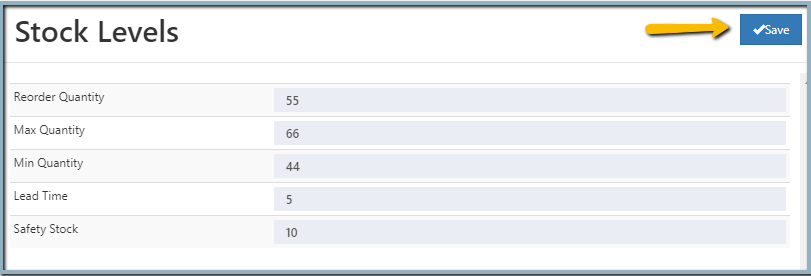
How to Create a Unit of Measure Conversion in O2VEND
To create a conversion:
- Open Unit Of Measure Conversion
- Click Create Unit Of Conversion
- Select From Unit Of Measure
- Enter the Conversion Factor
- Select To Unit Of Measure
- Set Active = True
- Click Save
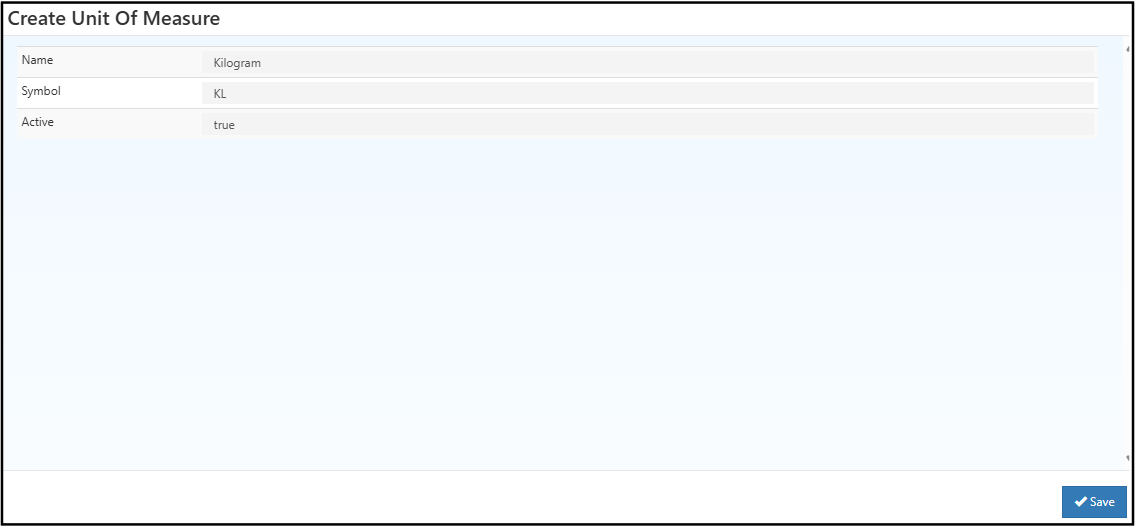
UOM Conversion Fields Explained
| Field | Description |
|---|---|
| From Unit Of Measure | Original unit (e.g., Kilogram) |
| Conversion Factor | Value used to convert units |
| To Unit Of Measure | Target unit (e.g., Gram) |
| IsActive | Enables or disables the conversion |
Unit of Measure Conversion List View
After saving, conversions appear in the list view.
The list includes:
- From Unit
- Conversion Factor
- To Unit
- Active Status
- Actions (Edit/Delete)
Common Examples of Unit Conversion in Inventory
- Kilogram → Gram
- Gram → Kilogram
- Box → Piece
- Roll → Meter
These conversions are commonly used in retail, FMCG, and warehouse operations.
When to Use UOM Conversion in O2VEND
Use UOM conversion when:
- Products are purchased in bulk but sold in smaller units
- Items are stored in one unit and sold in another
- Multi-pack or bundled products are used
- Accurate reporting across units is required
Related Inventory Setup Pages
- Unit Of Measure – Define base measurement units
- Stock Levels – Manage reorder levels
- Locations – Configure warehouses
- Sub Locations – Organize storage areas
- Print Barcode Label Settings – Enable barcode printing
- Package Material – Configure packaging
Get Started with UOM Conversion Setup
Proper UOM conversion setup helps reduce errors, improve inventory accuracy, and support flexible product management across your business.