O2VEND Offers and Discounts Setup - Create and Manage Promotions
Learn how to create and manage promotional offers and discounts in O2VEND Back Office. Configure buy incentives, customer-specific deals, and channel-wide promotions.
The Offers and Discounts feature in O2VEND Back Office allows you to create dynamic promotional campaigns that drive customer engagement and increase sales. Configure offers and discounts based on purchase conditions, customer groups, product categories, and sales channels.
How to Access Offers and Discounts
- Open Back Office
- Navigate to Settings tab
- Click Loyalty and Promotions
- Select Offers and Discounts
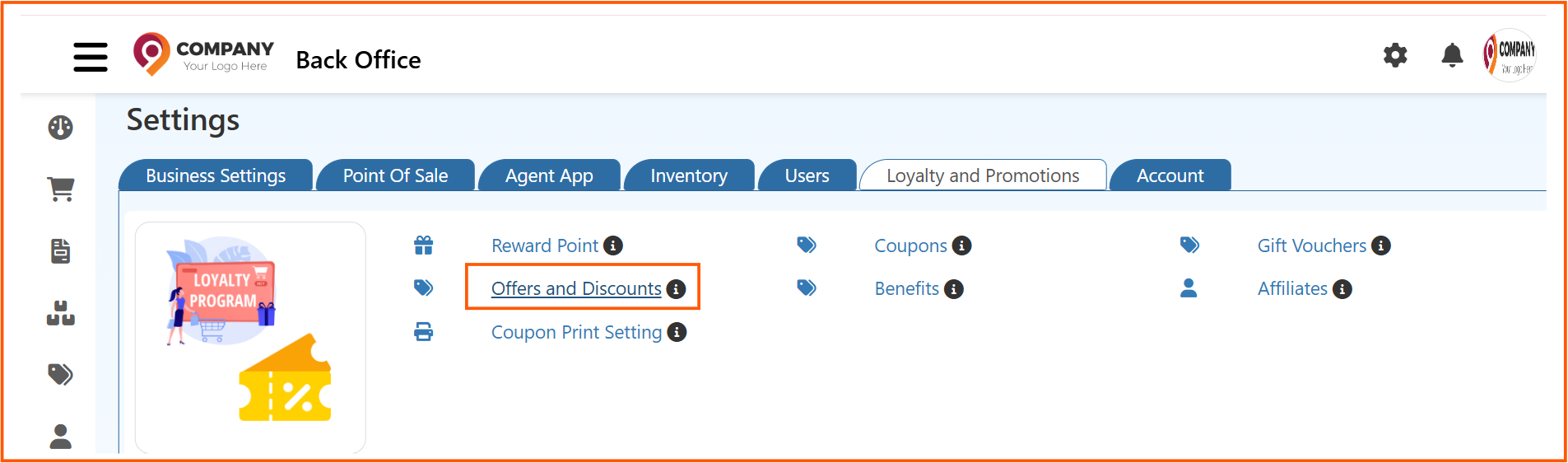
The Offers page displays a list of all offers and discounts with their names, start dates, end dates, active status, and action options. Click the Create an Offer button to add a new promotion.
 ---
---
Creating and Editing an Offer in O2VEND
When you create or edit an offer, you'll configure it through multiple tabs. Each tab manages a different aspect of the offer promotion:
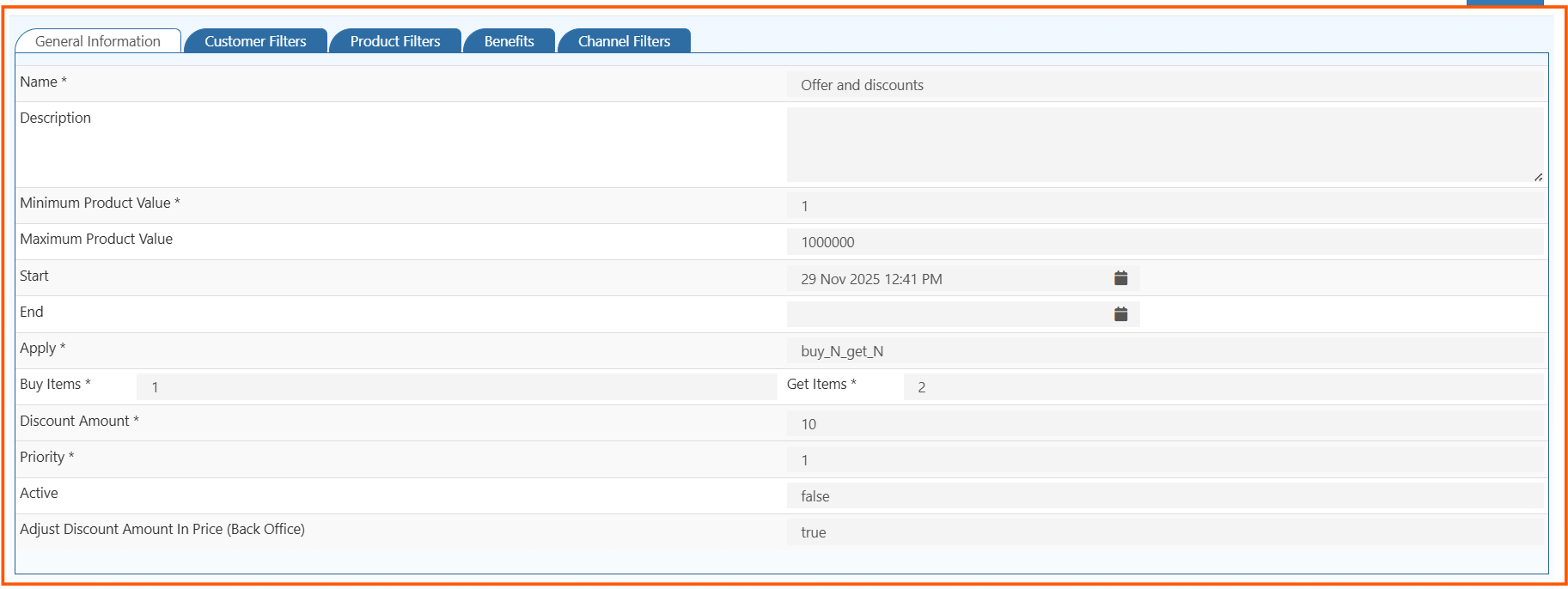
General Information Tab - Offer Details and Discount Settings
This tab contains the core offer details and discount settings for O2VEND offers.
| Field | Description | Example |
|---|---|---|
| Name* | The display name of the offer | Welcome Cashback Offer |
| Description | A brief explanation of the promotion | Get cashback on eligible purchases |
| Minimum Product Value* | Minimum purchase amount required to trigger the offer | 1 |
| Maximum Product Value | Maximum purchase amount where the offer applies | 1000000 |
| Start | Date and time when the offer activates | 29 Nov 2025 12:41 PM |
| End | Date and time when the offer expires | Leave blank for ongoing offers |
| Apply* | The discount rule type to apply | buy_N_get_N |
| Buy Items* | Number of items the customer must purchase | 1 |
| Get Items* | Number of items the customer receives the discount on | 2 |
| Discount Amount* | The discount value (fixed amount or percentage) | 10 |
| Priority* | Determines which offer applies when multiple offers match (1 = highest) | 1 |
| Active | Toggle to enable/disable the offer | true or false |
| Adjust Discount Amount in Price (Back Office) | Automatically adjust the visible product price in back office | true or false |
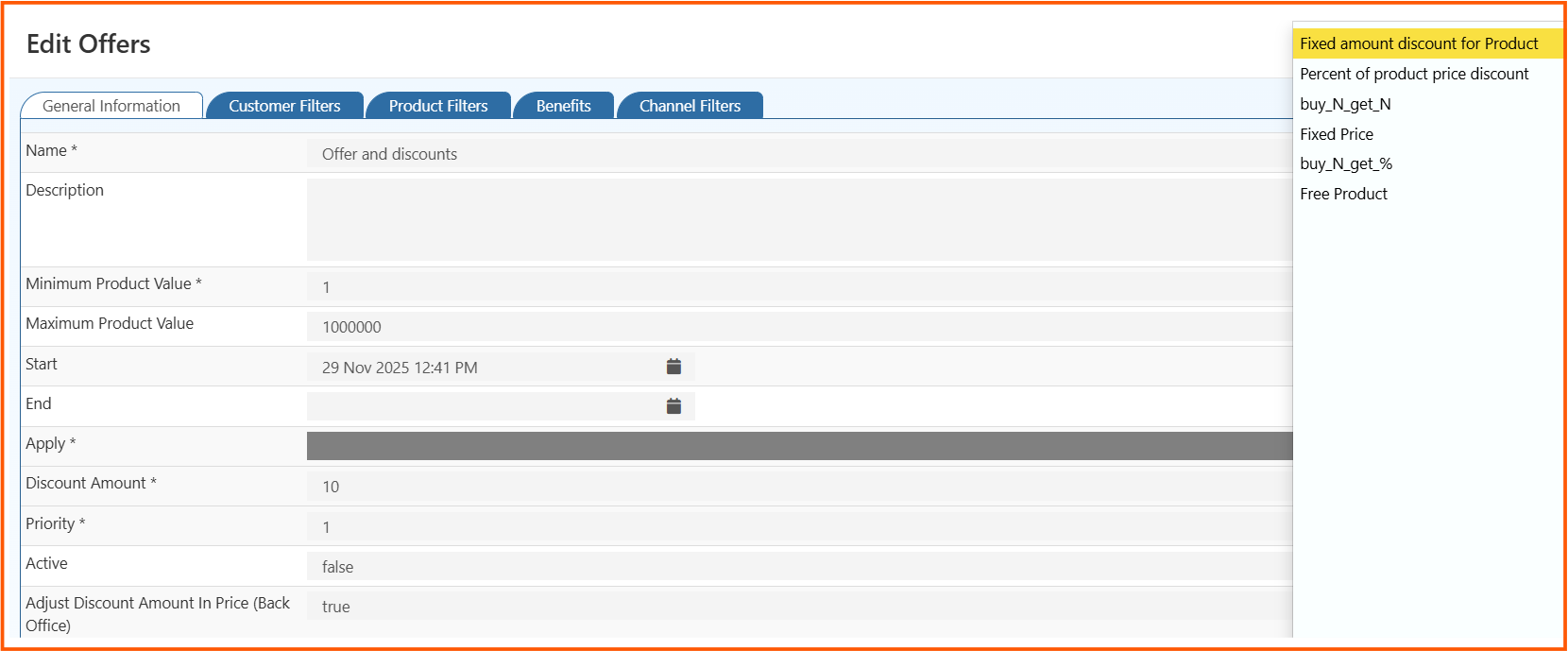
Apply Field - Offer Types and Discount Rules
The Apply field determines the type of discount rule for your offer. Choose from these options:
| Offer Type | Description |
|---|---|
| Fixed amount discount for Product | Apply a fixed currency amount discount to products |
| Percent of product price discount | Apply a percentage-based discount on product price |
| buy_N_get_N | Buy N items and get N items at a discount |
| Fixed Price | Set a fixed price for the product |
| buy_N_get_% | Buy N items and get a percentage discount on additional items |
| Free Product | Offer a free product when conditions are met |
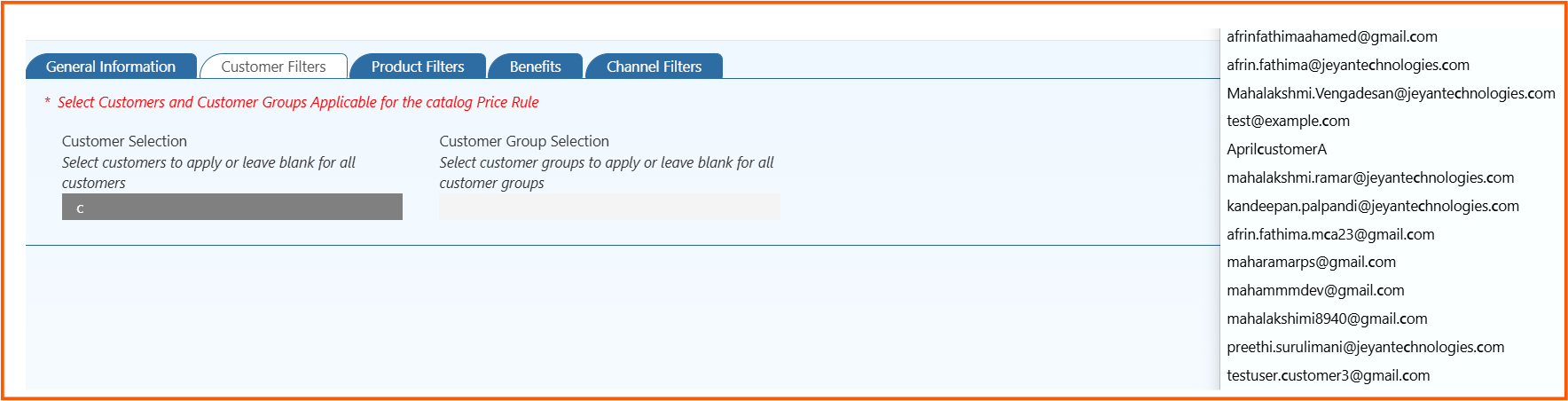
Customer Filters Tab - Target Customers for Offers
Target specific customers or customer groups for the offer. Leave these selections blank to apply the offer to all customers.
| Field | Description |
|---|---|
| Customer Selection | Select individual customers by email or user ID |
| Customer Group Selection | Choose customer groups such as VIP, Wholesale, or Retail |
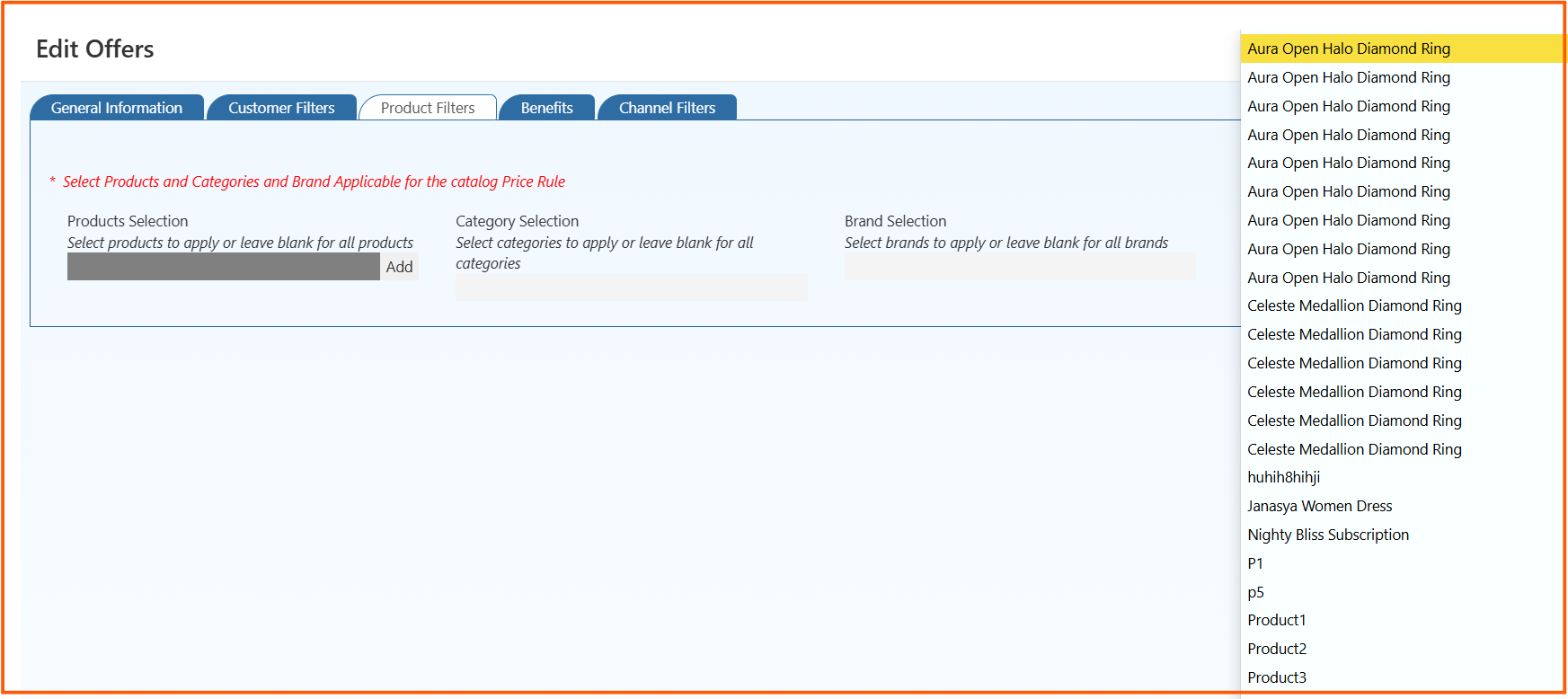
Product Filters Tab - Apply Offers to Specific Products
Define which products, categories, or brands the offer applies to. Leave blank to apply to all products.
| Field | Description |
|---|---|
| Products Selection | Choose specific products by name or SKU |
| Category Selection | Select product categories (e.g., Jewelry, Apparel) |
| Brand Selection | Filter by brand names |
Benefits Tab - Add Extra Incentives to Offers
Add additional incentives beyond the base discount, such as bonus points or free items.
Channel Filters Tab - Select Sales Channels for Offers
Select which sales channels the offer applies to. Leave blank to apply across all channels.
| Field | Description |
|---|---|
| Channel Group Selection | Choose channel groups such as POS, Online Store, or Agent App |

Edit Offers Page - Modify Existing Offers and Discounts
The Edit Offers interface allows you to modify existing offers and discounts. It displays a summary table showing:
| Column | Description |
|---|---|
| Name | The offer name |
| Rule To Apply | The discount type (e.g., buy_N_get_N) |
| Discount Amount | The discount value |
| Maximum Discount Amount | Cap on discount per transaction |

Offer Actions - Edit, Delete, and Manage Offers
- Edit (✏️) – Modify offer details, filters, and discount rules
- Delete (❌) – Remove the offer permanently
- Active Status – Toggle the offer on or off without deleting it
Best Practices for O2VEND Offers and Discounts Configuration
- Set realistic Minimum/Maximum Product Values to avoid unintended discount stacking
- Use Priority wisely when multiple offers may apply to the same purchase
- Configure Customer Filters to target high-value segments
- Test offers on a limited Channel Group before rolling out to all channels
- Monitor offer performance and adjust Start/End dates based on seasonal demand