Reward Points Setup | Loyalty Program Configuration
Learn how to configure Reward Points in O2VEND Back Office. Set earning rules, redemption limits, expiry, and notifications for loyalty point programs
Use the Reward Points configuration in O2VEND Back Office to build a loyalty program that rewards customers for purchases and engagement.
This page explains how to access the loyalty settings, configure points earning and redemption rules, and activate notifications for your reward program.
Access Reward Points
- Open Back Office.
- Click Settings from the top menu.
- Select the Loyalty and Promotions tab.
- Click Reward Point.

Reward Points Settings Page
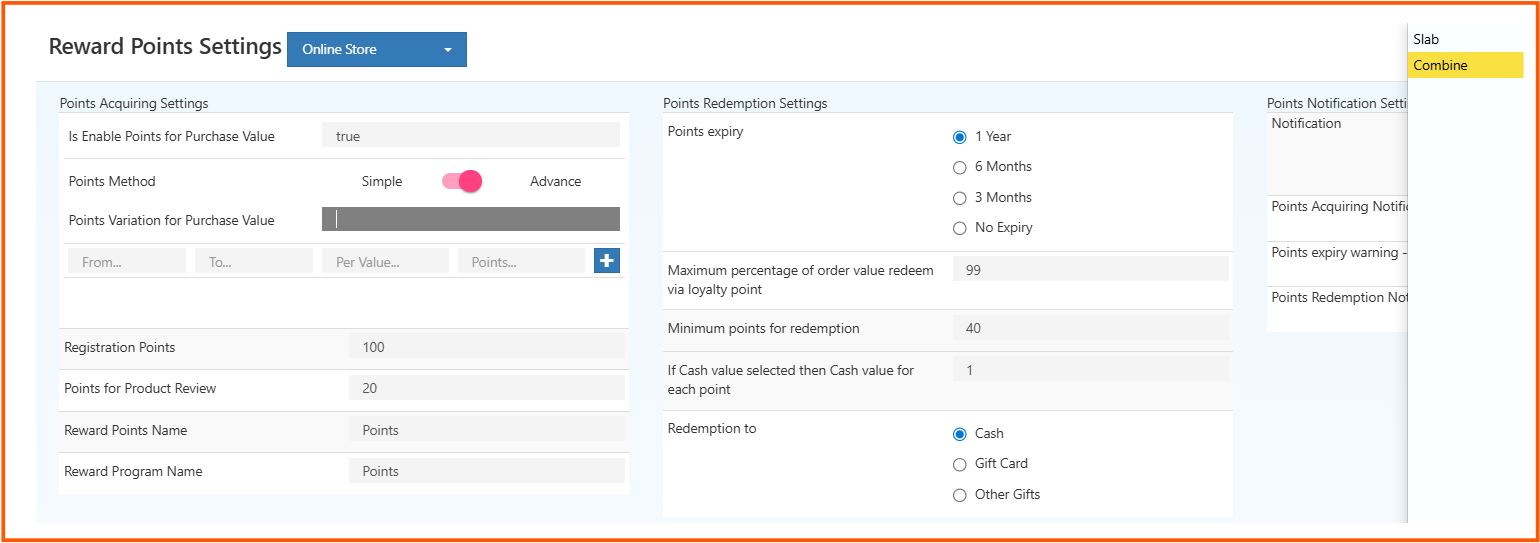
The Reward Points screen is divided into three sections:
- Points Acquiring Settings
- Points Redemption Settings
- Points Notification Settings
This page also includes a channel dropdown at the top. Use it to manage reward settings for the selected store or sales channel.
Points Acquiring Settings
This section determines how customers earn reward points.
| Field | Description |
|---|---|
| Is Enable Points for Purchase Value | When true, points are awarded based on purchase value. |
| Points Method | Toggle between Simple and Advance earning modes. |
| Points Variation for Purchase Value | Available in Advance mode. Define purchase slabs and point values using the grid. |
| Registration Points | Points awarded to a customer at registration. |
| Points for Product Review | Points given for submitting a product review. |
| Reward Points Name | Display name for points (for example, Points, Coins, or Stars). |
| Reward Program Name | Name of the loyalty program shown to customers. |
Points Variation Options
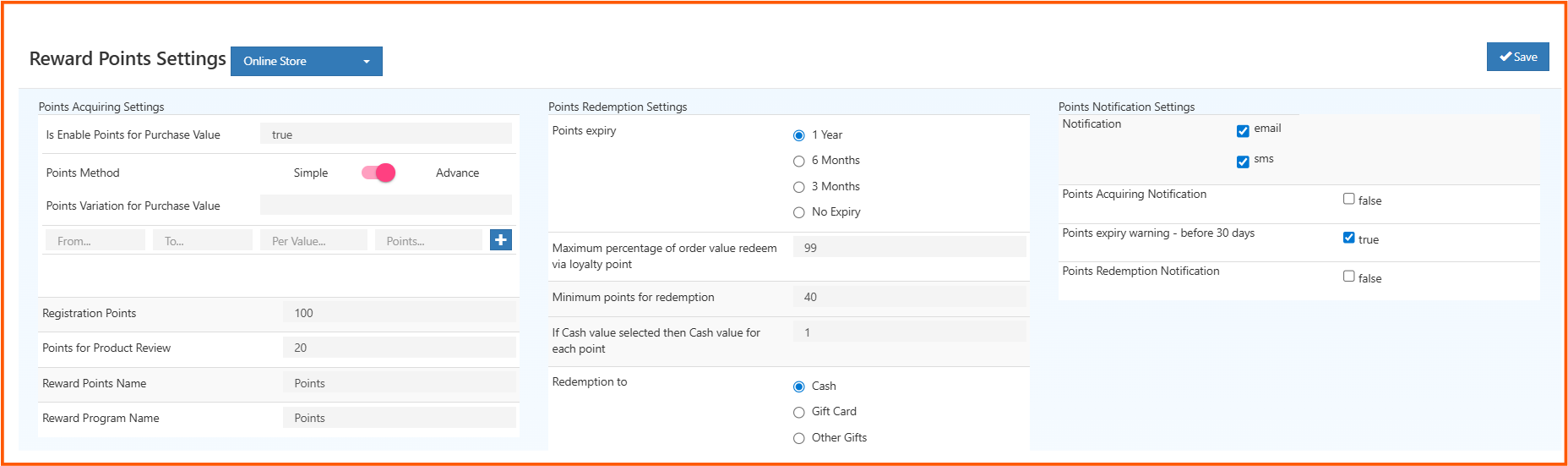
In Advance mode, you can select Slab or Combine mode and add rows for each purchase range.
- Slab: Use separate ranges where points are calculated within each slab.
- Combine: Apply combined point rules across multiple ranges.
| Column | Description |
|---|---|
| From | Minimum purchase value for the range. |
| To | Maximum purchase value for the range. |
| Per Value | Currency amount needed to earn points. |
| Points | Points earned for the range. |
| + / × | Add or remove variation rows. |
Example: ₹1 to ₹2000 = 1 point per ₹10 spent.
Points Redemption Settings
This section controls how earned points can be redeemed.
| Field | Description |
|---|---|
| Points Expiry | Select how long points remain valid: 1 Year, 6 Months, 3 Months, or No Expiry. |
| Maximum percentage of order value redeem via loyalty point | Maximum order value percentage that can be paid with points. |
| Minimum points for redemption | Minimum points required before redemption is allowed. |
| If Cash value selected then Cash value for each point | Value of a single point when redeemed as cash. |
| Redemption to | Choose the redemption destination: Cash, Gift Card, or Other Gifts. |
Points Notification Settings
Configure how customers are notified about reward point activity.
| Field | Description |
|---|---|
| Notification | Enable email and/or SMS notifications for reward events. |
| Points Acquiring Notification | Send a notification when points are earned. |
| Points expiry warning - before 30 days | Send reminders before points expire. |
| Points Redemption Notification | Send confirmation when points are redeemed. |
Save Your Reward Point Settings
After configuring the reward settings, click the Save button in the top-right corner to apply the changes.
Once saved, the reward rules apply immediately for the selected channel and customers can start earning and redeeming points based on the configured rules.
Why Reward Points Matter
Reward points help businesses:
- Increase repeat purchases
- Improve customer loyalty
- Boost average order value
- Encourage engagement through reviews and registration
Use reward points as part of a loyalty strategy that combines promotions, offers, and customer rewards.