Location Setup - Stores, Warehouses & Shipping
Set up locations in O2VEND to manage stores, warehouses, inventory flow, POS billing, and courier pickups.
A Location in O2VEND is a physical point where products are stored, sold, received, or shipped. Proper location setup ensures correct inventory flow, accurate POS billing, and successful order fulfillment.
Key Benefits: Prevent stock mismatch, avoid billing errors, integrate with couriers, and manage multi-warehouse inventory.
Create Location (Store Address or Warehouse)
Locations can be created and managed by Site Admins and Vendor Managers, based on role permissions.
Steps to Create a Location
- Open Back Office > Settings Icon (ALT + S)
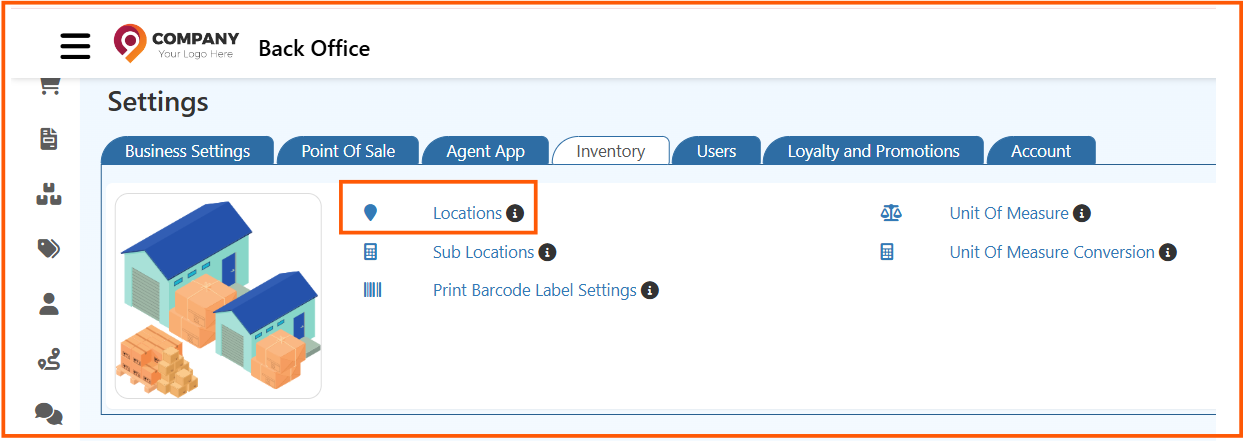
- Navigate to Inventory > Locations
- Click Create Location
- Fill in location details (see steps below)
- Click Save
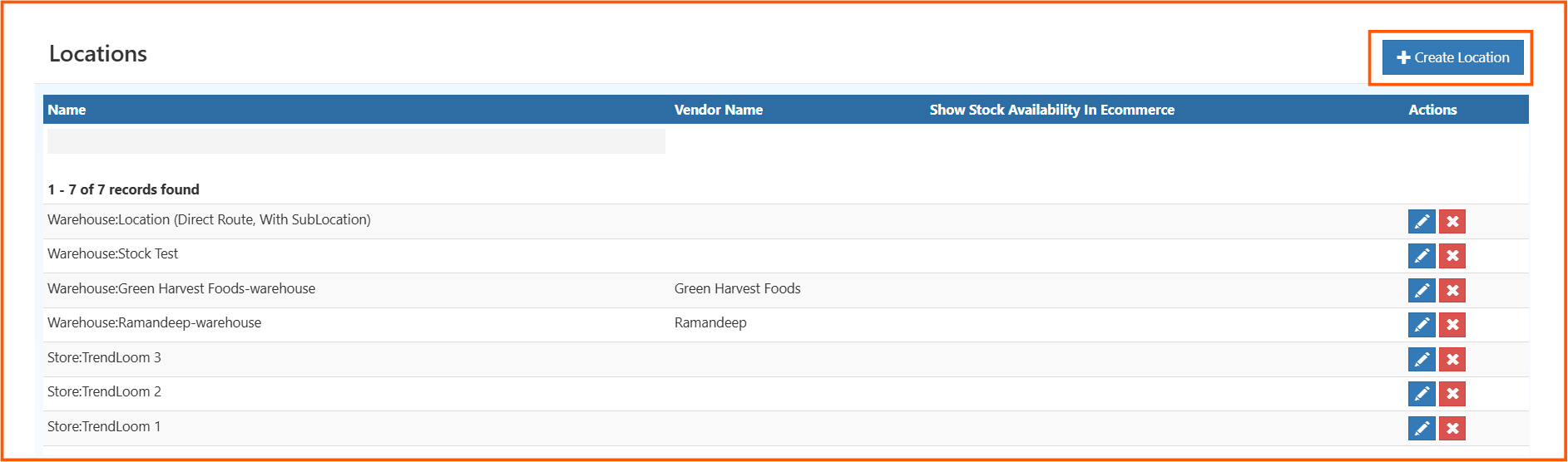
After saving, the location is available for:
- Inventory receiving (Incoming Packages / GRN)
- POS billing
- Order fulfillment
Tip: For Drop Shipment operations, the vendor name is automatically assigned to the location.
Location Configuration - General Tab
The General tab defines the location's identity, address, inventory behavior, and order flow.
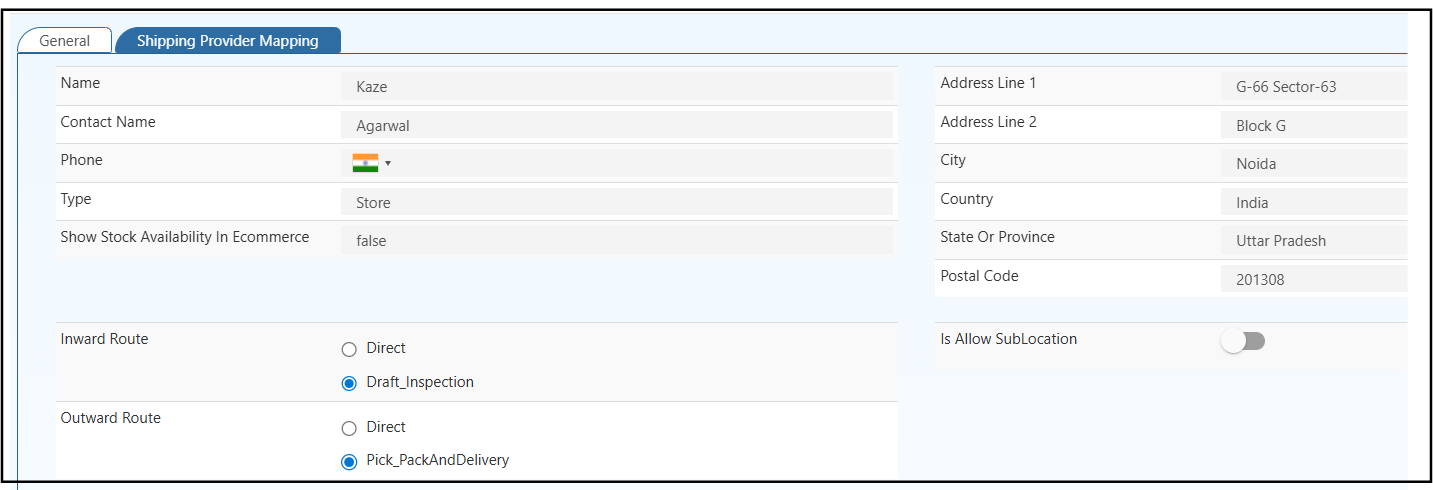
Basic Information
- Name - Enter your Store or Warehouse name for internal identification.
- Contact Name - Specify the primary contact person for this location.
- Phone - Add the contact number with country code, such as +1 for USA.
- Type - Choose Store for POS locations or Warehouse for inventory hubs.
- Show Stock in Ecommerce - Enable this to display this location's stock levels on your online store.
Address Details
- Address Lines - Enter the complete physical address for this location.
- City - Specify the city name.
- State / Province - Enter the state or province name.
- Country - Select the country where this location is based.
- Postal Code - Add the ZIP or PIN code.
Tip: POS invoices will automatically use this location's address for billing and receipts.
Inventory Routes
Use the inventory route settings to control how stock moves in and out of this location.
Inward Route - Choose how incoming stock is received into inventory.
- Direct - Stock is added to inventory immediately after receipt.
- Draft_Inspection - Stock is received in draft mode and becomes sellable only after inspection approval.
Outward Route - Choose how orders are processed for dispatch.
- Direct - Orders are dispatched immediately without extra steps.
- Pick_PackAndDelivery - Orders follow a Pick > Pack > Delivery flow for controlled fulfillment.
Sub-Location Configuration
Allow SubLocation - Enable this to create child locations under this location and organize inventory by sections, racks, and bins.
Shipping Provider Mapping Tab
Connect this location with external courier and marketplace systems for accurate pickups and shipping.
Supported Provider Fields
- Shiprocket - Enter the location name and ID registered in your Shiprocket account.
- Shipway - Add the Location ID from your Shipway account.
- GetDelivered - Specify the Location ID from your GetDelivered account.
- Myntra - Enter the Warehouse/Store ID from your Myntra Seller Panel.
- Unicommerce - Add the Location ID from your Unicommerce OMS system.
Tip: Make sure all provider IDs exactly match the IDs configured in your courier and marketplace accounts for seamless integration.