Coupon Print Settings — Create Coupon Templates
Design custom coupon templates for printing vouchers and promotional coupons in O2VEND. Works with A4 sheets, thermal printers, and POS systems.
Key Benefits:
- Professional, properly aligned coupons
- Reliable barcode scanning at checkout
- Multi-media support (paged or thermal)
- Unlimited template creation
Access Coupon Print Settings
Getting to the coupon print settings is straightforward:
- Open O2VEND Back Office
- Navigate to Settings → Business Settings → Coupon Print Settings
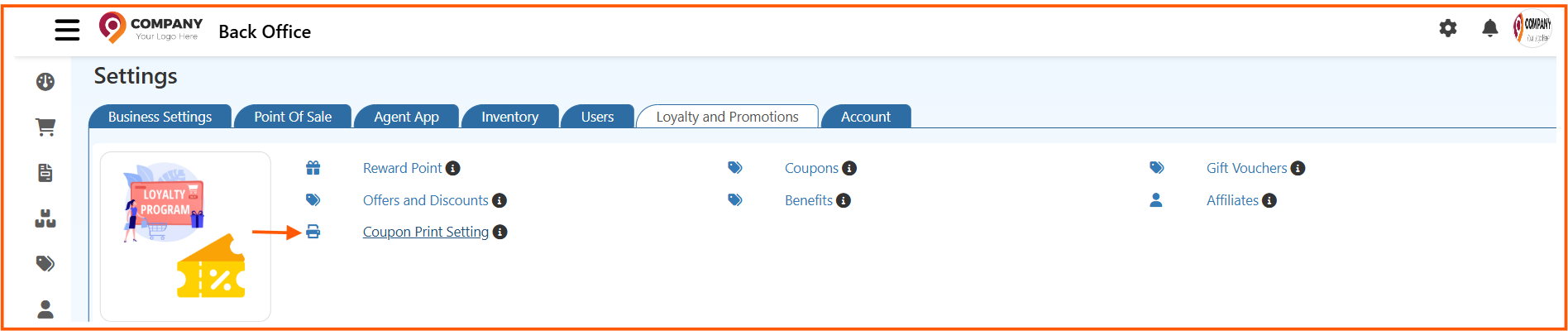
The page displays all your existing templates. You can see the template name, size, media type (paged or roll), and the number of labels per row and rows per page.

To add a new template, click Create Coupon Template. You can also Edit, Delete, or Clone any existing template.
Understanding the Template List
Each template in the list shows:
| Column | What It Means |
|---|---|
| Name | Your template's identifier — something descriptive like "Standard A4 2x3 Grid" |
| Size | Physical dimensions in millimetres (e.g., 100mm × 50mm per coupon) |
| Media Type | Either Paged (A4/Letter sheets) or Continuous (roll/thermal printer) |
| Labels Per Row | How many coupons print horizontally across the page |
| Rows Per Page | How many rows of coupons fit vertically on a page |
This view shows all templates with their name, size, media type, and layout details.
How to Create a Coupon Print Template
Creating a new template is the first step toward professional-looking printed coupons. Here's how to do it:
Step 1: Create New Template
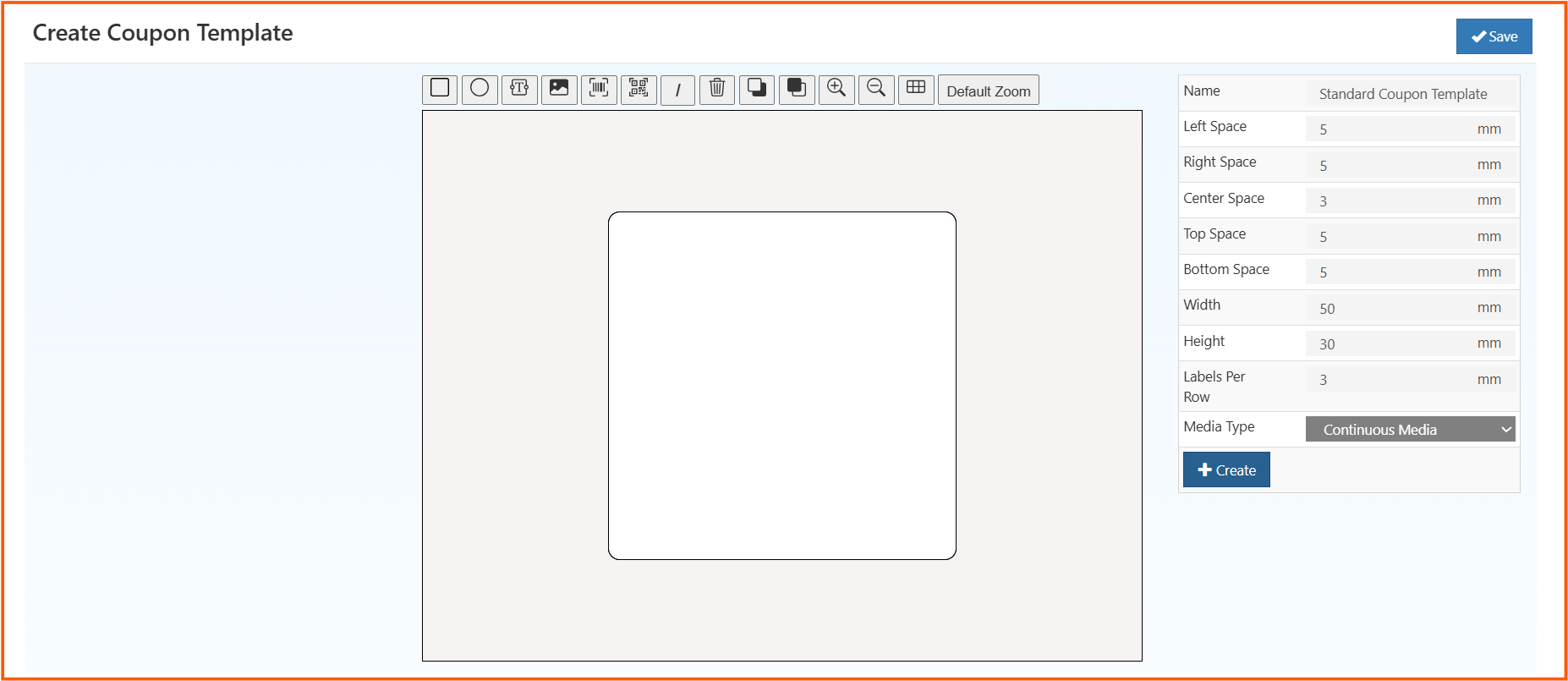
From the Coupon Print Settings page, click Create Coupon Template. The editor opens with a blank canvas.
Step 2: Basic Settings
- Name: "A4 3x2", "Thermal 80mm", etc.
- Media Type: Paged (A4/Letter) or Continuous (thermal roll)
- Dimensions: Width and Height in mm
Step 3: Set Margins and Layout
- Adjust margins for your printer (Left, Right, Top, Bottom)
- Set Labels Per Row and Rows Per Page
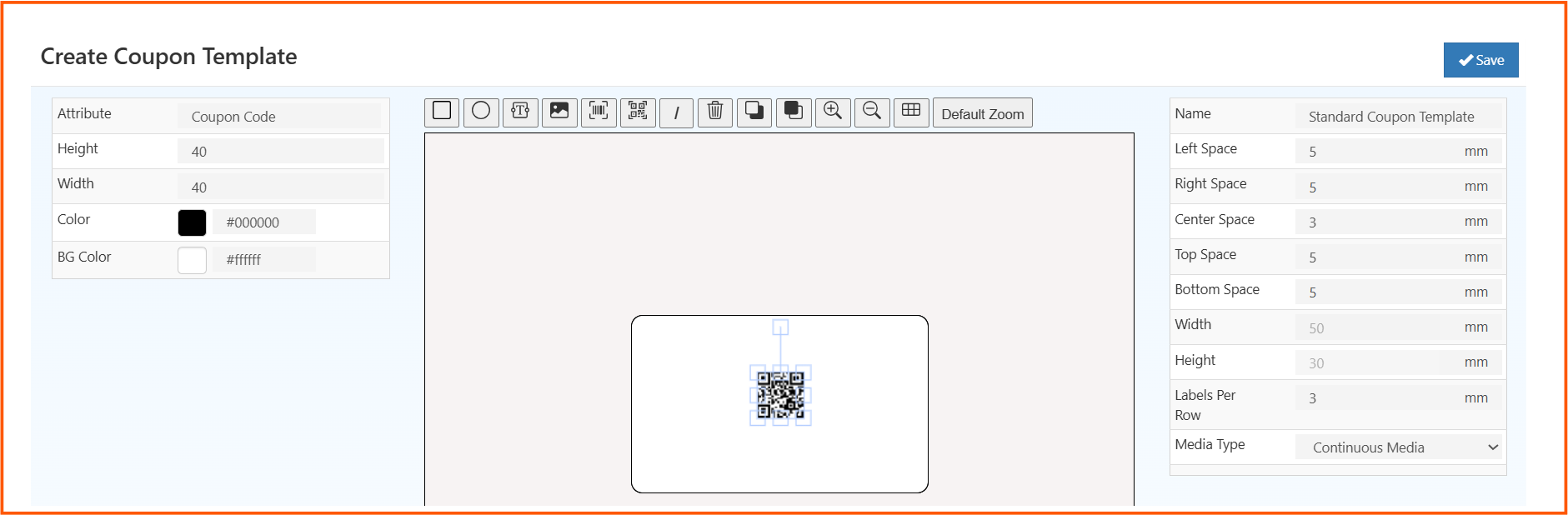
Step 4: Design Layout
Add elements using the toolbar:
- Text: Title, discount, expiry
- Barcode: EAN-13, Code128, QR Code
- Image: Logo or product images
- Shapes: Borders or decorative elements
Step 5: Save
Preview, review alignment, then click Save.
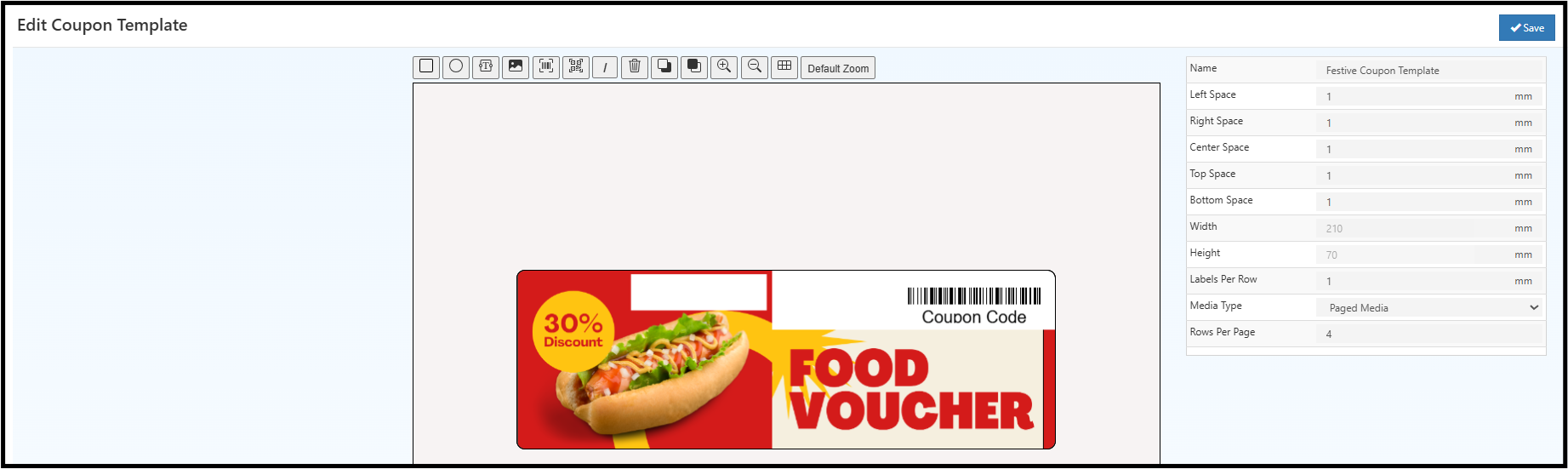
The Design Canvas and Toolbar
The design editor is your creative workspace. Here's what each tool does:
| Tool | What It Does |
|---|---|
| Rectangle | Draw boxes or sections |
| Circle | Add badges or decorative elements |
| Text | Text or dynamic fields ({COUPON_CODE}, {EXPIRY_DATE}) |
| Image | PNG or JPG files (logos, QR codes) |
| Barcode | EAN-13, Code128, or QR Code |
| Grid & Snap | Pixel-perfect alignment |
| Zoom | Zoom in/out for detail work |
| Preview | See final printed output |
| Undo/Redo | Fix mistakes easily |
Media Types
Paged Media
For A4/Letter printing: Inkjet or laser printers, flexible sizes, full-color support.
Continuous Media
For thermal printers: Roll-fed, fast bulk printing, standard formats (58mm, 80mm widths).
Manage Templates
- Open Coupon Print Settings
- Edit: Modify design or settings
- Delete: Remove templates
- Clone: Copy template as starting point