Daily Settlement Report | Fix Cash & Payment Mismatches
Cash not matching at day-end?
Card, UPI, credit sales confusing?
The Daily Settlement Report in O2VEND gives a single, verified view of sales, returns, credit sales, and payment collections — so you can close your day without errors.
Reconcile daily sales, returns, credit sales, and payment collections using the Daily Settlement Report in O2VEND. Export, schedule, and verify settlements easily.
Quick Answer:
The Daily Settlement Report in O2VEND shows daily sales, returns, net sales, credit transactions, and payment collections in one place, helping businesses accurately reconcile daily settlements.
What is Daily Settlement Report?
The Daily Settlement Report is a financial summary report in O2VEND that consolidates all sales and payment transactions for a selected day or date range. It presents data such as gross sales, returns, net sales, credit transactions, and payment modes, offering a complete overview of daily business performance.
📊 View Today’s Settlement – FreeWhy Daily Settlement Report Is Important
- Catch cash, card & UPI mismatches instantly
- Avoid day-end settlement confusion
- Verify credit sales & pending collections
- Reduce manual Excel reconciliation
- Stay audit-ready with verified totals
How to Access the Daily Settlement Report
Navigation Path:
Back Office → Reports → Sales / Purchase Reports → Daily Settlement Report
Pro Tip: Leveraging the schedule feature in O2VEND ensures that daily, weekly, or monthly reports are delivered automatically to relevant stakeholders, enhancing data-driven decision-making.
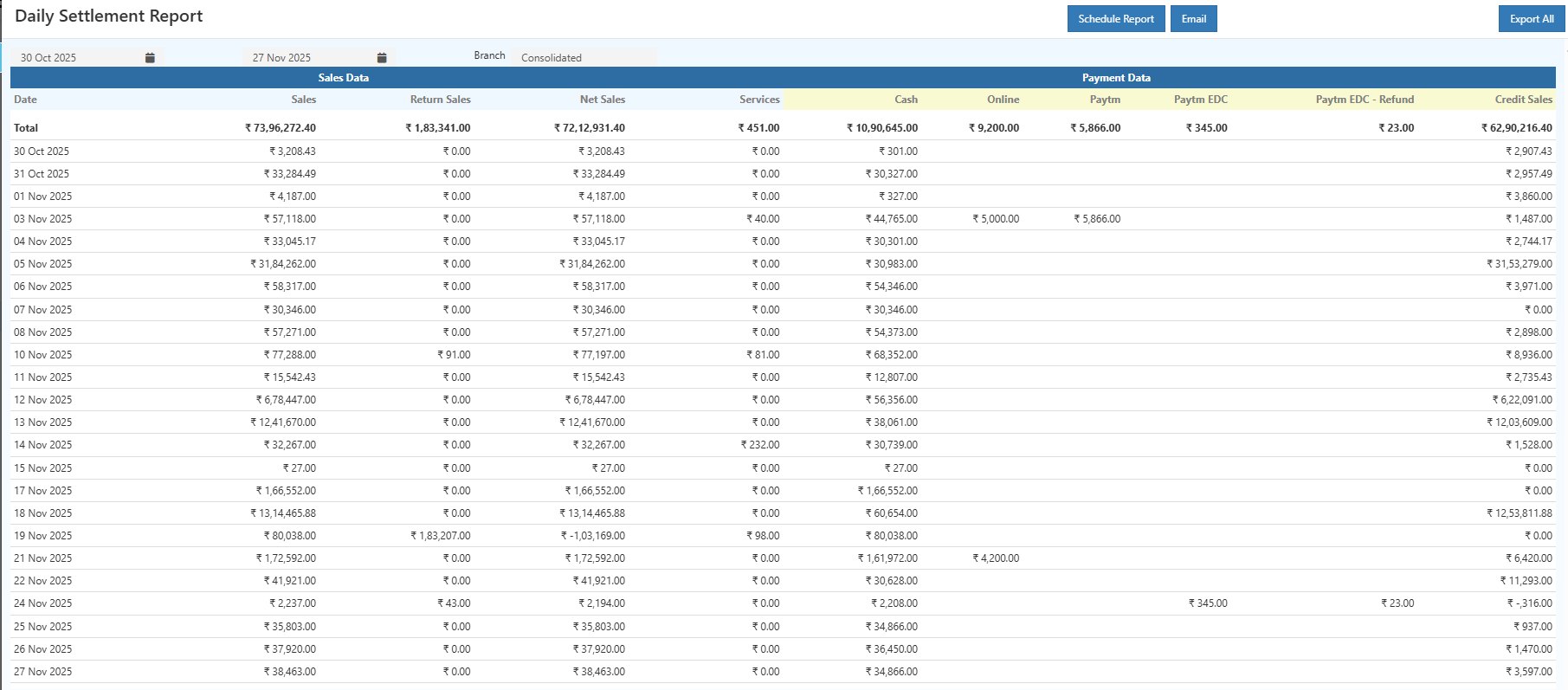
How to Use the Daily Settlement Report
- Open the report from the Back Office
- Review the default settlement for the current date
- Adjust the date range if needed
- Verify sales, returns, and payment totals
- Export the report for accounting or audit use
- Schedule automated delivery for regular reporting
Tip: The Export All option allows downloading the report in CSV format for offline record-keeping and accounting purposes.
Scheduling Reports for Automation
Scheduled reports can be configured to run daily, weekly, monthly, or yearly, and automatically send results to designated recipients. This feature ensures consistent reporting without manual intervention.
Click the Schedule Report button on the top-right corner of the Daily Settlement Report page to access scheduling options.
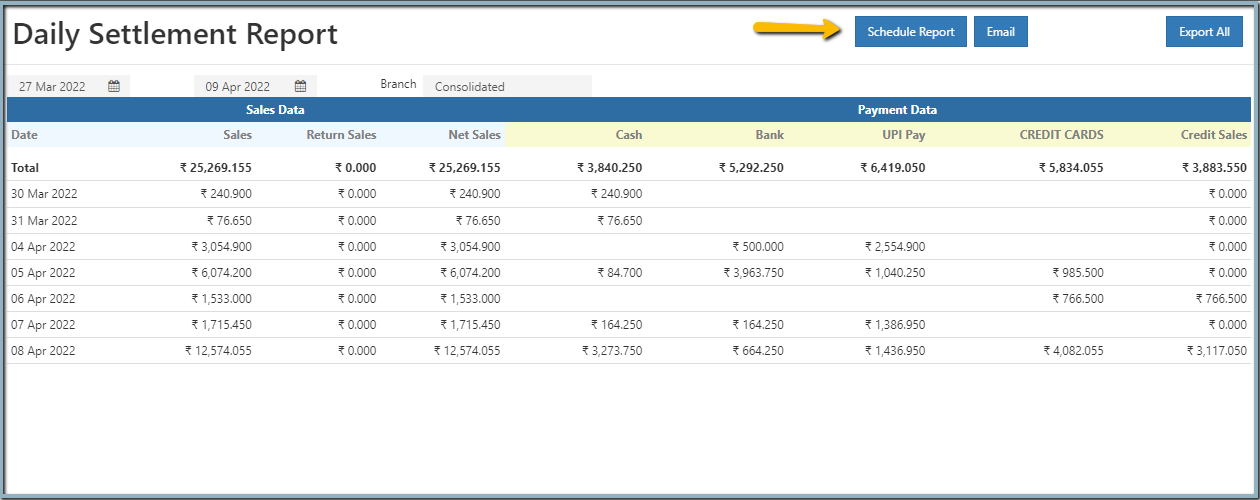
Scheduling a Report
- Enter scheduling criteria, including frequency, time, and recipient details.
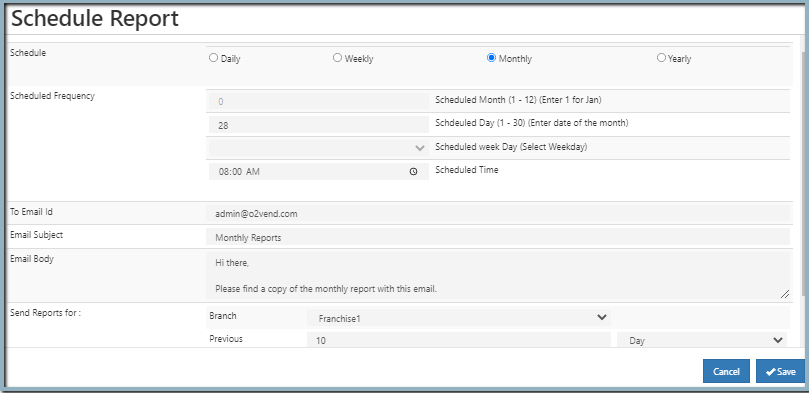
- Complete the following fields:
| Option | Description |
|---|---|
| Schedule | Select the frequency of the report: Daily, Weekly, Monthly, or Yearly. |
| Scheduled Frequency | Fields adjust automatically based on the selected frequency. Daily reports run every day at the scheduled time; Weekly reports run on selected weekdays; Monthly reports run on the selected date; Yearly reports run on a selected month and date. |
| To Email ID | Enter recipient email addresses. |
| Email Subject | Define the subject line for the emailed reports. |
| Email Body | Provide the message body for the report email. |
| Send Reports for Branch | Select the branch for which the report data is applicable. |
| Previous Period | Specify the number of days, months, or years for historical data, if required. |
| Days/Month/Year | Define the range for the previous period selection. |
- Click Save to complete the schedule setup. The scheduled report will execute automatically at the selected time.
My Scheduled Reports: Managing Scheduled Reports
Scheduled reports appear in the My Scheduled Reports section of O2VEND Back Office.
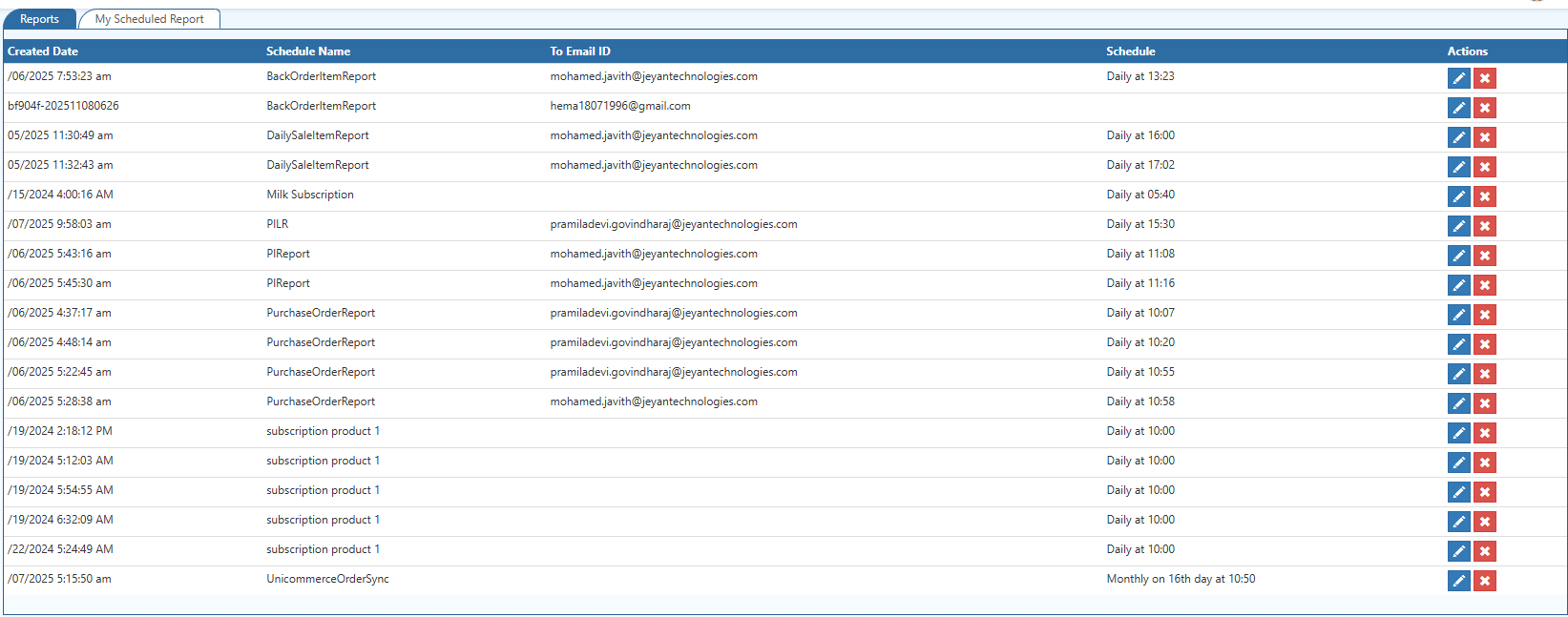
- Edit a Scheduled Report: Click the edit icon to modify settings.
- Delete a Scheduled Report: Click the delete icon to remove the schedule.
Pro Tip: Scheduled reports should be reviewed periodically to ensure recipients and frequencies align with business requirements.
Who Needs This Report Today?
- Store owners closing daily cash
- Managers verifying cashier settlements
- Accounts teams reconciling POS payments
- Businesses handling UPI, card & credit sales
Business Benefits
Compared to manual settlement tracking, the Daily Settlement Report in O2VEND reduces errors and saves significant accounting time.
Accurate Financial Reconciliation
Ensures daily sales and payments are correctly matched.
Automated Reporting
Scheduled reports reduce manual effort and save time.
Better Business Decisions
Provides timely insights into daily financial performance.
Related Topics
For a consolidated sales overview, refer to the Sales Summary Report.
To verify received payments, use the Receipt Report.
- Sales Report
- Sales Item Summary Report
- Sales Summary Report – Overall sales overview
- Day Book Report – Day-wise transactions
- Cash Book Report – Daily cash movement