O2VEND Retail ERP
  • Getting Started
  • Ecommerce
  • Back Office
  • POS
  • Agent App
  • PIM
  • Communication
  • CMS
  • OMS
  • WMS
  • O2C
  • Accounting
  • Reports
  • Themes and Apps
Search Results for

    Show / Hide Table of Contents
    • Reports
    • Order Reports
      • Web Orders Progress Report
      • Back Order Items Report
      • Purchase Order Pending Item Report
      • Sales Order Pending Item Summary Report
      • Sales Shipping Status Report
      • Sales Order Summary
      • Sales Order Progress Report
      • Purchase Order Progress Report
      • Sales Order with Product Line Item Report
      • Sales Order Packing Sheet Report
      • Back Order Report
      • Purchase Order Summary
      • Sales Order Shipment Report
      • Sales Order Shipping Address Report
    • Sales/Purchase Reports
      • Sales Invoice Report
      • Sales Invoice Summary
      • Sales Items Summary
      • Purchase Invoice Report
      • Purchase Invoice Summary
      • Purchase Items Summary
      • Receipt Report
      • Daily Settlement Report
      • Contribution Margin Report
      • Agent Sales Report
      • Agent Report
      • Employee Sales Report
      • Employee Report
      • Employee Product Sales & Commission Report
    • Supplier Reports
      • Supplier Report
      • Supplier Purchase Report
      • Supplier Detail Report
    • Inventory Reports
      • Stock Summary
      • Stock Valuation Summary
      • Stock Ageing Report
      • Location Summary
      • Stock Ledger Report
      • Stock/Location Summary
      • Stock Movement And Valuation Summary
      • Stock Movement Summary Report
    • Products
      • Sold Product Categories
      • Product Category Summary
      • Product Sale Summary
      • Category Sale Summary
      • Brand Sale Summary
      • Reordering Stock Summary
      • Price Movement
      • Product Seasonal Demand
      • Product Stock Analysis Report
      • Stock Projection Report
    • Pos Reports
      • Cash Register Summary
      • Current Cash Registers
    • Account Reports
      • Day Book
      • Ledger
      • Cash Book
      • Sales Books
      • Purchase Books
      • Daily Sales and Payment Report
      • Balance Sheet
      • Profit and Loss Report
      • Trial Balance
    • Miscellaneous Reports
      • Output Detailed Tax Report
      • Output Tax Report Summary
      • Account Receivable Report
      • Gross Profit Report
      • Daily Tax Report
      • GSTR-1 Report
      • External API Logs
      • Benefit Usage
      • Offers Usage
      • Coupon Usage
      • Configuration Change History
      • VisitLog

    Stock/Location Summary

    This report provides information on the quantity of the product against location.

    The Stock/Location Summary Report is used to track the inventory of items.
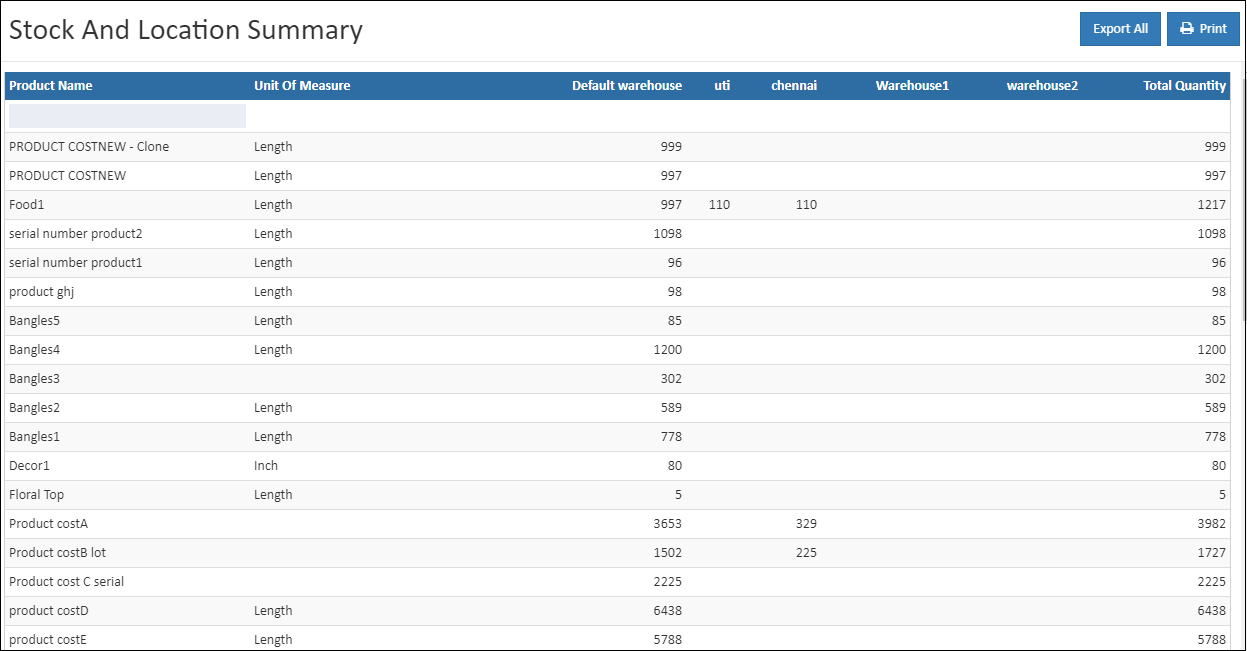
    Stock/Location Summary

    Product Name

    Product search is available to search the product and check the available quantity and total quantity of the specific product. See the list of products quantity in the stock summary.

    Location

    It displays the list of products location. That the product has multiple location it shows all the location of the product.

    Total Quantity

    It shows the total quantity and balance quantity of the product in the available location.

    Unit Of Measure

    Units of Measure (UOM) are used to define the measurement of the product. The product UOM also displays in the stock summary.

    How to view the Stock/Location Summary Report

    1. Open Back Office
    2. Click Reports Section or use shortcut key (Alt+R) the reports section willbe open.
    3. Click Stock/Location Summary to view the report.
    4. The Stock/Location Summary will be shown for the current date.
    5. Change Start Date and End Date.
    6. The report will be automatically refreshed with the values for new dates selected.
    Tip

    Use Export All and Export Current Page options to export the report details in to comma seperated CSV file.

    In this article
    Back to top _includes/footer.html
    © 2019–2026 Jeyan Technologies Private Limited • www.o2vend.com • Create your own store