Product Stock Analysis Report in O2VEND – Inventory Status
The Product Stock Analysis Report in O2VEND helps businesses analyze current inventory status across products and SKUs. It provides clear visibility into stock availability, movement, minimum levels, and excess stock for better inventory monitoring.
What is Product Stock Analysis Report?
The Product Stock Analysis Report is an inventory analysis report that displays product-wise stock details such as physical quantity, minimum quantity, moving inventory, and dump quantity.
It summarizes inventory data at SKU level for accurate stock assessment.
- Shows real-time stock availability.
- Highlights slow-moving and excess stock.
- Supports detailed inventory health analysis.
Why Product Stock Analysis Report Is Important
This report is important for maintaining inventory visibility and control:
- Helps track current stock levels across products.
- Identifies slow-moving and non-moving inventory.
- Highlights excess or dump stock.
- Supports stock audits and operational reviews.
- Improves inventory planning accuracy.
Why use this report?
- Monitor available stock for each product and SKU.
- Identify slow-moving or non-moving items.
- Track excess or dump stock quantities.
- Review minimum stock compliance.
- Support inventory audits and reviews.
How to Access the Product Stock Analysis Report
Navigation Path:
Back Office → Reports → Inventory → Product Stock Analysis Report
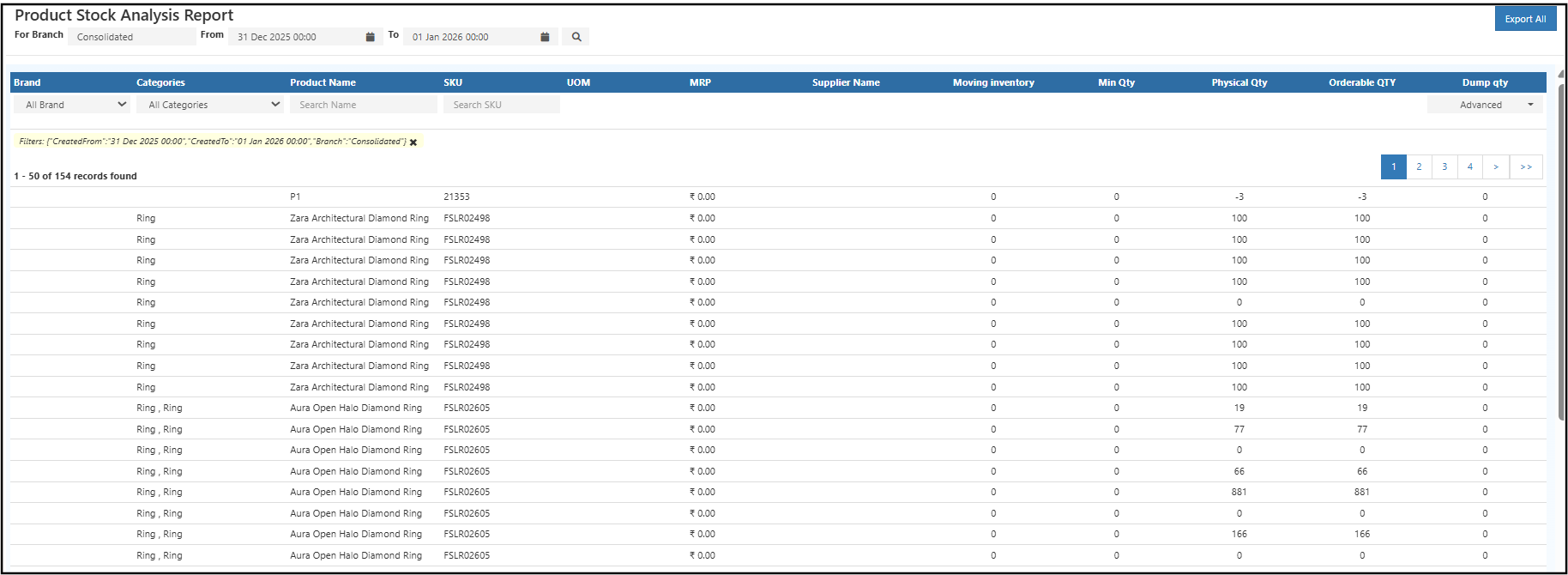
Filters & Controls
- Date Range: Analyze stock data within a selected period.
- Branch: View branch-wise or consolidated inventory.
- Brand: Filter products by brand.
- Categories: Narrow down products by category.
- Product Name / SKU: Search specific items easily.
- Advanced Filters: Filter based on movement or dump quantity.
Report View Explained
Summary Table
The summary table provides a detailed overview of inventory data:
- Brand: Product brand name.
- Categories: Product category classification.
- Product Name: Name of the product.
- SKU: Unique stock keeping unit.
- UOM: Unit of measurement.
- MRP: Maximum retail price.
- Supplier Name: Associated supplier.
- Moving Inventory: Quantity moved during the selected period.
- Min Qty: Configured minimum stock level.
- Physical Qty: Current available stock.
- Orderable Qty: System-calculated stock difference value.
- Dump Qty: Excess or non-moving stock quantity.
How to Use the Product Stock Analysis Report
- Open the Product Stock Analysis Report from Inventory reports.
- Select the required date range.
- Choose branch-wise or consolidated view.
- Apply brand, category, or SKU filters.
- Review physical stock and movement values.
- Identify slow-moving or excess stock items.
Common Usage Scenarios
- Inventory teams monitoring daily stock status.
- Store managers reviewing available stock.
- Operations teams identifying slow-moving items.
- Audit teams validating stock quantities.
Business Benefits
- Provides clear visibility into product-wise inventory status.
- Helps identify slow-moving and excess stock early.
- Supports accurate inventory audits and reviews.
Who Should Use This Report?
- Inventory Managers
- Store Managers
- Operations Teams
- Audit & Compliance Teams
Export Options
- Export All: Download the full report in Excel or CSV format.