Configuration Change History Report | O2VEND Audit Log
Track all system configuration changes with user, date, channel, and value updates. Use O2VEND Configuration Change History for audits.
The Configuration Change History Report in O2VEND provides a detailed audit trail of all configuration and setting changes made across your system. This report helps businesses track what was changed, by whom, when it was changed, and what the previous and new values were.
What is Configuration Change History?
The Configuration Change History report records every modification made to system configurations such as theme settings, product behavior, channel configurations, delivery zones, tax options, and other operational settings.
It acts as a system audit log, ensuring transparency and accountability for all configuration updates.
Why Configuration Change History Is Important
Tracking configuration changes is critical for maintaining system stability and audit readiness.
- Prevents unauthorized or accidental changes
- Helps identify the root cause of unexpected system behavior
- Supports internal audits and compliance
- Improves accountability across teams
Why use this report?
This report is primarily used for system monitoring, troubleshooting, and audit verification.
How to Access the Configuration Change History Report
Navigation Path:
Back Office → Reports → Miscellaneous Reports → Configuration Change History
Once opened, the report displays all configuration changes with the latest updates shown first.

Report Fields Explained
Created On
Displays the date and time when the configuration change was made.
You can filter results using the From and To date fields.
Name
Shows the configuration or setting name that was modified
(e.g., Theme Configuration, Quantity Button, Delivery Zones, Channel Settings).
User Name
Indicates the user or admin who performed the configuration change.
Useful for accountability and audit tracking.
Channel
Displays the platform or channel where the change was applied
(e.g., Web, POS, specific sales channel).
Old Value
Shows the previous configuration value before the change.
This may appear as a boolean value, text, or JSON data depending on the setting.
New Value
Displays the updated configuration value after the change.
Helps compare what exactly was modified.
How to Use the Configuration Change History Report
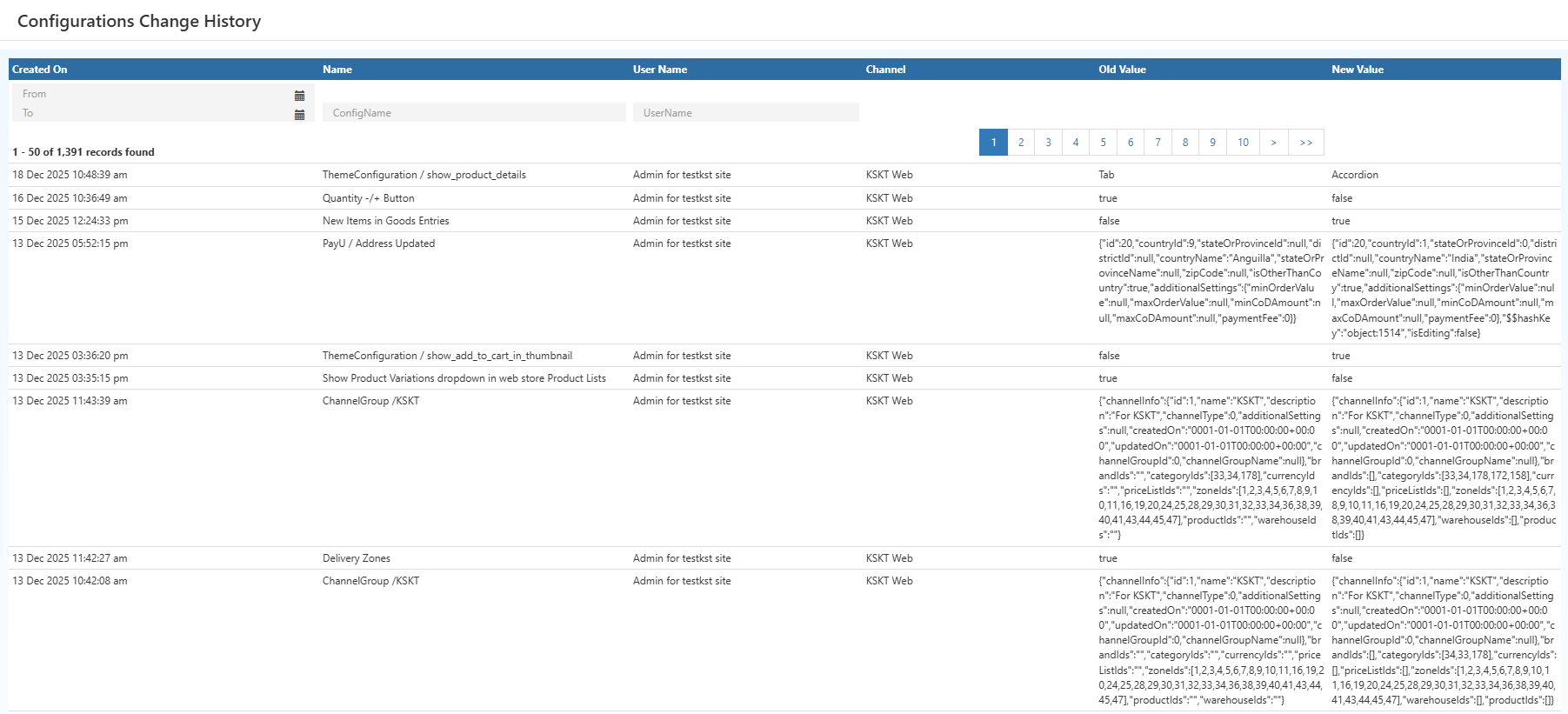
- Filter by date: Narrow down changes made during a specific period
- Search by configuration name: Quickly find changes to specific settings
- Identify responsible users: Track who made critical system updates
- Compare old vs new values: Understand the impact of changes
Common Usage Scenarios
- Troubleshooting unexpected UI or behavior changes
- Verifying configuration updates during deployments
- Reviewing admin activity during audits
- Tracking theme, channel, or product behavior changes
Business Benefits
Improved System Transparency
Gain complete visibility into all configuration updates made across your system.
Faster Issue Resolution
Quickly identify configuration changes that may have caused system issues.
Audit-Ready Change Logs
Maintain a reliable audit trail for compliance and internal reviews.
Who Should Use This Report?
- System administrators
- Operations teams
- IT & support teams
- Audit and compliance teams
Frequently Asked Questions (FAQs)
Q: Can I see who changed a configuration?
A: Yes — the User Name column shows who made each change.
Q: Does this report track all configuration updates?
A: Yes — all supported system and operational configuration changes are logged.
Q: Can I filter changes by date?
A: Yes — use the From and To date filters at the top of the report.