Account Receivable and Payable Reports
The Account Receivable and Account Payable Reports in O2VEND Back Office help businesses track customer dues and supplier payables efficiently.
These reports provide a real-time view of outstanding amounts, enabling better financial control, cash flow management, and business decision-making.
Account Receivable Report
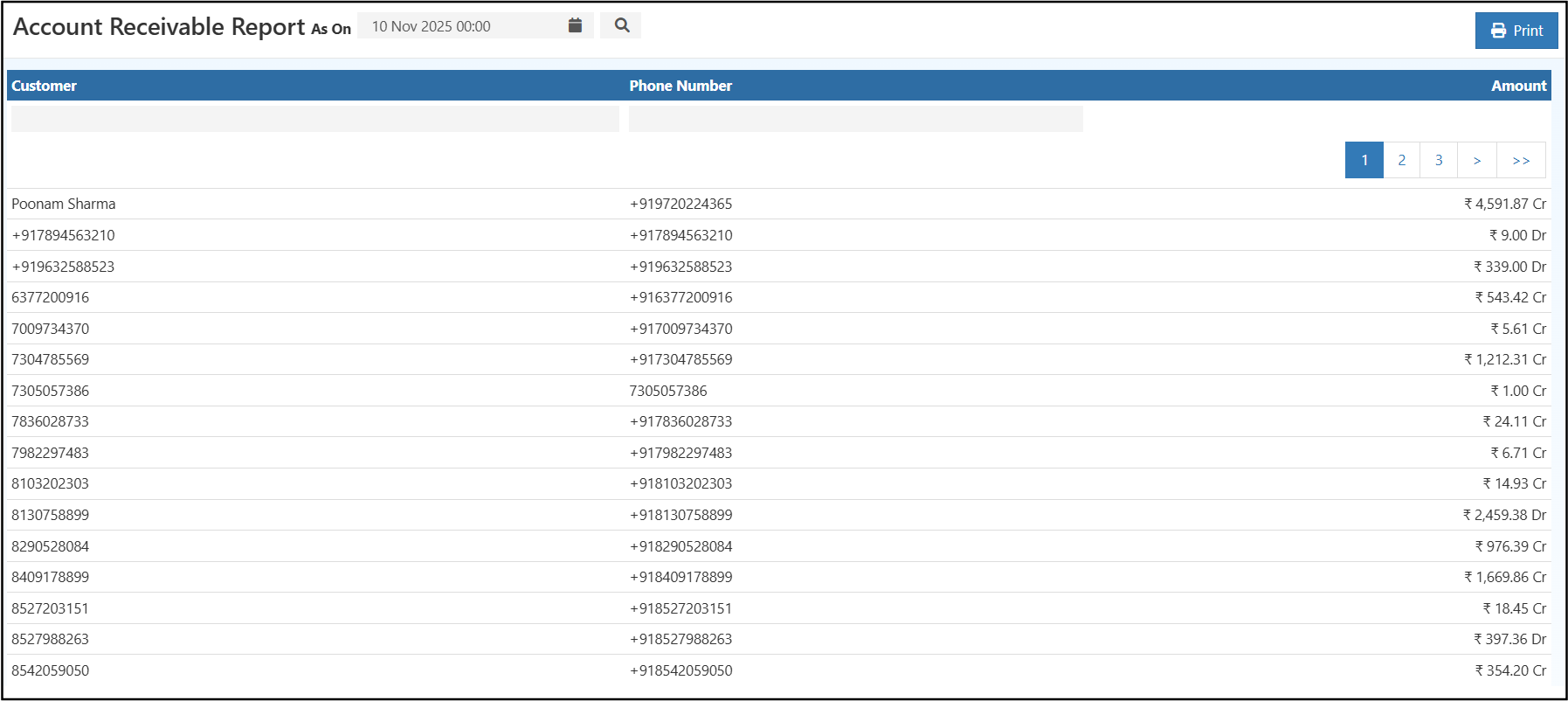
The Account Receivable Report lists all the customers who owe payments to your business. It includes details such as Customer Name, Phone Number, and Outstanding Amount.
Purpose of the Report
- Monitor Customer Dues: View pending customer balances as of a specific date.
- Improve Cash Flow: Identify overdue customers and plan timely follow-ups.
- Simplify Reconciliation: Helps accounting teams match customer invoices with payments.
- Accurate Financial Planning: Track receivables to forecast cash inflows.
Report Fields
| Field Name | Description |
|---|---|
| Customer | Displays the name of the customer. |
| Phone Number | Contact number of the customer for communication. |
| Amount | Shows the balance amount (Debit/ Credit) owed by or to the customer. |
| As On Date | The report can be filtered by the date to view receivables as of a specific point in time. |
Actions
- Search: You can search by Customer Name or Phone Number to quickly find customer balances.
- Print: Generate a printable version of the report.
- Total Summary: Displays the total outstanding balance at the bottom of the report.
- Pagination: You can also see the totals and pagination at the bottom of the report for easy navigation.
Navigation Path
Reports → Account Reports → Account Receivable Report
Account Payable Report
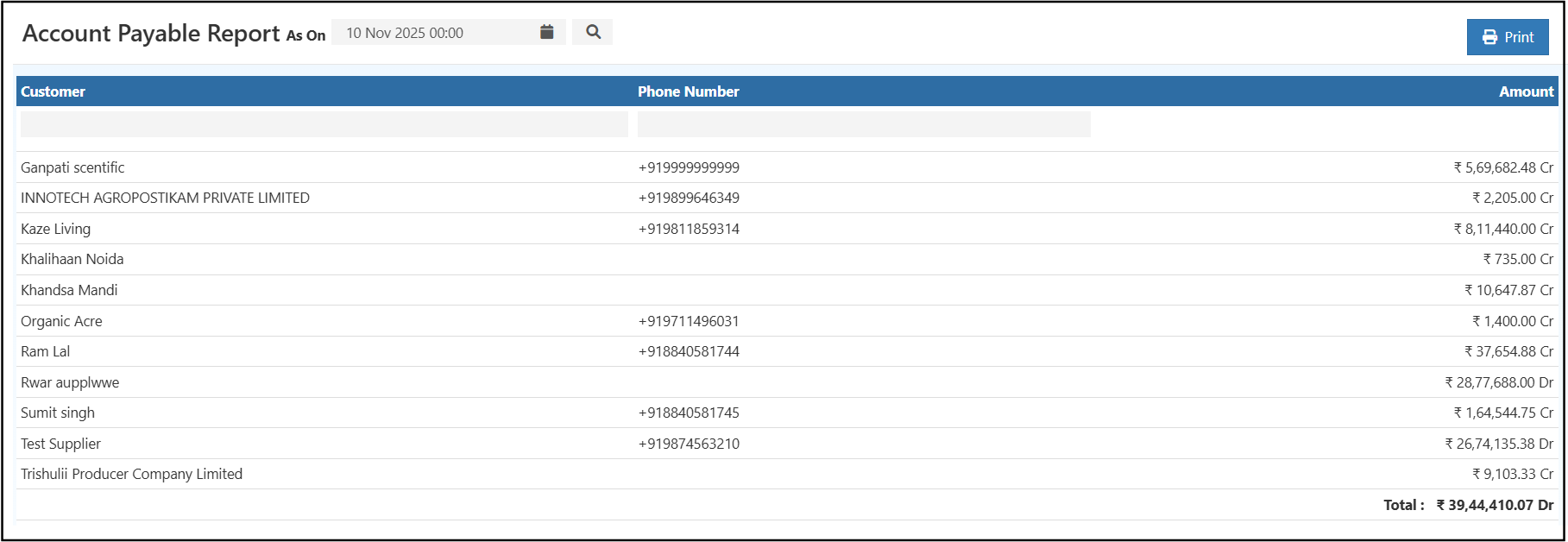
The Account Payable Report displays the list of suppliers to whom the business owes payments. It helps in managing supplier balances, due dates, and payment schedules effectively.
Purpose of the Report
- Track Supplier Dues: Identify the total payable amounts for each supplier.
- Optimize Payment Planning: Schedule payments based on outstanding balances.
- Supplier Relationship Management: Ensure on-time payments to maintain good supplier relationships.
- Financial Accuracy: Monitor liabilities for accurate balance sheet entries.
Report Fields
| Field Name | Description |
|---|---|
| Supplier (Customer) | Displays the supplier name. |
| Phone Number | Supplier’s contact number for communication. |
| Amount | Shows the balance (Debit/ Credit) indicating what is owed. |
| As On Date | Allows filtering of payables as on a specific date. |
Actions
- Search: You can search by Supplier Name or Phone Number to filter the list easily.
- Print: Export or print the full report for accounting purposes.
- Total Summary: Shows the overall amount payable to all suppliers.
- Pagination: You can also see the totals and pagination at the bottom of the report for better usability.
Navigation Path
Reports → Account Reports → Account Payable Report
Benefits of These Reports
- Simplifies account reconciliation between customers and suppliers.
- Provides clear visibility into business cash inflows and outflows.
- Enhances financial accuracy for audit and management review.
- Supports timely decisions for collections and payments.
Tip
Use the Print option to export the reports for recordkeeping or share them with your accounting team.