O2VEND Retail ERP
  • Getting Started
  • Ecommerce
  • Back Office
  • POS
  • Agent App
  • PIM
  • Communication
  • CMS
  • OMS
  • WMS
  • O2C
  • Accounting
  • Reports
  • Themes and Apps
Search Results for

    Show / Hide Table of Contents
    • Reports
    • Order Reports
      • Web Orders Progress Report
      • Back Order Items Report
      • Purchase Order Pending Item Report
      • Sales Order Pending Item Summary Report
      • Sales Shipping Status Report
      • Sales Order Summary
      • Sales Order Progress Report
      • Purchase Order Progress Report
      • Sales Order with Product Line Item Report
      • Sales Order Packing Sheet Report
      • Back Order Report
      • Purchase Order Summary
      • Sales Order Shipment Report
      • Sales Order Shipping Address Report
    • Sales/Purchase Reports
      • Sales Invoice Report
      • Sales Invoice Summary
      • Sales Items Summary
      • Purchase Invoice Report
      • Purchase Invoice Summary
      • Purchase Items Summary
      • Receipt Report
      • Daily Settlement Report
      • Contribution Margin Report
      • Agent Sales Report
      • Agent Report
      • Employee Sales Report
      • Employee Report
      • Employee Product Sales & Commission Report
    • Supplier Reports
      • Supplier Report
      • Supplier Purchase Report
      • Supplier Detail Report
    • Inventory Reports
      • Stock Summary
      • Stock Valuation Summary
      • Stock Ageing Report
      • Location Summary
      • Stock Ledger Report
      • Stock/Location Summary
      • Stock Movement And Valuation Summary
      • Stock Movement Summary Report
    • Products
      • Sold Product Categories
      • Product Category Summary
      • Product Sale Summary
      • Category Sale Summary
      • Brand Sale Summary
      • Reordering Stock Summary
      • Price Movement
      • Product Seasonal Demand
      • Product Stock Analysis Report
      • Stock Projection Report
    • Pos Reports
      • Cash Register Summary
      • Current Cash Registers
    • Account Reports
      • Day Book
      • Ledger
      • Cash Book
      • Sales Books
      • Purchase Books
      • Daily Sales and Payment Report
      • Balance Sheet
      • Profit and Loss Report
      • Trial Balance
    • Miscellaneous Reports
      • Output Detailed Tax Report
      • Output Tax Report Summary
      • Account Receivable Report
      • Gross Profit Report
      • Daily Tax Report
      • GSTR-1 Report
      • External API Logs
      • Benefit Usage
      • Offers Usage
      • Coupon Usage
      • Configuration Change History
      • VisitLog

    Daily Tax Report in O2VEND – Monitor Day-wise Tax Liability Accurately

    The Daily Tax Report in O2VEND helps businesses track tax amounts calculated on sales and returns for each day. It provides a clear breakdown of net sales and applicable taxes, making it essential for GST compliance and financial reconciliation.

    What is Daily Tax Report?

    The Daily Tax Report summarizes day-wise sales, return sales, net sales, and corresponding tax values.
    It presents tax data at a daily level, segmented by tax type such as IGST, CGST and SGST, ensuring transparent tax tracking.

    • Summarizes daily sales and tax calculations.
    • Displays tax breakup based on configured tax percentages.
    • Supports branch-wise and consolidated views.

    Why Daily Tax Report Is Important

    This report plays a key role in taxation and compliance:

    • Helps ensure accurate GST calculation on daily transactions.
    • Supports statutory reporting and audit requirements.
    • Identifies tax impact of sales returns.
    • Enables easy reconciliation between sales and tax amounts.

    Why use this report?

    • Track daily GST liability accurately.
    • Reconcile sales, returns, and net taxable value.
    • Verify CGST and SGST amounts for each day.
    • Prepare data for monthly or period-based tax filing.
    • Audit unusual tax variations caused by returns.

    How to Access the Daily Tax Report

    Navigation Path: Back Office → Reports → Account Reports → Daily Tax Report
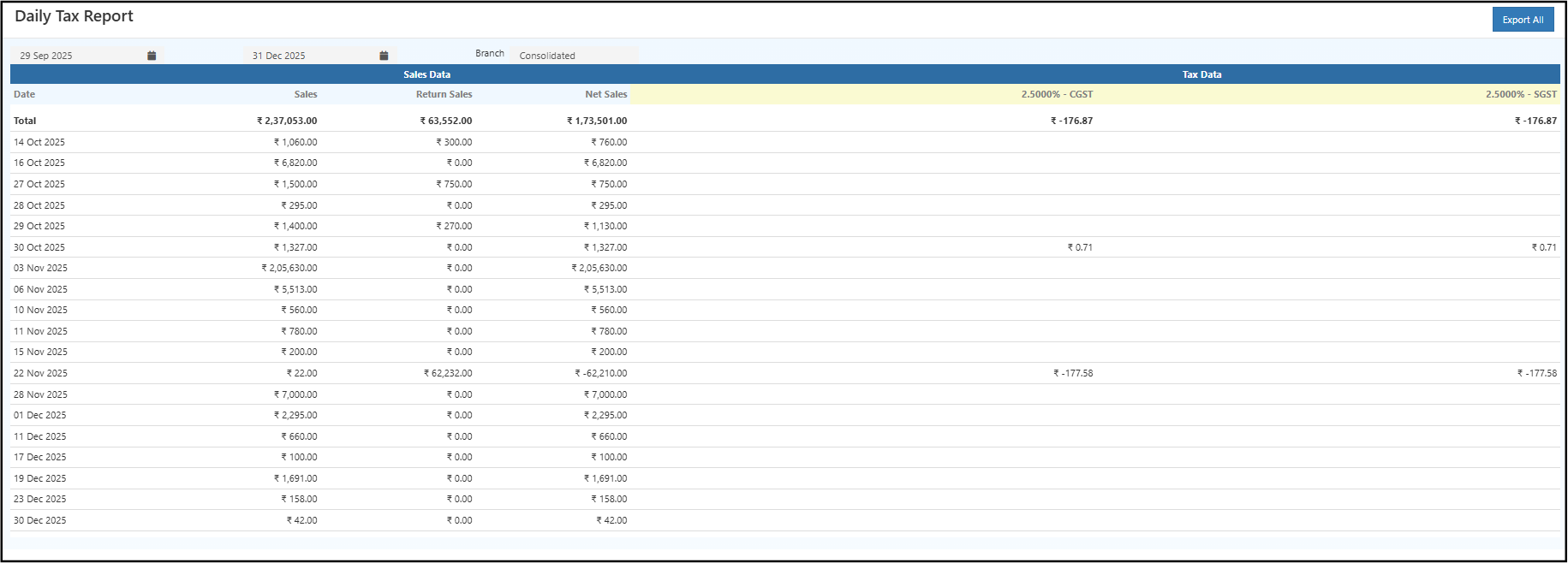
    dailytaxreport

    Filters & Controls

    • Date Range: Select from and to dates to view tax data for a specific period.
    • Branch: Choose a specific branch or view Consolidated data across branches.

    Report View Explained

    Summary Table

    The summary table displays:

    • Date: Transaction date.
    • Sales: Total gross sales for the day.
    • Return Sales: Value of returned items.
    • Net Sales: Sales after deducting returns.
    • CGST / SGST / IGST Columns: Tax amounts calculated based on configured tax rates.

    A Total row at the top summarizes sales, returns, net sales, and tax amounts for the selected period.

    Drill-Down Details

    • Clicking on a specific date row allows users to cross-verify daily sales and tax figures with underlying transactions.
    • This helps identify which day contributed to higher or negative tax values.

    How to Use the Daily Tax Report

    1. Open the Daily Tax Report from the Finance reports section.
    2. Select the required date range.
    3. Choose branch-wise or consolidated view.
    4. Review daily sales, returns, and net sales.
    5. Verify CGST and SGST values for each day.
    6. Export the report for filing or audit purposes.

    Common Usage Scenarios

    • Accountants verifying daily GST calculations.
    • Finance teams reconciling tax with sales reports.
    • Business owners reviewing tax impact of returns.
    • Preparing data for monthly GST returns.

    Business Benefits

    • Improves tax accuracy by clearly showing daily taxable values and tax amounts.

    • Simplifies GST audits with transparent, date-wise tax reporting.

    • Reduces reconciliation errors between sales, returns, and tax liability.

    Export Options

    • Export All: Download the complete report in Excel or CSV format.

    Related Topics

    • GST Summary Report in O2VEND
    • Sales Report
    • Return Product Catrgory Summary
    📊 Automate Daily Tax Reports
    In this article
    Back to top _includes/footer.html
    © 2019–2026 Jeyan Technologies Private Limited • www.o2vend.com • Create your own store